How to Create an Event QR Code That Adds to the Calendar
 By Mosh Bryce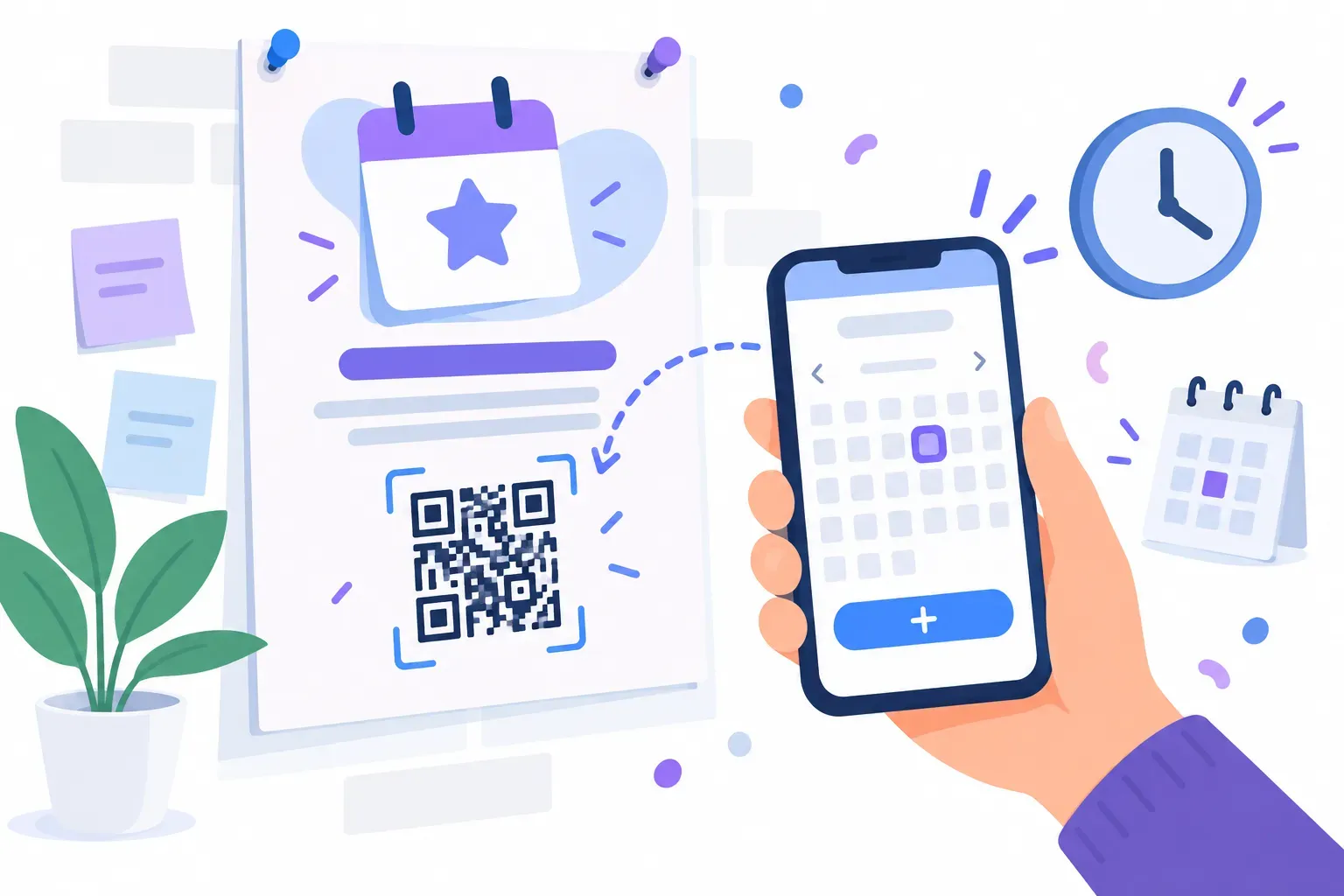
A poster says “Open House, Saturday 10 October, 6 pm”. Most people who see it mean to remember, and many won’t. An event QR code closes that gap: one scan and the phone shows the event with the name, place and time already filled in, ready to save to the calendar.
This tutorial shows how to make one with QRocket’s Event type. It explains exactly what the code contains, and covers the two details that decide whether it works for your event: time zones and what happens when plans change.
What an Event QR Code Contains
An event QR code doesn’t link to a web page. It holds the event itself, written in iCalendar, the text format calendar apps use to exchange events. When you fill in QRocket’s Event form, the code contains this (your DTSTAMP will show when you made it):
BEGIN:VCALENDAR
VERSION:2.0
PRODID:-//QRocket//EN
BEGIN:VEVENT
UID:146bf7b1@qrocket.io
DTSTAMP:20260926T093015Z
SUMMARY:Open House
LOCATION:Main Street Studio\, 12 Main Street
DTSTART:20261010T180000
DTEND:20261010T200000
END:VEVENT
END:VCALENDAR
The four form fields map directly onto those lines:
| Field in QRocket | Line in the code | Required? |
|---|---|---|
| Event name | SUMMARY | Yes |
| Location | LOCATION | No. Venue or address, left out if empty |
| Starts | DTSTART | Yes |
| Ends | DTEND | No. Left out if empty or not after the start |
The other lines are housekeeping the iCalendar standard (RFC 5545) requires, added for you: VERSION and PRODID identify the format and the app that wrote it, UID is an ID made from the event details (the same event always gets the same one), and DTSTAMP records when the code was made, in UTC.
Commas, semicolons and backslashes in the name or location are escaped automatically (the \, above), as the iCalendar format requires. Because everything is stored in the code itself, there’s no server involved: the code keeps working with no account, no subscription and no expiry.
What the Event type doesn’t include: a description, a web link, reminders, repeating events, all-day events or invitees. If you need those, see the last section.
How the Time Works: Local Time, Wherever It’s Scanned
This is the detail most event-code guides skip. QRocket writes the start and end as floating local time: 20261010T180000 with no time zone attached. RFC 5545 defines floating time as a clock time that stays the same whichever time zone the viewer is in. The generator’s help line says the same: times are kept as local time, with no time zone.
In practice:
- In-person events: this is what you want. Everyone who scans the poster at the venue is in the venue’s time zone, so 6 pm means 6 pm.
- Online events with a spread-out audience: be careful. A webinar code set to 18:00 is read as 18:00 in each scanner’s own time zone. Someone scanning in another time zone gets the wrong hour.
- Travelers planning ahead: a person who scans in one time zone and attends in another may see the time shifted, depending on how their calendar app handles floating times.
For online or multi-time-zone events, see the alternative below that keeps the time zone.
How to Create an Event QR Code, Step by Step
- Open the Event type. Go to QRocket’s event QR code generator, which opens the free generator with Event already selected.
- Enter the event name. Keep it short and specific: “Open House, Main Street Studio” rather than a full tagline. Shorter text also means a less dense code that’s easier to scan from a distance.
- Add the location. A full street address is the most useful value, because it’s what people will need on the day. Leave it empty for an online event.
- Set the start and the end. Always set an end time. Under RFC 5545, an event with a start time and no end ends at the same moment it starts, so it shows up as a zero-length entry. QRocket checks that the end comes after the start.
- Style the code. The Save the date template adds a calendar icon and a “SAVE THE DATE” label above the code, or you can choose your own colors and label. Keep the pattern dark on a light background.
- Download. SVG for print, PNG for screens and slides.
- Test on an iPhone and an Android before printing (see the next section).
Put your event one scan away from the calendar, free. — Create Your Event QR Code
What Happens When Someone Scans It
What the phone shows is up to its scanner, not the code. When the camera or scanning app recognizes calendar data, it shows the event and offers to add it, and the person confirms. Scanners differ, though. Some go straight to an add-to-calendar screen, some show a preview first, and some only show the raw text. Phone makers’ help pages don’t document this behavior in detail.
So test the printed design, not just the file:
- Scan it with the built-in camera on an iPhone and on an Android phone, and with Google Lens if your audience uses it.
- Check that the name, location, date and time are right in the calendar entry that gets created.
- Check the code at the size and distance people will actually scan it from. Our pre-print testing checklist covers the full routine.
If one of your test phones only shows text, add a short line near the code with the date and time in plain words. Someone who can’t save it with one tap can still read it.
Where to Use an Event QR Code
- Posters and flyers for talks, open houses, markets and meetups. Pair the code with the date in large type, as described in our guide to QR codes for events.
- Printed invitations and save-the-date cards for weddings, parties and reunions.
- Programs and handouts at the end of an event, carrying the date of the next one.
- Class and workshop schedules posted on a noticeboard.
- A slide at the end of a talk for a follow-up session. Make it large and leave it up long enough for people to scan.
Give the code a label that says what it does (“Scan to save the date” beats a bare square), and size it for the distance. Our QR code size guide has the numbers.
When a Link Is Better Than an Event Code
An event code is fixed. The time, place and name are printed into the pattern, so if the event moves, every printed code shows the old details and you have to reprint. That’s the static-code trade-off explained in can you edit a QR code?.
Use a Website QR code pointing to an event page you control instead when:
- The details may change. Update the page and the printed code stays correct.
- The event is online or spans time zones. Many calendar tools can export a calendar file or an add-to-calendar link that includes a time zone. Put it on your event page and point the code there.
- You need more than name, place and time, such as an agenda, tickets, RSVP, a video link or reminders.
The trade-off is one extra tap: the page opens, then the visitor chooses to add the event. For an in-person event with fixed details, the Event type skips that step. For anything else, the link is the safer choice.
Save the Date in One Scan
An event QR code is the shortest path from “I should remember this” to a calendar entry. Fill in the name, place, start and end, style it with the Save the date template, and test the time on two phones before you print. If the event is online or might move, point a URL code at an event page instead. Both are free in QRocket’s generator, with no account and no expiry.
Frequently Asked Questions
How do I make a QR code that adds an event to a calendar?
Use a QR generator with an event or calendar type, such as QRocket’s Event type. Enter the event name, location, start and end time, then download the code. It stores the event in iCalendar format, and phone scanners that recognize calendar data offer to add it to the calendar.
What information can an event QR code hold?
In QRocket, the event name, an optional location, the start time and an optional end time. These become the SUMMARY, LOCATION, DTSTART and DTEND lines of an iCalendar event. It doesn’t include a description, web link, reminders, repeating rules or invitees; for those, link to an event page instead.
Does an event QR code handle time zones?
QRocket writes the time as floating local time, with no time zone attached, so it’s read as the same clock time in whatever time zone the phone is in. That’s right for in-person events. For online events with attendees in several time zones, link to an event page or calendar file that includes a time zone.
Do event QR codes work on iPhone and Android?
The code uses the standard iCalendar format, but what happens on scan depends on the phone’s scanner: many offer to add the event, while some show only the text. Test the finished code with the built-in camera on both an iPhone and an Android phone before printing, and print the date and time next to it as a fallback.
Can I change the event details after printing the QR code?
No. The event details are stored in the code itself, so a new time or place means a new code. If your event might change, encode a link to an event page you control instead. You can update the page at any time without reprinting.
Do event QR codes expire?
A static event code doesn’t expire and has no scan limit, because nothing is hosted on a server. It keeps showing the same event details for as long as the printed code exists, even after the event date has passed.
Create a free QR code with custom colors, your logo and print-ready downloads — no sign-up.