How to Create a LinkedIn QR Code for Your Profile or Company Page
 By Mosh Bryce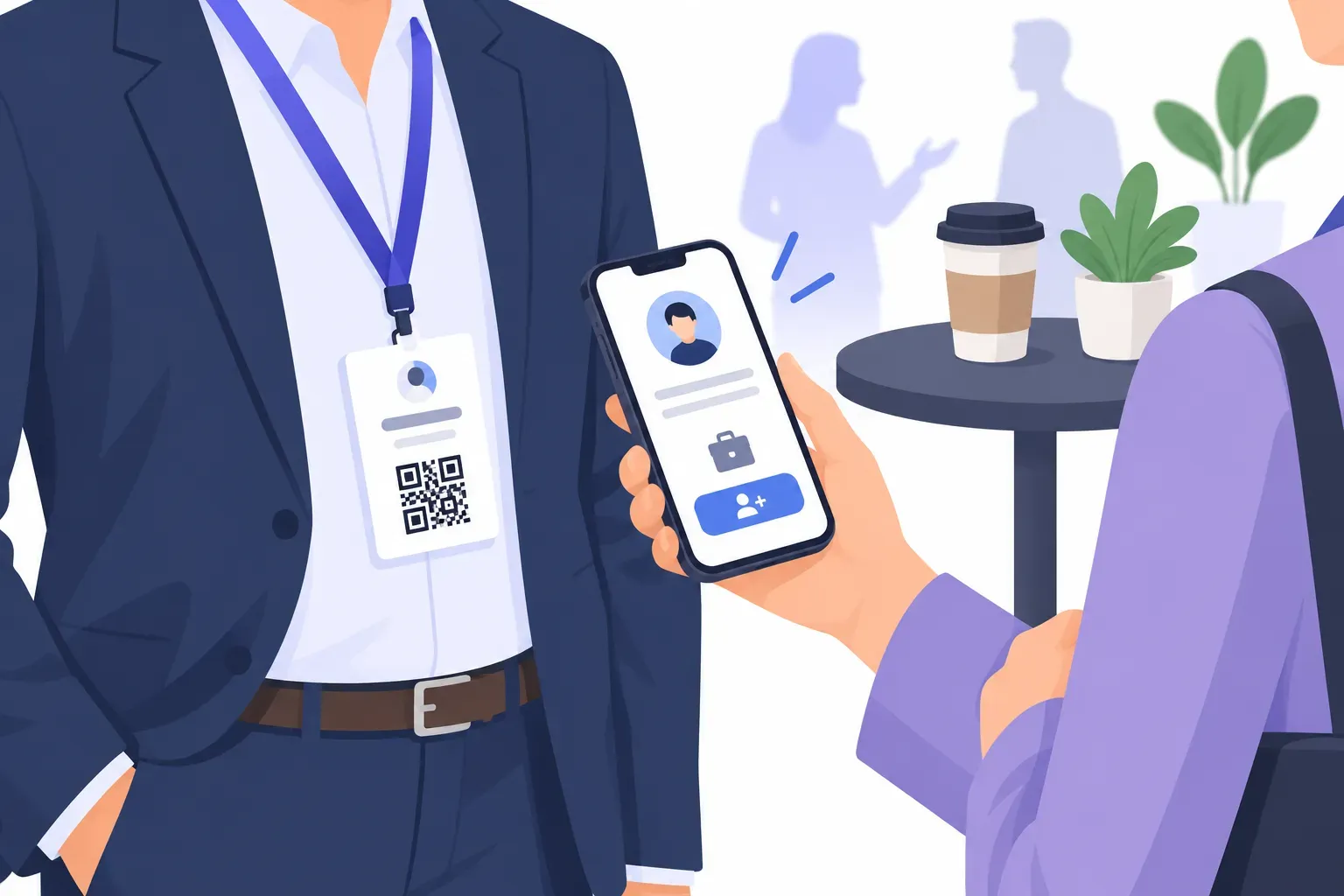
Networking has a familiar failure mode. You have a great conversation at a conference, you both say “let’s connect on LinkedIn,” and then one of you tries to find the other by typing a common name into LinkedIn search. Forty results later, the moment has passed. A LinkedIn QR code removes the search entirely: one scan opens your profile, and the connect button is right there.
This guide shows how to find and clean up your public profile URL, create a LinkedIn QR code for a profile or a company page in QRocket’s Social type, when LinkedIn’s own in-app code is enough, and where a printed code does the most work — business cards, name badges, resumes and slides.
Why Use a QR Code for LinkedIn
LinkedIn is where professional relationships continue, but most of them start offline: at events, interviews, sales meetings and trade shows. The gap is the handoff. Names are hard to spell, many people share them, and “I’ll look you up later” usually means never.
A code closes the gap while you’re still talking. It also gives the other person something better than a static card: your full work history, recommendations and recent posts, one tap from a connection request.
For companies, a code to the company page turns booths, brochures and job fair banners into follower growth, which matters when that page is where you post openings and news.
Find Your LinkedIn Profile URL
Every LinkedIn profile has a public URL in this format:
https://www.linkedin.com/in/your-name/New accounts often get an auto-generated version with a string of numbers on the end, like /in/jordan-lee-4b7a91203/. Clean that up before you make a code — a short URL is easier to read under the code, and simpler links produce sparser, more forgiving QR patterns.
To change it on desktop, open your profile and look for the Public profile & URL option, then edit your custom URL. LinkedIn’s rules, per its help page on public profile URLs:
- It can be 3–100 characters and can’t contain spaces, symbols, special characters or the word “LinkedIn.”
- It’s case-insensitive, so
JordanLeeandjordanleereach the same profile. - You can change it up to five times every six months, and your old URL stays reserved to your account for six months after a change.
That last point is why you treat the URL as permanent once it’s printed. Change it after the print run and you’re relying on an old address you no longer control. Pick the version you’ll keep — usually your full name — and then make the code.
Company pages use a different format: https://www.linkedin.com/company/your-company/. Page admins set that public URL in the page settings; copy it from your browser’s address bar while viewing the page.
Step-by-Step: Create a LinkedIn QR Code
QRocket’s Social type builds the LinkedIn link for you. No account, no watermark, and the code never expires.
Step 1: Claim a clean public profile URL
Follow the steps above so your profile reads linkedin.com/in/your-name. Open it in a private browser window to confirm it’s the public view you want strangers to see.
Step 2: Choose Social → LinkedIn in QRocket
Open the LinkedIn QR code generator. It opens QRocket with the Social type selected and LinkedIn set in the Network menu.
Step 3: Enter your profile name or company page link
In Username or profile link, type the last part of your profile URL — jordan-lee, not your display name. QRocket builds https://www.linkedin.com/in/jordan-lee/ and shows it under the field, so you can check it before styling. Pasting your full profile link works too.
For a company page, paste the full linkedin.com/company/… link — the hint under the field reminds you, because typing just a company name would build a personal-profile address. Short lnkd.in links aren’t accepted; use the full linkedin.com address.
Step 4: Style the code and label it
Keep it professional: a dark navy or charcoal pattern on white scans reliably and suits a business card. Add a frame with a clear label — “Connect on LinkedIn” says exactly what the scan does. The Follow us template is a quick start for a company page; rewrite its label to fit.
QRocket’s logo icons include several social marks but no LinkedIn one, so for a center logo, upload your own company logo or headshot, or choose the Person icon. Keep any logo under about 20% of the code area, as covered in our guide to adding a logo to a QR code.
Step 5: Download as SVG or PNG
Download SVG for business cards, badges and anything printed. A high-resolution PNG covers slides, email signatures and screens.
Step 6: Test before printing
Scan with an iPhone and an Android. Confirm the right profile opens, then check it once from a phone that isn’t logged in to LinkedIn — that’s what many recruiters and new contacts will see.
Make every handshake a connection — create a free LinkedIn QR code, no sign-up. — Create Your Free QR Code →
LinkedIn’s Built-In QR Code vs a Custom One
The LinkedIn mobile app has a QR code of its own: tap the QR icon in the app’s search bar and open the My code tab, per LinkedIn’s help page. From there you can save or share it. It’s fast for the classic conference moment — someone scans your phone screen and you’re connected before the coffee cools.
For anything printed, a custom code is more practical:
| LinkedIn’s in-app code | Custom QR code | |
|---|---|---|
| Where it lives | Your phone screen or a saved image | Any printed or digital surface |
| Destination | Your personal profile | Profile or company page |
| Branding | LinkedIn’s fixed design | Your colors, frame and label |
| File for print | Image saved from the app | Sharp SVG or high-resolution PNG |
Use the app’s code when you’re face to face with your phone out; use a custom one for cards, badges, resumes and slides.
Where to Use Your LinkedIn QR Code
- Business cards. The strongest placement. If contact details matter more than your career history, a vCard QR code saves your number and email instead — our guide to QR codes on business cards helps you choose.
- Conference badges and lanyards. People glance at badges constantly; a small code there turns every glance into a possible connection.
- Resumes. A code next to your name gives an interviewer your recommendations and full history. Our resume QR code ideas cover placement and what to link.
- Slides. A code on your final slide lets the audience connect while you take questions. Leave it up long enough for people to scan.
- Booths and brochures. A company-page code with “Follow us for openings” works at job fairs and trade shows.
Print at least 2 × 2 cm for cards and badges, and larger for anything scanned from a distance — our QR code size guide has the numbers.
Your Profile, One Scan Away
A LinkedIn profile only helps if people can reach it at the moment they’re interested. Claim a clean URL, make the code, label it “Connect on LinkedIn,” and put it where you meet people. The next time someone says “let’s connect,” you’ll already be on their screen.
Create a free LinkedIn QR code with QRocket — static, free forever. — Create Your Free QR Code →
Want codes for your other profiles too? Our guide to QR codes for social media covers every network QRocket supports.
Frequently Asked Questions
How do I create a QR code for my LinkedIn profile?
Copy your public profile URL (linkedin.com/in/your-name), then create a code for it in a generator such as QRocket: choose the Social type, set the network to LinkedIn, and type the last part of your URL. Download the code as SVG or PNG and test it on two phones before printing.
Where do I find my LinkedIn QR code in the app?
In the LinkedIn mobile app, tap the QR icon in the search bar and open the My code tab. You can save or share that code from there. It’s ideal when someone scans your screen in person; for print, a custom code gives you your own design, label and file quality.
Can I make a QR code for a LinkedIn company page?
Yes. Copy the page’s full address, linkedin.com/company/your-company, and paste it into the QR generator. In QRocket’s Social type, paste the full company link rather than just the name, because a bare name builds a personal-profile address.
What happens to my LinkedIn QR code if I change my profile URL?
The code keeps pointing to the old URL. LinkedIn reserves your old address to your account for six months after a change, but you shouldn’t build printed material on that. Settle your custom URL first, then generate the code, and treat that URL as permanent.
Should my business card QR code go to LinkedIn or a vCard?
Choose a vCard if you want people to save your phone and email to their contacts in one scan. Choose LinkedIn if the relationship will continue there, as it often does for recruiters, salespeople and job seekers. If you only have room for one, pick the one you’d want them to use first.
Is a LinkedIn QR code free?
Yes with QRocket: the code is static, made in your browser, with no scan limits, no watermark, no expiry and no account. Static also means the link can’t be changed after printing and QRocket doesn’t count scans.
Create a free QR code with custom colors, your logo and print-ready downloads — no sign-up.