How to Create a WiFi QR Code (Connect Without Typing Passwords)
 By Mosh Bryce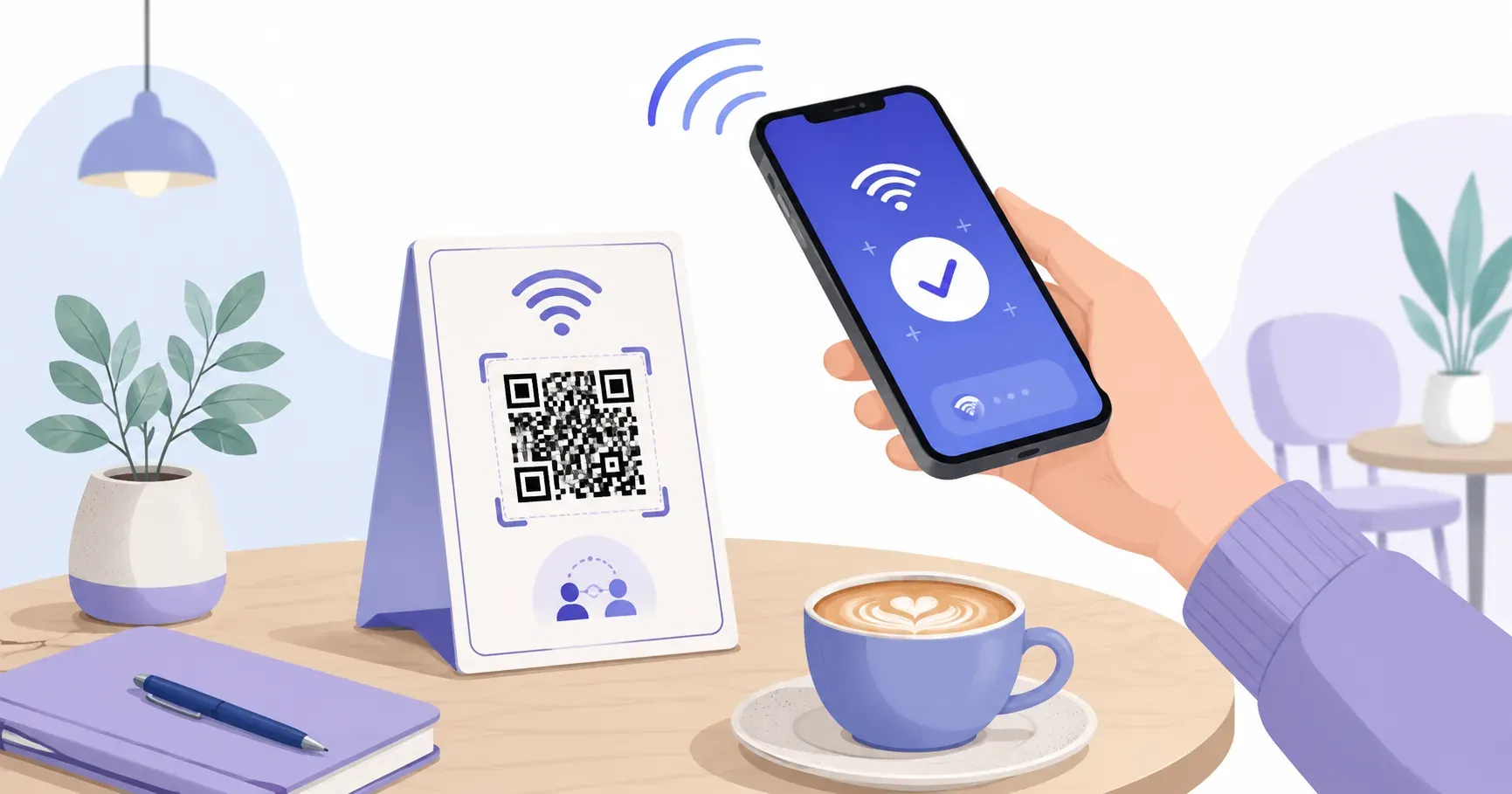
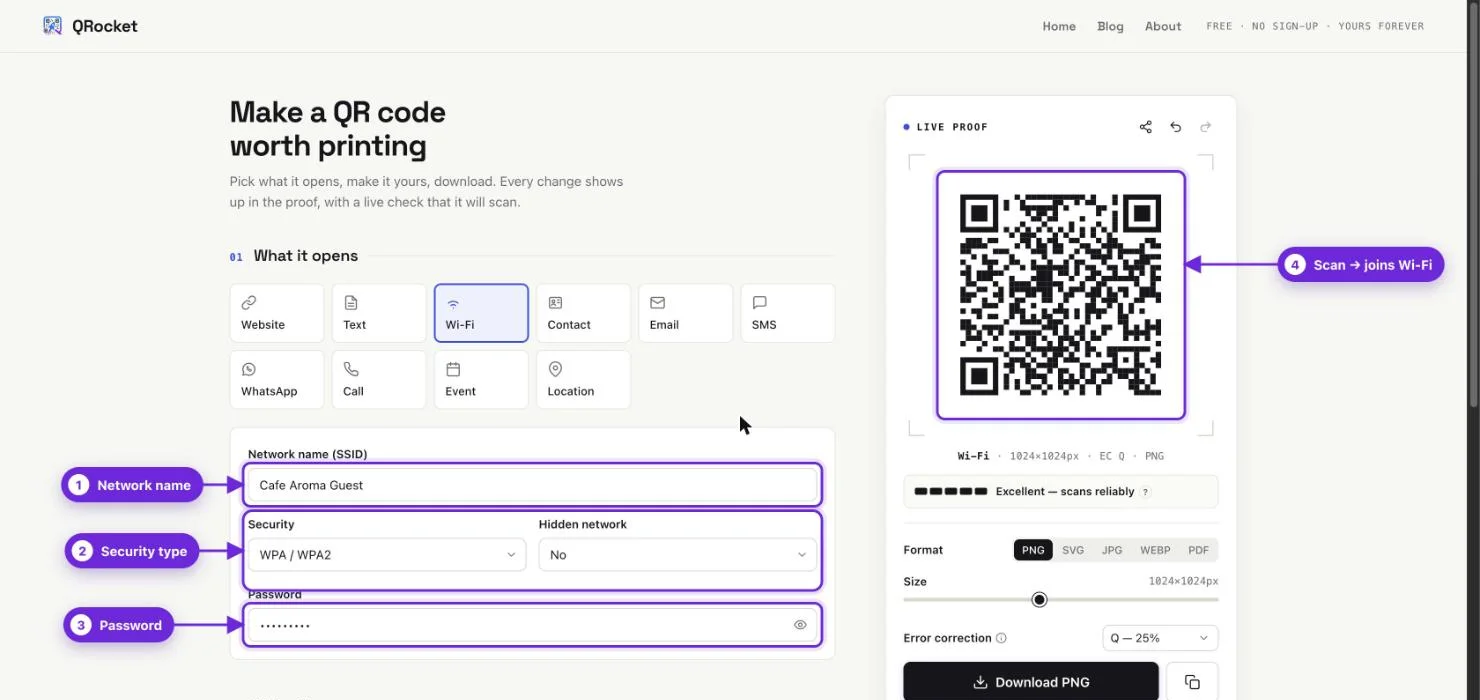
To create a Wi-Fi QR code, open the QRocket generator, choose Wi-Fi, and type your network name (SSID) exactly as your router shows it. Enter the password, leave Security on WPA / WPA2 unless your network is WEP or open, and scan the preview with your phone to confirm it joins. Then download the code and print it. Guests scan it with their camera, tap Join, and they’re online without typing the password.
The code stores just three things: the network name, the password and the security type, plus a flag if the network is hidden. Current iPhones (iOS 11 and later) join from the built-in Camera app. Android 10 and later can join through the camera, Google Lens or the “scan QR code” button in Wi-Fi settings, depending on the manufacturer. For how the format works under the hood, and why it’s safe to share with guests, see our Wi-Fi QR codes explainer. This page covers setup, placement and troubleshooting.
How to Create a WiFi QR Code in 4 Steps
Here’s how to create a WiFi QR code using QRocket’s free QR generator. The whole process takes about 30 seconds once you know your network details.
Step 1: Select WiFi as the QR Code Type
Open the generator and choose “Wi-Fi” from the type options. This swaps the default URL input for the wireless fields: network name, security, hidden network, and password.
Step 2: Enter Your Network Name (SSID)
Type your network name exactly as it appears in your router settings. This is case-sensitive — “MyWiFi” and “mywifi” are different networks. Check your router’s admin panel or the sticker on the back of your router if you’re unsure.
One common mistake: using the 2.4 GHz name when your guests’ devices default to 5 GHz, or vice versa. Pick whichever band you want visitors to use. If your router broadcasts both under the same name, either one works.
Step 3: Enter the Password and Choose Encryption
Type the password exactly. Any special characters are fine — including ;, :, ,, " and \, which the Wi-Fi format uses as delimiters: QRocket escapes them automatically with a backslash, as the format requires, so you don’t need to change your password. In the Security menu, the options are WPA / WPA2 (the default), WEP, and Open (no password). There’s no separate WPA3 option: if your router uses WPA3 or a WPA2/WPA3 mixed mode, choose WPA / WPA2 and test-scan with the phones your guests use before printing. If the network doesn’t broadcast its name, set Hidden network to Yes.
| Security option in QRocket | When to Use It |
|---|---|
| WPA / WPA2 | Most home and business routers (the default), including WPA2/WPA3 mixed mode — test-scan if your router uses WPA3 |
| WEP | Legacy devices only — not secure |
| Open (no password) | Open networks with no password |
Step 4: Download Your QR Code
The preview updates as you type, so there’s no separate generate button. Scan the preview with your own phone to confirm it joins the network, then pick a format — PNG, SVG, JPG, WEBP, or PDF — and download. SVG or PDF is best for print shops; PNG works well for most home printing: set the print width before downloading so QRocket renders the file for that size, then scan a test print.
Create your free WiFi QR code with QRocket — guests connect in one scan — Create Your Free QR Code
WiFi QR Code for Your Home
Picture this: Thanksgiving dinner, eight relatives, and every single one needs the WiFi password. A printed QR code on the fridge handles all of them without interrupting the cook.
Guest network first. Before you share wifi password via QR code, set up a dedicated guest network on your router. Most modern routers support this in their admin panel. A guest network keeps visitors off your primary network, which means they can’t see your shared drives, smart home devices, or security cameras. Use a simple, memorable name like “GuestWiFi_Smith.”
Here are a few home scenarios where a WiFi QR code saves real time:
- Airbnb or vacation rental — Print the code on a welcome card. Guests arrive, scan, connect. No back-and-forth texts about passwords. Some hosts frame it on the nightstand next to check-in instructions.
- Home office — If clients or contractors visit, a framed code in your workspace means one less thing to manage during meetings.
- Kids’ friends visiting — Tape a small code inside a kitchen cabinet or near the router. Parents appreciate not having to ask.
A 1.5 x 1.5 inch (roughly 4 x 4 cm) printed code works at scanning distances up to about 12 inches — plenty for someone holding their phone near a fridge magnet or welcome card.
WiFi QR Code for Your Business
A cafe in Portland prints a WiFi QR code on every table tent. No more customers lining up at the counter to ask the password. No more staff writing “CafeWiFi2024!” on napkins. One code, zero friction.
Businesses benefit from a QR code for wifi access in ways that go beyond convenience:
- Cafes and restaurants — Print the code on receipts, table tents, or menu holders. If you’re already exploring QR codes for restaurants, adding WiFi access is a natural extension.
- Hotels and B&Bs — Place codes on room key cards, nightstand cards, or the welcome folder. Guests expect instant connectivity — a QR code delivers it without a front-desk call.
- Coworking spaces — Different networks for different membership tiers? Print separate QR codes for each. Members scan the one matching their plan.
- Retail stores — Offering in-store WiFi? A code at the entrance or near the fitting rooms encourages customers to browse your app or website while shopping.
Security tip: Always use a dedicated guest or public network for customer-facing WiFi. Your point-of-sale system, inventory database, and internal tools should sit on a separate, non-shared network. This isn’t optional — it’s basic network security.
Change the guest password quarterly and reprint the QR code. It takes 60 seconds with a wifi QR code generator and prevents former employees or old visitors from staying connected.
Printing and Displaying Your WiFi QR Code
Size matters more than you’d expect. A QR code that looks fine on your laptop screen might fail as a tiny printout.
Here are rule-of-thumb starting points for print sizing based on scanning distance — always test-scan a printed proof:
| Scanning Distance | Suggested Starting Size |
|---|---|
| 6 inches (15 cm) | 0.8 x 0.8 inches (2 x 2 cm) |
| 12 inches (30 cm) | 1.5 x 1.5 inches (4 x 4 cm) |
| 3 feet (1 m) | 3.5 x 3.5 inches (9 x 9 cm) |
| 6 feet (2 m) | 7 x 7 inches (18 x 18 cm) |
Placement ideas that actually work:
- Laminated card next to the router or at the entrance
- Framed print on a hotel nightstand or Airbnb welcome table
- Sticker on the inside of a menu or table tent
- Wall-mounted sign in a coworking space lobby
Add a short label above or below the code: “Scan to connect to WiFi” with the network name visible. Not everyone knows what a QR code does on sight — a label removes the guesswork.
Use a white background with at least 4 modules of quiet zone (the blank border around the code). Dark foreground on a light background scans most reliably. Avoid printing on textured or glossy surfaces that cause glare under overhead lighting. For sizing across every distance and use case, our QR code size guide has the full reference.
Troubleshooting WiFi QR Codes
Most WiFi QR codes work on the first scan. When they don’t, it’s almost always one of these four issues.
The Password Has a Typo
QR codes store exactly what you type. One wrong character — a missing capital letter, an extra space at the end — and the connection fails silently. Double-check the password against your router settings, not from memory.
The Network Is Hidden
If your SSID is set to “hidden” in your router’s admin panel, some phones won’t auto-connect even with a valid QR code. Either unhide the network or manually connect once and let the phone remember it. For guest networks, hidden SSIDs create more problems than they solve.
Special Characters in the Password
Semicolons (;), colons (:), commas (,), quotes ("), and backslashes (\) are delimiters in the Wi-Fi QR format, so they must be escaped with a backslash. QRocket does this automatically — you don’t need to change your password. If a code made elsewhere fails with a password like this, the generator probably didn’t escape it. To check any code, decode it with a QR reader and confirm the text after P: matches your password, with a backslash before each of those characters.
The Phone OS Is Too Old
iPhones need iOS 11 (released 2017) and Android phones generally need version 10 (released 2019) to join a network from a WiFi QR code without an extra app; on Android, where the scanner lives varies by manufacturer. Older devices may need a third-party QR scanner app. If you’re learning about QR codes in general, our guide on how to create a QR code for free covers compatibility in more detail.
Frequently Asked Questions
Is sharing my WiFi password via QR code safe?
Yes, as long as you share a guest network rather than your primary one. The QR code contains the same information you’d give someone verbally — network name, password, and encryption type. A guest network adds a layer of separation that protects your personal devices and files.
Do WiFi QR codes work on both iPhone and Android?
Both platforms support WiFi QR codes without an extra app on current versions. iPhones need iOS 11 or later (2017+) and read them in the Camera app; Android 10 or later (2019+) can join from a WiFi QR code through the camera, Google Lens, or the scan button in Wi-Fi settings, depending on the manufacturer. Point at the code and tap the connection prompt that appears.
Does the QR code stop working if I change my WiFi password?
Yes. The password is encoded directly into the QR image, so changing your WiFi password makes the old code useless. Generate a new code with the updated password and replace any printed copies. This takes under a minute with any free generator.
What encryption type should I choose?
Choose WPA/WPA2 for the vast majority of routers — it’s the default in QRocket, whose Security menu offers WPA/WPA2, WEP, and Open (no password). There’s no separate WPA3 option: if your router runs WPA3 or a WPA2/WPA3 mixed mode, choose WPA/WPA2 and test-scan with an iPhone and an Android phone before printing, because WPA3-only networks may not accept the code on every device.
Can a WiFi QR code work for a hidden network?
Yes. Enable the hidden-network option when you generate the code so the phone knows to search for an SSID that isn’t broadcast. Without that flag, some devices ignore a valid code because they never see the network advertised. For guest access, an unhidden network usually scans more smoothly.
A Password You Never Have to Say Out Loud
The best WiFi password is one nobody ever needs to type. A single QR code replaces every awkward spelling-out-loud moment, every napkin note, every “is that a zero or the letter O?” conversation. Print one, stick it where guests can see it, and you’ll never dictate a 16-character passphrase again. Ready to make yours? Create a free WiFi QR code with QRocket and have it printed in under two minutes.
Create a free QR code with custom colors, your logo and print-ready downloads — no sign-up.