How to Create a QR Code for a URL or Website Link
 By Mosh Bryce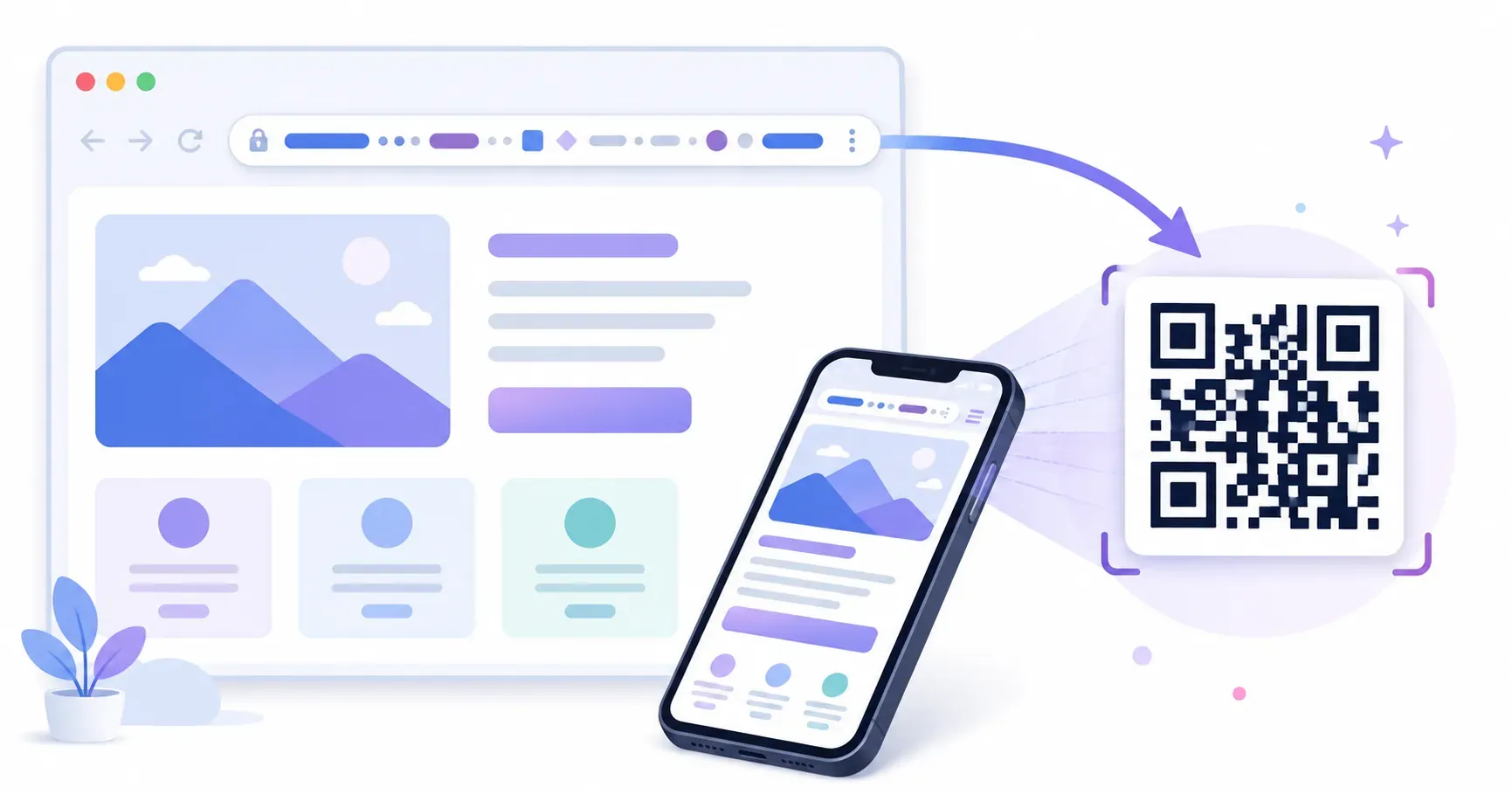
To create a QR code for a URL, open the QRocket generator, choose Website, paste the full address starting with https://, and style the code if you want. Check the scan meter, then download a PNG, SVG or PDF. Scan the downloaded file with your phone before it goes anywhere. The whole job takes about a minute and needs no account.
QRocket makes static codes: the link is written into the pattern itself, so the code never expires and has no scan limit, but you can’t re-point it after printing. If you want the background first (what the phone actually does with a URL code, and how static and dynamic codes differ), read our explainer on URL QR codes. This page sticks to getting the job done.
How to Create a QR Code for a URL in 4 Steps
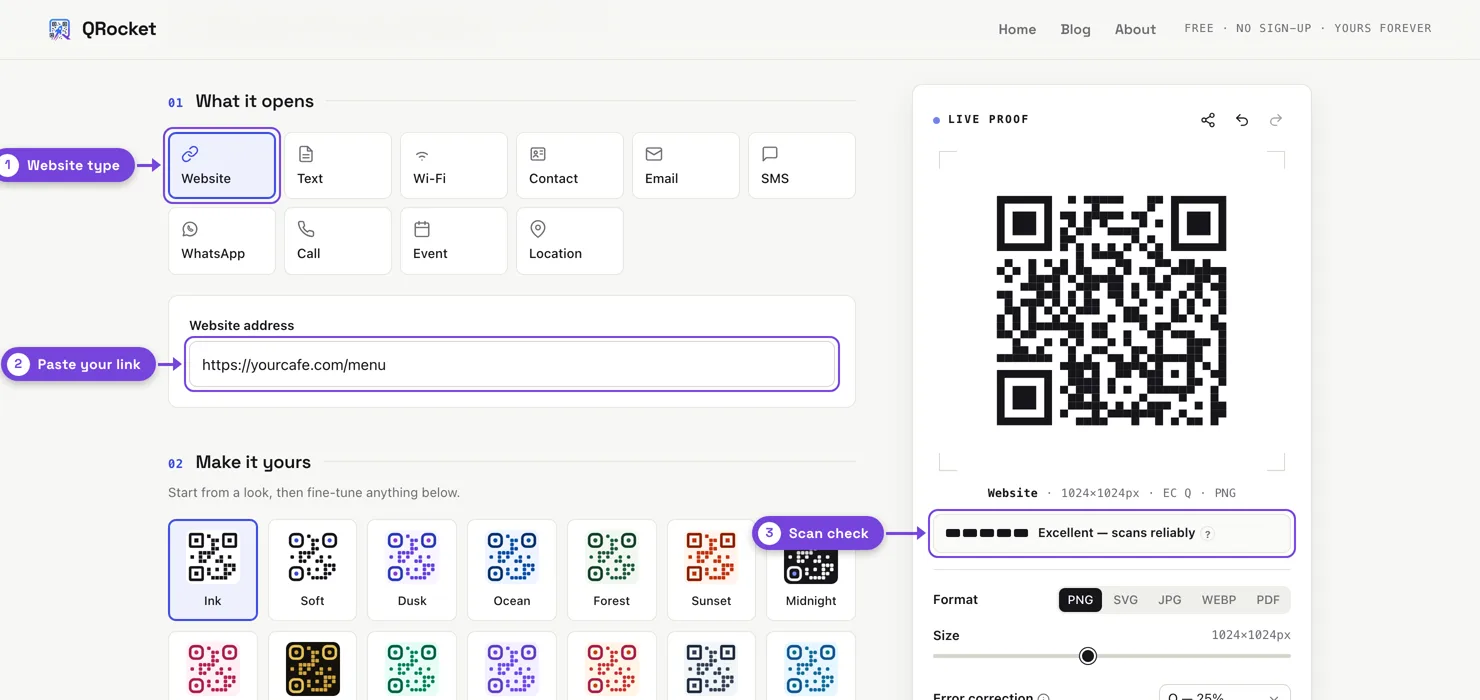
Step 1: Choose the Website Type
In the type selector, pick Website. It’s the default type, so it’s already selected when you open the generator, with a sample link in the “Website address” field for you to replace.
Step 2: Paste Your Full URL
Paste the complete address, including https://. The field flags anything that isn’t a full address (“Enter a full address, like https://example.com”). A bare example.com may show up as plain text instead of a tappable link on some scanners.
Want to see visits from this code in Google Analytics? Open Campaign tracking under the address field and add UTM tags such as utm_source=flyer and utm_medium=qr. The tags become part of the URL. Your analytics will count the resulting visits, not scans: someone who scans but never lets the page load doesn’t show up. Our UTM parameters guide covers naming.
Step 3: Style It Without Hurting the Scan
Pick colors, dot and corner styles, a frame with a call to action (“Scan for the menu”), or a logo. Keep the dots clearly darker than the background. The scan meter in the preview panel estimates how reliably the code will scan from contrast, error correction and logo coverage, and it drops as soon as a choice makes the code riskier. QRocket uses error-correction level Q by default. You can raise it to H in the preview settings if you add a large logo.
Step 4: Download and Test
Download PNG (or JPG/WEBP) for screens and documents, SVG for design software and print shops, or PDF when a printer asks for one. For print, set the print width before you download. Then scan the downloaded file (not the on-screen preview) with your phone, and follow the link all the way to the loaded page. If the code is going on paper, print a test copy at the real size and scan that too. Our pre-print testing checklist has the full routine.
Turn any link into a scannable QR code — create your free URL QR code with QRocket — Create Your Free QR Code
What Your URL Does to the Code
Every character in the link adds data, and more data means a bigger grid of smaller squares (modules). We encoded three links at QRocket’s default error-correction level (Q) and counted the grid each one needs:
| Link | Characters | QR version | Grid |
|---|---|---|---|
https://qrocket.io/blog/ | 24 | 3 | 29 × 29 |
https://example.com/spring-menu?utm_source=flyer&utm_medium=qr&utm_campaign=spring | 82 | 7 | 45 × 45 |
| A 150-character link | 150 | 10 | 57 × 57 |
These follow the capacity limits DENSO WAVE publishes for each QR version. At level Q, version 3 holds up to 32 bytes, version 7 up to 86 and version 10 up to 151. At the same printed size, the 57 × 57 code has modules about half as wide as the 29 × 29 one, and that’s what makes long links fail when they’re printed small.
Two ways to keep the grid small:
- Use a short path on your own site, such as
yoursite.com/menu, and redirect it to the long page. People see your domain in the scan preview, which builds trust. Because you control the redirect, you can also change where it goes later. - Keep only the UTM tags you’ll actually report on. Three short tags are usually enough. A public URL shortener also works, but then the preview shows the shortener’s domain, and the code depends on that service.
Can You Change the Link Later?
Not in the code itself. A static code stores the exact URL, so the destination is fixed once printed. That’s also why it keeps working with no subscription and no QRocket servers involved.
If you think the destination might move, encode an address you control (a short path on your own domain) and point it wherever you need with a redirect on your site. Redirect services (often sold as “dynamic QR codes”) do the same thing on their servers, but printed codes then depend on that service staying up and your plan staying paid. Our static vs dynamic QR codes comparison covers the trade-off, and how to make an editable QR code walks through the own-domain approach.
Before You Print
- Use HTTPS. It’s the web’s default, and the
https://prefix is what tells a phone the content is a link. - Send people to a mobile-friendly page. Every scan comes from a phone.
- Add a label. “Scan for the menu” or “Scan to register” tells people what they’ll get. QRocket’s frames can hold that text next to the code.
- Size for the distance. About 2 × 2 cm is a common minimum for a short link read at arm’s length. Larger, denser codes and longer viewing distances need more, so see our QR code size guide.
- Check the destination still exists. Changing a page’s content is fine. Changing its URL breaks every printed code unless you redirect the old address.
For where to put these codes, from restaurant menus to PDF downloads and Google Maps directions, see the use-case guides. Each is a URL code with a different destination.
One Scan Replaces the Typing
A URL QR code takes a minute to make. Most of the work is choosing a link that stays put and testing the printed result. Keep the link short, check the scan meter, scan the downloaded file, and build your QR code with QRocket now.
Frequently Asked Questions
Can I change the URL in my QR code after creating it?
Not in a static code like the ones QRocket makes: the URL is part of the pattern, so the destination is fixed once printed. If the destination might change, encode a short address on a domain you control and redirect it on your own site, or use a paid redirect (“dynamic QR”) service and accept that printed codes then depend on it.
Should I use a shortened URL for my QR code?
Usually, yes, especially for print. At QRocket’s default error-correction level, a 24-character link fits a 29 × 29 grid, while a 150-character link needs 57 × 57, so the modules shrink by about half at the same printed size. A short path on your own domain is the best option, because the scan preview then shows your name.
Do URL QR codes expire?
Static URL QR codes don’t expire, because the destination is encoded in the pattern itself. They stop working only if the web page they point to goes away. Dynamic codes depend on the redirect service staying active and your account staying current.
Does my QR code still work if my website changes?
Yes, as long as the exact URL you encoded still resolves. You can change a page’s content freely without touching the code. Change the URL itself — a new slug or domain — and a static code breaks unless you add a redirect from the old address, which keeps every printed code alive.
Create a free QR code with custom colors, your logo and print-ready downloads — no sign-up.