How to Create a QR Code for Social Media (Every Network, Free)
 By Kelly Or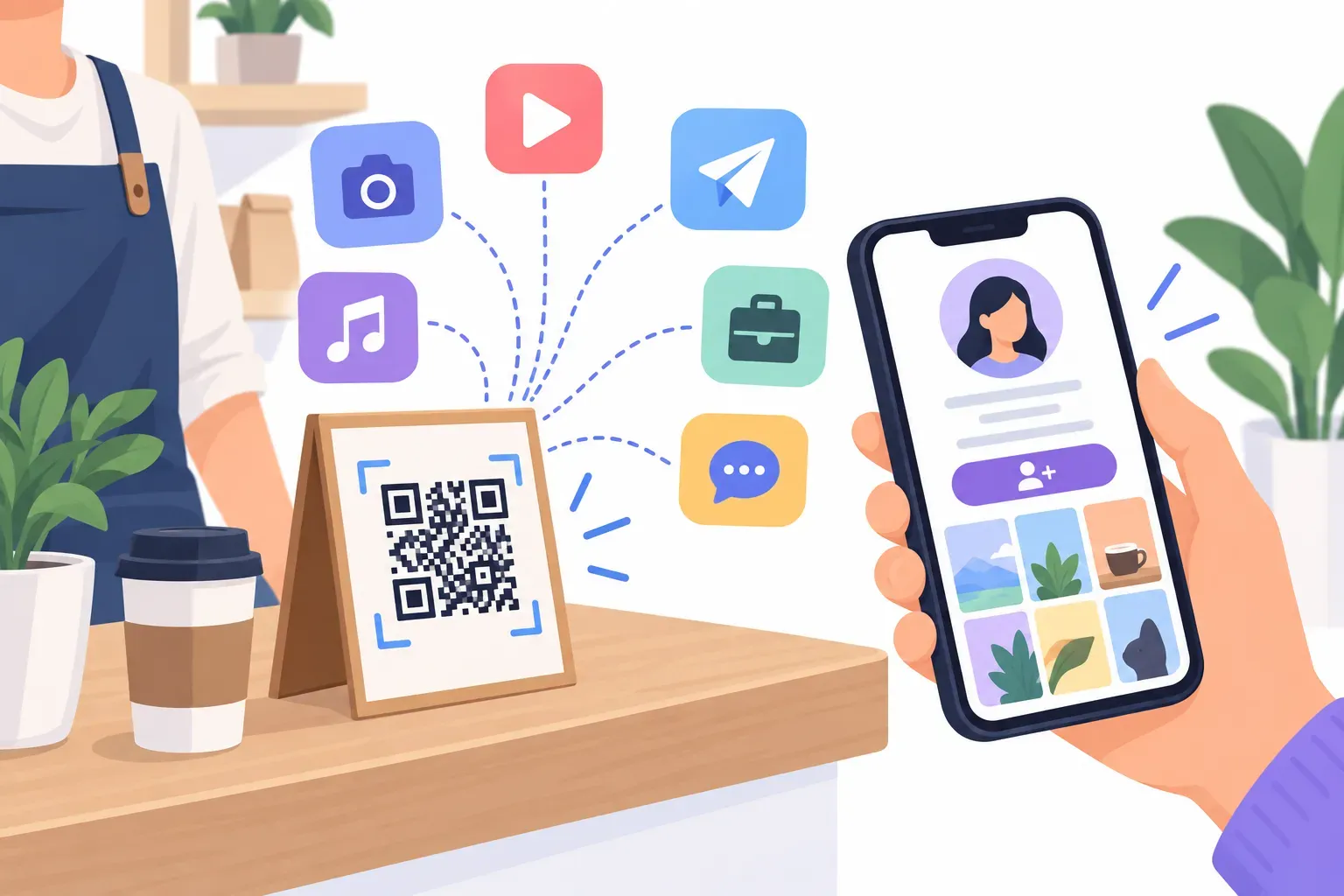
Every business with a social account has the same small problem offline: the customer who would happily follow you doesn’t know your handle, won’t remember it, and won’t search for it later. A social media QR code fixes that with one scan — the profile opens, the follow button is one tap away. The harder question is which profile, and whether you need a code for each network or one code for all of them.
This guide covers both. It shows how to create a code for any major network in QRocket’s Social type, links to a detailed guide for each platform, and gives an honest answer to the “one QR code for all my social media” question — including what the hosted versions from other generators actually are.
Why Use a QR Code for Social Media
Follows are the cheapest repeat marketing you can get: once someone follows you, every future post reaches them at no cost. The people most likely to follow are the ones who already met you — customers at your counter, guests at your event, buyers opening your package. The code catches them at that moment, before “I’ll look you up later” turns into never.
It also avoids lookalike accounts. A search for a popular handle often shows near-copies; a scan opens the exact account you encoded. For more ways local shops use these codes alongside reviews and loyalty, see our guide to QR codes for small business.
Every Network QRocket Supports
QRocket’s Social type has a Network menu with seven platforms. You type your handle or paste your profile link, and it builds the right address. Each link below opens the generator with that network already selected:
| Network | Link the code opens | Create it | Full guide |
|---|---|---|---|
instagram.com/yourhandle/ | Instagram code | Instagram guide | |
facebook.com/YourPage | Facebook code | Facebook guide | |
| TikTok | tiktok.com/@yourhandle | TikTok code | TikTok guide |
| YouTube | youtube.com/@yourhandle | YouTube code | YouTube guide |
linkedin.com/in/your-name/ | LinkedIn code | LinkedIn guide | |
| X (Twitter) | x.com/yourhandle | X code | — |
| Telegram | t.me/yourchannel | Telegram code | Telegram guide |
Two neighbors are handled by their own types. WhatsApp has a dedicated WhatsApp type that opens a chat with a pre-filled message — see our WhatsApp QR code guide. Google reviews have a Review type that opens the star-rating form directly — see QR codes for Google reviews.
Step-by-Step: Create a Social Media QR Code
The process is the same for every network. It takes about five minutes and needs no account.
Step 1: Pick one network and settle the handle
Choose the platform that matters most for this placement — Instagram for a boutique’s shopping bags, LinkedIn for a consultant’s business card, TikTok for a food truck. Then make sure the handle is final. A static code encodes the address permanently, so renaming your account later breaks every printed code.
Step 2: Choose the Social type
Open the social media QR code generator and choose the Social type.
Step 3: Select the network
Pick your platform in the Network menu. The deep links in the table above preselect it for you.
Step 4: Type the handle or paste the profile link
In Username or profile link, type your handle — the @ is optional — or paste your profile link. QRocket builds the address and shows it under the field (“Opens https://www.instagram.com/yourhandle/”), so you can check the spelling before styling. If you type a display name with spaces by mistake, or paste a link from a different network, the field tells you.
A few network-specific notes:
- LinkedIn company pages: paste the full
linkedin.com/company/…link; a bare name builds a personal-profile address. - YouTube videos: paste the full youtube.com link; short
youtu.belinks go in the Website type instead. - X: older
twitter.comprofile links are accepted too. - Telegram private groups: paste the full
t.me/+…invite link.
Step 5: Apply the Follow us template
Under Make it yours, the Follow us template is listed first for social codes. It adds a “FOLLOW US” label and puts the selected network’s mark in the center — Instagram, Facebook, TikTok, YouTube, X and Telegram all have one in the logo icons. LinkedIn doesn’t, so for a LinkedIn code, upload your own logo or choose a neutral icon. Adjust the colors to your brand, keep the pattern clearly darker than the background, and rewrite the label if you want something more specific than “Follow us.” Our QR code design guide covers what keeps a styled code scannable.
Step 6: Download and test
Download SVG for print and a high-resolution PNG for screens. Then scan the code with an iPhone and an Android and confirm the right account opens. Our pre-print checklist covers the rest.
Put your profile one scan away — create a free social media QR code. — Create Your Free QR Code →
Can You Put All Your Social Media in One QR Code?
Search for “one QR code for all social media” and most results sell the same thing: a hosted landing page that lists your profiles, reached through a dynamic QR code the generator runs for you. It works, but you should know what you’re buying. The code points at the generator’s server rather than at your profiles, it usually lives behind a subscription, and on many services the code stops working if you stop paying — we cover that trade-off in do QR codes expire?.
QRocket makes static codes only. It doesn’t host landing pages or run redirects. So here are the honest options, in the order we recommend:
1. One code, one network — for most placements. A single, clear action gets more scans than a menu of choices. If your customers are on Instagram, send them to Instagram. You can make a different code for each placement: TikTok on the food truck, LinkedIn on the business card.
2. One code to a links page you own — when you truly need several. Build a simple page on your own website (for example yoursite.com/links) listing all your profiles, then encode it with the Website type. The code stays static and free, and you can change the page any time without reprinting. A link-in-bio service works the same way; the difference is that you depend on that service staying online. Our guide to URL QR codes walks through the Website type.
3. Two or three small codes side by side — sparingly. Fine on a large poster, but give each code its own label and plenty of space so a camera doesn’t pick the wrong one. On a business card, two codes is usually one too many.
Where to Put Social Media QR Codes
- Packaging and receipts: reach every customer at no extra cost.
- Counters, windows and table tents: catch people while they wait.
- Business cards and name badges: the natural place for LinkedIn.
- Events and stalls: banners and badges turn short chats into lasting follows.
Size codes at least 2 × 2 cm for arm’s-length scanning, and pair each one with a reason to follow — “New arrivals every Friday” beats “Follow us.” Our call-to-action examples have more wording.
What About Tracking?
A static code has no analytics of its own, and QRocket doesn’t count scans. Adding UTM parameters to a profile link doesn’t help either, because the traffic lands on Instagram’s or TikTok’s servers, not yours. If you need per-placement numbers, use option 2 above: point the code at your own links page with UTM tags, and your analytics will show which placement sent the visit. Our guide to tracking QR code scans explains the setup.
Pick the Network, Then Print
A social media QR code does one job: it gets the right person to the right profile in one scan. Pick the network that fits the placement, settle the handle, add a “Follow us” label, and test before printing. If you truly need all your profiles in one place, send the code to a links page you control rather than renting one.
Create a free social media QR code with QRocket — static, no sign-up, no expiry. — Create Your Free QR Code →
Frequently Asked Questions
How do I create a QR code for my social media?
Open a generator with a social type, such as QRocket’s Social type, choose the network, and type your handle or paste your profile link. The code encodes your profile address, so scanning it opens the profile in the app. Download it as SVG or PNG and test it on two phones before printing.
Can I put all my social media links in one QR code?
Not directly: a QR code holds one link. To offer several profiles, point the code at a single page that lists them, ideally a page on your own website, which you can update without reprinting. Hosted all-in-one social pages from generators usually rely on a paid dynamic code.
Which social networks does QRocket support?
The Social type supports Instagram, Facebook, TikTok, YouTube, LinkedIn, X (Twitter) and Telegram. WhatsApp chats and Google reviews have their own dedicated types. For any other platform, paste the profile link into the Website type.
Do social media QR codes expire?
A static QR code never expires. It stops working only if the link inside it stops working, for example when you rename your account, delete a video, or revoke a Telegram invite. Settle your handle before printing.
Does scanning open the app or the browser?
If the person has the app installed, the phone usually opens the profile in the app, ready to follow. If not, the profile opens in the mobile browser. You don’t need separate codes for iPhone and Android.
Can I track scans of a social media QR code?
Not with a static code on its own, and QRocket doesn’t count scans. For per-placement numbers, point the code at your own links page tagged with UTM parameters, so your website analytics records which placement sent each visit.
Create a free QR code with custom colors, your logo and print-ready downloads — no sign-up.