How to Create a QR Code in Canva (Quick Integration Guide)
 By Mosh Bryce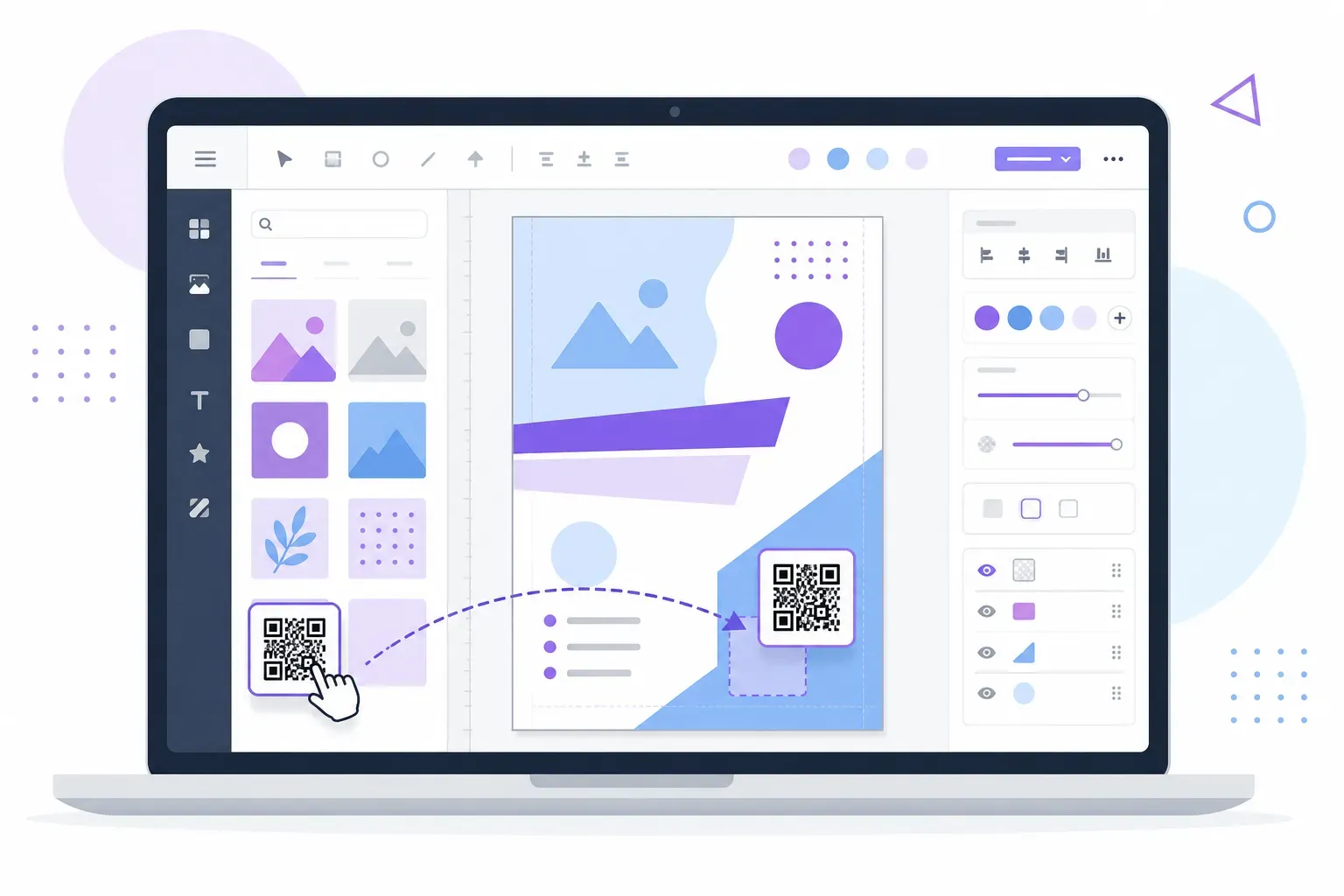
Your flyer is done in Canva, and the last missing piece is the little square that connects print to phone. You have two ways to add a QR code in Canva. The first is Canva’s own QR tools: search “QR code” under Elements or Apps, then pick a static or a dynamic code. The second is to make the code in a dedicated generator and upload it as an image. Canva’s route is fastest for a plain web link. Importing gives you content types Canva can’t encode (Wi-Fi, contact cards, WhatsApp chats) and a code without Canva’s branding.
This guide walks through both workflows and then covers the problems people run into most. The Canva details below were checked against Canva’s help center in September 2026. Canva changes its editor often, so check that page if a menu looks different.
Can Canva Generate QR Codes?
Yes. As of September 2026, Canva has two QR tools, and it matters which one you pick:
- Static QR Codes encode a web address directly. You can set the foreground color, background color and margin. They carry no Canva logo, and the link can’t be changed once the code is created.
- Dynamic QR Codes (powered by Hovercode, according to Canva) route scans through a redirect. That lets you change the destination later. They also add pattern, corner and logo styling. Scan insights, expiry dates, custom logos and removing the Canva logo are limited to Canva Business, Enterprise and Nonprofit plans. On Free, Pro and Education plans, dynamic codes show the Canva logo by default.
Both tools encode a web link only. For Wi-Fi, a contact card or a calendar event, you need a different generator.
Method 1: Canva’s Built-In QR Code Tools
The native route is genuinely fast:
- Open your design in the Canva editor.
- Search for “QR code”. Go to Elements and search “QR code”; a banner offers Create static and Create dynamic. You can also search “QR code” under Apps, where both tools appear.
- Enter your URL. Type the full web address, including
https://, and double-check it. With a static code, a typo ends up in every printed copy. - Style and save. For a static code, optionally change the foreground color, background color and margin, then select Save. For a dynamic code, pick a template, enter the URL, optionally name the code, then select Save.
- Place it. Drag the code into position and resize from a corner handle so it stays square.
Canva’s own best-practice list matches ours: keep the code at least 2 × 2 cm, keep the link short, use strong color contrast, keep other elements off the code, and leave a quiet zone of at least four modules around it.
What Canva’s QR Tools Can and Can’t Do
For a quick link on an internal document or social post, Canva’s tools are hard to beat. Here is where they stop:
- Web links only. No Wi-Fi codes, contact cards, WhatsApp chat links or calendar events.
- Styling depends on the type. Static codes offer colors and margin, but no patterns, corners or logo. Dynamic codes add those options, and some of them depend on your plan.
- Canva branding on dynamic codes. On Free, Pro and Education plans, dynamic codes include the Canva logo by default. Removing it requires Business, Enterprise or Nonprofit.
- Plan-gated tracking. Scan insights (total and unique scans, locations, device types) are available only on Canva Business, Enterprise and Nonprofit plans.
- No converting later. According to Canva’s FAQ, a static code can’t be turned into a dynamic one, or the other way round.
If you need a non-URL code, or you want a styled code without Canva’s logo on a free plan, use the import method.
Method 2: Import a Custom QR Code from QRocket
This workflow treats the code as a design asset: create a styled QR code for Canva in a dedicated tool, export it, and place it like a logo or photo. With QRocket’s free QR code generator the whole thing takes a few minutes:
- Choose your content type. URL is the common case, but you can also encode WiFi credentials, a vCard, an email, an SMS, a WhatsApp chat, a location, or a calendar event — everything the Canva app can’t do.
- Enter your content and style the code. Match the colors to your Canva palette, pick module and corner shapes, and drop your logo in the center — keep it under about 20% of the code area, as covered in our guide to adding a logo to a QR code. The live scannability meter flags a risky color or shape choice immediately.
- Add a frame with a call to action. A label like “Scan for the menu” tells people what the code does — bare squares get skipped.
- Download as SVG. SVG is a vector file, so the code stays perfectly sharp at any size, from business card to poster. A high-resolution PNG also works if you prefer. QRocket also exports a print-ready PDF at the width you set; if you’re still choosing a format, our QR code file formats guide compares them.
- Upload to Canva. In the editor, open Uploads and drag the file in. Canva accepts both SVG and PNG.
- Place and size it. Drag the code into your design, hold Shift while resizing to keep it square, and leave a margin of empty space around it — that quiet zone keeps it readable. Our QR code size guide has minimum dimensions for every placement.
QRocket runs entirely in your browser — no account, no sign-up — and the finished static code never expires, with no scan limits.
Create a custom QR code with QRocket, then drop it into any Canva design — free, no sign-up. — Create Your Free QR Code
Before the design ships, scan the code from the final artwork — ideally from a test print — with both an iPhone and an Android. Our checklist for testing a QR code before printing covers the full routine, and our guide to printing QR codes covers resolution and file-format decisions for anything headed to a print shop.
Which Method Makes the Better QR Code for Canva Designs?
Here’s the side-by-side. The Canva columns reflect Canva’s help center as of September 2026.
| Feature | Canva static | Canva dynamic | QRocket import |
|---|---|---|---|
| Content types | URL | URL | URL, text, Wi-Fi, contact (vCard), email, SMS, WhatsApp, social, review, call, event, location |
| Colors | Foreground, background, margin | Yes | Full custom colors |
| Patterns & corners | No | Yes | Yes |
| Logo | No | Custom logo on Business/Enterprise/Nonprofit | Yes, from a built-in library or your own file |
| Canva logo on the code | Never | Default on Free/Pro/Education | Never |
| Edit destination after printing | No | Yes | No (static), unless you encode a URL you control and redirect it yourself |
| Scan insights | No | Business/Enterprise/Nonprofit | No; tag the link with UTM parameters to see visits in your analytics |
| Scannability check | No | No | Live meter while you style |
| Account required | Canva account | Canva account | None |
The pattern: Canva’s tools win on speed for URL codes that live inside a Canva design, and Canva’s dynamic codes are worth it if your team is already on a plan that includes insights. Importing is better when you need another content type, want a styled code with no third-party branding, or want a code that doesn’t depend on any service once it’s printed. Before you pick a generator, our QR generator features checklist lists what to look for. Our QR code design guide shows how far a styled code can go inside a layout.
Canva QR Code Problems and Fixes
These are the questions that come up most about QR codes in Canva, with the fix for each.
The QR code option isn’t showing up
Search “QR code” in Elements first; the banner with Create static and Create dynamic appears at the top of the results. If it doesn’t, try Apps. On a team, business or school account, an administrator can disable apps for the whole team. If the QR apps are missing only on your work account, ask your admin. In the meantime you can make the code elsewhere and upload it.
There’s a Canva logo in the middle of my QR code
You created a dynamic code on a Free, Pro or Education plan, where the Canva logo is the default. According to Canva, static codes never carry it. Your options: switch to a static code, upgrade to a plan that can remove or replace the logo, or import a code made elsewhere. A dynamic code can’t be converted to a static one, so you’ll need to create a new code and replace the old one in your design.
The scan shows a g.page or short link instead of my business name
A phone’s scan preview shows the address inside the code, not a page title. If you encoded a Google Business Profile share link, a URL shortener, or a dynamic code’s redirect, people see that domain first. That’s expected, and the code still works. If you want people to see a recognizable address, encode a link on your own domain. For review codes, our guide to a QR code for Google reviews covers the link formats Google provides.
Can I use a Canva QR code outside Canva?
A static Canva code is an ordinary QR code for your URL. Download the design (PNG, PDF or SVG, depending on your plan) and the code works anywhere it’s printed or displayed. A dynamic code works the same way on paper, but every scan passes through Canva’s redirect service. It keeps working only as long as that code and its settings exist. If an expiry date is set, Canva sends scanners to a fallback URL, or to its generic error page if you didn’t set one. If you want a code that doesn’t depend on any account, use a static code.
Copying and pasting a Canva QR code
Within Canva, you can copy and paste the QR element like any other element. For a dynamic code, only the person who created it can edit its link by default. On Business, Enterprise and Nonprofit plans, the owner can switch on “Allow collaborators to edit”. Canva notes this applies only to that design, not to copies of the code elsewhere. To use the code in Word, Google Docs or an email, download the design (or just the code) as an image and insert it. Our guide to adding a QR code in Word and Google Docs covers sizing.
My Canva QR code won’t scan
The causes are usually in the layout, not the code. Check whether a photo or gradient sits under the code, whether the code has been shrunk below about 2 × 2 cm, whether the colors are too light, and whether a frame or text crowds the quiet zone. Our QR code not working checklist goes through each cause. Scan the exported file, not the editor preview.
Treat the Code Like Part of the Design
Canva’s own tools are the quick answer for a web link inside a Canva design: static when the link will never change, dynamic when you need to edit it later and your plan covers the extras. When the code has to do something other than open a link, or carry your branding instead of Canva’s, spend a few extra minutes: build it in the generator, export the SVG, upload it, and scan the exported file before it ships.
Frequently Asked Questions
Does Canva have a built-in QR code generator?
Yes. As of September 2026, Canva offers Static QR Codes and Dynamic QR Codes. You’ll find both by searching “QR code” in Elements or Apps. Both encode web links only. Static codes let you set colors and margin. Dynamic codes add patterns, corners and an editable destination, while insights, expiry dates and custom logos require Canva Business, Enterprise or Nonprofit.
How do I import a custom QR code into Canva?
Create the code in a QR generator and download it as an SVG or high-resolution PNG. In Canva, open the Uploads panel, drag the file in, then place it in your design. Hold Shift while resizing to keep it square, and leave empty space around the code so it stays scannable.
Should I upload my QR code to Canva as SVG or PNG?
SVG is the better choice for anything going to print: it’s a vector format, so the code stays perfectly sharp at any size. A high-resolution PNG works fine for screen-only designs like social media graphics.
Can I change the colors of a QR code in Canva?
Yes. Static Canva codes let you set the foreground and background colors and the margin. Dynamic codes also offer color options, plus patterns and corners, and Pro and above can use Brand Kit colors. Whatever tool you use, keep the pattern clearly darker than its background.
Which is better — Canva’s QR code or a dedicated generator?
For a web link inside a Canva design, Canva’s own tools are fastest, and its dynamic codes add scan insights on Business, Enterprise and Nonprofit plans. A dedicated generator like QRocket fits better when you need a non-URL code such as Wi-Fi or a contact card, a logo without Canva branding on a free plan, CTA frames, or a live scannability check. QRocket’s codes are static, so they don’t count scans.
Do QR codes made outside Canva expire?
A static QR code doesn’t expire: its content is encoded in the pattern itself, so it has no scan limit, whichever design tool you place it in. It stops working only if the destination goes offline. Dynamic codes are different, in Canva or anywhere else, because they depend on the provider’s redirect. Canva lets Business, Enterprise and Nonprofit users set an expiry date on dynamic codes.
Why is there a Canva logo on my QR code?
Dynamic QR codes made on Canva’s Free, Pro and Education plans include the Canva logo by default. According to Canva, static codes never carry it. To avoid the logo, create a static code, upgrade to a plan that can remove or replace it, or upload a code made in another generator.
Create a free QR code with custom colors, your logo and print-ready downloads — no sign-up.