QR Code File Formats Explained: PNG, SVG, PDF, and EPS
 By Mosh Bryce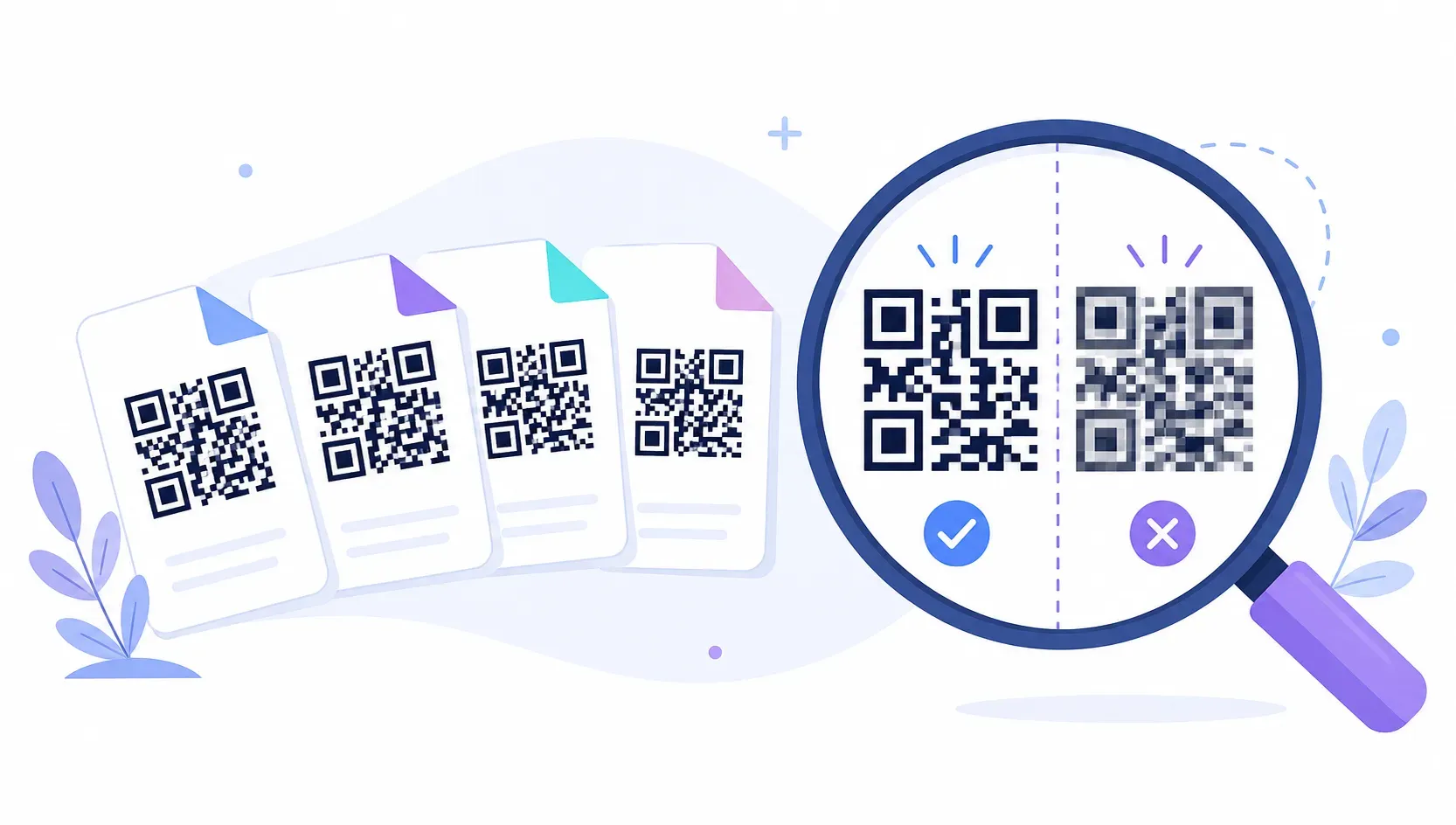
You’ve built your code, the download dialog opens, and now you’re choosing between file types you last thought about never. The short answer to the QR code file format question: vector (SVG or PDF) for anything printed, PNG for anything on a screen, and JPG for nothing. The long answer is worth five minutes, because the wrong pick here is how a code that scanned perfectly on your monitor turns into a blurry, unscannable smudge on a banner.
This guide explains the raster-versus-vector split, what each of the four common formats is actually for, and gives you a decision table so the next download takes two seconds.
Raster vs Vector QR Code File Formats
Every image file belongs to one of two families. Raster formats (PNG, JPG) store a fixed grid of pixels — zoom in far enough and you see the squares. Vector formats (SVG, PDF, EPS) store instructions instead: “draw a black square at these coordinates.” A vector file re-renders perfectly at any size, from a postage stamp to a building wrap.
A QR code is the ideal vector subject. It’s pure geometry — solid rectangles, hard edges, two colors — exactly what vector instructions describe losslessly. Those hard edges are also what scanning depends on: a phone camera locates the code by finding crisp transitions between dark and light modules.
That’s why format choice is a scannability issue, not just a quality preference. Enlarge a raster code beyond its pixel dimensions and the module edges go soft; compress it as a JPG and compression artifacts smear noise along every boundary. A vector code, by contrast, is bit-perfect at every size forever.
Key takeaway: Scaling is the fork in the road. If the final size is known and screen-bound, raster is fine. If the code will ever be resized or printed, start from a vector file.
PNG — The Universal Choice
PNG is the raster format done right for QR codes: lossless compression (no artifacts), sharp edges, and transparency support so the code sits cleanly on colored backgrounds. Every browser, email client, chat app, and office tool renders it without a second thought.
Use a QR code PNG for websites, email signatures, social posts, slide decks, and documents — places where the display size is modest and known.
The one thing to manage is resolution. For screens, a PNG a few hundred pixels wide is plenty. For print, what matters is that each module (one square of the pattern) gets several printer dots, so check the code’s module size (width ÷ modules across) against your printer’s resolution. Export at the final print size with a whole number of pixels per module, and scan a test print. The safe habit is downloading at 1,000 pixels or larger, which gives headroom for reuse, and switching to SVG for anything that goes to a print shop. What you must never do is scale a small PNG up: pixels can’t be invented, only blurred. Size-to-distance math for real placements lives in our QR code size guide.
A note on JPG, since it’s often sitting next to PNG in export menus: skip it. JPG compression is lossy and optimized for photographs, so it scatters faint noise along the exact hard edges a scanner needs, and it can’t do transparency. There is no situation where JPG beats PNG for a QR code.
SVG — Best for Print and Scaling
A QR code SVG is a small XML file — typically 2 to 5 KB — describing the code’s geometry. Because it’s instructions rather than pixels, it scales infinitely: the same file is pin-sharp on a business card and on a trade-show backdrop.
Two properties make SVG the format professionals default to:
- It’s editable. Illustrator, Figma, Affinity Designer, and the free Inkscape all open SVG natively. Designers can recolor modules, place the code precisely in a layout, and keep everything on one artboard — the workflows covered in our QR code design guide assume a vector source.
- It’s the perfect master file. From one SVG you can export a PNG at any resolution, convert to PDF or EPS for a printer, or embed directly in a website (browsers render SVG natively, and it stays crisp on high-DPI screens).
The only weak spot is legacy office software — older versions of Word and some email clients handle SVG poorly. That’s not a real limitation in practice: keep the SVG as your source of truth and hand those tools a PNG export.
PDF — Ready for Print Production
PDF is a vector container with a superpower SVG lacks: embedded physical dimensions. An SVG is scalable but sizeless; a PDF says “this code is exactly 30 × 30 mm on the page.” That’s the language print shops speak.
Downloading or exporting your QR code as a PDF makes sense when the file goes straight to production — flyers, table tents, stickers, packaging dielines. The printer places the file knowing the size is locked, the edges are vector-crisp, and nothing depends on their software interpreting a web format. Professional PDF workflows also support CMYK color, which is what commercial presses actually print in.
PDF is a handoff format more than an editing one. Build and adjust the code in SVG, then produce the PDF at final dimensions as the last step. The rest of the production checklist — margins, materials, contrast on colored stock — is covered in our guide to printing QR codes.
EPS — For Professional Designers
EPS (Encapsulated PostScript) is the veteran vector format of the prepress world — the standard exchange file for logos and print artwork since the early 1990s. A QR code EPS behaves like an SVG’s older sibling: infinitely scalable, editable in Illustrator, and importable into virtually every professional layout tool ever shipped.
Its role today is compatibility. Sign makers, merchandise printers, engravers, and screen-printing shops with established workflows still routinely request “vector EPS” for artwork. If your code is going on a storefront window, embroidered merch, or a vehicle wrap through a traditional vendor, an EPS request is likely.
You rarely need to start from EPS, though. PDF and SVG have absorbed most of its job, and any vector editor converts between the three in seconds: open the SVG in Illustrator or Inkscape, save as EPS, done. Treat EPS as something you produce on request, not a format you archive by default.
Which QR Code File Format to Choose
The whole decision, one table:
| Destination | Best format | Why |
|---|---|---|
| Website, email, social media | PNG (or inline SVG) | Universal support; crisp at fixed sizes |
| Slide decks and documents | PNG | Office tools handle it flawlessly |
| Business cards, flyers, menus | SVG or PDF | Vector edges survive any print size |
| Professional print shop handoff | Locked physical dimensions, CMYK-ready | |
| Signage, merch, engraving vendors | EPS (converted from SVG) | Legacy prepress compatibility |
| Long-term master copy | SVG | Small, editable, exports to everything |
QRocket exports both SVG and high-resolution PNG for free, which covers this entire table: PNG serves every screen use directly, and the SVG converts cleanly to PDF or EPS in any vector editor when a print vendor asks. Grab both at download time — the pair costs a few kilobytes and saves a regeneration later.
Download QR codes in crisp SVG and high-res PNG — free with QRocket — Create Your Free QR Code →
One Master File, Many Exports
Format anxiety disappears once you stop thinking per-download and start thinking master-plus-exports: keep one SVG as the permanent source of truth, and mint PNGs, PDFs, or EPS files from it as each use case appears. The code’s content never changes between formats — only the container does — so the best QR code format is really a workflow, not a file extension. Generate your code once in QRocket’s free generator, save both files it offers, and you’ll never re-make a code because a vendor asked for a different extension.
Frequently Asked Questions
Should I download my QR code as PNG or SVG?
Take both when you can. Use the SVG for any print use — it scales without quality loss and converts to PDF or EPS — and the PNG for screens: websites, emails, documents, and social media. If forced to pick one, SVG is the safer master file since it exports PNGs at any resolution.
Can I edit an SVG QR code in design software?
Yes. SVG opens natively in Illustrator, Figma, Affinity Designer, and the free Inkscape. You can recolor modules, resize losslessly, and place the code in layouts. Just never redraw or distort the module grid itself — spacing changes can break scanning.
Is JPG okay for a QR code?
Avoid it. JPG’s lossy compression blurs noise into the sharp black-white edges scanners rely on, and it doesn’t support transparency. PNG does everything JPG does for a QR code with none of the damage, at a similar file size for simple graphics.
Create a free QR code with custom colors, your logo and print-ready downloads — no sign-up.