QR Code Reader: How to Read Any QR Code Online
 By Mosh Bryce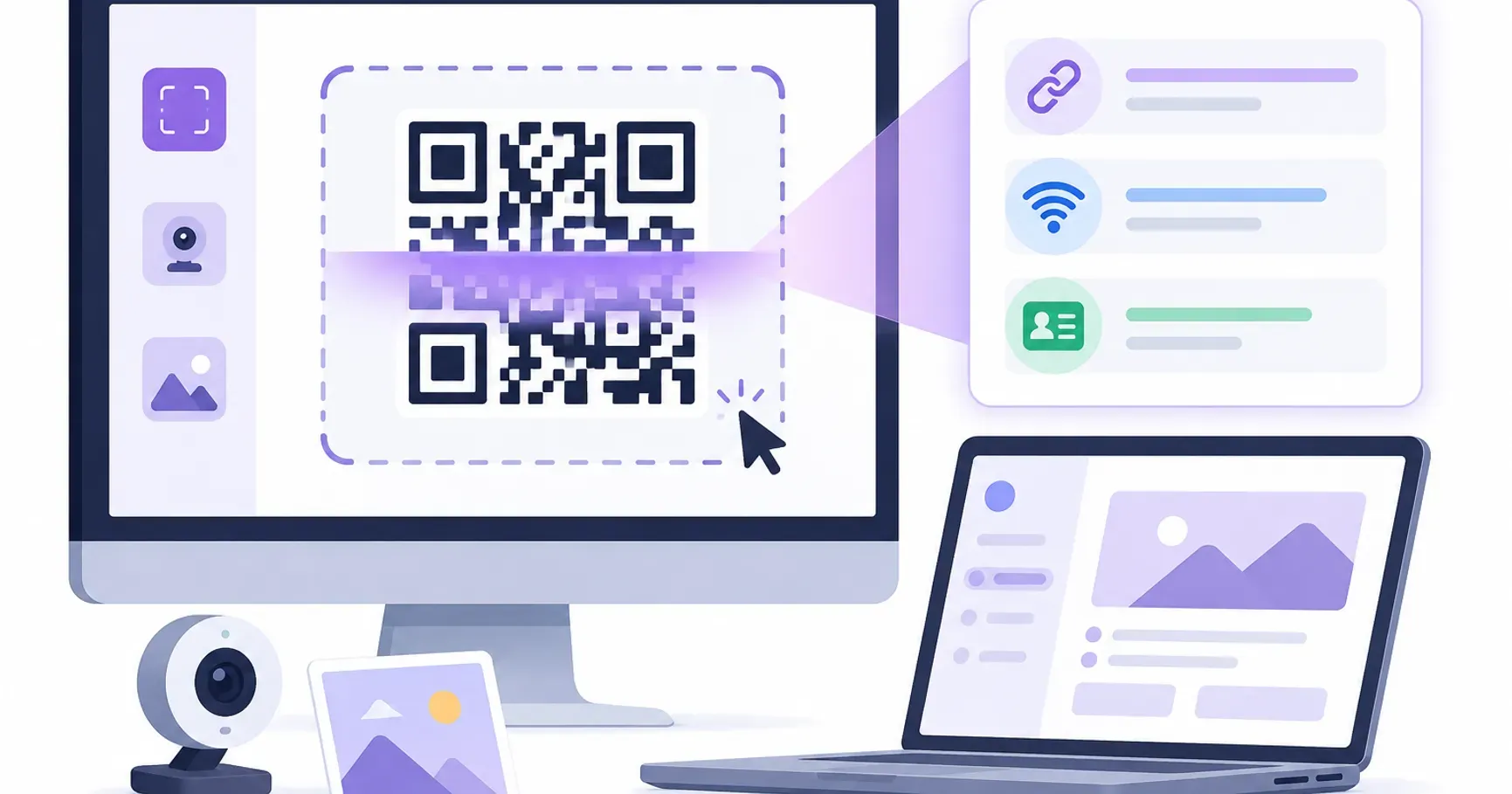
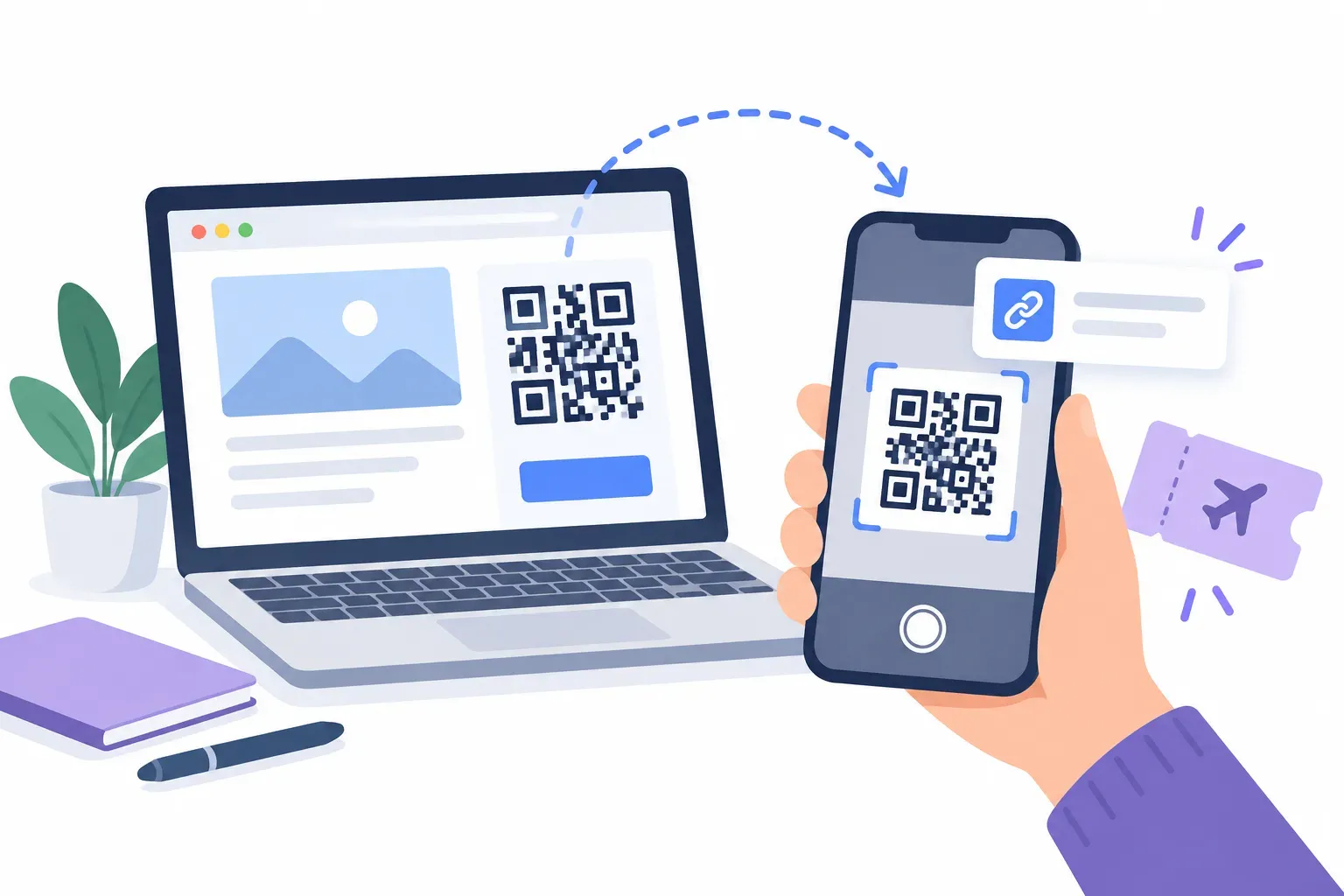
A QR code reader decodes the black-and-white grid and shows you what it contains — a link, a Wi-Fi login, a contact card — no phone camera required. Upload the image, paste a screenshot, or hold the code up to your webcam, and a free browser tool like QRocket’s QR code reader reveals the contents in about two seconds.
That matters because the classic advice — “just point your phone at it” — assumes the code is printed on something in front of you and your phone is in your hand. Plenty of real situations break that assumption: the code sits inside a screenshot someone texted you, it’s buried in a PDF on your laptop, or you’re working at a desktop with your phone in another room. This guide covers reading a code when all you have is an image or a computer. It also covers the reverse situation: a gate or kiosk asks you to show your QR on the reader. If you have the code on paper and a phone in hand, our guide to how to scan a QR code walks through the camera route on iPhone and Android.
When You Need a QR Code Reader Instead of a Camera
The camera route fails in a handful of common situations, and they all share one trait: the code is already a digital image, or the only device available can’t point a lens at it.
- The code arrived as a file. A friend texts you a flyer, a colleague drops an event code into a chat, a venue emails your ticket. There’s nothing physical to point a camera at — the code is the image.
- You’re on a desktop. The link behind the code needs to open on the machine you’re working on, not on your phone. Decoding it in the browser skips the scan-on-phone, email-yourself-the-link shuffle.
- The code is on your own screen. A screen can’t scan itself. Pasting a screenshot into a reader solves the paradox in one move.
- Your phone camera is out of action. Cracked lens, dead battery, a borrowed laptop — an image upload or a webcam covers the gap.
- You made the code and want to verify it. Before a design goes anywhere near a printer, decoding the exported file confirms the link inside is exactly the one you intended.
None of these are edge cases. If you work at a computer, you probably meet one of them every week.
How to Read a QR Code Online in Three Steps
The whole process takes less time than finding and installing a scanner app.
- Open the free QR code reader in any browser — desktop, laptop, or phone. No install, no account.
- Add the code. Upload an image file, paste a screenshot straight from your clipboard, or switch to camera mode and hold the code up to your webcam.
- Read the result. The decoded contents appear instantly: a clickable link, a Wi-Fi network with its password, a contact card, or plain text. Copy it, open it, or save it from there.
Three input methods feed the same decoder, and each one fits a different situation.
Upload an Image File
The straightforward route when the code lives in a saved file — a JPG from your downloads folder, a photo you took of a poster, a page exported from a PDF. Drag the file onto the reader or pick it from the file dialog. The image doesn’t need to be tightly cropped; the reader finds the code inside a larger picture on its own.
Paste a Screenshot
The fastest route when the code is on your screen right now. Copy the region to your clipboard: Control-Shift-Command-4 on a Mac (plain Shift-Command-4 saves a file to your desktop instead, which you can upload), or Win+Shift+S on Windows. Then press paste on the reader page. The clipboard image decodes directly, so you never save a file at all. This is the trick for codes inside emails, slide decks, and video calls.
Point Your Webcam at It
For a printed code when you’re sitting at a computer, switch the reader to camera mode and grant the page camera access. Hold the paper 15–30 cm from the webcam, keep it flat, and give it a second to focus. Detection is live, so there’s no shutter to press.
Got a code sitting in your screenshots right now? Decode it in seconds. — Open the Free QR Code Reader
What a QR Code Reader Can Decode
A QR code can carry far more than a web address, and a good reader understands the difference instead of dumping raw text at you.
- Links. The most common payload. The reader shows the full URL and makes it clickable.
- Wi-Fi credentials. A Wi-Fi code packs the network name, encryption type, and password into one scan. The reader displays each field separately, so you can copy the password onto a device that can’t scan — exactly the case Wi-Fi QR codes were designed to avoid, but sometimes a smart TV or games console leaves you no choice.
- Contact cards. A vCard QR code holds a name, phone number, email, and company. The reader breaks the card into labeled fields you can copy into any address book.
- Plain text, email, and SMS payloads. Serial numbers, event details, pre-filled messages — whatever the creator embedded, you see it verbatim.
That structured view is genuinely useful for verification: you see precisely what a code carries, not just where it sends you.
Your Image Never Leaves Your Browser
Decoding happens locally, in the browser tab, on your own machine. The image is never uploaded to a server, which is worth caring about when the code in question is a boarding pass, a concert ticket, or your office Wi-Fi password — all things you’d rather not hand to a random website’s backend.
QRocket’s reader works this way by design: close the tab and nothing persists anywhere. If you ever use a different online reader, it’s fair to ask the same question of it before feeding it anything sensitive.
If the Reader Can’t Decode Your Image
Most failed reads trace back to the image, not the tool. Work through these in order.
- Blur. A shaky photo of a poster is the top offender. Retake it with the camera held still, or move closer.
- Resolution too low. If the code occupies only a thumbnail-sized patch of a big screenshot, crop in so the code itself is at least a few hundred pixels wide.
- Cropped quiet zone. The blank margin around the grid is part of the code. If your crop shaves it off, re-crop with breathing room on all four sides.
- Weak contrast or inverted colors. Light-gray-on-white designs are hard for any decoder. Light-code-on-dark-background inversions are a separate problem: QRocket’s reader tries both the normal and the inverted image, but not every scanner app does. Bump the image contrast or find a cleaner copy.
- Real damage. Codes tolerate scuffs up to a point, but a tear through a corner finder square can push a code past saving. At that point no reader will rescue it — you need a fresh copy of the code.
If a code fails in the reader and fails a phone camera, the code itself is the problem, not your tools.
Glance at the Result Before You Open It
One quiet advantage of reading a code this way: you see the full destination URL before anything opens, laid out in plain text rather than flashed in a truncated notification banner. QRocket’s reader also shows the domain on its own line. It flags addresses that use plain http://, a raw IP address, or a punycode (xn--) domain that can imitate another site’s name. Take the extra second to check that the domain matches the business you expect — a real restaurant’s site, not a look-alike with an extra hyphen. Malicious codes pasted over legitimate ones are a documented scam, and the full-URL view is your best defense. For the complete picture, read our guide on whether QR codes are safe.
Showing Your QR Code on a Reader (Tickets, Passes, Vouchers)
Sometimes you aren’t reading a code at all. A ticket gate, boarding gate, locker or self-checkout says “show your QR on the reader”. That means: display the code on your phone and hold the screen up to the machine’s scanner window. No app or website is needed on your side. The reader does the decoding.
What helps it read your screen first time:
- Open the code before you reach the front. Load the ticket in the app, email or wallet while you’re in line. If the app needs a connection to display it, take a screenshot as a backup in case the signal drops.
- Show only the code. Close pop-ups, zoom so the code fills most of the screen, and keep the blank margin around it visible. Readers need that quiet zone as much as cameras do.
- Turn the brightness up. A dim screen lowers contrast. If you use a dark mode that recolors the code as light-on-dark, switch it off for the scan, since not every reader handles inverted codes.
- Hold the screen facing the scanner window, and hold it still. Most readers mark the spot with a light or an outline. Start about a hand’s width away and move slowly closer or further until it beeps. Tilting the phone a little helps if glare from overhead lights is washing out the screen.
- Check the screen itself. A cracked display or a privacy screen protector can stop a reader from seeing the code. If a gate keeps refusing, ask staff to check the code by hand. It may be the ticket, not your phone.
If the QR is on your phone and you need to open it on that same phone, a different trick applies: take a screenshot and read it from the image. Our guide to scanning a QR code on your own screen walks through the iPhone, Android and desktop routes.
From Reading Codes to Making Them
Reading a code is half the skill; the other half is publishing your own. Once you’ve decoded a few, you’ll notice how much difference a well-made code makes — clean contrast, generous margins, a sensible destination. QRocket’s free QR code generator handles that side, and the reader doubles as your quality check: generate, download, decode, confirm.
Any code, any image, any device — read it now, free. — Open the Free QR Code Reader
Frequently Asked Questions
For more common questions, see our full FAQ.
Is there a free QR code reader online?
Yes. QRocket’s QR code reader is free, runs in any browser, and needs no account or install. Upload an image, paste a screenshot, or use your webcam, and it decodes links, Wi-Fi credentials, contact cards, and plain text on the spot.
Can I read a QR code from a screenshot?
Yes — that’s the reader’s core job. Take a screenshot of the code, then paste it directly into the reader page from your clipboard or upload the saved file. The code decodes without a phone, a printout, or a second device involved.
How do I read a QR code on my computer without a phone?
Open a browser-based QR code reader on the computer itself. For a code on your screen, paste a screenshot into the reader. For a printed code, use the reader’s camera mode and hold the paper up to your webcam. Both routes decode the code entirely on that machine.
Is it safe to upload a QR code image to an online reader?
With QRocket’s reader, the image is never uploaded at all — decoding runs locally in your browser, and nothing is sent to a server. That matters for sensitive codes like tickets and Wi-Fi logins. If you use another tool, check whether it processes images in the browser or on its servers.
Why won’t my QR code image decode?
Usually the image, not the code: blur, low resolution, a crop that cut off the quiet-zone margin, or weak contrast. Retake or re-crop the image so the code is sharp, generously margined, and at least a few hundred pixels wide. If it still fails everywhere, the code itself is likely damaged.
What does “show your QR on the reader” mean?
It means you should display the QR code on your phone, such as a ticket, boarding pass or voucher, and hold the screen up to the scanner window on the gate or kiosk. Open the code in advance, turn the screen brightness up, make sure the whole code and its margin are visible, and hold the phone still until the reader confirms.
Create a free QR code with custom colors, your logo and print-ready downloads — no sign-up.