How to Scan a QR Code on Your Own Screen (or From a Screenshot)
 By Mosh Bryce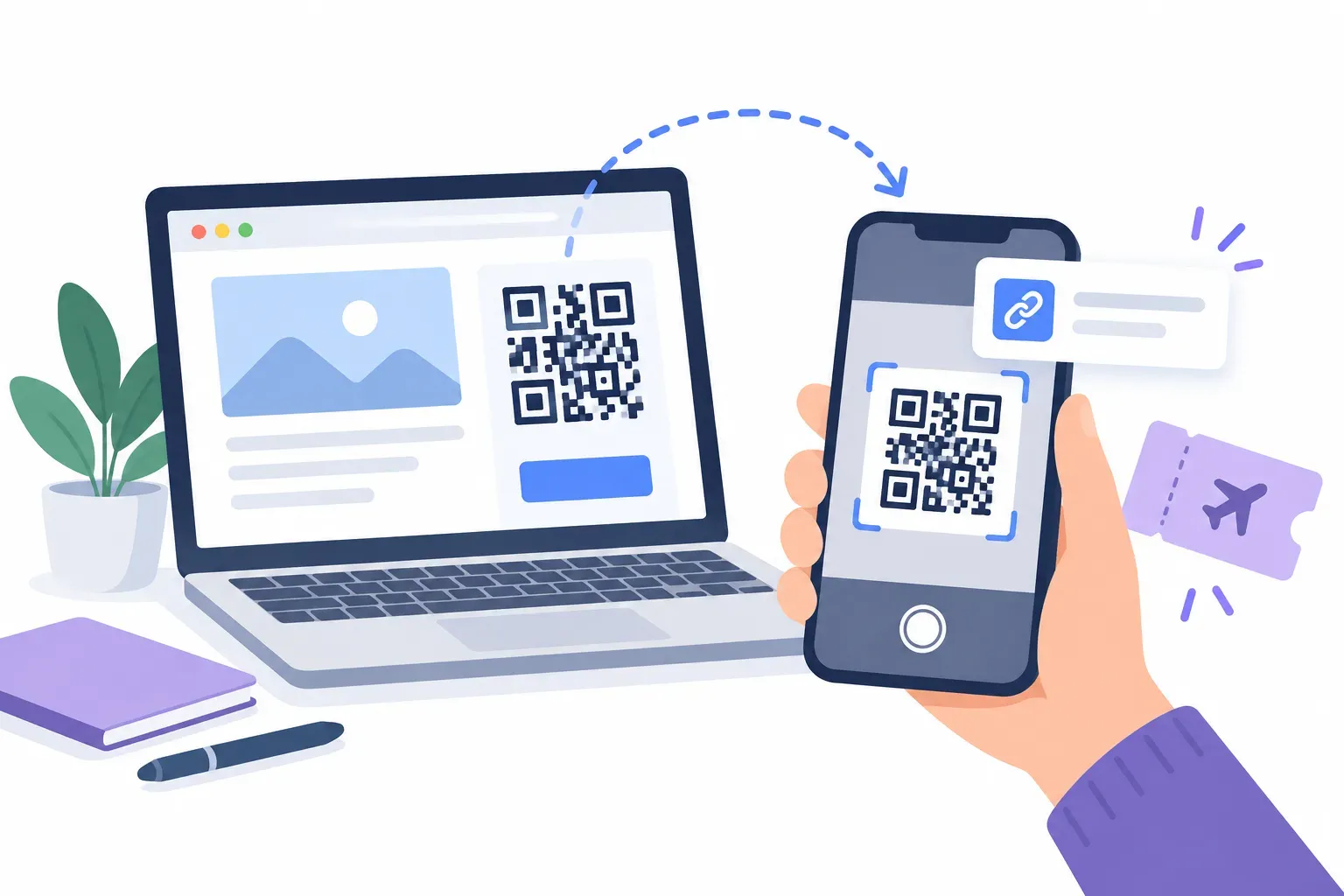
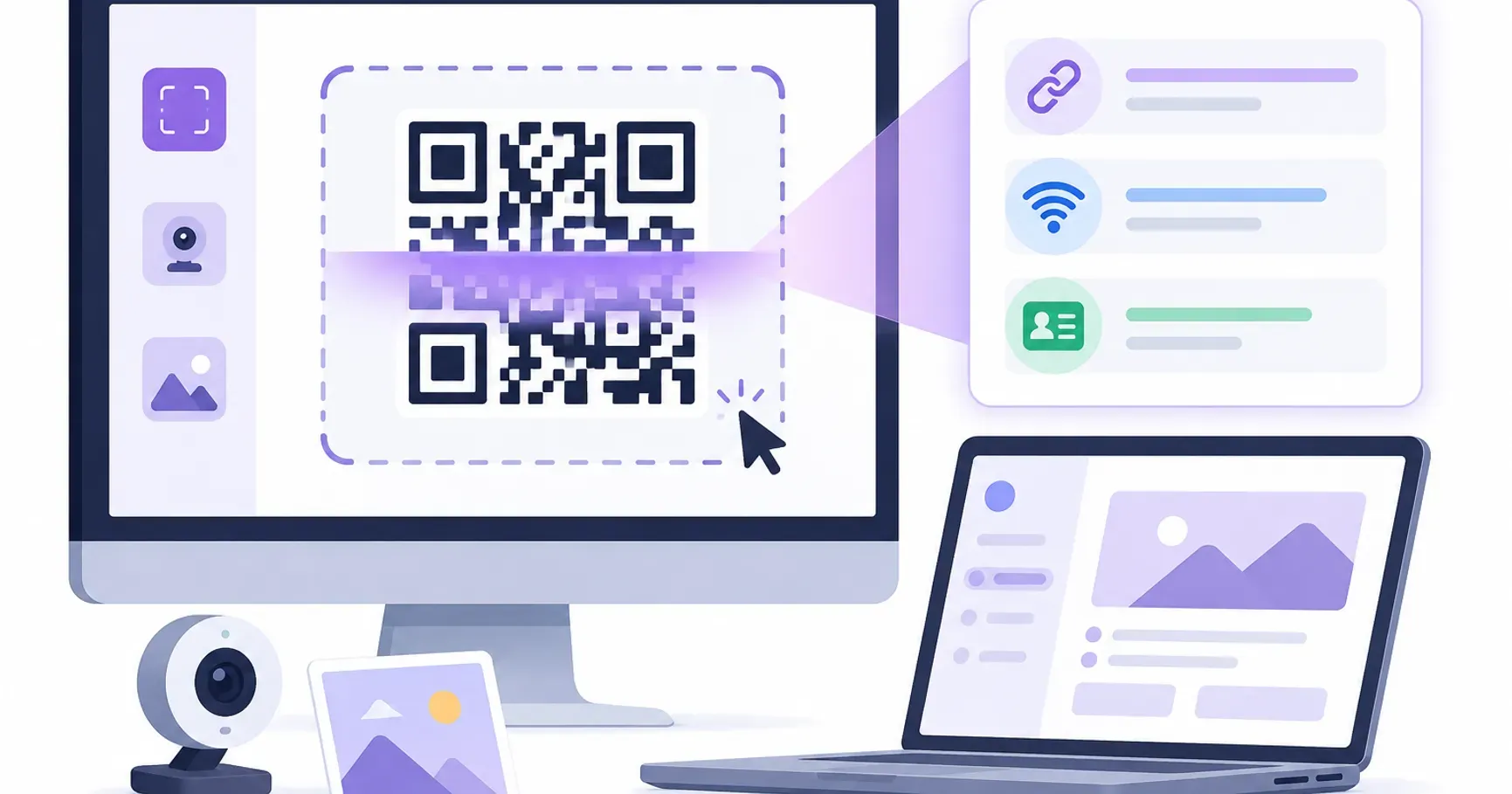
A QR code usually sits on something you point your phone at. Sometimes it’s on the phone itself: a voucher in an email, a Wi-Fi code a friend screenshotted, a sign-in code on the laptop you’re working on. The camera can’t point at its own screen, so the usual “open the camera and aim” advice doesn’t help.
You don’t need a second device. Every phone and computer can read a code that’s already on screen, but the route depends on where the code is and where you want it to open. This guide sorts that out, then covers the opposite problem: showing a ticket or boarding-pass QR code on your phone so someone else’s scanner can read it.
First, Work Out Which Situation You’re In
| Where the code is | Where it should open | Fastest route |
|---|---|---|
| A screenshot or photo on your phone | The same phone | Photos (iPhone) or Google Lens (Android), or upload it to a web reader |
| A web page, email or chat on your phone | The same phone | Screenshot it, then as above |
| Your computer screen | Your phone | Point the phone’s camera at the monitor |
| Your computer screen | The same computer | Paste a screenshot into a browser-based reader, or use Lens in Chrome |
| Your phone | Someone else’s scanner (ticket, pass, voucher) | Show it at full brightness, uncropped. See the last section |
The general camera routine for printed codes, including Control Center and Quick Settings shortcuts, is covered in our guide on how to scan a QR code. This article is about codes that are already digital.
On iPhone: A Code in a Screenshot or Photo
If the code is on a web page, in Mail or in Messages, take a screenshot first. The Photos app is where iOS reads a code out of a still image.
- Open the screenshot in Photos. Make sure the whole code is visible, including the white border around it.
- Touch and hold the code. On recent iOS versions, Photos recognizes the code and offers to open what it contains, usually as a link you can tap.
- If nothing appears, tap the Live Text button. Apple describes Live Text as recognizing text in photos and offering quick actions such as opening a website. It has to be switched on under Settings → General → Language & Region → Live Text, and Apple notes it isn’t available in every region or language.
Apple’s help pages document scanning with the Camera and the Scan Code control. They don’t spell out QR recognition inside Photos, and the exact menu wording has shifted between iOS versions. If your iPhone doesn’t offer an option, use the web reader method below. It works the same on every iOS version.
On Android: Google Lens on a Screenshot
Android’s reliable route is Google Lens, which Google lists as a way to scan QR codes.
- Take a screenshot of the code, or find the image in your gallery.
- Open it in Google Photos and select the photo.
- Tap Lens. Google’s help currently describes it as More → Google Lens; on many phones Lens is also a button under the photo.
- Tap the link Lens shows once it reads the code.
Phones with Circle to Search (Google lists Pixel 6 and later among them) let you touch and hold the Home button or navigation handle, then circle something on screen to search it, without taking a screenshot. Google’s help page doesn’t mention QR codes, though. If circling the code only brings up search results, go back to Lens in Google Photos.
On Any Device: Upload or Paste the Image Into a Web Reader
A browser-based reader works the same on an iPhone, an Android, a Mac or a Windows PC. It’s also the most predictable option when the phone’s built-in feature behaves differently from the steps above.
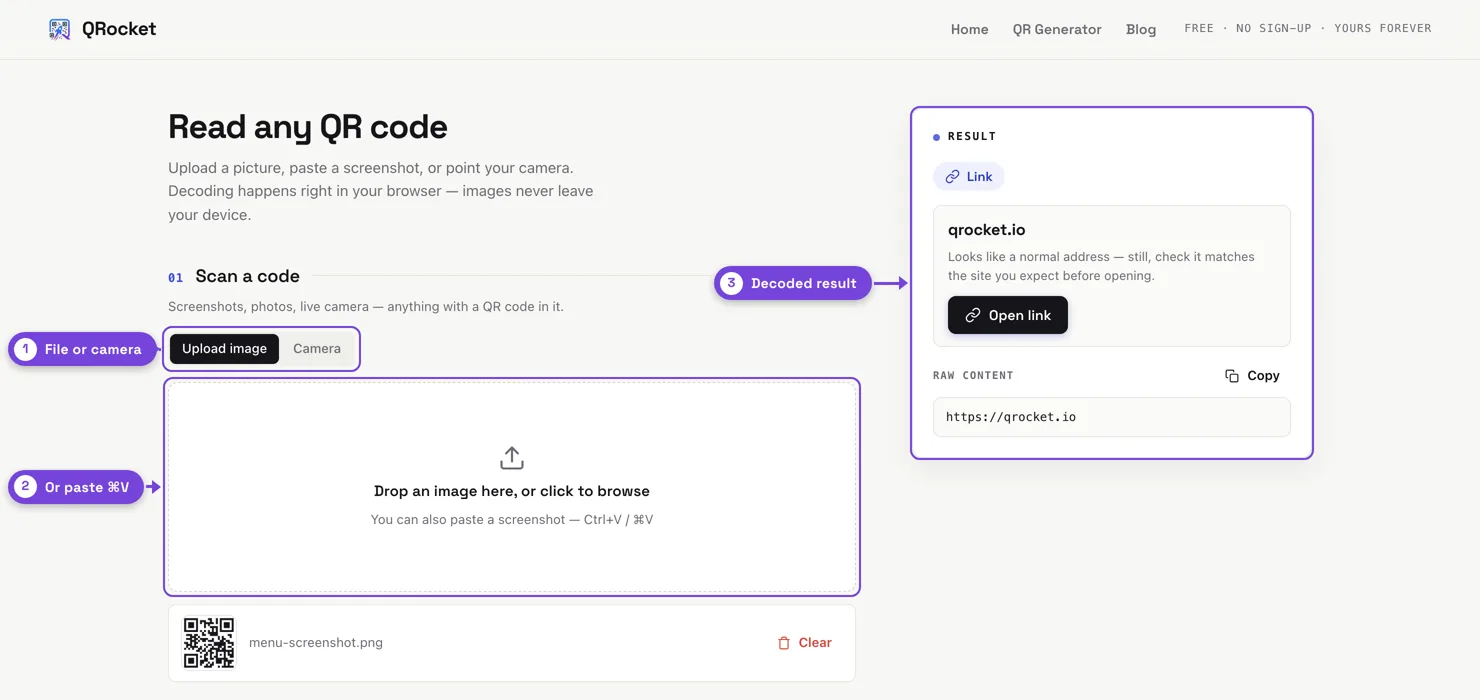
- Open QRocket’s free QR code reader in your browser. There’s nothing to install and no account.
- Add the image. On a phone, choose Upload image and pick the screenshot from your photo library. On a computer, drag the file in, or copy a screenshot and paste it with Ctrl+V or ⌘V.
- Read the result before you open it. The reader shows what the code contains, such as a link, a Wi-Fi network or contact details, so you can check it before tapping anything.
The reader decodes in your browser, so the image isn’t uploaded to a server. Our QR code reader walkthrough covers what it can decode and what to do if an image won’t read.
Code stuck in a screenshot? Decode it in your browser, no app needed. — Open the Free QR Code Reader
On a Computer: The Code Is on the Screen You’re Using
Two routes, depending on where you want the result.
You want it to open on the computer. Take a screenshot of just the code and paste it into the reader. On a Mac, add Control to the usual screenshot keys to copy the capture instead of saving it: Control-Shift-Command-4, then drag around the code. On Windows, Windows + Shift + S opens the snipping tool and copies your selection. Paste into the reader with ⌘V or Ctrl+V.
In Google Chrome you can also right-click the image and choose Search with Google Lens. Results open in Chrome’s side panel. Google’s help notes that Lens sends a screenshot of the page and page data to Google to run the search. Keep that in mind for anything private, like a sign-in or payment code.
You want it to open on your phone. This is the voucher case: a site shows you a code on the laptop and you need to redeem it on your phone. Just point the phone’s camera at the monitor. A few things make it easier:
- Make the code bigger. Zoom the browser page (Ctrl or ⌘ and +) so the code fills a good part of the screen.
- Turn the screen brightness up and kill reflections from windows or overhead lights.
- Tilt the phone slightly if you see rippling stripes (moiré) on the camera preview. A small angle usually clears them.
- Keep the whole code in frame, including its white border.
Showing Your QR Code to Someone Else’s Scanner
Many visitors searching this topic have the reverse problem. The code is on your phone (a concert ticket, a boarding pass, a store voucher, a pickup code) and a staff scanner has to read it. The fixes are about the screen, not the camera.
- Turn brightness to maximum. A dim screen lowers contrast, and scanners at gates are often in bright daylight.
- Show the whole code. Don’t zoom so far that the edges or the white margin around the code are cut off. Scanners need that quiet border to find the code.
- Hold it flat and still, a hand’s width from the scanner window, and let the scanner find it. Don’t move the phone around looking for the right spot.
- Wipe the screen. Fingerprints and scratched protectors scatter light across the code.
- Save it before you arrive. Venues often have weak mobile signal. If the app offers Add to Apple Wallet or Google Wallet, use it. Otherwise a screenshot is a sensible backup for a static code, such as a voucher or many airline passes.
One important exception: some tickets use a moving barcode that refreshes itself to stop copying. Ticketmaster’s help says its moving barcode refreshes every 15 seconds and that “screenshots won’t get you in”. Only the live barcode in the app, or the ticket added to your phone’s wallet, works. If your ticket has an animated line or shimmer across it, assume a screenshot won’t scan and bring the live version.
A Safety Check for Codes You Didn’t Expect
A QR code in an email you weren’t expecting (“scan to verify your account”, “scan to release a parcel”) is a common phishing trick, because the link is hidden inside an image that email filters can’t read as text. Reading it in a web reader first shows you the destination before anything opens. If the domain doesn’t match the company it claims to be from, don’t open it. Our guide to QR code phishing (quishing) explains the red flags.
One Screen Is Enough
A QR code on your own screen isn’t a dead end. On a phone, screenshot it and let Photos or Lens read it. On a computer, paste the screenshot into a reader or point your phone at the monitor. When the code is yours to show, turn the brightness up and keep it whole. And if you ever need to make a code for other people to scan, QRocket’s free QR code generator makes static codes that don’t expire.
Frequently Asked Questions
How do I scan a QR code that’s on my own phone screen?
Take a screenshot, then open it in Photos on iPhone (touch and hold the code) or in Google Photos on Android (tap Lens). If your phone doesn’t offer that, open a browser-based QR code reader, upload the screenshot, and the decoded link appears without needing a second device.
How do I scan a QR code from a screenshot on iPhone?
Open the screenshot in Photos and touch and hold the code; recent iOS versions offer to open its link. If nothing appears, tap the Live Text button, or upload the screenshot to a web-based QR reader, which works on every iOS version.
How can I scan a QR code shown on my computer with my phone?
Point your phone’s camera at the monitor as you would at a printed code. Zoom the page so the code is large, turn up the screen brightness, and tilt the phone slightly if stripes appear on the camera preview. Keep the code’s white border in frame.
Can I open a QR code on my laptop without a phone?
Yes. Take a screenshot of the code (Control-Shift-Command-4 on a Mac copies it, Windows + Shift + S on Windows) and paste it into a browser-based QR code reader. In Chrome you can also right-click the image and choose Search with Google Lens.
Why won’t the scanner at the gate read the QR code on my phone?
Usually the screen is too dim, the code is cropped or zoomed so its border is cut off, or the phone is moving. Turn brightness to maximum, show the whole code, and hold still. Some tickets use a refreshing barcode that screenshots can’t reproduce, so open the live ticket in the app or wallet.
Can I use a screenshot of my ticket QR code?
For a static code, such as many vouchers and boarding passes, a screenshot usually works as a backup. Tickets with a moving or refreshing barcode are different: Ticketmaster, for example, says screenshots won’t get you in, so show the live ticket or add it to your phone’s wallet.
Create a free QR code with custom colors, your logo and print-ready downloads — no sign-up.