QR Codes for Digital Signage: Lobby TVs, Menu Boards, and Looping Screens
 By Kelly Or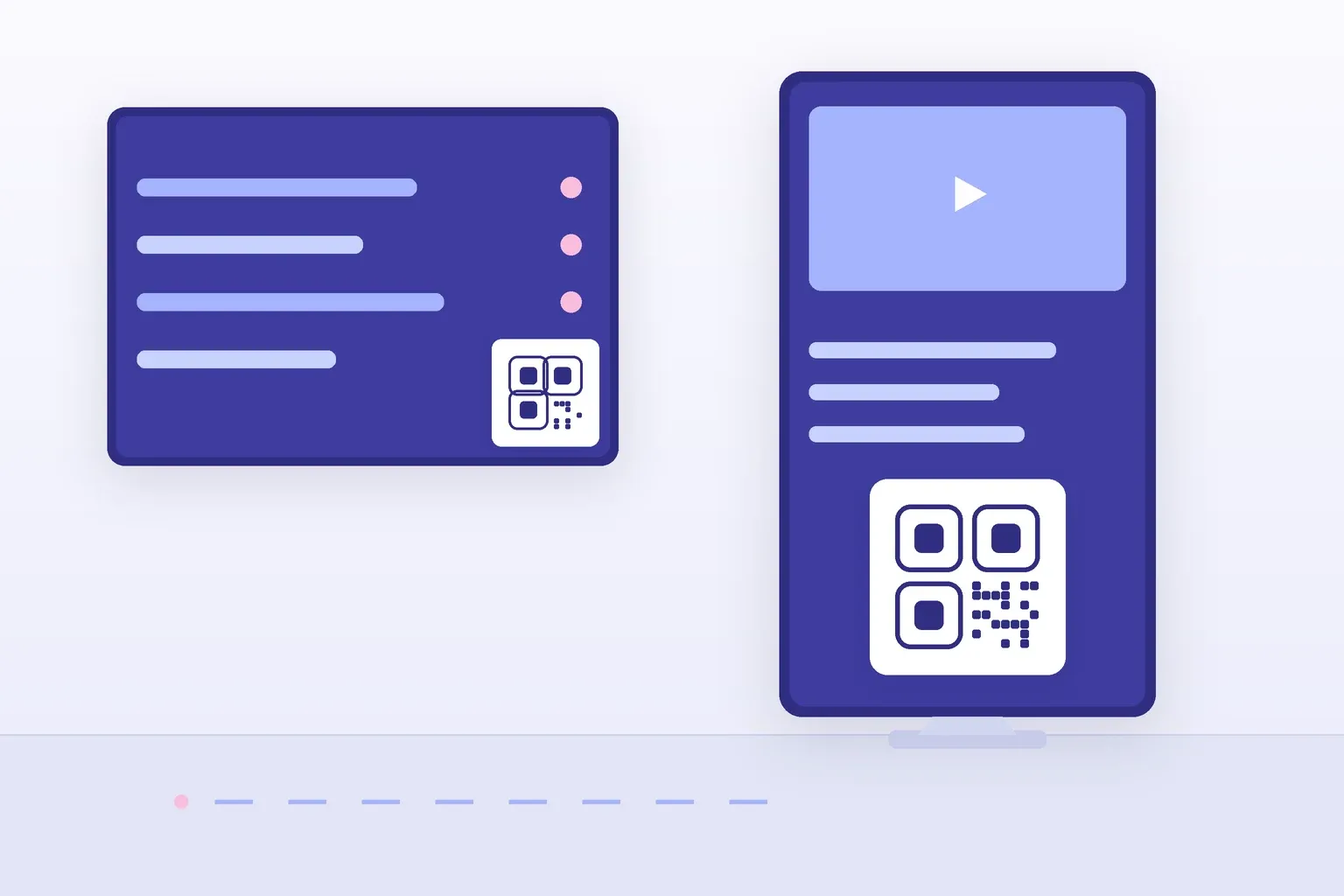
Digital signage solves half of a business problem beautifully: it puts moving, always-current content in front of people who are standing around anyway. What it can’t do on its own is let those people take anything with them. A QR code on the screen closes that loop — the lobby TV shows the promotion, the scan puts it in the visitor’s pocket.
But screens punish sloppy QR work harder than print does. Codes get sized for the designer’s monitor instead of the viewer’s distance, slide transitions wipe them mid-scan, and rotating layouts move them around like a shell game. This guide covers the placements that work, the size-at-distance math with real centimeters attached, the layout and loop-design rules that survive a content rotation, and how to prove the screen is actually earning scans.
Where Signage QR Codes Pay Off
The best signage placements share one trait: a viewer with idle seconds and a phone in reach.
- Lobby and reception displays. Visitors waiting to be collected are the most captive audience in business. Codes linking to WiFi access, a visitor check-in form, a company overview, or an open-roles page convert steadily all day.
- Menu boards. A code beside the board lets the queue browse the full menu, nutrition details, or the online-ordering flow — so the person at the counter orders faster. Keep it low on the screen, near eye level, where a standing customer scans comfortably.
- Retail shelf and window screens. A looping product demo with a persistent code turns browsing into a product page visit, a review read, or a signup — even when the store is closed, if the screen faces the street.
- Event schedule screens. Conference lobbies and session-room doors rotating the day’s agenda can carry a code to the live schedule, the venue map, or session feedback.
- Waiting rooms. Clinics, service centers, and repair shops hold people for fifteen bored minutes. Codes to intake forms, aftercare instructions, or review pages do quiet, consistent work here.
In every case the code needs a payoff label — “Scan for the full menu,” “Scan to join WiFi” — because on a rotating screen you get one glance to explain the deal.
Size at Distance: The Math for Screens
Screen codes obey the same 10:1 rule as print: the code must be at least one tenth as wide as the scanning distance. The full derivation lives in our QR code size guide; here it is applied to signage distances:
| Viewing distance | Minimum code width | What that means on screen |
|---|---|---|
| 1–2 m (menu board, shelf screen) | 10–20 cm (4–8 in) | Comfortable on any display — roughly 20–35% of a 43” screen’s height |
| 3 m (lobby TV across a seating area) | 30 cm (12 in) | Nearly half the height of a 55” screen (68 cm tall) — a third of a 75” |
| 5 m (large lobby, atrium display) | 50 cm (20 in) | Bigger than a 43” screen’s entire height; needs a 75”+ display or a dedicated full-screen slide |
| 10 m (concourse, stage screen) | 100 cm (39 in) | Taller than almost any signage display — at this distance, rethink the placement |
Two practical conclusions fall out of that table. First, the comfortable homes for signage QR codes are the close-range screens — menu boards, shelf displays, and anything people walk up to. Second, for far screens, don’t shrink the code to fit the layout; either give it a full-screen moment (next section) or accept that scanning happens when people approach, and place a second code on a nearby poster, table tent, or counter card at hand-scanning size.
Key takeaway: Measure the real distance between the screen and the people, divide by ten, and check that width against the physical screen. If the code the math demands doesn’t fit the layout, change the layout — not the math.
Placement Rules That Survive a Slide Rotation
Signage content rotates, and rotation is where QR codes quietly die. Three rules keep the code scannable through every transition:
- One position, forever. Put the code in the same corner on every slide that carries it — bottom-right is conventional. A viewer mid-scan when the slide changes can keep their camera exactly where it was; a code that jumps around resets every attempt.
- Render it as a static layer, not slide content. Most signage CMSs and players support a persistent overlay or “logo layer” that stays fixed while content rotates beneath it. Put the code there. It sidesteps transitions entirely and guarantees position.
- Protect the quiet zone from transitions and edges. Slide wipes, pushes, and zooms must never clip the code or its white margin mid-animation — and neither should the screen itself. TVs used as signage sometimes overscan, cropping up to 5% of the image at the edges, so keep the code tile inside a safe margin rather than flush against the border.
Mount the code on a solid light tile with the full 4-module quiet zone included, exactly as you would for print. Rotating photos and gradients behind a bare code will eventually produce a slide where the contrast fails.
Designing the Loop: Every Slide vs. a Dedicated Slide
There are two working patterns for getting a code into a rotating loop, and the right one follows from your size math.
The persistent corner code suits close-range screens. The code sits in its fixed corner on every slide (or on the overlay layer), sized at 10–20% of screen height — plenty for a viewer standing a meter or two away. It’s always available, no matter when someone looks up.
The dedicated QR slide suits far screens and big asks. One slide in the loop goes all-in: a large centered code — sized from the distance table above — one line of payoff text, and nothing else. Give it a dwell time of at least 10 seconds, because a viewer needs to notice the code, get their phone out, and aim before the loop moves on; 15 seconds is kinder. If the loop is long, let the slide appear twice per cycle.
The content between and behind those slides matters more than most signage owners expect. A loop that visibly stutters or hard-cuts at its seam reads as broken and pulls attention at exactly the wrong moment — this guide to seamless video loops explains why the seam matters and how a clean loop is built. And if a dedicated QR slide needs motion to hold the eye without fighting the code, a library of free looping motion backgrounds provides calm animated backdrops that sit behind a static code tile without touching its contrast.
Dark-on-Light, Even on a Glowing Screen
Emissive screens tempt designers into inverted codes — white modules on the slide’s dark background. Resist. Scanning apps are built around dark-modules-on-light; modern phone cameras often cope with inversion, but older phones and third-party scanner apps fail on it, and on public signage you don’t get to choose your audience’s scanner. The reliable pattern is the same white tile that works everywhere else: dark code, light background, full quiet zone.
Screen-specific caveats worth knowing: a full-brightness pure-white tile on a large display can bloom and glare, especially in a dark lobby — a very light gray tile at moderate screen brightness scans just as well and photographs better. Glossy screens add reflections, so check the code from the actual scanning angles at the actual ambient light, day and night if the screen runs both. Details on which color pairs preserve enough contrast are in QRocket’s QR code colors guide.
Test From the Actual Distance
A signage QR code gets tested twice. First, before it ships: run the artwork through the free QR code checker to confirm contrast, quiet zone, and density are sound. Second — the test that actually matters — on the deployed screen: stand where your viewers stand, at the real distance, under the real lighting, and scan with both an iPhone and an Android while the loop plays. Confirm a scan completes within one slide’s dwell time. Five minutes of standing in your own lobby catches everything the design file can’t show you.
Track What the Screen Earns
A signage code without tracking is a screen you can’t defend at budget time. The zero-cost method is UTM tagging: give every screen its own tagged destination URL — shared utm_source=qr, and a utm_medium or utm_campaign naming the screen, like lobby-tv or menu-board-2 — so your analytics attribute each visit to the exact display. The free UTM link builder assembles the links, and QRocket generates a code per screen in seconds. For scan-level data — counts, times of day, devices — point the codes at trackable redirects instead; the approaches are compared in our guide to tracking QR code scans. Within a month you’ll know which screen earns its electricity, and which one needs a bigger code or a better slide.
One code per screen, free, no expiry — generate print- and display-ready QR codes with QRocket. — Create Your Free QR Code →
The Screen Shows, the Code Delivers
Digital signage supplies the audience; the QR code supplies the take-away. The playbook is short: pick screens where people idle with phones in reach, size the code from real scanning distance with the 10:1 rule, pin it to one corner as a static layer with its quiet zone intact, give dedicated slides ten-plus seconds of dwell, keep the code dark-on-light no matter how sleek the inverted mock-up looks, and tag every screen’s URL so the scans have your name on them. Do that once, and every loop of the screen quietly works for you.
Frequently Asked Questions
How big should a QR code be on a digital sign?
Divide the real viewing distance by ten. A menu board scanned from 1–2 meters needs a 10–20 cm code; a lobby TV viewed from 3 meters needs 30 cm — nearly half the height of a 55-inch screen; at 5 meters you need 50 cm, which calls for a very large display or a full-screen QR slide.
Should the QR code appear on every slide or on its own slide?
Both patterns work, at different distances. On close-range screens, keep a modest code in the same corner of every slide — ideally as a persistent overlay layer. On far screens, use a dedicated slide with a large centered code and at least 10 seconds of dwell time so viewers can get their phone out before the loop moves on.
Can a QR code be white on a dark background on a screen?
Avoid it. Scanners are built around dark modules on a light background, and while many modern phones handle inverted codes, older devices and third-party scanner apps often fail — and on public signage you don’t control which scanner shows up. Put a standard dark-on-light code on a light tile, even on dark-themed slides.
Do QR codes scan reliably from a TV screen?
Yes, when sized for the distance and protected from glare. Use a light (not blazing white) tile at moderate screen brightness, keep the code and its quiet zone away from screen edges — TVs can overscan and crop up to 5% — and test from the actual viewing spot under real lighting with more than one phone.
How do I track scans from digital signage?
Give each screen its own destination URL tagged with UTM parameters — for example utm_source=qr and utm_medium=lobby-tv — and generate a separate code per screen, so analytics attribute every visit to the exact display. For richer data like scan counts, devices, and times of day, point each code at a trackable redirect instead.
Create a free QR code with custom colors, your logo and print-ready downloads — no sign-up.