How to Accept Payments with a QR Code (PayPal, Stripe, Square and More)
 By Kelly Or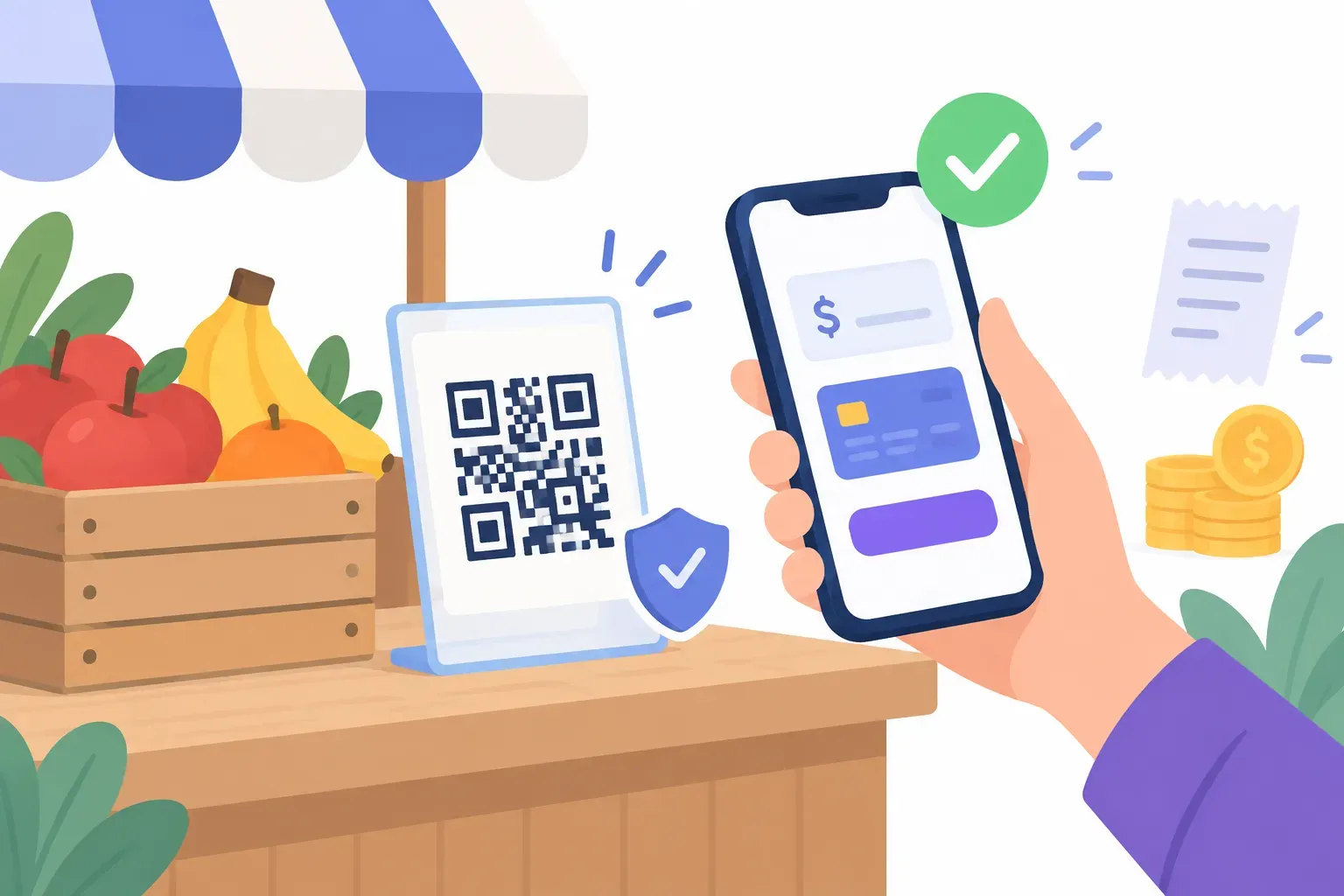
A card reader costs money, needs charging and sits in a drawer at the end of a market day. A QR code on the counter doesn’t. The customer points their phone at it, a checkout page opens, they pay with whatever they already use, and you get a notification. For market stalls, freelancers, tip jars, invoices and pop-ups, that’s often all the payment setup you need.
There’s one thing to understand first: the QR code doesn’t take the payment. It only opens the payment page. The money moves through your payment provider — PayPal, Stripe, Square, Cash App or your bank’s app. So accepting payments with a QR code comes down to two choices: which provider handles the money, and how the code gets the customer to it. This guide covers both, plus the part most guides skip: keeping a printed payment code from being swapped by a scammer’s sticker.
Three Kinds of Payment QR Codes
Not every “payment QR code” works the same way. Before you print anything, know which kind you’re making.
| Kind | What’s inside the code | Who creates it | Examples |
|---|---|---|---|
| Payment link code | A normal web address that opens a hosted payment page | You, with any QR generator, or the provider | PayPal.Me, Stripe Payment Links, Square payment links, Cash App $cashtag |
| Provider’s own code | Whatever the provider puts in it; it’s scanned in the provider’s app or opens its page | The provider’s app or dashboard | PayPal QR code, Venmo business QR |
| Bank payment standard | Structured payment data (account, amount, reference) in a format banking apps read | Your bank, payment app or accounting software | Pix (Brazil), EPC QR for SEPA transfers (Europe), SGQR (Singapore) |
QRocket makes the first kind: you paste your payment link and get a clean, styled code that never expires. It doesn’t process payments, and it doesn’t make the third kind — those follow their own standards and should come from your bank or payment app.
Payment Links You Can Put in a QR Code
Most small-business payment providers give you a shareable link, and any of those links can go into a QR code. Venmo is the exception in this table: use the code in its app. The details below come from each provider’s own help pages, checked in September 2026; features and fees change, so confirm in your account before you print.
| Provider | Link to use | Set the amount? | Provider makes its own QR? | If you turn the link off |
|---|---|---|---|---|
| PayPal.Me | paypal.me/yourname | Optional: add it to the link, like /25 | Yes, for business accounts (separate PayPal QR) | You can turn off your PayPal.Me link; people can no longer pay you through it |
| Stripe Payment Links | The link Stripe gives you, on buy.stripe.com | Fixed price, or let customers choose what to pay | Yes, a PNG from the Dashboard | A deactivated link sends people to an expiration page |
| Square payment links | The link from your Square Dashboard or Point of Sale | Choose a link type: collect a payment, sell an item or accept a donation | Yes, as a sharing option | Deactivated or deleted links stop working, and that can’t be undone |
| Cash App | cash.app/$yourcashtag | Check in the app | Check in the app | — |
| Venmo business profile | Use Venmo’s in-app code (Charge → QR Code) | Yes, a preset the customer can still edit | Yes | — |
A few specifics worth knowing:
- PayPal.Me links can’t be changed once created. You can add an amount and currency to the end — PayPal’s example is
PayPal.Me/DiaRusso/25AUD— which makes a handy “fixed price” code for a single item or a set fee. - Stripe lets you choose between a fixed-price product and a “customers choose what to pay” link, which Stripe recommends for tips, donations and pay-what-you-want. Stripe says its own QR code “doesn’t expire,” but deactivating the link behind it sends scanners to an expiration page.
- Square lists QR code as one of the ways to share a payment link, alongside copying the link and a buy button. From the Square Dashboard you can create links to collect a payment, sell an item, accept a donation, or sell an event or class.
- Cash App creates a shareable
https://cash.app/$yourcashtagaddress as soon as you pick a $cashtag. $cashtags can be changed only twice, so settle on one before you print. - Venmo business QR codes can pre-fill a price, and the customer “can still edit the amount on their end,” which leaves room for tips. Only one preset-amount code is live at a time, so save or print each one as you make it.
When to Use the Provider’s Own QR Code
If your provider already makes a code, why make your own? Often you shouldn’t bother. PayPal’s business QR code, Venmo’s business code and Stripe’s Dashboard QR are made for exactly this. PayPal says its QR code is created once in your business account, stays valid for every sale and doesn’t expire. PayPal’s US page lists QR payments at 2.29% + $0.09 per transaction as of September 2026, with a note that fees are subject to change.
Your own code is worth making when:
- The design has to match your print. Provider codes are plain. A code in your brand color, with a “Pay here” label, reads as part of your sign, not a sticker slapped on it.
- You need a vector file. Menus, banners and packaging print sharper from SVG.
- Your provider only gives you a link. PayPal.Me, Square payment links and Cash App’s $cashtag address are links first.
Either way, the rules for printing and protecting the code are the same.
How to Create a Payment QR Code with QRocket
This works for any payment link that starts with https://. It’s free, with no sign-up and no expiry on the code itself.
Step 1: Copy your payment link
Get it from your provider’s dashboard or app: your PayPal.Me address, the Stripe or Square payment link, or your Cash App $cashtag address. Open it in a private browser window first and check that it shows the right business name and amount.
Step 2: Paste it into the Website type
Open the payment QR code generator. The Website type is selected. Paste the full link into Website address, including https://. The field flags anything that isn’t a complete address.
Leave Campaign tracking empty unless your provider supports UTM tags on payment links. Stripe does (its docs show UTM tags on a buy.stripe.com link); for other providers, don’t add anything to the link.
Step 3: Style it and label it
Start from the Shop now template or pick your own colors. Add the Pay icon (the card symbol in the logo library) to the center, and change the label to what the scan does: “Scan to pay,” “Pay here” or “Tip the band.” Keep the code dark on a light background and watch the scannability meter. Our call-to-action examples have more label ideas.
Step 4: Download SVG or PNG
SVG for print, a high-resolution PNG for screens and invoices.
Step 5: Test a real payment
Scan the code with an iPhone and an Android. Check that the payment page opens and shows your business name, then make a small real payment and refund it. Our pre-print testing checklist covers size and lighting too.
Step 6: Print it and put it where people pay
Place it where the customer is when they’re ready to pay: the counter, the check folder, the invoice footer. At counter distance, a code of 3–4 cm is comfortable; our QR code printing guide covers materials, and the size guide covers distance.
Turn your payment link into a printable QR code — free, no sign-up, never expires. — Create Your Free QR Code →
Regional Payment QR Standards (Not the Same as a Link)
In several countries, “pay by QR” means a bank-rail code with its own data format — not a web link. Banking apps read these codes and pre-fill a transfer. A generic URL QR code from QRocket, or any other link generator, is none of these. Don’t put a Pix key, IBAN or account number in a link code and expect a banking app to read it. Use the code your bank or payment app generates.
- Brazil — Pix. The central bank’s Pix initiation manual defines static and dynamic QR codes. A static Pix code must carry a valid Pix key, with the amount optional. It follows Brazil’s BR Code standard, which is based on the EMV QR code specification for payment systems.
- Europe — SEPA credit transfers. The European Payments Council’s QR code guidelines (EPC069-12, version 3.1, March 2024) describe a code printed on an invoice that pre-fills a SEPA transfer in the payer’s banking app. The EPC says this format suits invoices where the payment details also appear in plain text. For point-of-sale use, where the customer only sees a QR code, it points businesses to a separate standard.
- Singapore — SGQR. SGQR, co-owned by the Monetary Authority of Singapore and IMDA, combines several payment schemes into one label, so a shop shows one code instead of many. The Association of Banks in Singapore announced that PayNow QR adopted the SGQR specification, so businesses can collect PayNow payments through it.
Other markets have their own systems; ask your bank which one it supports.
Protect Printed Payment Codes from Sticker Scams
A payment code is a tempting target, because a scammer only needs to cover it. The FTC warned in September 2026 that people have reported scammers covering legitimate QR codes on parking meters with codes of their own, leading to fake sites that steal money or personal information. The same trick works on a counter sign or a table tent. Our quishing guide explains how these attacks work; here’s how to protect your own codes:
- Print the destination next to the code. “Pays Rosa’s Bakery at paypal.me/rosasbakery” gives customers something to compare against the link preview their camera shows.
- Tell customers what they should see. A line such as “The page will show Rosa’s Bakery” helps them spot a fake.
- Make the code hard to cover. Put it behind a clear acrylic stand or laminate, or print it on the sign itself rather than on a loose sticker. A sticker on top of a printed sign is easier to notice than a sticker on top of a sticker.
- Check your codes daily. Glance at every payment code when you open. Anything raised, peeling or misaligned gets scanned and checked.
- Reconcile payments. Compare what customers say they paid with what arrived in your provider’s dashboard. A customer who shows a “successful” payment you never received is a sign someone has swapped the code.
- Never use a code that asks for card details on an unfamiliar site. Your own links open your provider’s checkout on its own domain, and nothing else.
QR Code or Tap to Pay?
QR codes and NFC contactless payments solve different problems. Tap to pay needs a terminal or a phone set up to accept cards, but it’s fast for the customer and there’s nothing printed to tamper with. A QR code needs no hardware at all, which is why it suits stalls, tip jars, invoices and anywhere a terminal isn’t practical. Many businesses use both: a card reader at the register and a QR code for tips or remote payments. Our NFC vs QR codes comparison goes deeper into the trade-offs.
Where Payment QR Codes Work Best
- Market stalls and pop-ups. A code on the table sign replaces a card reader for smaller purchases.
- Invoices and receipts. A code in the footer opens the payment page instead of making the client type your details. Our guide to QR codes for small business has more ideas.
- Restaurants and cafés. A code on the check folder lets guests pay without waiting for the card machine; see QR codes for restaurants.
- Tips and donations. A “customers choose what to pay” link or a PayPal.Me link without an amount lets people give what they want.
- Services at the door. Cleaners, tutors and photographers can show a code on their phone or a card.
Can You Track Payments from a QR Code?
Your payment provider already records every payment, so the dashboard is where you see what came in. QRocket codes are static, and QRocket doesn’t count scans. To tell placements apart, create a separate payment link per location where your provider allows it, or on Stripe add a different utm_content value per code. For how to create a QR code for a URL with tracking parameters, see our URL guide.
Scan, Pay, Done
A payment QR code is a shortcut to a payment page your provider already runs. Choose the provider that fits how you sell, use its QR code or put its link in a code styled for your space, test it with a real payment, and protect the printed code from being covered. That’s a checkout that fits on a sticker.
Create a free payment QR code with QRocket — paste your link, style it, print it. — Create Your Free QR Code →
Frequently Asked Questions
How do I accept payments with a QR code?
Get a payment link from a provider such as PayPal.Me, Stripe Payment Links, Square payment links or Cash App, then put that link in a QR code. When a customer scans it, the provider’s payment page opens and they pay on their phone. The provider processes the payment; the QR code only opens the page.
Is a QR code payment free?
Creating the QR code can be free. QRocket codes cost nothing and don’t expire. The payment provider may charge fees on each payment, and those fees depend on the provider, country and account type, so check your provider’s current pricing before you rely on it.
Can I put a fixed amount in a payment QR code?
Yes, if your provider supports it. A PayPal.Me link can end with an amount, such as /25, Stripe payment links can be created for a fixed price, and Square links can sell a specific item. Venmo business codes can pre-fill an amount the customer can still edit. Make one code per price if you sell a few fixed items.
Do payment QR codes expire?
A static QR code doesn’t expire, but the payment link inside it can stop working. Stripe sends deactivated payment links to an expiration page, and Square says deactivated or deleted links become unavailable. Keep the link active for as long as the code is in print.
Can I use QRocket to make a Pix or SEPA payment QR code?
No. Bank payment standards such as Pix in Brazil or the EPC QR code for SEPA transfers use their own data formats that banking apps read, and QRocket makes link-based codes. Generate those codes in your bank or payment app. QRocket is for payment links that open a web page.
How do I stop someone putting a fake QR code over mine?
Print the code on the sign itself or behind a clear cover, print the payment destination next to it, and check your codes every day. Reconcile payments against your provider’s dashboard so a swapped code shows up quickly. If a customer says they paid and nothing arrived, check the code right away.
Create a free QR code with custom colors, your logo and print-ready downloads — no sign-up.