How to Add a Logo to Your QR Code (Without Breaking It)
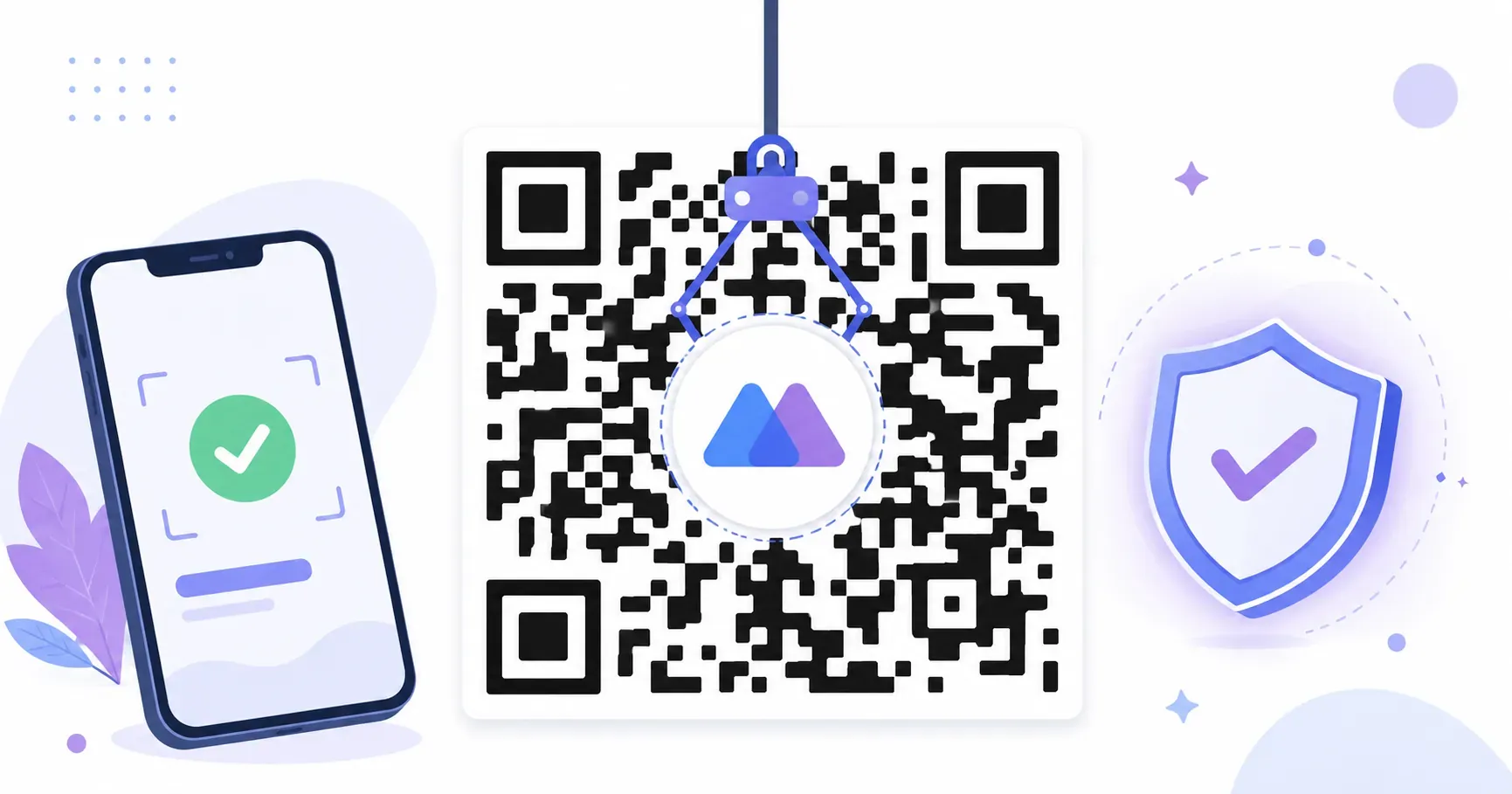
You’ve seen them everywhere: a company’s logo sitting neatly in the middle of a QR code on a coffee cup, a business card, a bus-stop poster. It looks like the code should be broken — a chunk of the pattern is clearly covered — yet it scans on the first try. A QR code with a logo isn’t a lucky hack. It works because of a feature built into the format itself, and once you understand that feature, adding your mark becomes a two-minute job with rules you can actually follow. This guide explains why a logo survives, the one setting that makes it possible, a step-by-step walkthrough, and the size limits that keep every scan reliable.
How a QR Code With a Logo Stays Scannable
The logo does not sit politely in a gap between the modules. It sits on top of them and destroys the data underneath. So how does the code still work? Redundancy.
Every QR code is generated with spare copies of its data baked in, using a mathematical technique called Reed-Solomon error correction — the same family of math that lets a scratched CD still play (developed by Irving Reed and Gustave Solomon in 1960). When part of the pattern is missing or covered, the decoder rebuilds the lost bits from the redundant copies scattered across the rest of the grid. Cover the center with a logo, and the scanner reconstructs those modules instantly from data stored elsewhere.
That is the entire trick. A logo works because the code was built expecting damage. Your job is to keep that damage within budget — a budget set by one adjustable level, covered next.
Key takeaway: A logo doesn’t fit around the modules — it replaces them. Error correction quietly rebuilds what the logo covers, which is why a branded code scans as fast as a plain one.
Error Correction: The Setting That Makes Logos Possible
Every QR code carries one of four error-correction levels. Each level reserves a different share of the code for recovery, and that share is exactly the damage — including a logo — the code can absorb.
| Level | Recovery capacity | Typical use |
|---|---|---|
| L (Low) | ~7% | Clean digital display, no logo |
| M (Medium) | ~15% | General print, light wear |
| Q (Quartile) | ~25% | Industrial or slightly dirty surfaces |
| H (High) | ~30% | Logos and heavy-wear environments |
The one thing to remember: logo means level H. At level H, up to 30% of the code can be covered or damaged and it still decodes. That 30% ceiling is precisely why the standard logo rule caps the mark at 30% of the code’s area. The full theory of when to pick L, M, Q, or H for non-logo reasons is covered in QR code error correction explained — here you only need the takeaway. QRocket raises the error-correction level automatically the moment you add a logo, so you don’t have to hunt for the setting yourself.
One caution worth internalizing: damage tolerance is a budget, not a cushion you should spend fully. A 25% logo on level H leaves only about 5% of margin for print smudges, glare, and folds. On an outdoor code that will weather, keep the logo well under the limit.
How to Create a QR Code With a Logo (Step by Step)
Open the free logo QR code generator and enter the link or data your code should carry first — the logo comes last, on top of a working code. Then follow these four steps.
Step 1 — Prepare the Logo File (PNG or SVG, Square-ish, Transparent)
Get the file right before you upload. Use a PNG with a transparent background or an SVG so the code shows through around the mark instead of being blocked by a white rectangle you didn’t intend. Roughly square logos sit cleanest in the center; a very wide or very tall logo will either look lost or spill into the pattern. If your mark is busy or thin-lined, add a small solid white padding plate behind it so it separates cleanly from the modules.
Step 2 — Generate Your Code and Drop the Logo In
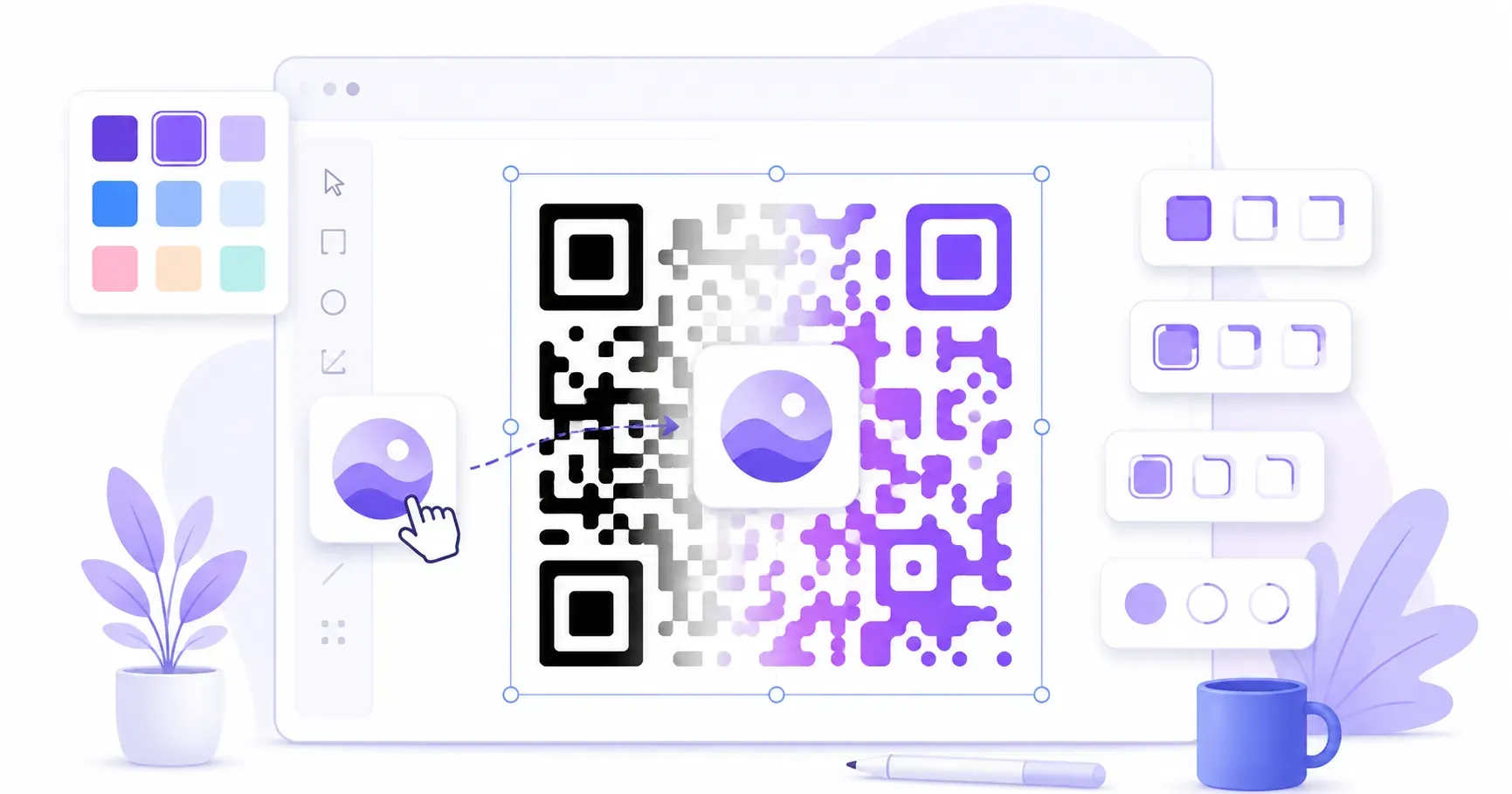
With your URL or content already entered, upload your prepared file to place it in the center. This is the step where you actually add a logo to a QR code, and the generator handles the two things that matter automatically: it centers the image and bumps error correction to level H. If you don’t have a file handy, QRocket’s built-in logo library gives you ready-made marks to test the layout with.
Step 3 — Keep the Logo Under 30% of the Code
Resize the logo so it covers no more than 30% of the code’s total area — and treat that as a ceiling, not a target. Smaller is always safer. Keep it dead center and never let it drift over the three finder squares in the corners or into the quiet-zone margin. The QR standard (ISO/IEC 18004) reserves those regions for locating and framing the code, so error correction cannot rebuild them.
Step 4 — Scan-Test on iPhone and Android
Download the code and scan it with at least one iPhone and one Android phone, at the size you’ll actually print. If it hesitates or fails, shrink the logo first before changing anything else — oversizing is the number-one cause of a branded code that won’t read. Only once it scans clean on both platforms should you export the final file.
Drop your logo onto a code now — error correction is handled for you, free. — Create Your Free QR Code
Logo Size, Shape, and Format Guidelines
A reliable QR code logo comes down to three variables — size, shape, and file format — starting with size. Let’s turn “30% of the area” into a number you can measure with a ruler. On a 3 × 3 cm printed code, 30% of the area works out to roughly a 1.6 × 1.6 cm logo box. That is the maximum footprint — go smaller for anything that will be handled, weathered, or scanned at a distance.
A few guidelines that keep a branded QR code with a logo reliable:
- Format: PNG with transparency or SVG. Avoid JPEGs, which bake in a background and often add compression fuzz around edges.
- Shape: square or circular marks centered in the code. Long horizontal logos work poorly; consider using just an icon or monogram instead of a full wordmark.
- Padding: a thin white plate behind a detailed logo improves contrast against the modules and helps the scanner separate mark from pattern.
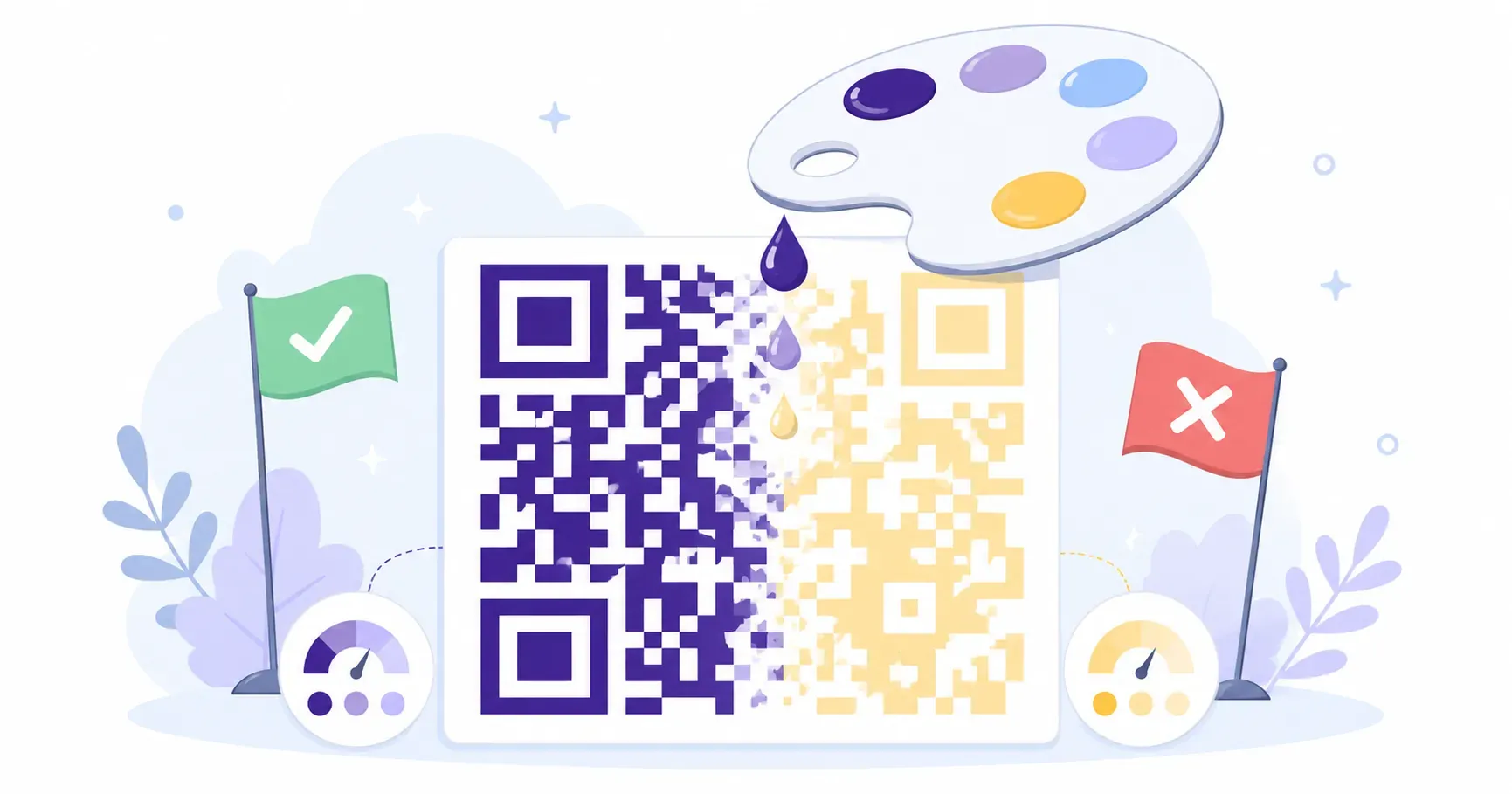
- Contrast still applies: the modules themselves must stay dark on a light background. The QR code colors that scan rules govern the code regardless of what logo sits on top.
For broader styling — frames, module shapes, and calls to action around the code — see the QR code design guide.
When a Logo Is a Bad Idea
Sometimes the right branding move is no logo at all. A mark you can’t scan is worse than a plain black code that always works.
Skip the logo when:
- The print is tiny. Under about 2 cm, a code has so few pixels to spare that any center coverage tips it over the edge. Keep small codes clean.
- The data is dense. A long vCard or a lengthy URL produces a code with many small modules, leaving less structural slack. Dense codes are less forgiving of a covered center.
- The surface takes heavy wear. On a code that will be scuffed, rained on, or scanned through glare, spend your 30% budget on survivability, not branding.
In each case, the smarter play is to shorten the content, size the code up, or drop the logo entirely. Logo placement and the automatic error-correction adjustment are free in QRocket, so you can try a code with and without a mark and keep whichever scans cleaner.
Branded and Bulletproof
The logo in the center is the part people notice, but the reason it works is invisible: a redundancy system doing quiet repair on every scan. Respect the 30% ceiling, keep the mark centered and clear of the finder squares, and error correction handles the rest. Upload your mark to QRocket, keep it under a third of the code, and scan the proof on two phones — branded and bulletproof in one sitting, with no design software and no subscription.
Frequently Asked Questions
How big can the logo in a QR code be?
Up to 30% of the code’s total area, and only with error correction set to High (level H). Smaller is safer, especially for codes that will see print wear, glare, or outdoor conditions. Treat 30% as a hard ceiling, not a target to fill.
What file format works best for the logo?
A PNG with a transparent background or an SVG. Both let the code’s pattern show around the mark instead of being blocked by a solid rectangle. Square proportions sit cleanest in the center; avoid JPEGs, which bake in a background and can add fuzzy compression edges.
Why does my QR code stop scanning after adding a logo?
Two usual culprits: the logo is larger than the error-correction budget can absorb, or it drifts over a corner finder pattern. Shrink the logo, keep it centered, and make sure it never touches the three squares in the corners. Test again before printing.
Does a logo slow down scanning?
No. A logo kept within the size limit has no measurable effect on scan speed. The decoder reconstructs the covered modules from redundant data instantly, so a properly sized branded code reads just as fast as a plain black-and-white one.
Do I need a paid tool to make a QR code with a logo?
No. Logo placement, the automatic jump to level H error correction, and a built-in logo library are all free in the right tool. There is no watermark to remove and no premium plan needed for the feature — you upload your mark, size it, and download.
Create a free QR code with custom colors, your logo and print-ready downloads — no sign-up.