How to Create a vCard QR Code for Your Business Card
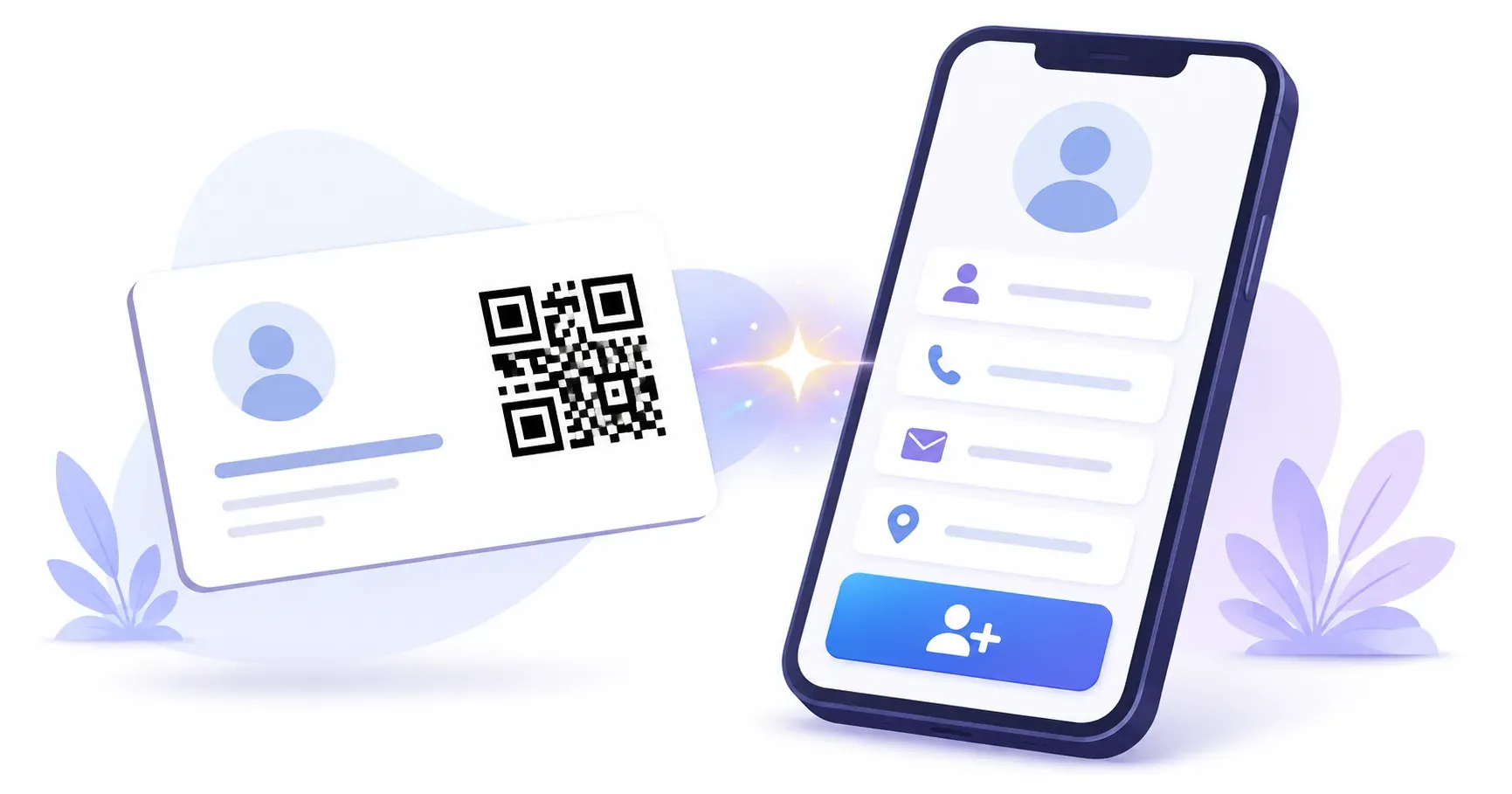
You hand someone your business card at a conference. They smile, slip it into their pocket, and you never hear from them again. The card ends up in a junk drawer — or worse, the trash. A vCard QR code fixes that problem in about two seconds. When someone scans the code on your card, their phone opens a pre-filled contact form with your name, number, email, and website ready to save. No typing, no lost details. QRocket lets you create one for free in under a minute. This guide walks you through every step, from choosing the right fields to placing the code on your printed card.
What Is a vCard QR Code?
A standard QR code might link to a website. A vCard QR code does something more useful for networking: it delivers a complete contact record directly to the scanner’s phone.
The vCard format (short for “virtual card”) is an open standard — a small data file with the .vcf extension — that every major phone operating system recognizes. When someone scans your contact QR code, their device reads that file and opens the native contacts app with your information already filled in. One tap on “Save” and you’re in their phone.
This matters because manual entry kills follow-ups. A single typo in an email address means your reply never arrives. And let’s be honest — most people won’t bother typing out a 10-digit phone number from a card they collected at a busy event. The vCard QR code removes that friction entirely.
Unlike a URL code that requires an internet connection, a vCard QR code stores the contact data inside the code itself. It works offline, in airplane mode, and in basement conference rooms with zero signal. Any vCard QR code generator — including free online tools — encodes this data using the same open standard, so the output works on every smartphone.
What Details Can a vCard QR Code Hold?
Most people assume a contact QR code only holds a name and phone number. The vCard format supports far more than that.
Here’s every field you can pack into a single vCard QR code:
| Field | Example | Character Impact |
|---|---|---|
| Full Name | Jane Rivera | Low |
| Phone Number | +1 (555) 234-5678 | Low |
| Email Address | jane@riveradesign.com | Low |
| Company Name | Rivera Design Co. | Low |
| Job Title | Creative Director | Low |
| Website URL | https://riveradesign.com | Medium |
| Physical Address | 45 Market St, Austin, TX 78701 | High |
A practical tip: every field you add increases the QR code’s data density, which means more modules (those tiny squares) in the same space. For a business card, stick to the 5–6 fields that matter most for your follow-up goals. If your physical address isn’t essential for clients, leave it out — your code will be simpler and scan faster at smaller sizes.
The sweet spot for most professionals is name, phone, email, company, title, and website. That combination keeps the code under 300 characters, which produces a clean, easily scannable pattern even at 2 cm × 2 cm.
How to Create a vCard QR Code in 5 Steps
Building a digital business card QR code takes less time than writing your email signature. Head to the QRocket free QR code generator and follow these steps.
Step 1: Select vCard as Your QR Type
Choose the vCard option from the QR type selector. This opens the contact-specific form with labeled fields instead of a single text box.
Step 2: Fill In Your Contact Details
Enter your full name, phone number, and email first — these three fields are non-negotiable for any networking card. Then add your company name, job title, and website URL if relevant. Double-check spelling on your email; a typo here means every person who scans your code saves the wrong address.
Step 3: Customize the Code’s Appearance
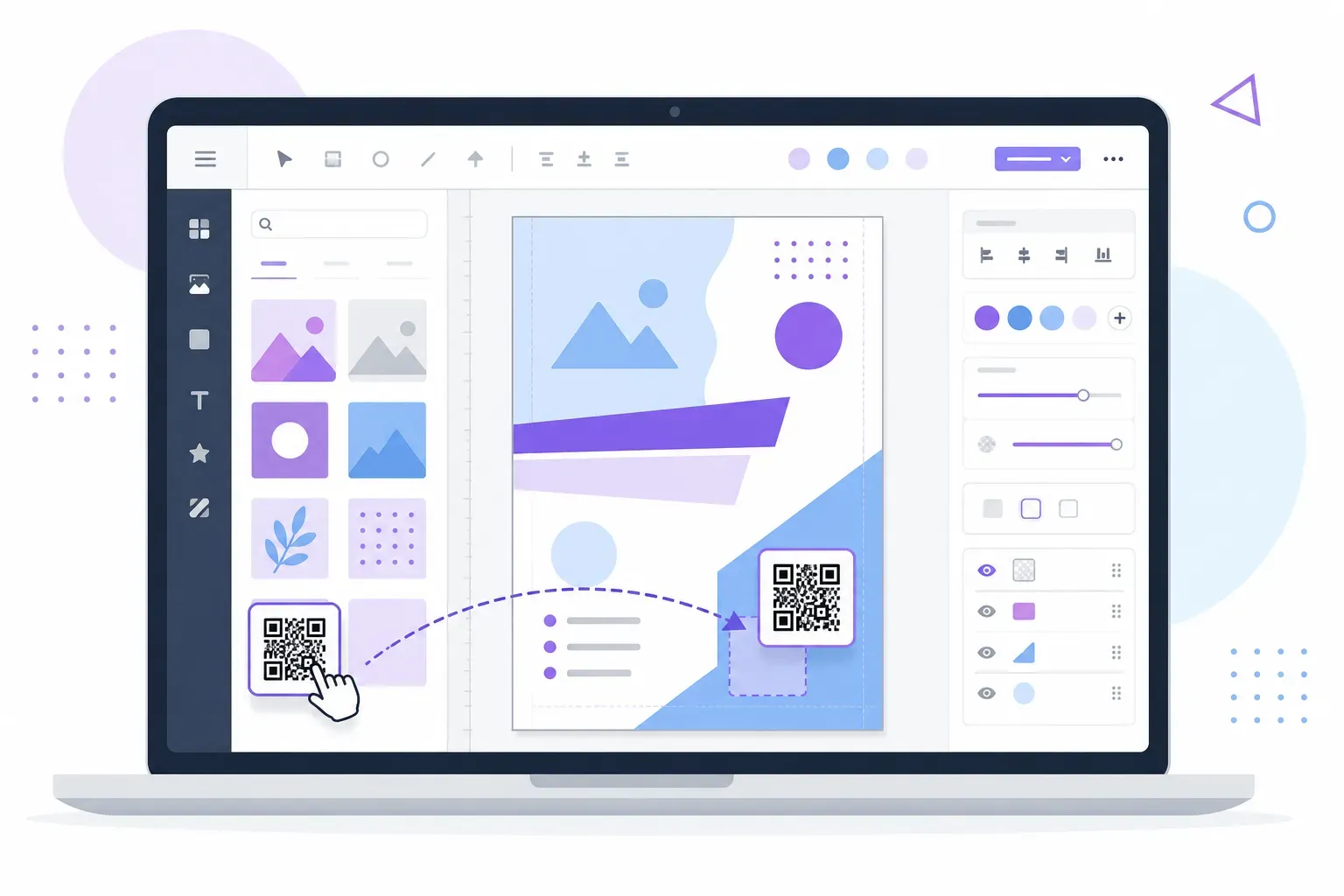
Pick colors that match your business card’s branding. A dark foreground on a light background gives the best contrast for scanning. You can also adjust the pattern style — rounded dots look great on modern card designs, while classic squares suit more traditional layouts. For detailed guidance, check out our QR code design guide.
Step 4: Test Before You Print
Scan the preview with at least two different phones. Test on both iOS and Android to confirm the contact form opens correctly and every field populates as expected. Check that your phone number includes the correct country code — international contacts will need it.
Step 5: Download in Print-Ready Format
Download your code as a PNG (300 DPI minimum) or SVG for scalable vector output. SVG is the better choice if your print designer needs to resize the code without losing sharpness.
Create your free vCard QR code with QRocket — make every business card a digital connection — Create Your Free QR Code
Placing the vCard QR Code on Your Business Card
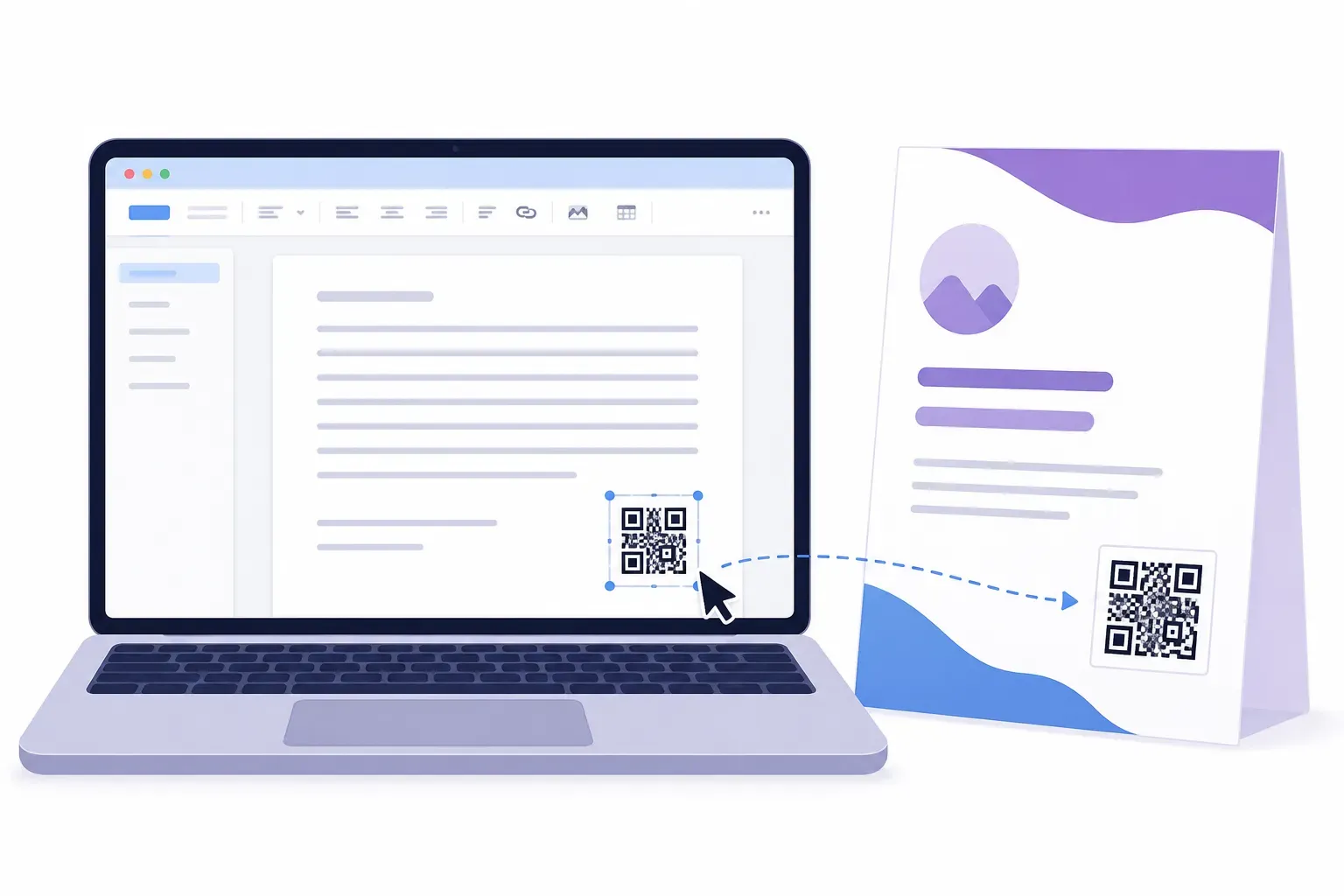
Where you place the code matters almost as much as what’s in it. A poorly positioned QR code gets ignored — or worse, it gets cropped by the printer’s bleed margin.
Size first: Any QR code for a business card needs to be at least 2 cm × 2 cm (about 0.8” × 0.8”) for reliable scanning. On a standard 3.5” × 2” business card, that’s roughly 40% of one side’s height — significant, but manageable with the right layout.
Three placement strategies that work well:
- Back-of-card center: Dedicate the entire back to the QR code with a short “Scan to save my contact” label beneath it. This is the cleanest option and gives the code maximum size.
- Front bottom-right corner: Keeps the code visible without competing with your name and title. Works best when your card design is left-aligned.
- Vertical side strip: Place the code in a narrow column on the right edge, paired with a colored background strip. This modern layout balances branding space with scannability.
Leave at least 3 mm of white space (called the “quiet zone”) around the code on every side. Without it, scanners may fail to detect where the code begins. If you’re exploring more ways to use QR codes in your work, see our guide on QR codes for small business.
vCard QR Code Design Tips
A black-and-white square on a beautifully designed card feels like a bumper sticker on a sports car. With a few adjustments, your QR code can look like it belongs.
Match your brand palette. Use your card’s primary color for the QR code foreground and keep the background white or very light. A navy code on a white card looks intentional. A random green code on a cream card looks like clipart.
Maintain at least 70% contrast between foreground and background colors. Dark blue on white works. Yellow on light gray does not. If you’re unsure, convert your design to grayscale — the code should still be clearly visible.
Skip the logo inside the code for vCards. Unlike URL QR codes, vCard codes carry more data and have less room for error correction to compensate for a logo overlay. A logo that covers more than 10% of the code’s surface area risks making it unscannable. Your name is already on the card — the code doesn’t need a logo too.
Key takeaway: The best QR code design is one that looks intentional on your card, not bolted on as an afterthought. Match colors, respect the quiet zone, and prioritize scannability over decoration.
Digital vs Physical Business Cards
The rise of digital business card QR code solutions has sparked a debate: do you even need printed cards anymore?
Here’s the honest answer — it depends on your industry and how you network.
| Factor | Physical Card + QR Code | Fully Digital (QR Only) |
|---|---|---|
| First impression | Tangible, memorable | Tech-forward, minimal |
| Cost | $20–50 per 500 cards | Free |
| Works offline | Yes (card + embedded QR) | Requires phone screen |
| Information updates | Reprint needed | Update anytime |
| Networking events | Hand it over naturally | Requires phone-to-phone scan |
The hybrid approach wins for most professionals. Print cards with a vCard QR code embedded, and you get the best of both worlds: a physical reminder that sits on someone’s desk and a one-scan digital save. For conferences and trade shows, nothing replaces the ritual of exchanging cards — but the QR code ensures the information actually gets used.
If you’re just starting out and want to test QR codes before committing to a print run, you can create a QR code for free and display it on your phone’s lock screen as a temporary digital card.
The Card That Saves Itself
Here’s the shift worth remembering: a paper card asks someone to do work later, while a vCard code does that work the instant they scan. A stack destined for a junk drawer becomes a name already sitting in a phone. Before your next print run, drop a QRocket vCard code on the back of your design — the 30 seconds it takes outlasts every card you’ll ever hand out.
Frequently Asked Questions
What information can a vCard QR code store?
A vCard QR code holds your name, phone number, email, company, job title, website URL, and physical address. Some implementations also support a profile photo, though this significantly increases the code’s data size and can reduce scannability at small print sizes.
Does scanning a vCard QR code automatically save the contact?
Not quite automatically — scanning opens a pre-filled contact form on the phone. The user reviews the details and taps “Save” to add it to their address book. This extra step is intentional, as most phone operating systems require user confirmation before writing to contacts.
What size should the QR code be on a business card?
Print your QR code at a minimum of 2 cm × 2 cm (0.8” × 0.8”) for reliable scanning. On a standard 3.5” × 2” business card, this fits comfortably in a corner or takes up a clean section of the back. Larger is always better for scan reliability — 2.5 cm × 2.5 cm is ideal if your layout allows it.
Do vCard QR codes need internet to work?
No. The contact details are encoded inside the pattern itself rather than fetched from a server, so the code saves your information even in airplane mode or a basement with no signal. That offline reliability is a real advantage over a URL code that points to an online profile.
What happens if my details change?
Because a vCard code is static, a new job title or phone number means generating a fresh code and reprinting your cards. If your details shift often, encode a URL to an online profile you can edit instead — the printed code stays the same while the page behind it updates.
Create a free QR code with custom colors, your logo and print-ready downloads — no sign-up.