QR Code Checker: Test If Your QR Code Will Scan Before You Print
 By Mosh Bryce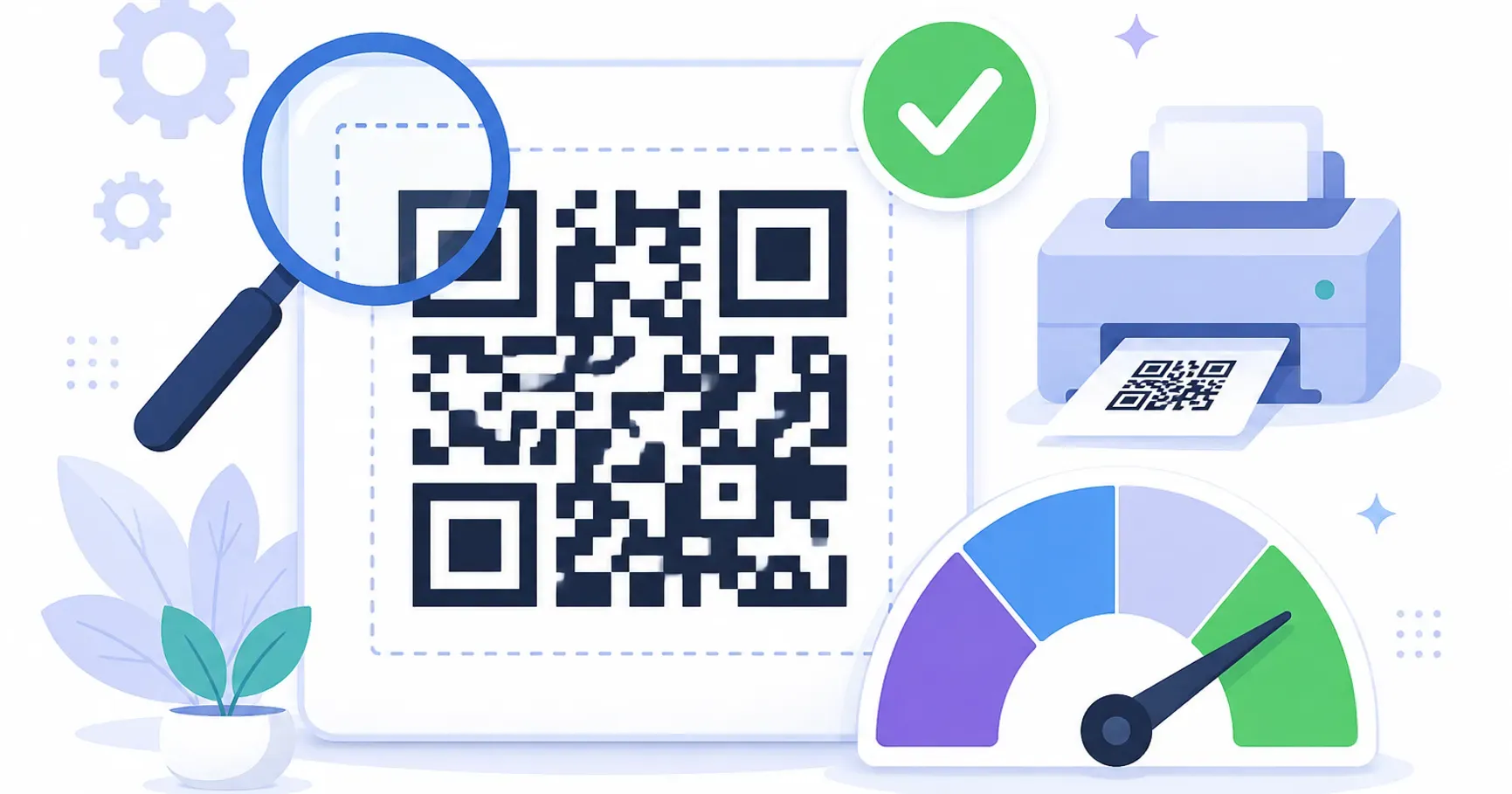
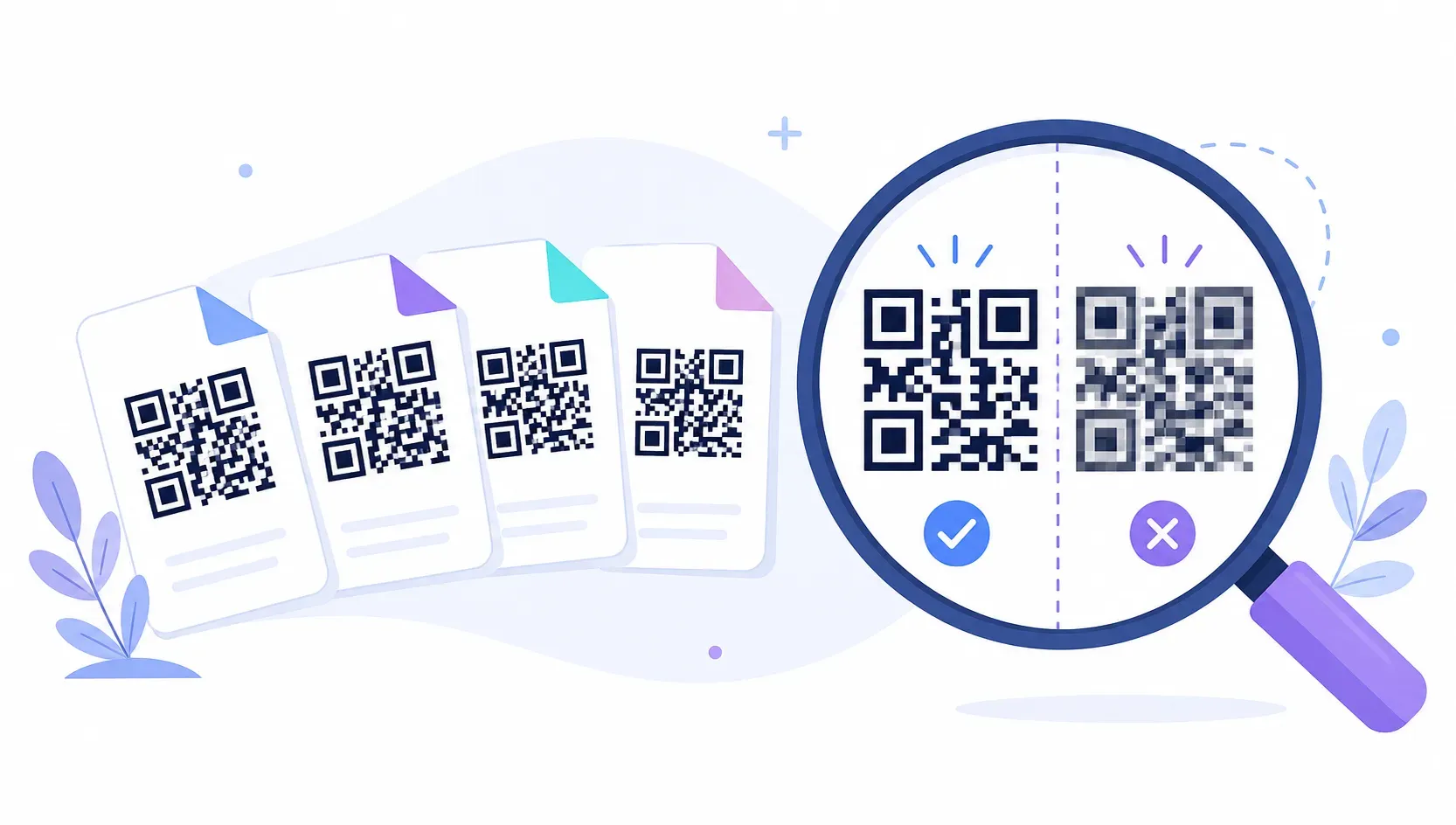
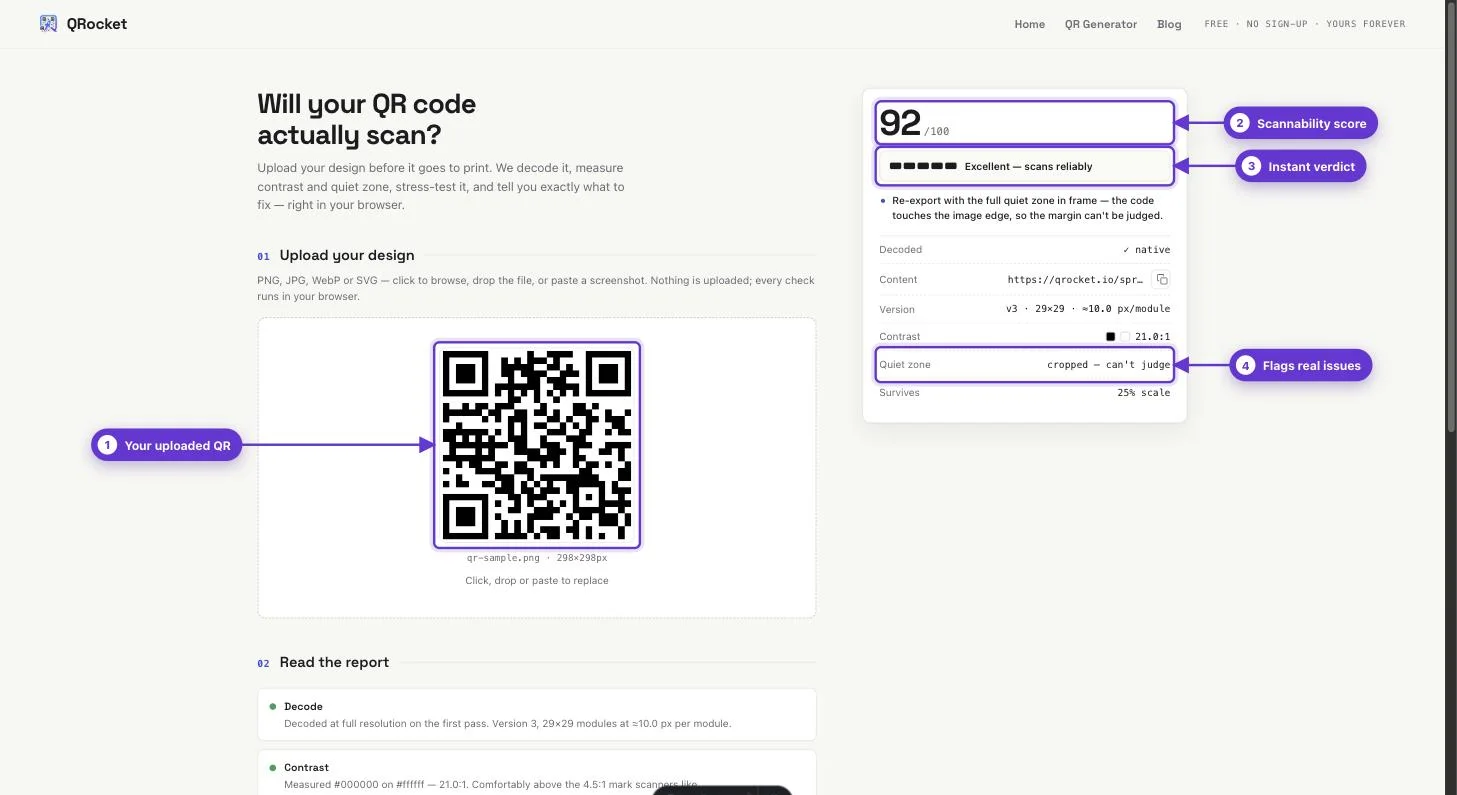
A QR code checker analyzes an image of your finished code and tells you whether it will scan reliably — before you commit it to five thousand flyers. Upload your artwork to a free tool like QRocket’s QR code checker and it decodes the code, measures contrast and quiet zone, runs a stress test, and recommends a minimum print size.
The reason this step exists: print failures are silent. Nobody emails you to say the code on your poster wouldn’t scan — they squint at it for three seconds, give up, and walk on. And the failure modes are sneaky, because a code that scans perfectly from your bright, backlit monitor can still die on paper. A checker catches those problems while they still cost nothing to fix.
Why a Code That Works On Screen Fails in Print
Your monitor is the most forgiving environment a QR code will ever live in: glowing, high-contrast, and viewed up close. Print strips all of that away, and four problems account for most of the wreckage.
- Contrast collapses. Brand-colored codes that look sharp on screen — teal on cream, gray on white — often land below the contrast a scanner needs once ink meets paper. Our QR code colors guide covers which combinations survive.
- The code shrinks in layout. Designs get resized to fit. A code that was generous in the mockup ends up two centimeters wide in the corner of the final flyer, below what a camera can resolve at arm’s length.
- The quiet zone gets cropped. That blank margin around the grid is structural, not decorative. Designers routinely trim it or push text and borders into it, and scanners lose the code’s edges.
- Styling goes too far. An oversized logo, heavy rounding on the modules, or a busy background image can eat more of the pattern than the code’s error correction can rebuild.
Every one of these passes a casual glance. That’s exactly why an automated check earns its place in the workflow.
What a QR Code Checker Actually Tests
A proper QR code checker does more than confirm “yes, it decodes.” QRocket’s checker runs your image through four distinct checks and reports each one separately.
- Decode check. It reads the code and shows you the exact contents — the full URL, character for character. This catches the most embarrassing failure of all: a typo in the link, discovered after printing.
- Contrast measurement. It samples the actual foreground and background colors in your artwork and measures the difference, flagging combinations that scanners struggle with in real light.
- Quiet zone measurement. It checks the clear margin on all four sides of the grid against the recommended minimum, so a cropped or crowded margin gets caught before the printer sees it.
- Stress test. It re-runs the decode under degraded conditions — simulating the blur, shrinkage, and wear of real-world scanning — to see how much abuse your specific design tolerates. A code that only passes in pristine condition has no headroom, which is where QR code error correction levels come into play.
- Print-size guidance. Based on the code’s density, it tells you the minimum size to print for a comfortable scan, so you can push back with a number when the layout squeezes your code. The full math lives in our QR code size guide.
The output is a verdict per check, not a vague score — you know precisely what to fix.
How to Check a QR Code in Four Steps
- Export the real artwork. Test the actual file going to print — final colors, final size, logo in place — not an early draft. A check of the wrong version proves nothing.
- Upload it to the free QR code checker. Drag the image in; PNG, JPG, or a screenshot of the layout all work.
- Read each result. Confirm the decoded URL is exactly right, then look at the contrast, quiet zone, stress test, and size recommendations in turn.
- Fix what’s flagged and re-check. Adjust the design, re-export, and run it through again until every check passes. The loop takes a minute per round.
Your design is one upload away from a verdict. — Check Your QR Code Free
What to Fix When a Check Fails
Each warning maps to a specific repair, and most take less time than reading this section.
The code won’t decode at all. Something structural is broken — usually over-aggressive styling or an export that mangled the image. Regenerate the code cleanly and reapply your design with a lighter touch.
The decoded URL is wrong. The best bad news you’ll ever get, because it cost you nothing. Fix the link at the source, regenerate, and re-export.
Contrast is flagged. Darken the foreground, lighten the background, or both. Dark-on-light is non-negotiable; scanners are built to find dark modules on a light field, and inverted or low-contrast schemes fail in direct proportion to how stylish they look.
The quiet zone is thin. Add clear margin on all four sides — the standard calls for at least four modules’ width of empty space. Move the border, the headline, or the background pattern out of that band.
The stress test fails early. Your code has no tolerance for real-world wear. Raise the error correction level when you generate it, simplify the styling, or both — redundancy is what lets a scuffed or slightly blurred code still scan.
The recommended print size is bigger than your layout allows. Shorten the URL to reduce the code’s density, or negotiate more space. Printing below the recommended size is how codes end up decorative.
An Automated Check Plus One Real Scan
The checker automates everything measurable, and that covers the failures that actually happen — but it can’t hold your specific poster under your venue’s lighting at a stranger’s arm’s length. Before a big print run, do both: pass the checker, then print one proof at final size and scan it with a couple of real phones. Our guide to testing a QR code before printing covers that manual half — distances, lighting, devices, and materials.
Think of it as the same relationship as spellcheck and proofreading. The tool catches the objective problems instantly; the one-minute human test confirms the result in the wild. Together they make a scan failure genuinely hard to ship.
Codes generated cleanly tend to pass on the first try — QRocket’s free QR code generator defaults to scannable contrast, margins, and error correction, so the checker becomes a confirmation rather than a rescue.
Print with proof, not hope — test your code before the ink dries. — Run the Free QR Code Checker
Frequently Asked Questions
For more common questions, see our full FAQ.
How do I check if a QR code works?
Upload an image of the code to a free QR code checker. It decodes the contents so you can verify the link, then measures contrast and quiet zone, stress-tests the design, and recommends a minimum print size. For a final confirmation, print one proof and scan it with a real phone.
What does a QR code checker test?
Four things: whether the code decodes and what it contains, whether the foreground-background contrast is strong enough for scanners, whether the quiet-zone margin around the grid meets the minimum, and how the code holds up under simulated wear. It also recommends a minimum print size based on the code’s density.
Why does my QR code scan on screen but not when printed?
Because screens flatter codes. Backlit displays boost contrast and show codes larger than they’ll print. On paper, weak color contrast, a shrunken size, a cropped quiet zone, or heavy styling can each push a code below what a camera can read. A checker catches all four before you print.
Can I test a QR code without printing it?
Yes — upload the print-ready artwork to a QR code checker and you’ll catch nearly every real-world failure before spending anything on ink. For large or expensive runs, add one printed proof at final size and scan it with a couple of phones as the last confirmation.
How big does a QR code need to be to scan?
It depends on the code’s density and scanning distance, which is exactly why a checker gives you a specific recommendation for your specific code. As a rough floor, close-range codes should be at least 2 x 2 cm — and denser codes or longer viewing distances need proportionally more.
Create a free QR code with custom colors, your logo and print-ready downloads — no sign-up.