How to Create a QR Code for an Email Address
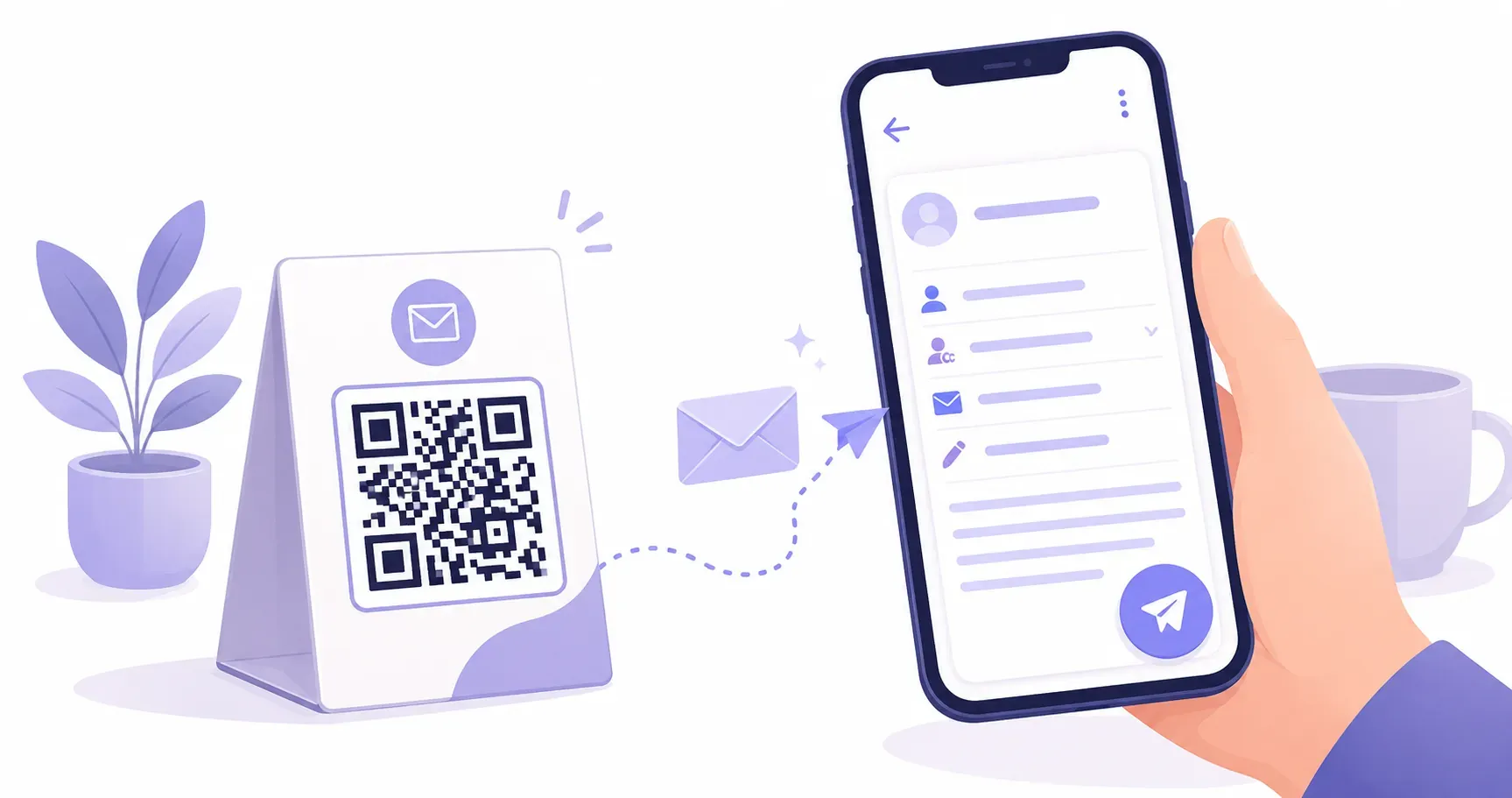
A restaurant prints a small card on each table: “Have feedback? Scan here.” A guest pulls out their phone, points the camera, and their email app opens — recipient filled in, subject line reading “Dinner Feedback,” and a body prompt ready to complete. No typing an address, no hunting for a contact form. That’s a QR code for email in action, and it takes about 30 seconds to make one. In this guide, you’ll learn exactly how to build one with QRocket, what fields you can pre-fill, and where these codes work best. Whether you need customer feedback, event RSVPs, or a faster path to your inbox, you’ll have a working email QR code before you finish reading.
What Is a QR Code for Email?
An email QR code encodes a mailto: link — the same protocol your browser uses when you click a “mail us” hyperlink on a website. When someone scans the code, their phone’s default email app launches with fields already populated. No app download required. No internet connection needed beyond the email send itself.
Behind the scenes, the QR code stores a short string like:
mailto:support@example.com?subject=Help%20Request&body=Hi%20team
That string tells the phone exactly which app to open and what to fill in. The entire payload is typically under 200 characters, which keeps the QR pattern simple and easy to scan from 10–15 cm away on a printed card.
This makes a mailto QR code fundamentally different from a QR code linking to a web-based contact form. There’s no page to load, no form to navigate, and no CAPTCHA to solve. The recipient, subject, and body appear instantly. For a deeper look at all the formats available, see how QR code types explained covers each one.
What Fields Can You Pre-Fill?
Most people assume an email QR code only fills in the “To” address. You can actually pre-fill five separate fields:
| Field | What It Controls | Example |
|---|---|---|
| To | Recipient address | support@yourstore.com |
| Subject | Email subject line | ”Order Issue — #4892” |
| Body | Message content | ”Hi, I’d like to request a callback about…” |
| CC | Carbon copy recipients | manager@yourstore.com |
| BCC | Hidden copy recipients | crm-log@yourstore.com |
The subject line is the most underused field. A pre-filled subject like “Quote Request — Website Visitor” lets your team filter and route incoming emails automatically. Pair that with a BCC to your CRM’s inbound address, and every scan-triggered email gets logged without the sender knowing.
Keep the body text short — 50 words or fewer. Longer messages make the QR pattern denser (more tiny squares), which can hurt scan reliability at smaller print sizes below 2.5 cm.
How to Create a QR Code for Email in 3 Steps
Head to QRocket’s free QR generator and select the Email type. From there, the process takes 3 steps.
Step 1: Enter the Recipient and Pre-Fill Your Fields
Type the destination email address in the “To” field. Then add a subject line that identifies the purpose — “Booking Inquiry,” “Event RSVP,” or “Product Feedback” all work well. In the body field, write a short starter message the scanner can edit before sending. Keep it under 40 words so the QR stays clean at small sizes.
Step 2: Customize the Design
Pick a foreground color that contrasts sharply with the background. Black on white gives the best scan rates, but dark navy (#1a1a2e) on white works too. If you’re placing the code on a colored surface — say a red event flyer — add a white quiet zone of at least 4 modules around the QR boundary. This prevents the background from interfering with scanners.
Step 3: Download and Test Before Printing
Export as PNG for screens or SVG for print materials. Before sending anything to a printer, scan the code with at least 2 different phones (one iPhone, one Android). Confirm the correct email app opens and all fields populate as expected. Check that the subject line doesn’t truncate — some email clients cut subjects beyond 78 characters.
Create a free email QR code with QRocket — pre-fill recipient, subject, and body in one scan — Create Your Free QR Code
Writing Pre-Fills That Do the Work for You
The subject line is where an email QR code earns its keep. Bake a routing tag right into it — “Feedback — Table 9,” “Support — Order #___,” “Booth Lead — Expo West” — and messages sort themselves the moment they land, before anyone reads a word.
Do the same with the body: a short template with blanks (“Order number: ___ / Issue: ___”) prompts scanners to hand you exactly the details you need. Treat both as smart defaults, not locks — scanners can still edit the text before they hit send.
Creative Uses for Email QR Codes
A QR code that opens email solves one specific problem: it removes the friction between “I want to contact you” and “I actually did.” Here’s where that matters most.
Customer Support Cards
Print a QR code on packaging inserts with the subject pre-filled as “Support Request — Order #[blank].” Customers scan, fill in their order number, and your support team receives a structured email instead of a vague “I have a problem” message.
Event RSVPs
Conference organizers place email QR codes on printed invitations. The body reads: “I’ll attend [Event Name] on [Date]. Dietary needs: ___.” Guests scan, edit one line, and tap send. No Google Form link. No app signup.
Feedback Collection
Retail stores, clinics, and coworking spaces stick a QR code near the exit. Subject: “Visit Feedback — [Location].” Response rates climb when the action takes 10 seconds instead of 60.
Sales Inquiries on Print Materials
Brochures, trade show banners, and product sheets benefit from a “Request a Quote” email QR code. Pre-fill the body with bullet prompts: “Company name: / Product interest: / Timeline:.” Your sales team gets structured leads from a printed flyer. If you want to share full contact details alongside the email code, a vCard QR code pairs well on the same material.
Email QR Code vs URL QR Code
Should you use an email QR code or link to a web contact form? The answer depends on what happens after the scan.
| Factor | Email QR Code | URL QR Code (Contact Form) |
|---|---|---|
| Internet needed to start? | No (opens email app offline) | Yes (loads a web page) |
| Fields pre-filled? | To, subject, body, CC, BCC | Only what the form allows |
| User effort | Tap “Send” | Fill out form fields, hit submit |
| Response tracking | Via email inbox/CRM | Via form backend/analytics |
| Spam filtering | Subject to email spam filters | Server-side validation possible |
| Customization | Limited to plain text | Rich forms, dropdowns, file uploads |
Use an email QR code when speed matters and the message is simple — feedback, RSVPs, quick inquiries. Use a URL code pointing to a contact form when you need file uploads, dropdown selections, or server-side validation.
One hybrid approach: link to a landing page that has both a “quick email” button and a full form. That way, you can create a QR code for free using QRocket’s URL type and serve both audiences from a single scan.
Email QR Code or vCard? Pick the Right Tool
These two contact codes look alike but do opposite jobs. An email QR code starts a message to you — the scanner’s mail app opens, pre-addressed and ready to send. A vCard QR code saves your details into their phone with one tap.
| You want the scanner to… | Use |
|---|---|
| Send you a message now | Email QR code |
| Save your contact for later | vCard QR code |
If the next step is a reply in your inbox, it’s an email code. If it’s a new entry in their address book, it’s a vCard QR code. Plenty of print pieces carry both — one to reach you today, one to keep you forever.
The Detail Most People Skip
The most overlooked detail with email QR codes? The subject line. A well-crafted subject turns a random inbound message into a sortable, filterable, auto-routable email that your team can act on without reading the body first. Pre-fill that field every time. Ready to build yours? Create a free QR code for email in under a minute.
Frequently Asked Questions
What happens when someone scans an email QR code?
The phone’s default email app opens immediately with fields already filled in — recipient address, subject line, and body text. The person reviews the content, makes any edits, and taps Send. No app download or account creation is needed, and it works on both iPhone and Android.
Can I pre-fill the subject line and body?
Yes. The mailto: URI standard supports five fields: recipient, subject, body, CC, and BCC. Any email QR code generator that follows this standard lets you set all five. Keep body text under 50 words so the QR pattern stays simple enough to scan reliably at small print sizes like 2 cm × 2 cm.
Does an email QR code need internet to scan?
No. The mailto data lives inside the code, so scanning and opening your mail app work offline. Only the final step — actually sending the message — needs a connection, exactly like an email you draft without signal and send once you’re back online.
Can I change the email address in the code later?
No. A static email code locks the address into the pattern, so double-check it before you download and print. If the address changes, generate a fresh code and replace the printed copies — there’s no way to edit the destination of an existing static code.
Will it work if the person uses Gmail or Outlook?
Yes. The code opens whichever app the phone has set as its default mail client — Gmail, Outlook, Apple Mail, or another. It doesn’t force a specific service, so the pre-filled message appears in the app the scanner already uses every day.
Create a free QR code with custom colors, your logo and print-ready downloads — no sign-up.