How to Create a QR Code in Canva (Quick Integration Guide)
Your flyer is done in Canva, and the last missing piece is the little square that connects print to phone. There are two ways to get a QR code for Canva projects: generate one with Canva’s built-in QR element, or create a custom code in a dedicated generator and import it as an image. The first takes thirty seconds; the second takes three minutes and gives you a code that actually looks like it belongs in your design.
This guide walks through both workflows, shows where the native option hits its limits, and ends with a comparison table for picking between them.
Can Canva Generate QR Codes?
Yes. Canva ships a QR code app that lives in the editor’s Apps panel. Paste in a web address, and it drops a working code straight onto your canvas. For a quick internal document or a one-off social post, that convenience is hard to beat.
The catch is scope: the element encodes one content type — a web link — with almost no control over looks. No logo, no shape styling, and in the free app the code comes out plain black and white.
That’s why designers who care about the finished piece usually flip the workflow: build a custom QR code for Canva in a proper QR tool, then bring it into the editor as an image like any other asset.
Method 1: Canva’s Built-In QR Code Generator
The native route is genuinely fast. Here’s the whole process:
- Open your design in the Canva editor.
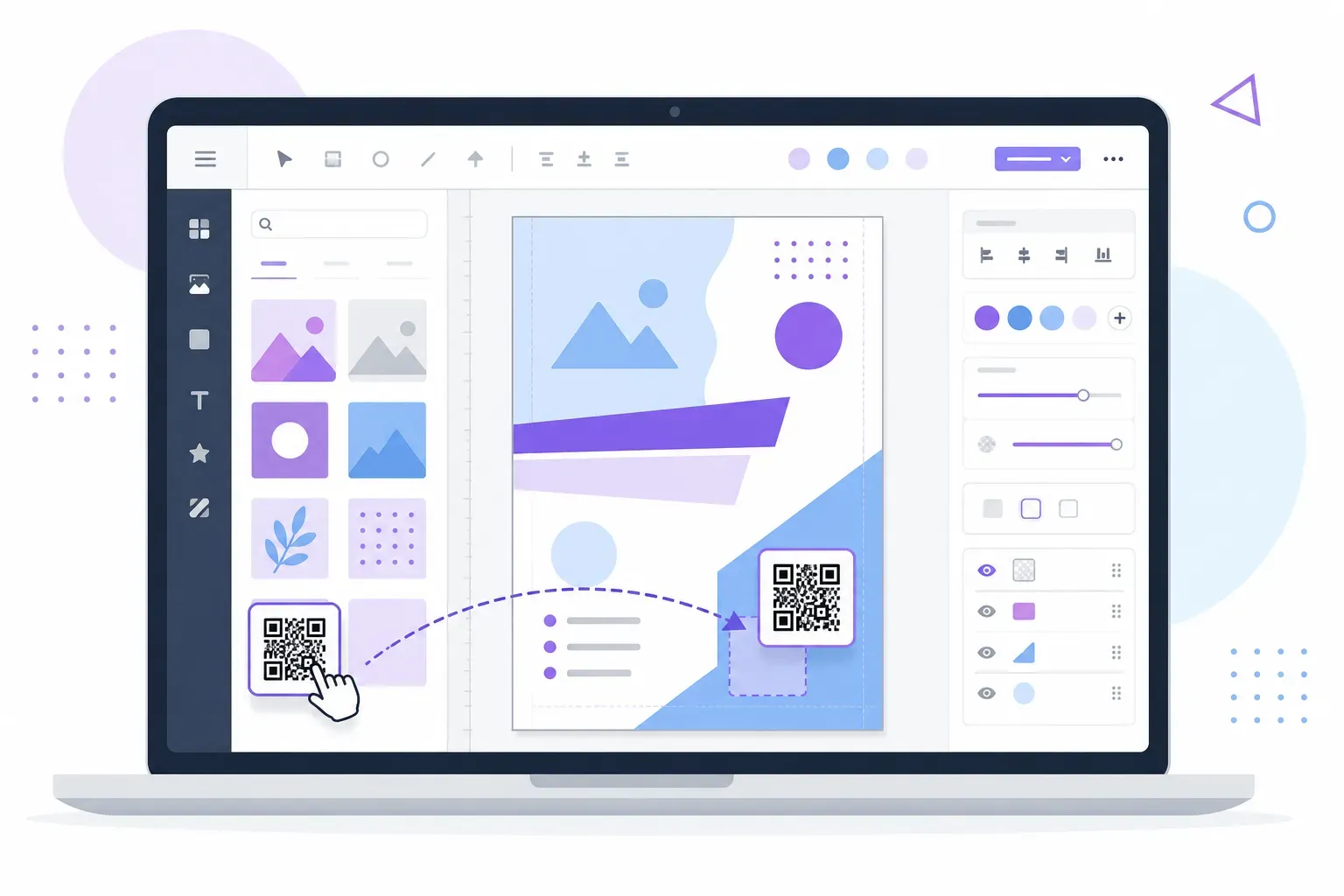
- Open the Apps panel. Click Apps in the left sidebar and search for “QR code,” then select Canva’s QR Code app.
- Paste your URL. Enter the full web address, including
https://, and double-check it — a typo here ships a broken code. - Generate and place. Click Generate, and the code lands on your canvas. Drag it into position and resize it by the corner handles so it stays square.
That’s it. The result is a standard static code, so it never expires and works with any phone camera. Two things to watch: keep the code on a light, plain area of the design — a photo or busy gradient behind it kills scans — and don’t shrink it below about 2 × 2 cm at final printed size.
Where Canva’s QR Codes Fall Short
For anything customer-facing, the built-in element runs out of road quickly:
- URLs only. No WiFi codes, no vCards, no WhatsApp chat links, no calendar events — if it isn’t a web address, the app can’t encode it.
- No real styling. The free app produces a black-and-white code. There’s no logo placement, no module or corner shape options, and no frame with call-to-action text.
- No scannability feedback. Canva won’t warn you if a code has become risky — you find out when a scan fails.
- No tracking either. This isn’t a Canva-specific gap: scan analytics require dynamic QR codes, a paid feature of dedicated platforms — no free static generator counts scans either.
A plain black square works. But on a designed piece, a generic code sticks out like a default font. The fix is the import method.
Method 2: Import a Custom QR Code from QRocket
This workflow treats the code as a design asset: create a styled QR code for Canva in a dedicated tool, export it, and place it like a logo or photo. With QRocket’s free QR code generator the whole thing takes a few minutes:
- Choose your content type. URL is the common case, but you can also encode WiFi credentials, a vCard, an email, an SMS, a WhatsApp chat, a location, or a calendar event — everything the Canva app can’t do.
- Enter your content and style the code. Match the colors to your Canva palette, pick module and corner shapes, and drop your logo in the center — keep it under about 20% of the code area, as covered in our guide to adding a logo to a QR code. The live scannability meter flags a risky color or shape choice immediately.
- Add a frame with a call to action. A label like “Scan for the menu” tells people what the code does — bare squares get skipped.
- Download as SVG. SVG is a vector file, so the code stays perfectly sharp at any size, from business card to poster. A high-resolution PNG also works if you prefer.
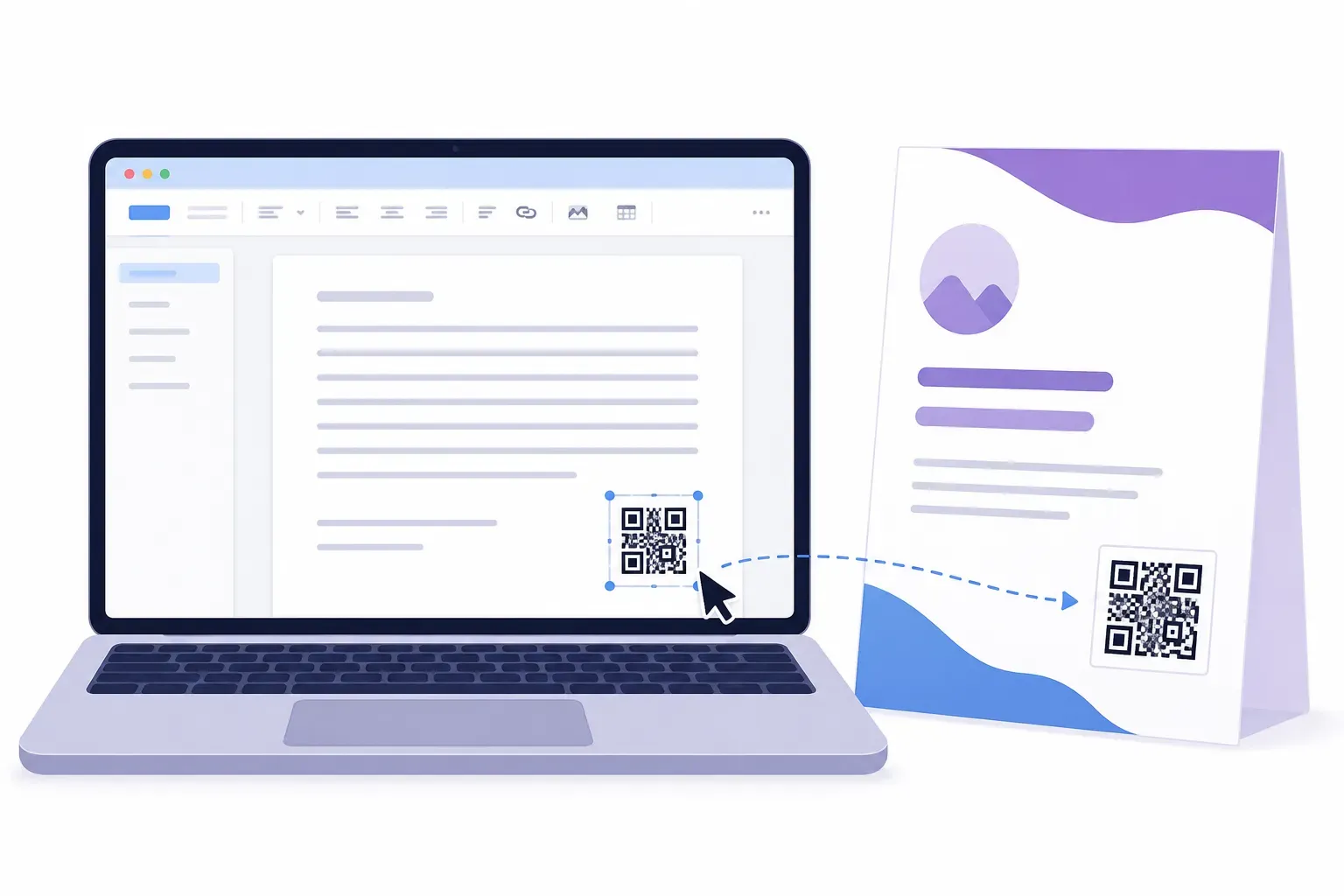
- Upload to Canva. In the editor, open Uploads and drag the file in. Canva accepts both SVG and PNG.
- Place and size it. Drag the code into your design, hold Shift while resizing to keep it square, and leave a margin of empty space around it — that quiet zone keeps it readable. Our QR code size guide has minimum dimensions for every placement.
QRocket runs entirely in your browser — no account, no sign-up — and the finished static code never expires, with no scan limits.
Create a custom QR code with QRocket, then drop it into any Canva design — free, no sign-up. — Create Your Free QR Code
Before the design ships, scan the code from the final artwork — ideally from a test print — with both an iPhone and an Android. Our checklist for testing a QR code before printing covers the full routine, and our guide to printing QR codes covers resolution and file-format decisions for anything headed to a print shop.
Which Method Makes the Better QR Code for Canva Designs?
Here’s the honest side-by-side:
| Feature | Canva built-in QR | QRocket import |
|---|---|---|
| Content types | URL only | URL, text, WiFi, vCard, email, SMS, WhatsApp, location, calendar event |
| Colors | Black and white (free app) | Full custom colors |
| Center logo | No | Yes |
| Module & corner shapes | No | Yes |
| Frame with CTA text | No | Yes |
| Scannability check | No | Live meter while you style |
| Export formats | Rendered inside the design | SVG + high-res PNG |
| Account required | Canva account | None |
| Cost | Free | Free |
| Dynamic codes / scan analytics | No | No — both are static; analytics require paid dynamic-QR tools |
The pattern is clear: Canva’s element wins on speed for throwaway URL codes; the import method wins everywhere design quality or content type matters. In practice, that makes the import route the default for anything printed or public-facing — flyers, posters, business cards, and branded social graphics all benefit from a code that carries your colors instead of fighting them. Our QR code design guide shows how far a styled code can go inside a layout.
Treat the Code Like Part of the Design
Nobody builds a flyer in Canva and then pastes in clip-art for the logo — yet that’s effectively what a default black-and-white code is: a placeholder in a finished design. The thirty-second native option has its place for quick, internal, URL-only jobs. For everything else, three extra minutes gets you a QR code for Canva in your brand colors, with your logo, a call-to-action frame, and a scannability meter confirming it will actually work. Build your next one in the generator, export the SVG, and make the square earn its place in the layout.
Frequently Asked Questions
Does Canva have a built-in QR code generator?
Yes. Canva’s QR Code app, found in the editor’s Apps panel, generates a working code from any web address in seconds. It only supports URL content, though, and styling is minimal — the free app produces a plain black-and-white code with no logo, shape, or frame options.
How do I import a custom QR code into Canva?
Create the code in a QR generator and download it as an SVG or high-resolution PNG. In Canva, open the Uploads panel, drag the file in, then place it in your design. Hold Shift while resizing to keep it square, and leave empty space around the code so it stays scannable.
Should I upload my QR code to Canva as SVG or PNG?
SVG is the better choice for anything going to print: it’s a vector format, so the code stays perfectly sharp at any size. A high-resolution PNG works fine for screen-only designs like social media graphics.
Can I change the colors of a QR code in Canva?
Not with the built-in element in the free app — it generates black-and-white codes. To get a code in your brand colors, generate it in a dedicated tool with custom color options, then upload the finished file to Canva, keeping the pattern clearly darker than its background.
Which is better — Canva’s QR code or a dedicated generator?
For a quick URL code in an internal document, Canva’s element is faster. For anything customer-facing, a dedicated generator like QRocket adds custom colors, a center logo, module shapes, CTA frames, SVG export, and a live scannability check — all free, with no account. Note that neither option offers scan analytics; that requires dynamic codes from paid QR platforms.
Do QR codes made outside Canva expire?
No. A static QR code encodes its content permanently in the pattern itself, so it works forever with no scan limits — regardless of which design tool you place it in. It only stops working if the destination itself goes offline.
Create a free QR code with custom colors, your logo and print-ready downloads — no sign-up.