How to Create a QR Code for Facebook (Page or Profile)
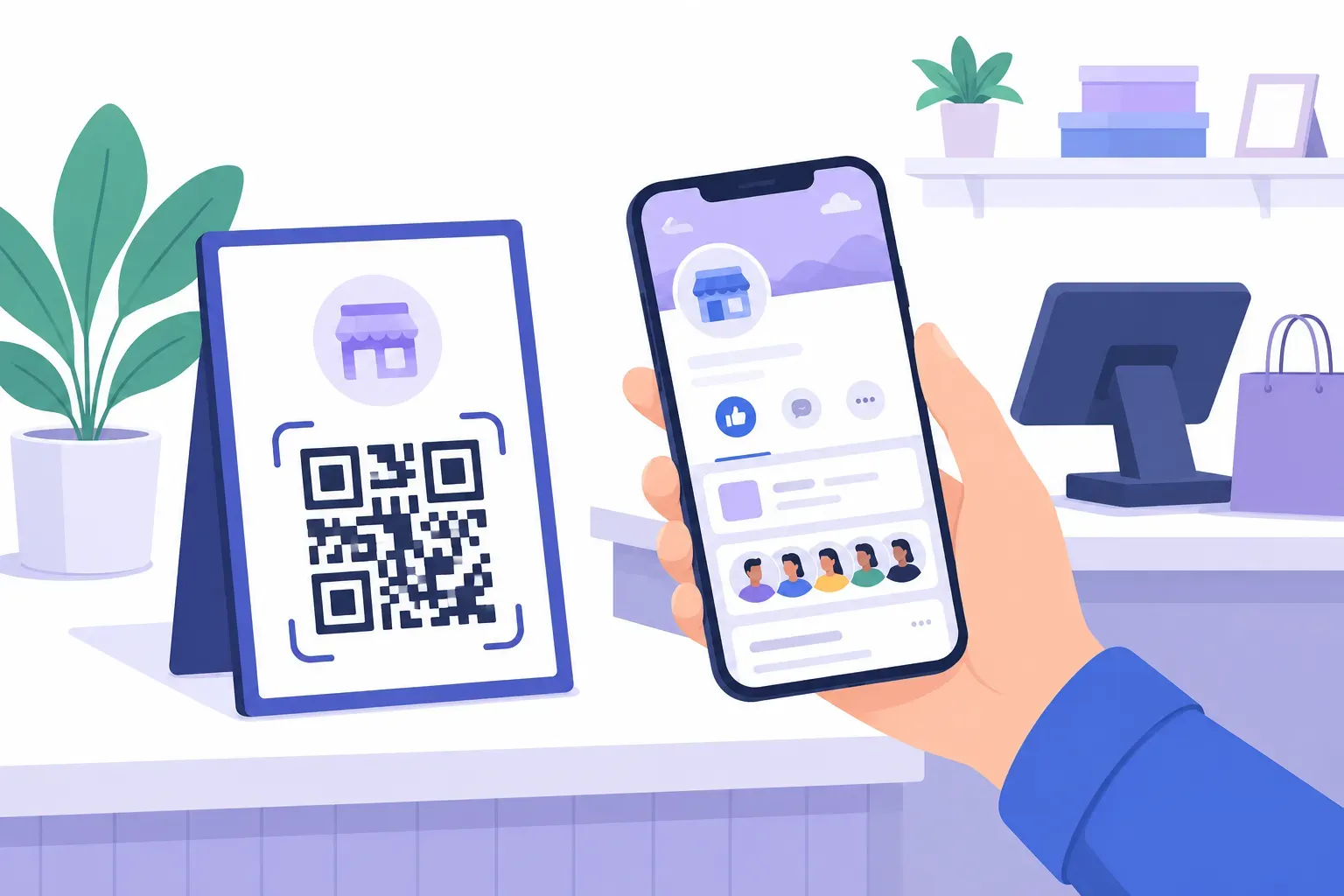
A customer at your counter says they’d love to see your specials on Facebook. Now what — spell out your Page name letter by letter and hope they find the right one among six lookalikes? A QR code for Facebook skips all of that: one scan opens your exact Page, profile, group, event, or even a Messenger chat, with the like button one tap away.
This tutorial covers the whole job: which Facebook link to use for each destination, how to clean a copied mobile URL before it poisons your code, and how to build a branded, tested code you can print anywhere. Budget about five minutes.
Why Use a QR Code for Facebook
Your most likely followers already meet you in person — at your register, your market stall, your open house. The weak link is the handoff from that moment to the app: searching “Rosie’s Bakery” on Facebook returns a page of Rosie’s Bakeries, and the customer who picks the wrong one (or gives up) is gone.
A Facebook QR code removes the search entirely. It’s a standard URL code under the hood: the pattern encodes a facebook.com link, and on any phone with the Facebook app installed, scanning hands that link straight to the app, landing the person on your exact Page. No app? It opens in the browser instead, where your Page is still fully visible. Because it’s an ordinary link code, everything in our guide to URL QR codes applies here too.
The payoff compounds. A flyer gets read once; a follow means every future post, event, and offer reaches that person for free.
Getting the Right Facebook Link
Facebook has more destination types than most platforms, and each has its own link format:
| Destination | Link format | Best for |
|---|---|---|
| Business Page | https://facebook.com/YourPage | Follows, reviews, storefront info |
| Personal profile | https://facebook.com/your.username | Freelancers, personal brands |
| Group | https://facebook.com/groups/YourGroup | Communities, local clubs |
| Event | https://facebook.com/events/1234567890 | RSVPs from posters and invites |
| Messenger chat | https://m.me/YourPage | Support, bookings, quick questions |
Two of these deserve a closer look.
Business Pages: claim your username first. A new Page gets an ugly numeric URL. Before you print anything, claim a clean vanity username in your Page settings, which turns the address into facebook.com/YourPage. Shorter links make simpler, more forgiving QR patterns — and a readable URL printed under the code builds trust.
Messenger links: Facebook’s click-to-chat. An m.me/YourPage link doesn’t open your Page; it opens a Messenger conversation with your Page, ready to type. That makes a Messenger QR code the Facebook equivalent of the wa.me trick in our WhatsApp QR code guide: perfect on receipts, packaging, and service counters where the goal is “ask us anything,” not “follow us.”
Clean the link before you encode it
Here’s the trap that ruins the most Facebook codes. Copy a link from the mobile app or mobile browser and you’ll often get something like:
https://m.facebook.com/YourPage?mibextid=LQQJ4d&ref=page_internalEverything after the ? is tracking baggage, and m.facebook.com is the mobile subdomain. It usually redirects fine today, but it makes a denser, harder-to-scan code and leaves you at the mercy of parameters Facebook may retire. Strip it to the canonical short form — https://facebook.com/YourPage — and confirm in a browser that the clean link lands on the right Page.
What About Facebook’s Own QR Tools?
Facebook has offered built-in QR features over the years — a QR generator for Pages, and round Messenger codes before that. Both have been retired or removed in most regions, occasionally reappearing in limited tests. If you find a QR option in your Page settings today, there’s no guarantee it exists next year.
Generating your own URL code sidesteps all of it. A plain facebook.com link is the most stable thing Meta operates: it works in the app and in every browser, and it doesn’t depend on any in-app feature surviving the next redesign. Your code, your file, permanently.
Step-by-Step: Create a QR Code for Facebook
Here’s the full process in QRocket’s free generator — no account, no watermark, and the finished code never expires.
Step 1: Copy and clean your link
Grab the link for your destination from the table above, claim your Page username first if you haven’t, and strip any ?mibextid=... tracking parameters. Test the clean URL in a browser.
Step 2: Paste the URL into QRocket
Open the free QR code generator, choose the URL type, and paste your link. The preview updates as you type. For a Messenger code, paste the m.me link the same way — it’s still just a URL.
Step 3: Style the code
Facebook blue (#1877F2) on white is instantly recognizable and dark enough to scan, or use your own brand palette. Keep the pattern clearly darker than the background and watch QRocket’s scannability meter as you adjust. A small centered logo works too — the guidelines in our post on adding a logo to a QR code keep it reliable.
Step 4: Add a frame with a call to action
A bare square gets ignored. Wrap the code in a frame that says what the scan does: “Follow us on Facebook” for a Page code, “Chat with us” for a Messenger code, “RSVP here” for an event. More ready-to-use wording lives in our QR code call-to-action examples.
Step 5: Download as SVG or PNG
SVG for anything headed to print — it stays sharp from sticker to banner. High-resolution PNG covers screens and quick jobs.
Step 6: Test on real phones
Scan with an iPhone and an Android and confirm the right Page opens, in the app, before anything goes to the printer. Our checklist for testing a QR code before printing covers the full routine.
Turn walk-ins into followers — create a free Facebook QR code, no sign-up. — Create Your Free QR Code →
One honest caveat: a static code encodes your URL literally, forever. That’s why it’s free and never expires — but it also means renaming your Page username breaks every printed code, because facebook.com/OldName stops existing. Settle on your username before the print run, not after.
Where to Use Your Facebook QR Code
Put the code where interest is warm and a phone is already out:
- Storefront window or door. “Follow us for weekly specials” catches passers-by even after closing.
- Flyers and posters. An event QR code takes people straight to the RSVP page instead of asking them to search for the event by name.
- Business cards. The Facebook page QR code gets scanned during the conversation; a handle in small print gets forgotten.
- Product packaging. A Messenger code turns support questions into chats instead of missed calls.
- Vehicle signage. A branded code on a work van earns scans at every red light and job site.
- The counter or register. The moment after a good purchase is the moment people follow.
If you’re active on more than one platform, resist printing three bare squares side by side. Build one “Follow us” sign with clearly labeled codes — this one alongside an Instagram QR code and a YouTube QR code — so each square announces its destination and nobody scans the wrong network.
One Square Between the Street and Your Page
Every step in this guide protects the same thing: a clean, permanent link between the physical world and your Facebook presence. Claim your username, strip the tracking clutter, label the code with a real call to action, and test it on two phones. Do that once, and every flyer, window, and card you print becomes a small, free follower machine.
Turn walk-ins into followers — create a free Facebook QR code, no sign-up. — Create Your Free QR Code →
Frequently Asked Questions
How do I make a QR code for my Facebook page?
Copy your Page’s clean URL (facebook.com/YourPage — claim a username in Page settings first if you only have a numeric address), paste it into a free QR generator like QRocket as a URL-type code, style it, and download the SVG or PNG. The whole process takes about five minutes and requires no account.
Does a Facebook QR code work if someone doesn’t have the app?
Yes. The code encodes a standard facebook.com link, so phones without the app simply open your Page in the browser instead. With the app installed, the link hands off directly to Facebook and lands on your Page with the follow button ready.
Should the QR code point to my Page or my personal profile?
Use your business Page for anything customer-facing: Pages are public by default, support reviews and business info, and don’t expose your personal life. A personal profile QR code makes sense for freelancers and personal brands — but check your privacy settings, since strangers will see whatever your profile shows the public.
Do Facebook QR codes expire?
No. A static code encodes the URL permanently and works for as long as that link exists. The one thing that breaks it is you: renaming your Page username kills the old address, so printed codes would point to a dead page. Choose your username before printing.
Can I track how many people scan my Facebook QR code?
Not with a static code alone — it has no analytics built in, and QRocket doesn’t track scans. You can add UTM parameters to the URL so scans show up in analytics tools, but be aware Facebook strips or rewrites some parameters on its own pages. For rough measurement, give each placement a slightly different destination, such as a Messenger code on receipts and a Page code on the window.
What is a Messenger QR code?
It’s a QR code that encodes an m.me/YourPage link, which opens a Messenger conversation with your Page instead of the Page itself. Scanning it starts a chat in one tap, which makes it ideal for support, bookings, and questions — the Facebook version of WhatsApp’s click-to-chat codes.
Create a free QR code with custom colors, your logo and print-ready downloads — no sign-up.