How to Add a QR Code in Word and Google Docs
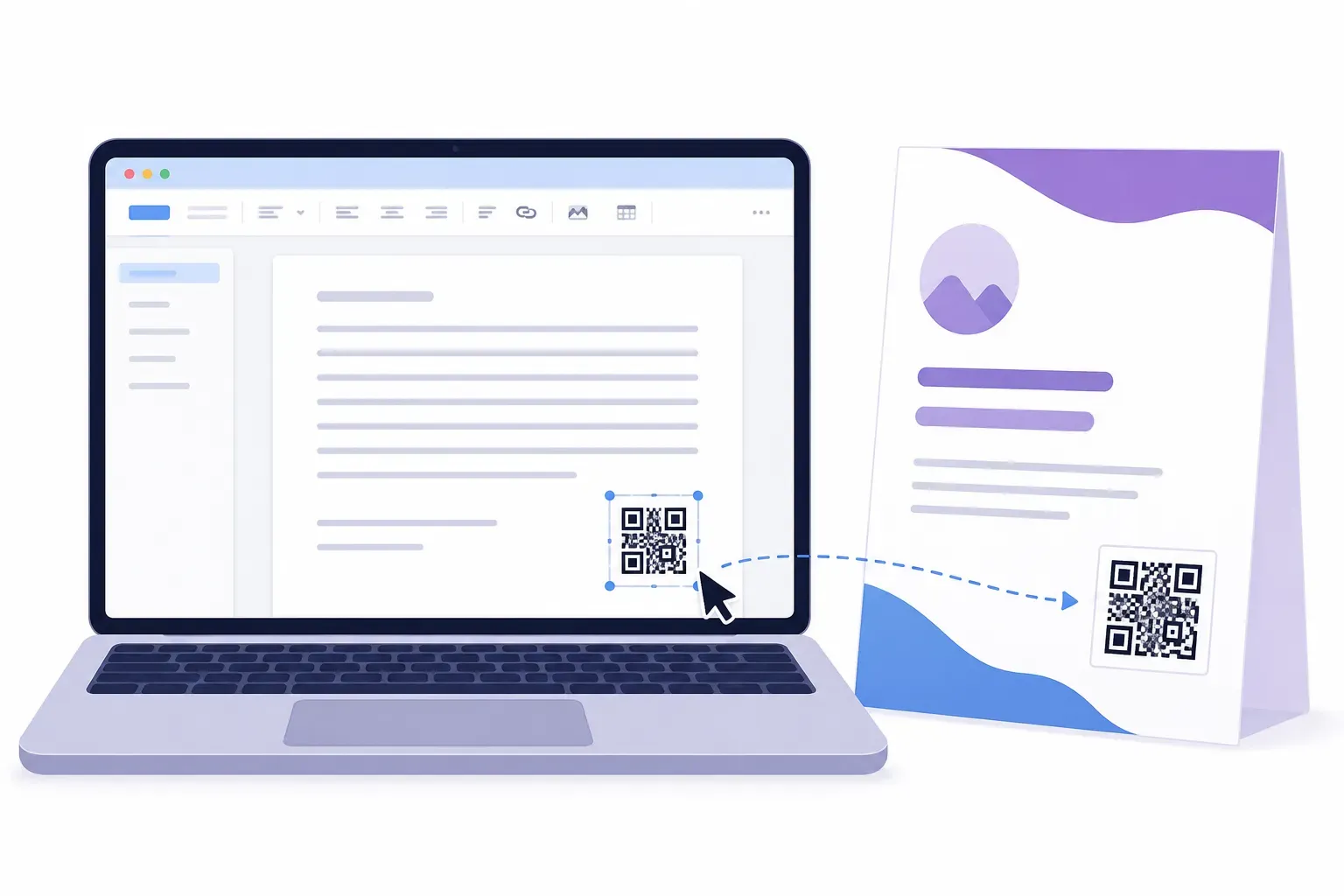
Most documents don’t stay on screen. The worksheet gets photocopied, the flyer gets pinned up, the invoice gets mailed. The moment paper leaves the printer, every link in it dies — nobody types a URL off a handout. A QR code in Word or Google Docs fixes that: one small square turns a printed page back into something clickable.
Neither program generates QR codes natively — there’s no built-in button. The reliable route is simple: generate the code in a proper QR tool, download it as an image, and insert it like any other picture. That takes about two minutes. This guide covers the whole process, including the file-format detail that decides whether your code prints razor-sharp or fuzzy.
Step 1: Generate the QR Code Before You Open the Document
Everything starts in the free QRocket generator, not the word processor:
- Pick the content type. URL is the usual choice for documents — a registration page, a payment link, a portfolio. But a letterhead might carry a vCard, a flyer a calendar entry, a worksheet a video link. QRocket supports URL, text, WiFi, vCard, email, SMS, WhatsApp, location, and calendar types.
- Style it to match the document. Adjust colors and shapes, add a logo, and consider a frame with a call to action — “Scan to register” outperforms a bare square. Keep the pattern dark on a light background and watch the built-in scannability meter as you go.
- Download the right format. This is the step that matters most, so it gets its own explanation below.
SVG or PNG? It Depends on the Program
The two programs accept different formats, and the choice decides print quality:
- Word 2016 and newer (including Microsoft 365): use SVG. SVG is a vector format — shapes instead of pixels — so the code stays perfectly crisp at any size. Modern Word inserts SVG files natively.
- Google Docs: use the high-resolution PNG. Docs does not accept SVG uploads. QRocket’s high-res PNG export carries enough pixels to print sharply at document sizes; the same applies to Word versions older than 2016.
Two things to never do: don’t screenshot the code off your screen, and don’t stretch a small PNG larger in the document. Both blur the module edges — exactly what makes scanners fail. Always export at high resolution from the generator itself; our QR code size guide explains the resolution math.
Create a print-ready QR code in your browser — free, no account, never expires. — Create Your Free QR Code
How to Insert a QR Code in Word
With the file downloaded, Word is standard image handling plus a few QR-specific rules.
Insert the Image
Go to Insert → Pictures → This Device, select your SVG (or PNG), and it drops in at the cursor. That’s the whole insertion — the craft is in what follows.
Size It for Print, Not for Screen
A QR code in Word needs to be at least 2 × 2 cm (about 0.8 × 0.8 inches) at final printed size for a comfortable arm’s-length scan. Set exact dimensions in the Picture Format tab, or drag a corner handle — corner handles preserve the square shape, while side handles stretch the code into a rectangle that may not scan.
Control Text Wrapping
By default Word treats the image as “In Line with Text,” locking it to the text flow like a giant character. Right-click the code, choose Wrap Text, and pick Square to let text flow around it, or In Front of Text to position it freely — the usual choice for flyers and posters.
Put It on Every Page
For letterhead, place the code inside the header or footer: double-click the top or bottom margin, then insert the image there. Anything in the header or footer repeats on every page automatically — ideal for a vCard QR code that puts your contact details on each sheet of stationery. A text box anchored to the page works too.
Respect the Quiet Zone
Every QR code needs clear white space around it — the quiet zone — roughly four modules wide on all sides. Don’t butt paragraph text, table borders, or decorative rules against the code; crowd it and scanners struggle to find where the pattern begins.
Adding a QR Code in Google Docs
Google Docs handles the job with fewer options but the same core workflow.
Go to Insert → Image → Upload from computer and select your high-resolution PNG (remember: no SVG here). Once placed, click the image and choose a layout from the toolbar: In line, Wrap text, or Break text. For a code beside a paragraph, Wrap text is the one you want.
Docs is more constrained than Word: free placement is limited, and repeating an image on every page is fiddlier than Word’s header trick — fine for a one-page flyer, less so for letterhead. Resize with a corner handle to keep the square shape.
The same Insert → Image flow works in Google Slides, handy when a presentation doubles as a printed handout — a code on the closing slide links the audience to the deck, a signup page, or your contact card.
One Code Per Recipient: Mail Merge and Bulk Documents
Certificates, invoices, and event badges often need the opposite of everything above — a different code on each copy, one per recipient.
Word’s mail merge can do this: the IncludePicture field pulls a different image file per row of your data source, so each merged document gets its own QR code. It’s genuinely an advanced technique — the field codes are finicky, and every code must exist as a file first. Generating that batch efficiently is exactly what our guide to bulk QR code generation from a CSV walks through.
For a handful of documents, skip the machinery: duplicate the file and swap the image manually. Mail merge earns its setup cost somewhere north of a dozen copies.
The Print-Quality Checklist
A code that looks perfect on screen can still fail on paper. Before the full print run:
- Print one test page at final size. Not a screen preview — actual ink from the printer you’ll use.
- Scan it from the paper with two phones. An iPhone and an Android, at a realistic distance. Our pre-print testing checklist covers the full routine.
- Check draft and grayscale modes. Office documents often print in draft quality or black-and-white. A code that relied on color contrast can lose it in grayscale — dark modules on white survive anything. More on paper, margins, and printer settings in our guide to printing QR codes.
Where a QR Code in a Document Earns Its Place
| Document | Code content | Why it works |
|---|---|---|
| Worksheet or handout | Video or resource link | Students scan instead of typing URLs — a staple of QR codes in education |
| Event flyer | RSVP or registration page | Turns a corkboard poster into a signup form |
| Invoice | Payment link | The customer pays from the paper in hand, no portal login hunt |
| Letterhead | vCard | Every letter carries your saveable contact details |
| Poster | Calendar entry or URL | One scan adds the event to the reader’s phone |
The pattern is the same each time: the document persuades, and the code removes the typing between interest and action.
Two Minutes From Paper to Pixel
Word and Google Docs won’t make a QR code for you, but they don’t need to — generate it once, download the right format (SVG for modern Word, high-res PNG for Docs), insert it like any picture, and give it size and breathing room. The code is static: it costs nothing, never expires, and works for the life of the printed page. Build yours in the generator, and the next document you print won’t be a dead end.
Frequently Asked Questions
Can Word or Google Docs generate a QR code by itself?
No. Neither Word nor Google Docs has a built-in QR code generator. Third-party add-ins exist, but the simpler, more reliable route is to create the code in a free web generator, download it as an image, and insert it with the standard Insert Picture or Insert Image command.
Should I use SVG or PNG for a QR code in a document?
Use SVG in Word 2016 or newer — it’s a vector format that stays perfectly sharp at any print size. Google Docs doesn’t accept SVG, so use a high-resolution PNG there, and in older Word versions. Never screenshot a code or enlarge a small PNG; both blur the modules and hurt scanning.
What size should a QR code be in a Word document?
At least 2 × 2 cm (about 0.8 × 0.8 inches) at the final printed size for arm’s-length scanning, larger if readers will scan from farther away. Resize with the corner handles so the code stays perfectly square, and leave clear white space around it.
Will the QR code still scan if I print the document in grayscale?
Yes, if it has strong contrast. A dark code on a white background scans fine in grayscale and draft modes. Codes styled with light or low-contrast colors can lose the contrast scanners need when the color is stripped out — so print one grayscale test page and scan it before the full run.
How do I put a QR code on every page in Word?
Place it in the header or footer. Double-click the top or bottom margin of the page, then use Insert, Pictures to add the code image there — anything in the header or footer repeats automatically on every page, which is ideal for letterhead.
Create a free QR code with custom colors, your logo and print-ready downloads — no sign-up.