How to Create a QR Code for Free: Step-by-Step Guide
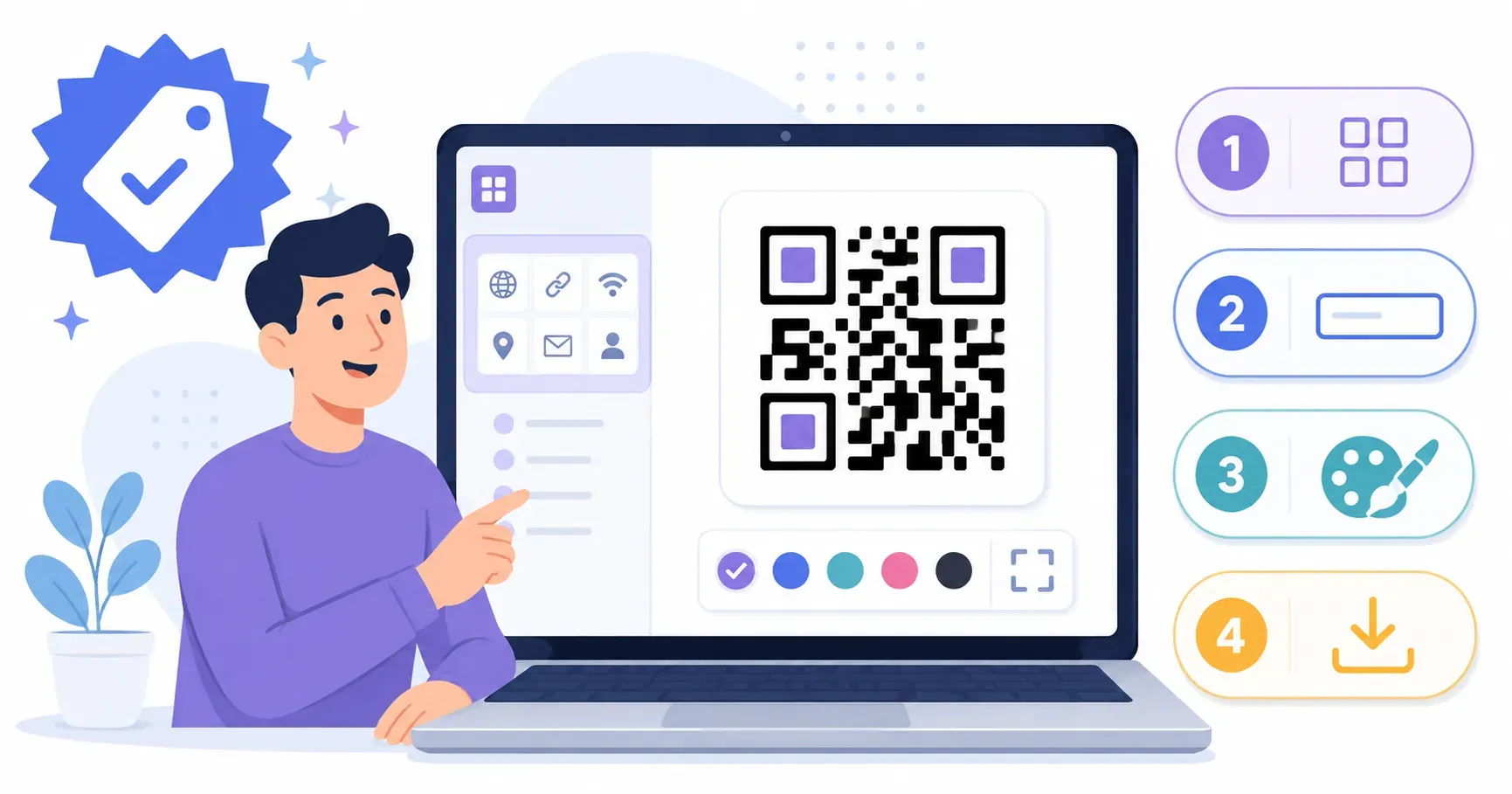
You’ve got a flyer for your weekend market stall, a URL you want on your business card, or a WiFi password guests keep asking for. You need a QR code — and you need it now, without signing up for anything or pulling out a credit card. Learning how to create a QR code for free takes less time than making a cup of coffee. With QRocket, the entire process is four steps and under 60 seconds. This QR code maker tutorial walks you through every click, from choosing your code type to downloading a print-ready file. By the end, you’ll have a working QR code and the knowledge to make dozens more.
Can You Really Create a QR Code for Free?
Short answer: yes — but the word “free” hides a few traps worth knowing about. Plenty of generators let you design a code at no charge, then spring a catch at the finish line: a watermark stamped across the pattern, a sign-up wall before download, or a link that quietly expires after 14 days unless you upgrade.
A truly free code has none of that. The trick is to make a static QR code. Because the data lives in the pattern itself rather than on someone’s server, a static code never expires, needs no account, and carries no watermark. It’s also free for commercial use — menus, packaging, ads, and product labels are all fair game.
The one honest trade-off: a static code can’t be edited after you create it. Fix a typo, and you’ll need a fresh code. If you expect the destination to change often, weigh a dynamic code instead. Everything below produces a static code you can download and keep for good.
What You Need to Create a QR Code for Free
Not much. That’s the honest answer.
You need a device with a web browser — phone, tablet, or computer — and the content you want your QR code to link to. That content could be a URL, a WiFi network name and password, contact details, an email address, a phone number for SMS, or plain text.
Here’s a quick checklist:
- URL codes: The full web address, including
https:// - WiFi codes: Your network name (SSID), password, and encryption type (usually WPA2)
- vCard codes: Name, phone, email, company, and any other contact fields
- Email/SMS codes: The recipient address or phone number, plus an optional pre-filled message
- Text codes: Whatever message you want (up to about 4,296 alphanumeric characters per the ISO/IEC 18004 standard)
If you’re not sure which type fits your situation, our guide on what is a QR code breaks down the basics. One decision to make upfront: do you need a static code (fixed content) or a dynamic one (editable later)? Our comparison of static vs dynamic QR codes can help you decide.
Have your content ready? Open the free QR code generator and follow the steps below.
How to Create a QR Code for Free in 4 Steps
The flow is the same no matter which type you pick: choose a type, enter your content, customize the look, then download and test. Here’s each step in detail.
Step 1 — Choose Your QR Code Type
The first thing you’ll see in QRocket is a row of QR code type options: URL, Text, WiFi, vCard, Email, and SMS. Pick the one that matches your goal.
This choice matters because each type structures data differently. A WiFi QR code embeds your network credentials in a specific format that phones recognize automatically. A vCard code packages contact details so they can be saved with one tap. Choosing the wrong type — say, pasting a URL into a plain text code — still works, but the scanner won’t auto-open the browser. Small difference, big usability gap.
Most popular picks:
| QR Code Type | Best For |
|---|---|
| URL | Websites, landing pages, online menus |
| WiFi | Cafés, offices, Airbnbs, home guests |
| vCard | Business cards, networking events |
| Customer support, feedback forms | |
| SMS | Quick opt-ins, appointment reminders |
| Text | Offline messages, product labels |
Not sure which type you need? Start with URL — it covers the vast majority of use cases.
Step 2 — Enter Your Content
Now fill in the fields for your chosen type. Each type shows only the relevant fields, so you won’t face a wall of confusing options.
For a URL code, paste the full address including https://. A common mistake: leaving off the protocol. www.example.com won’t auto-open on every device. https://www.example.com will.
For a WiFi code, enter three things: your network name exactly as it appears on your router (capitalization matters), the password, and the encryption type. Most modern networks use WPA/WPA2. If you pick the wrong encryption type, the code will scan but fail to connect — a frustrating dead end for your guests. Our full guide to create a WiFi QR code walks through the encryption settings field by field.
For a vCard, fill in as many fields as you want contacts to receive. At minimum, include your name, phone number, and email. The more fields you complete — company, title, website, address — the richer the saved contact will be.
Double-check everything before moving on. Once you generate a static QR code, the content is permanent. A typo means starting over with a new code.
Step 3 — Customize Your Design
Plain black-and-white QR codes work fine. But if you want your code to match your brand or stand out on a poster, QRocket gives you several customization options.
You can adjust:
- Foreground and background colors — Keep high contrast. Dark modules on a light background scan best. A good rule: maintain at least a 70% brightness difference between the two colors.
- Module shape — Switch from classic squares to rounded dots or other patterns. The underlying data stays the same; only the visual style changes.
- Logo overlay — Upload your logo to the center of the QR code. The built-in error correction (up to 30% at Level H, defined by the ISO/IEC 18004 standard) means a portion of the code can be obscured and still scan correctly.
Key takeaway: Keep customization subtle. A QR code that looks great but won’t scan is worse than an ugly one that works every time.
For deeper guidance on making branded codes that scan reliably, check out our QR code design guide. The short version: never invert colors (light modules on dark background), never reduce the quiet zone (the white border around the code), and always test after customizing.
Step 4 — Download and Test
Your QR code is ready. Choose a download format — more on SVG versus PNG in the next section — and verify it works before you share it anywhere.
Download your file, then test it immediately:
- Open your phone’s camera app (most modern phones have built-in QR scanning)
- Point it at the QR code on your screen from about 15–20 cm away
- Confirm it opens the correct link, connects to the right WiFi, or saves the right contact
- Test on a second device if possible — different phone brands occasionally handle certain code types differently
If you plan to print the code, test the printed version too. Print at a minimum size of 2 cm × 2 cm, and remember the general rule: every 1 cm of QR code size allows roughly 10 cm of reliable scanning distance.
Ready to make your first QR code? Try QRocket’s free QR code creator — no signup, no limits — Create Your Free QR Code
PNG or SVG? Picking the Right Download Format
The file format you pick decides how sharp your code looks at its final size. Two options cover almost every case:
| Format | Best For | Why |
|---|---|---|
| SVG | Print (flyers, posters, packaging) | Vector format — scales to any size without losing quality |
| PNG | Digital (websites, emails, social media) | Raster format, universally compatible — export at 1024×1024 pixels for sharp results |
Reach for SVG whenever the code will be printed. Because it’s math-based vector art, it stays crisp whether it lands on a business card or a trade-show banner. Choose PNG for anything that stays on a screen — a website, an email signature, a social post. If you rasterize for print instead of using SVG, export at a minimum of 300 DPI so the modules don’t blur on paper. When you’re unsure, download both; the files are only a few kilobytes each.
How to Create a QR Code for Free That People Actually Scan
You’ve got a working code. These tips keep it working long-term.
1. Always include a call-to-action near the code. A QR code sitting alone on a poster without context gets ignored. Add text like “Scan for menu,” “Scan to connect to WiFi,” or “Scan to save my contact.” According to a MobileIron report (2021), roughly 40% of consumers hesitate to scan codes without clear context about what happens next.
2. Mind the minimum size. For a standard-density QR code, don’t go below 2 cm × 2 cm. High-density codes — those encoding long URLs or large vCards — may need to be larger. If it needs to scan from across a room, like a conference stage sign, scale up significantly.
3. Use high error correction when adding logos. The tool applies error correction automatically, but if you’re overlaying a logo, the code needs room to compensate for obscured modules. Level H handles most logo sizes, though you shouldn’t cover more than 20% of the total code area.
4. Test in real conditions. Scan your code in the lighting, at the distance, and on the surface where it will actually be used. A code that works on your screen might fail on a glossy poster under fluorescent lights.
5. Keep your linked content mobile-friendly. Most QR scans happen on phones. If your URL leads to a page that isn’t optimized for mobile screens, you’ll lose the reader within seconds.
Your QR Code in Under a Minute
Here’s what most people miss: the QR code itself is the easy part. The real value is what sits behind it — a fast-loading page, a smooth WiFi connection, a clean contact card. Treat the code as a door, and make sure the room behind it is worth entering. The best QR codes aren’t the prettiest ones; they’re the ones that deliver exactly what the scanner expects, every single time. Now that you’ve seen how to use a free QR code generator from start to finish, spend your real effort on the destination. Create your first code with QRocket’s free generator and put it to work today.
Frequently Asked Questions
Is it really free to create a QR code?
Yes. You can make a QR code free of charge — no signup, no hidden fees. Static QR codes are free to create and download in both SVG and PNG formats. Some platforms charge for dynamic codes with analytics, but basic static codes cost nothing on most generators.
What format should I download my QR code in?
Choose SVG for anything printed — it’s a vector format that scales from a business card to a billboard without pixelation. Choose PNG for digital uses like websites, emails, or social media posts. When in doubt, download both; the files are small.
Do I need to sign up to create a QR code?
No account is required. Many free generators let you create and download QR codes immediately without registration. Just open the tool, enter your content, customize if you want, and download. The whole process takes under a minute.
Can I add my logo to a free QR code?
Absolutely. Many free tools support logo uploads on QR codes. The code’s built-in error correction compensates for the area covered by the logo, so it still scans correctly. Keep the logo under 20% of the total code area for best results.
Do free QR codes expire?
Static QR codes never expire. The pattern itself holds the data, so the code keeps working for as long as its destination — a web page, a WiFi network, a phone number — stays live. Only dynamic codes, which route through a provider’s server, risk expiring if that service lapses.
Can I use a free QR code commercially?
Yes. Static codes are free for commercial use, with no royalties owed to anyone. Print them on menus, packaging, flyers, storefront windows, or paid ads without restriction. The QR standard is open, so no license fee applies whether you make one code or ten thousand.
Create a free QR code with custom colors, your logo and print-ready downloads — no sign-up.