How to Create a QR Code for a URL or Website Link
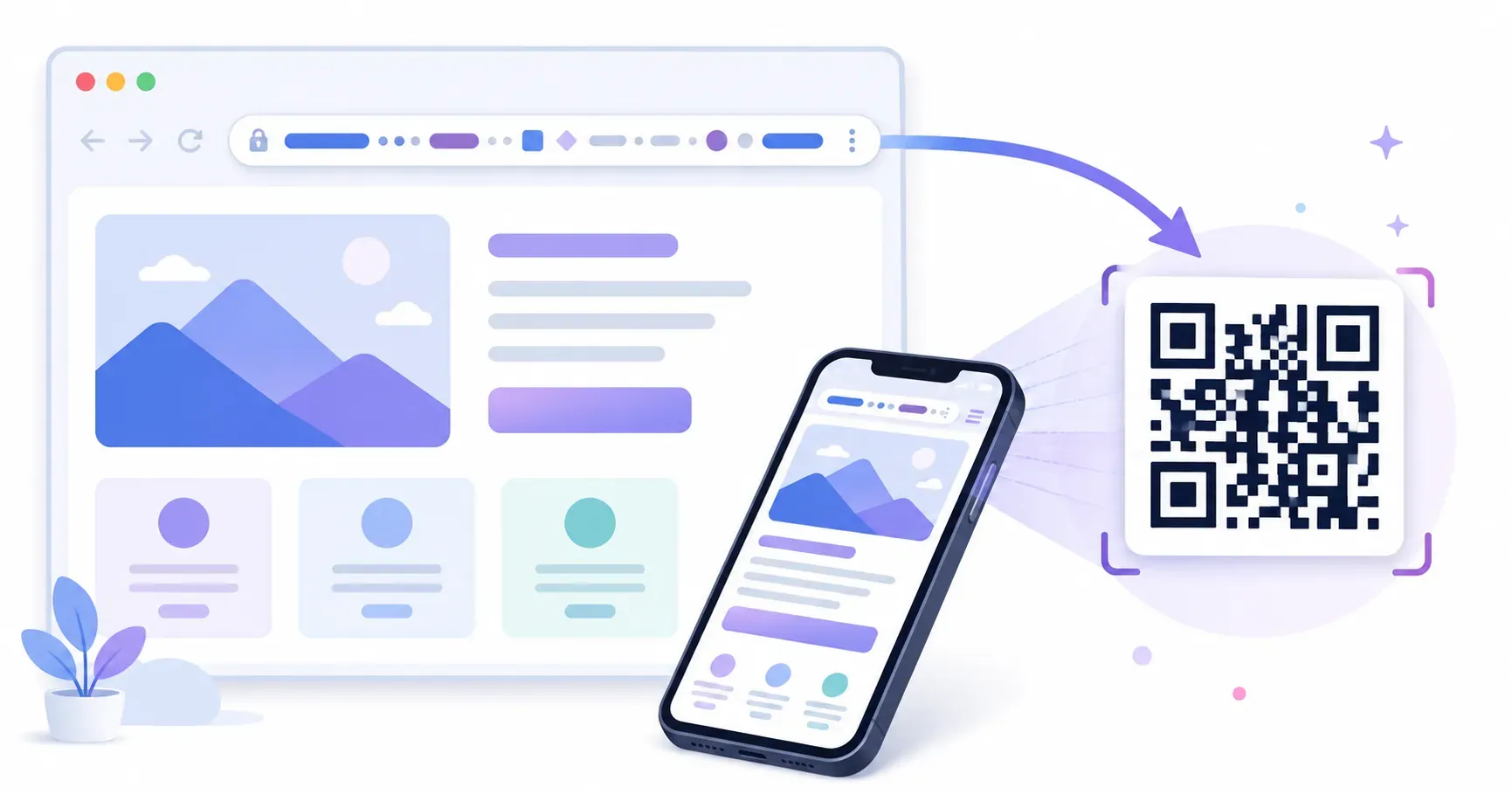
A coffee shop prints its menu URL on a table tent. A real estate agent adds a listing link to a yard sign. A nonprofit puts its donation page on every flyer. In each case, a QR code for a URL does what typed-out web addresses can’t: it gets people to the right page in one scan, no typing or misspelling required. QRocket makes that conversion instant and free. In this guide, you’ll walk through exactly how to convert a URL to a QR code, choose the right code type, and place it where people will actually use it.
Why Use a QR Code for a URL
Think about the last time you saw a long URL on a poster. Did you type it in? Probably not. A 40-character web address is easy to mistype and hard to remember. A QR code for a link removes that friction entirely — one phone scan opens the page in under a second.
Speed matters. According to Google, 53% of mobile visitors leave a page that takes longer than 3 seconds to load (Source: Google, 2018). Making the path to your page shorter starts before the page even loads — it starts with how people reach it. A scannable code eliminates the 10-15 seconds someone would spend hunting and pecking a URL on a phone keyboard.
There’s a tracking advantage, too. If you use a dynamic code, you can see how many people scanned, when they scanned, and where they were. That turns a simple link into a measurable marketing touchpoint. For a deeper look at how QR codes work under the hood, check out our guide on what is a QR code.
How to Create a QR Code for a URL in 4 Steps
The whole process takes under 60 seconds. Head to the QRocket generator and follow these steps.
Step 1: Select URL as the QR Code Type
Choose “URL” from the type selector. This tells the generator to format the encoded data as a web link so phones open it directly in a browser rather than displaying raw text.
Step 2: Paste Your Full URL
Enter the complete web address, including https://. A URL like example.com/page without the protocol may not open correctly on all devices. If your link is longer than 100 characters, consider using a URL shortener first — shorter URLs produce QR codes with fewer modules (the tiny black squares), which scan more reliably when printed small.
Step 3: Customize Colors and Style
Pick foreground and background colors that match your brand. One critical rule: maintain at least a 70% contrast ratio between the dark modules and the light background. A dark-blue-on-white code scans perfectly; a yellow-on-white code won’t. You can also add rounded corners to the modules for a softer look.
Step 4: Download and Test
Download your code as PNG for digital use or SVG for print. Before sending it anywhere, scan it yourself with at least two different phones. Test at the size you plan to use — a code that works full-screen on your monitor might fail at 2 cm x 2 cm on a business card. The minimum recommended print size is 2 cm x 2 cm (about 0.8 x 0.8 inches) for a standard URL QR code.
Turn any link into a scannable QR code — create your free URL QR code with QRocket — Create Your Free QR Code
Should You Shorten the URL First?
Every character in a link adds modules to the code. A 25-character URL fits in a tidy 25×25 grid; push past 150 characters and you’re into a dense 45×45 pattern with squares small enough to trip up a phone camera at arm’s length. Fewer characters means bigger, more forgiving modules.
You have two ways to trim. A public URL shortener collapses any link to a dozen or so characters. Or, if you run the site, set up a short vanity path like yoursite.com/menu that reads cleanly and encodes small. The vanity route keeps your own domain in front of scanners, which builds trust.
One caveat about tracking. If you tag links with UTM parameters — ?utm_source=flyer&utm_medium=qr — so scans show up in Google Analytics, those extra characters bloat the code fast. Shorten the tagged link before you generate, and you keep both the analytics and a clean, scannable pattern.
Static or Dynamic for a URL Code?
Before you commit to print, make one decision: static or dynamic?
A static QR code bakes the URL directly into its pattern. Once created, the destination can never change. The upside? It works forever with zero dependencies — no server, no subscription, no expiration. The downside is obvious: if you move to a new domain or update a page slug, the code becomes a dead end.
A dynamic QR code points to a short redirect URL that you control. Change the destination anytime without reprinting. You also get scan analytics — counts, timestamps, and location data.
| Feature | Static | Dynamic |
|---|---|---|
| Destination editable | No | Yes |
| Scan tracking | No | Yes |
| Works offline forever | Yes | Depends on service |
| Pattern complexity | Higher (full URL encoded) | Lower (short URL encoded) |
| Cost | Free | Often requires subscription |
Here’s a practical rule: if the URL will never change — like a personal portfolio or a YouTube video — static is fine. If you’re running a campaign, testing landing pages, or printing 5,000 flyers you can’t reprint, dynamic gives you a safety net. Our static vs dynamic QR codes guide covers the tradeoffs in detail.
Best Practices for URL QR Codes
Most people get the creation right and the placement wrong. Here’s what separates codes that get scanned from codes that get ignored.
Use HTTPS, always. Modern browsers flag HTTP pages as insecure. Some phone cameras won’t even auto-open an HTTP link. Make sure every URL you encode starts with https://.
Keep the URL short. A 25-character URL generates a version 2 QR code (25 x 25 modules). A 150-character URL might require version 7 (45 x 45 modules). More modules means smaller squares, which means harder scanning at small print sizes. Trim tracking parameters when possible, or use a URL shortener.
Add a clear call to action near the code. A QR code alone is a mystery square. Add text like “Scan for menu,” “Scan to register,” or “Scan for 15% off.” Studies on signage effectiveness consistently show that adding instructional text near a QR code increases scan rates significantly.
Key takeaway: A QR code without context gets ignored. Always pair it with a short instruction telling people what they’ll get.
Test before you print. Scan your code under three conditions: bright light, dim light, and at arm’s length. If it fails any test, increase the size or simplify the URL. If you’re new to making codes in general, our guide on how to create a QR code for free covers the fundamentals.
Where to Use a QR Code for a URL
A QR code for a URL fits almost anywhere you’d otherwise write or print a web address. Here are the placements that deliver the highest scan rates.
Business cards. Replace the tiny-font website line with a QR code linking to your portfolio, LinkedIn, or booking page. At 2.5 cm x 2.5 cm, it fits comfortably on a standard 3.5 x 2-inch card.
Product packaging. Link to setup guides, ingredient lists, or warranty registration. According to Smithers, the global smart packaging market is projected to reach $7 billion by 2028 (Source: Smithers, 2023), and QR codes are a major driver of that growth.
Flyers and posters. Place the code in the bottom-right corner — eye-tracking research from the Nielsen Norman Group shows that’s where readers’ eyes naturally end on a printed layout (Source: Nielsen Norman Group). Size it at least 3 cm x 3 cm for posters viewed from 30 cm or more.
Email signatures. A small QR code image in your email footer lets recipients scan your website link without clicking. Useful when they’re reading email on a laptop but want the link on their phone.
Restaurant table tents and window stickers. Link to your menu, reservation page, or review site. Weather-resistant stickers with a QR code for your URL last months on a storefront window. Any free website QR code generator — including QRocket — can create a QR code for a website in under a minute, so there’s no reason to leave a bare URL on printed materials when you can offer a scannable code instead.
One Scan Replaces a Thousand Keystrokes
The simplest QR codes are often the most useful. A single URL QR code on a business card, flyer, or package label removes the biggest barrier between someone seeing your web address and actually visiting it. Choose static for permanent links, dynamic when flexibility matters, and always test before you print. Your next website visitor might be one scan away — build your QR code with QRocket now.
Frequently Asked Questions
Can I change the URL in my QR code after creating it?
Only if you created a dynamic QR code. Static codes permanently encode the URL into their pattern, so the destination is locked at creation. Dynamic codes route through a redirect URL you can update anytime, making them ideal for campaigns or pages that move.
Should I use a shortened URL for my QR code?
Yes, especially for print. A shorter URL produces a simpler QR pattern with fewer modules — typically a 25x25 grid instead of 45x45. That means the code scans faster and works reliably even at small sizes like 2 cm x 2 cm.
Do URL QR codes expire?
Static URL QR codes never expire because the destination is encoded directly in the image. Dynamic codes depend on the redirect service staying active. As long as the service is running and your account is current, dynamic codes work indefinitely.
Does my QR code still work if my website changes?
Yes, as long as the exact URL you encoded still resolves. You can change a page’s content freely without touching the code. Change the URL itself — a new slug or domain — and a static code breaks unless you add a redirect from the old address, which keeps every printed code alive.
Create a free QR code with custom colors, your logo and print-ready downloads — no sign-up.