How to Scan a QR Code on iPhone, Android, and Desktop
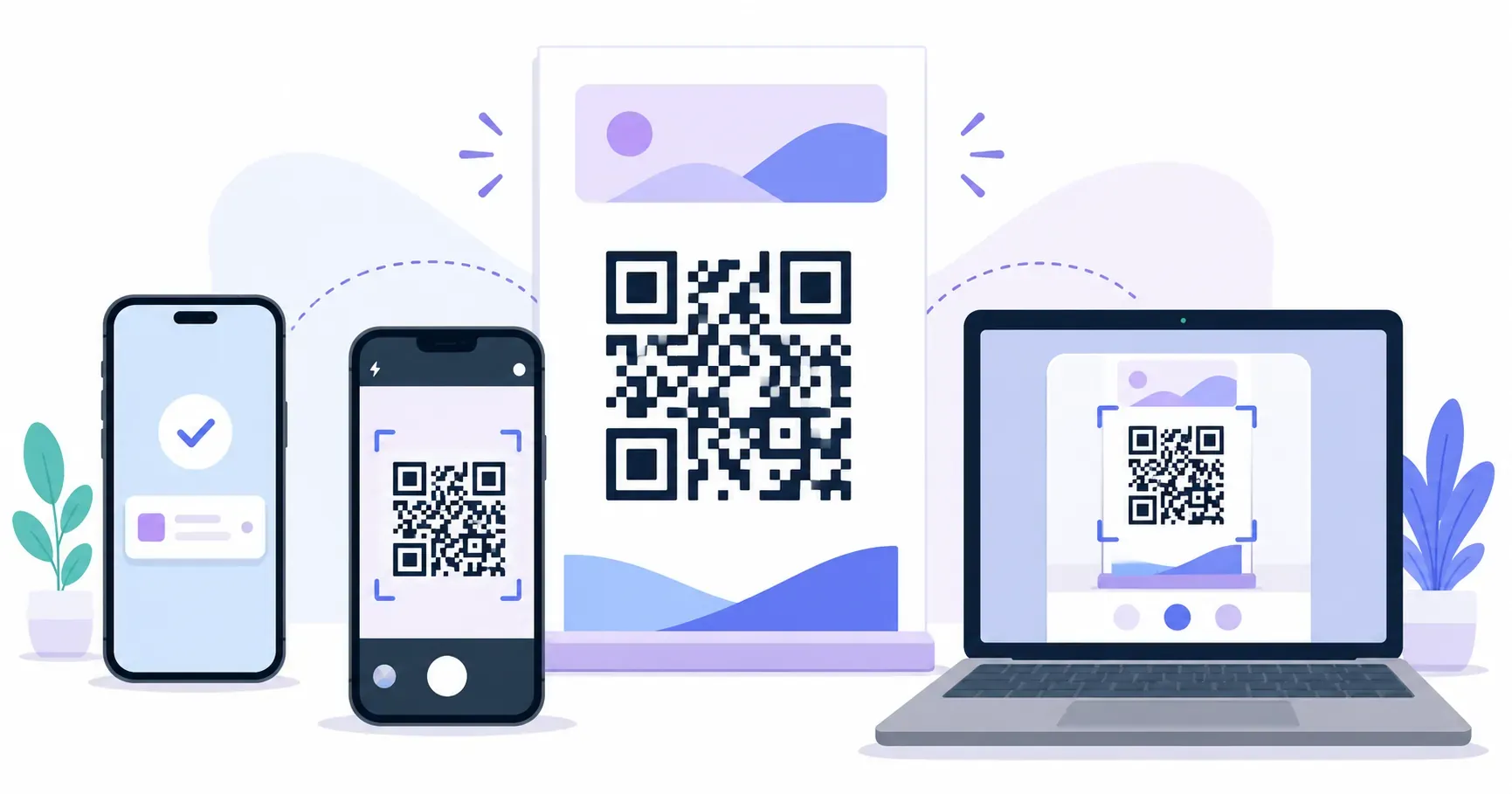
You spot a QR code on a restaurant menu, a museum placard, or a parcel slip — and for a second you wonder which app you’re supposed to open. Here’s the short answer: none. Learning how to scan a QR code takes about ten seconds, and every phone sold in the last several years already has the feature built into its camera. No download, no account, no scanner app cluttering your home screen.
This guide walks through the exact taps for iPhone, Android, and even your laptop, plus what to do when a stubborn code refuses to open. By the end you’ll be able to read a code from a poster, a screenshot, or a screen across the room. If you’re still fuzzy on what a QR code actually is, that primer pairs well with this one.
How to Scan a QR Code on iPhone
Apple added native QR scanning to the Camera app in iOS 11, released in 2017, so any iPhone from the 5s onward can do this without a single download. There are three ways to scan a QR code on iPhone, depending on where the code lives — on paper, in your hand, or already saved to your photos.
With the Camera App
- Open the Camera app, or swipe left from the lock screen.
- Point it at the QR code so the whole pattern sits inside the frame.
- Wait about one second — a yellow notification banner slides down at the top.
- Tap the banner to open the link, join the WiFi network, or save the contact.
Keep the rear camera selected and hold the phone roughly 15–30 cm from the code. You don’t need to press the shutter; detection happens live in the viewfinder.
With the Control Center Code Scanner
When you want a faster, one-handed option — say you’re in a checkout line — add the dedicated Code Scanner to Control Center. Open Settings > Control Center, tap the plus beside “Code Scanner,” and it drops into your grid. Now a swipe and a tap launch a scanner that ignores everything except codes, handy in bright stores where the regular camera keeps hunting for focus.
From a Screenshot or Photo
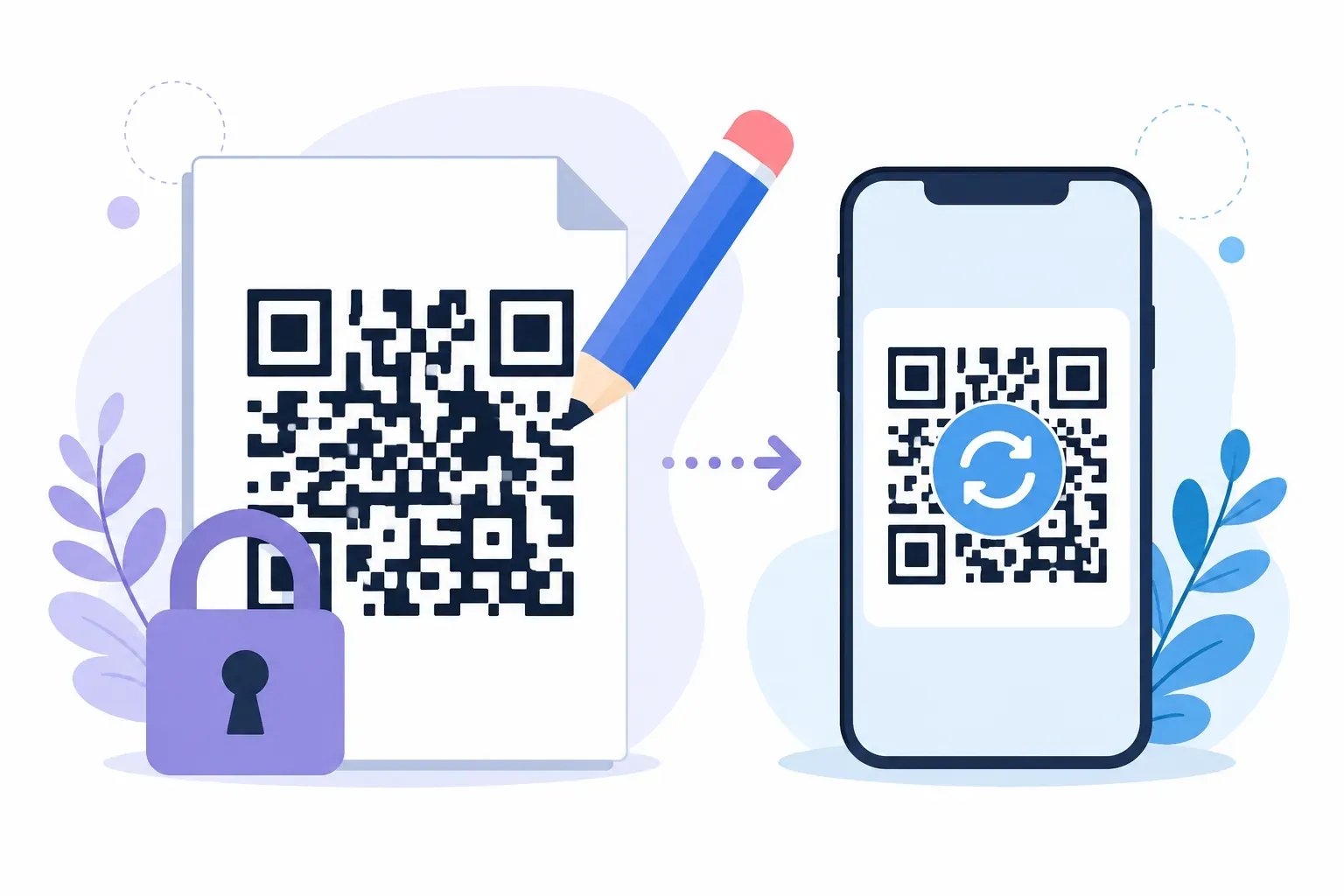
Codes don’t only live on posters. A friend texts you an event flyer, or a code sits inside a webpage you screenshotted. On iOS 15 and later, open the image in Photos, then press and hold on the code. A pop-up offers to open the link directly — no second phone, no printing required. The same long-press trick works on codes inside Safari, Mail, and Messages.
How to Scan a QR Code on Android
Google built QR scanning into the camera starting with Android 10 in 2019, though the exact path varies by manufacturer. Samsung, Google Pixel, and OnePlus each place the toggle in a slightly different spot, so it helps to know the universal fallback too.
With the Camera App
- Open your phone’s Camera app.
- Aim at the QR code and hold steady for a second.
- Tap the link chip or pop-up that appears over the code.
If nothing happens, the feature may be switched off. Open the camera’s Settings — the gear icon — and enable “Scan QR codes” or “Google Lens suggestions.” On many Samsung Galaxy phones the toggle sits under Settings > Useful features instead.
With Google Lens
Google Lens is the reliable universal method to scan a QR code on Android — it works on essentially any phone regardless of brand. Open the Google app or Google Lens, point the camera at the code, and tap the magnifier. Lens also lives inside the Assistant and Photos app, so a code the plain camera ignores almost always yields to Lens.
From an Image in Your Gallery
Saved a coupon code to your gallery? Open Google Photos, tap the image, then tap the Lens icon along the bottom. Lens reads the code out of the still image and surfaces the link — the same way it reads a live one. This is the Android equivalent of the iPhone long-press, and it means you never need a second device to open a code you already have on screen.
How to Scan a QR Code on a Desktop or Laptop
Sometimes the code is on a printed page and the only camera nearby is your laptop’s webcam. Other times the code is displayed on the very screen you’re reading. Both cases have a fix, and neither needs a download.
For a printed code, use a webcam-based scanner that runs inside your browser tab. You grant the page camera access, hold the paper up to the webcam, and it decodes the pattern the moment it lands in frame. Because it runs in the browser, nothing installs on your machine.
For a code shown on the same screen — in an email or a slide deck — you can’t point the screen at itself. In Google Chrome, right-click the image and choose Search image with Google; Lens reads the embedded code and offers the link, no webcam involved. And if you’ll act on the destination with your phone anyway, the simplest move is to point your phone’s camera at the monitor and scan a QR code on the computer screen directly.
Key takeaway: You never need two devices. Every on-screen code can be opened from the same device it appears on — long-press on iPhone, Lens on Android, right-click in Chrome on desktop.
Do You Need a QR Code Scanner App?
Short answer: almost never. The app stores are full of listings for a QR code scanner, and the overwhelming majority are unnecessary — many exist mainly to serve ads or collect data. Since your built-in camera has handled the job since iOS 11 in 2017 and Android 10 in 2019, a separate scanner app just adds clutter and permissions you don’t need.
A dedicated scanner app earns its place in only a few cases: an older phone that predates native support, scanning hundreds of codes a day for work, or batch features the camera lacks. For everyone else, the built-in camera and Google Lens cover it — and if you’d rather make codes than just read them, a free browser tool like QRocket handles that side without an install either.
Worth knowing for accessibility: both platforms announce a detected code aloud. Apple’s VoiceOver and Android’s TalkBack read out the banner or link chip, and larger printed codes are easier for low-vision users to line up in frame. If you make codes for a public space in QRocket, sizing them generously helps every scanner, human and phone alike.
Now flip it around — make a code others can scan, free in under a minute. — Create Your Free QR Code
Quick Fixes When a QR Code Won’t Scan
Most failed scans come down to physics, not a broken code. Run through these in order — one of them clears the problem most of the time.
- Add light. A dim code has too little contrast for the camera to read. Move under a lamp or turn on your phone’s flashlight.
- Adjust your distance. Too close and the camera can’t focus; too far and the pattern is too small. Aim for about 30 cm, then fine-tune.
- Hold steady. Give the lens a full second to lock focus. Motion blur is a top reason a code “won’t scan.”
- Flatten the surface. A code curled around a bottle or crumpled on a flyer distorts the pattern. Press it flat.
- Clean the lens. A smudged camera turns a crisp code into mush. Wipe it on your shirt and try again.
- Switch tools. If the camera keeps ignoring a code, open Google Lens or the iPhone Code Scanner — they’re often more persistent.
If a code still won’t budge after all six, the code itself may be damaged or printed too small — a different problem from your phone.
A One-Second Safety Habit Before You Tap
Before you tap that banner, glance at the URL it previews. A legitimate code sends you to a domain that matches the business you expect — a restaurant’s real website, not a look-alike with an extra hyphen. Both iPhone and Android show the destination before they open it, and that one-second check is your best defense against a tampered or fake code. For the full picture on scams and how to vet a code, read whether QR codes are safe.
Scanning is genuinely the easy half. When you’re ready to share something of your own — a menu, a WiFi login, a portfolio link — QRocket turns any link into a scannable code for free, and it’s worth learning how to create a QR code for free once you’re comfortable reading them. The next code you meet, you’ll open in a single confident tap.
Frequently Asked Questions
Do I need a special app to scan a QR code?
No. Any iPhone on iOS 11 or later and any Android phone on version 10 or later reads codes straight from the built-in camera. Third-party scanner apps mostly add ads and extra permissions, so skip them unless your device is genuinely too old to support native scanning.
How do I scan a QR code that’s on my own phone screen?
You don’t need a second device. On an iPhone, press and hold the image in Photos, Safari, or Messages until an open-link prompt appears. On Android, open the picture in Google Photos and tap the Lens icon, which reads the code out of the still image.
Why won’t my phone scan a QR code?
It’s almost always poor lighting, the wrong distance, or an unsteady hand. Move to roughly 30 cm from the code, add light or use your flashlight, and hold still for a full second so the camera can focus. Wiping a smudged lens fixes a surprising number of stubborn cases.
How do I scan a QR code on my computer?
For a printed code, use a webcam-based scanner that runs in your browser and hold the paper to the camera. For a code already on your screen, right-click it in Google Chrome and choose Search with Google, and Lens will read the embedded code without any webcam at all.
Can I scan a QR code from a screenshot?
Yes. Both platforms detect codes inside saved images. On iOS, long-press the code inside the Photos app to reveal an open prompt. On Android, open the screenshot in Google Photos and tap Lens. Neither method needs a printout or a second phone to work.
Create a free QR code with custom colors, your logo and print-ready downloads — no sign-up.