vCard QR Codes: A Better Way to Share Contact Details
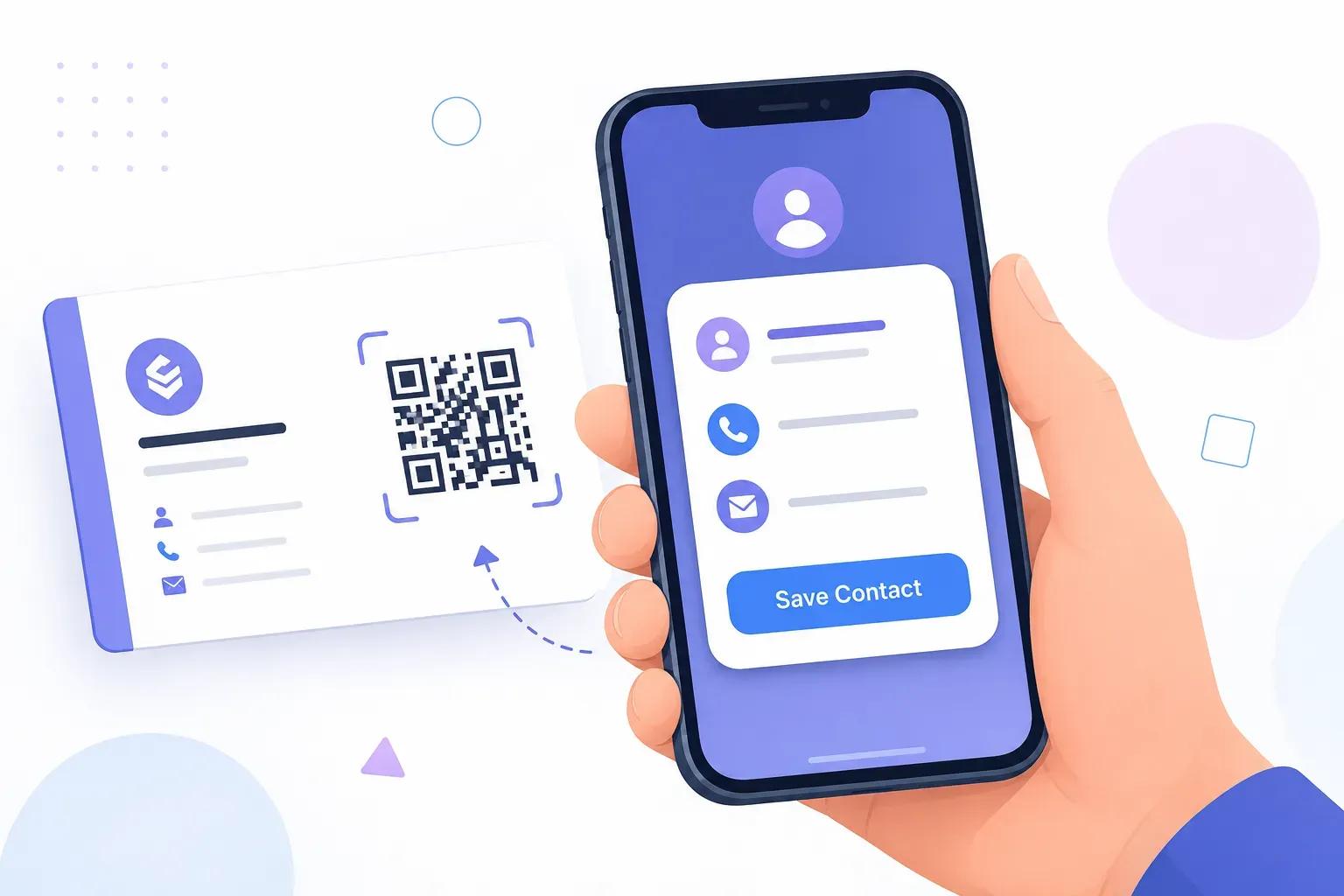
Most paper business cards end up in a drawer, a jacket pocket, or the bin — one industry estimate puts the discard rate at 88% within a week (Source: Adobe/Statistic Brain, 2019). The contact never gets typed into a phone, so the connection quietly dies. A vCard QR code fixes that weak link: one scan opens a pre-filled contact form on the other person’s phone, and one tap saves your name, number, email, and company — no typing, no transcription errors, no drawer.
This explainer covers what a vCard QR code is, how the vCard format packs a full digital business card into a scannable square, what happens on the phone at scan time, and where these codes beat every other way of sharing contact details.
What Is a vCard QR Code?
A vCard QR code is a QR code that stores a person’s contact details directly inside the pattern, using a standard format called vCard.
vCard — short for “virtual contact file,” the same format behind .vcf email attachments — is a plain-text standard from 1996 that every major contact app understands. A vCard is just structured text: lines like FN:Dana Levy, TEL:+14155550134, and ORG:Brightside Design, wrapped between BEGIN:VCARD and END:VCARD.
The QR part is simply the delivery mechanism. A QR code can encode any text, so a generator converts that vCard block into the familiar black-and-white pattern. When a phone camera reads it, it recognizes the vCard structure and treats it as a contact — not as a link or a message.
That combination is what makes it different from most codes you scan. A typical QR code is a pointer: it holds a URL and sends you somewhere online. A vCard QR code is a container: the data itself lives in the squares, with no website behind it and nothing to load. Our overview of QR code types shows where vCard sits among the other content formats.
What Data a vCard QR Code Stores
The vCard standard defines fields for nearly everything a contact record can hold. In practice, a vCard QR code typically carries:
- Full name — first and last, displayed as the contact name
- Phone numbers — mobile, work, or both, each labeled by type
- Email address — one or several
- Company and job title — so the person remembers who you are and why you met
- Website — your portfolio, company site, or booking page
- Physical address — office or storefront, which maps apps can open directly
- Photo — optionally, a profile image embedded in the contact
Every field you fill in becomes part of the encoded text and lands in the right slot of the phone’s contact form. Someone who scans your code at an event gets a complete, correctly formatted record — not a number scribbled on a napkin with no name attached.
Why Size Matters
There’s a trade-off hiding in that flexibility: more data means a denser code. A QR code tops out around 3KB of text, and long before that limit, the pattern becomes a fine-grained mosaic that small prints struggle to reproduce.
A name, number, email, company, and website — roughly 200–300 characters — produces a comfortable, easily scannable code. Embed a photo, which must be converted to text (base64) inside the vCard, and the size can balloon tenfold, often past what a business-card-sized print can reliably display.
The practical rule: keep the photo out of printed codes and include only the fields people will actually use. If your code does get dense, print it larger — our QR code size guide covers the minimums — because dense patterns leave less room for error correction to absorb print imperfections.
How vCard QR Codes Work on Phones
The scanning experience is the whole selling point, so it’s worth walking through exactly what happens.
Someone points their camera at your code — no special app needed on any recent iPhone or Android. The camera decodes the text, spots the BEGIN:VCARD header, and hands the data to the contacts app instead of the browser.
What appears is a pre-filled “New Contact” screen: your name at the top, phone, email, company, title, and website each in its proper field. The person reviews it and taps Save. That’s the entire flow — scan, glance, tap. Two seconds, zero typing.
Two details make this quietly powerful. First, it works completely offline — the data is in the pattern itself, so a vCard code scans perfectly in a basement conference hall or at a job site with no signal. Second, nothing is auto-saved without consent: the phone always shows the contact for review first, which keeps the interaction transparent. If a scan ever fails, the cause is usually print quality or contrast, not the format; our guide to QR codes not working covers the fixes.
vCard QR Codes vs URL-Based Contact Sharing
The main alternative is a URL-based code: instead of embedding your details, the code links to an online contact page or digital business card profile. Both approaches work, and they fail in opposite ways.
| vCard QR code | URL-based contact code | |
|---|---|---|
| Works offline | Yes — data is in the pattern | No — needs internet |
| Saves to contacts | One tap, pre-filled | Extra steps via web page |
| Editable after printing | No — data is fixed | Yes — update the page anytime |
| Code density | Denser with more fields | Always compact (short URL) |
| Dependencies | None, ever | Page and host must stay online |
| Scan tracking | Not possible | Possible with a dynamic link |
The table repeats one theme: vCard codes trade flexibility for independence. Your details arrive instantly, offline, forever — but a new phone number means reprinting the code. URL-based sharing stays editable and trackable, yet every scan depends on a connection and a page that still exists. The link-based mechanics are covered in our explainer on URL QR codes, and the broader trade-off is the classic static vs dynamic decision.
A sensible rule of thumb: if the goal is “save my contact,” use a vCard. If the goal is “visit my constantly changing profile,” use a URL.
Best Use Cases for vCard QR Codes
vCard codes earn their keep anywhere people exchange details in person:
- Business cards. The classic pairing. The paper card still gets handed over, but the code on the back turns it into a saved contact before it can be lost.
- Networking events. A code on your phone’s lock screen means you can share complete details with a line of people in seconds — no fumbling for cards that run out. It pairs naturally with the tactics in our guide to QR codes for events.
- Email signatures. Colleagues reading your email on a laptop can scan the code with their phone and move your details from screen to pocket in one motion.
- Conference badges. Organizers can print each attendee’s vCard code on their badge, so every hallway conversation ends with a saved contact instead of a forgotten name.
- Storefronts, vans, and flyers. A contractor can post a “Scan to save our contact” code so prospects capture the business number on the spot — and call later, when they’re ready.
Creating one takes about two minutes: pick the vCard type in a free QR code generator, fill in your fields, style the code, and download it as a print-ready SVG. The full walkthrough lives in our tutorial on creating a vCard QR code.
Create a free vCard QR code with QRocket — share your contact info in one scan — Create Your Free QR Code →
The Contact That Saves Itself
A paper card asks the other person to do the work: keep the card, remember the context, type the details. A vCard QR code does the work for them — the full record, saved in one tap, no internet or app required. Keep the encoded fields lean, print the code big enough to scan easily, and every introduction ends with your details in the right place: their phone. Generate yours with QRocket and put it on the next thing you hand someone.
Create a free vCard QR code with QRocket — share your contact info in one scan — Create Your Free QR Code →
Frequently Asked Questions
What data can a vCard QR code store?
A vCard QR code can hold your name, phone numbers, email, company, job title, website, physical address, and optionally a profile photo. Every field appears pre-filled in the phone’s contact form when scanned. Fewer fields keep the code less dense and easier to scan at small print sizes.
Do vCard QR codes work offline?
Yes. The contact data is encoded directly in the QR pattern, so the phone reads everything from the code itself — no internet connection, website, or server involved. That makes vCard codes reliable at conference halls, job sites, and anywhere signal is poor.
Do vCard QR codes expire?
No. A vCard QR code is a static code: the data lives permanently in the pattern, so it works for as long as the printed code physically survives. There is no account, subscription, or hosted page that can lapse.
Can I update a vCard QR code after printing it?
No — the details are fixed inside the pattern, so a new phone number or job title requires generating a fresh code and reprinting. If your details change often, consider a QR code linking to an online profile instead, which you can edit without touching the print.
Can I add a photo to my vCard QR code?
Technically yes, but it’s rarely worth it for print. The photo must be embedded as text inside the vCard, which can increase the data size tenfold and produce a very dense code that small prints struggle to display. Skip the photo for business cards and badges.
What’s the difference between a vCard QR code and a digital business card link?
A vCard code stores your details inside the pattern itself, saving them to contacts in one tap and working offline forever. A digital business card link points to a web page you can update anytime, but it requires internet and depends on that page staying online.
Create a free QR code with custom colors, your logo and print-ready downloads — no sign-up.