WiFi QR Codes: How They Work and When to Use Them
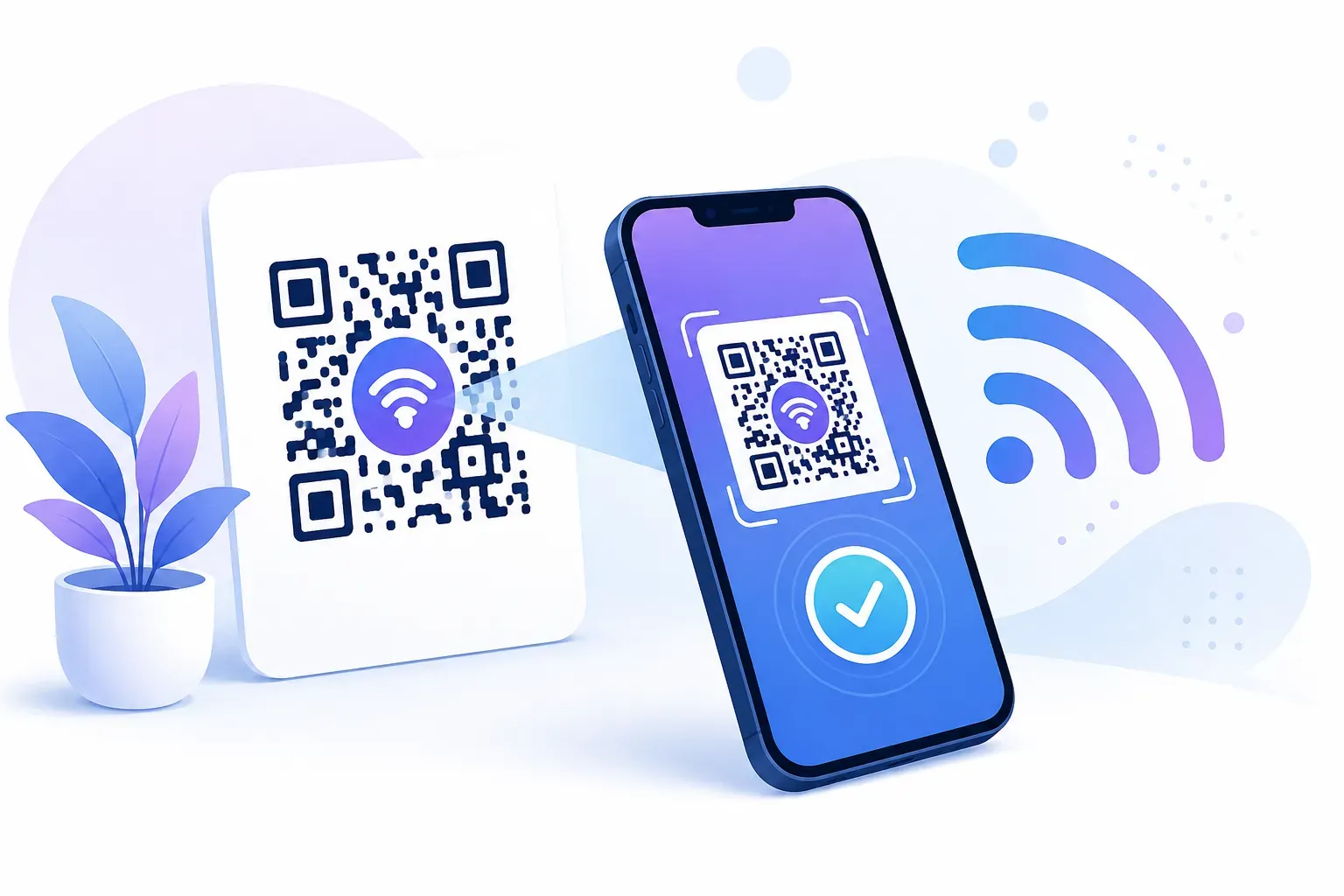
“What’s the WiFi password?” is the most repeated question in every cafe, hotel lobby, and guest room — usually answered with a string like Xk9$mQ2!vB recited three times and typed wrong twice. Understanding a WiFi QR code and how it works takes five minutes: the code stores your network name, password, and encryption type as text, and the phone’s camera reads it and joins the network in one tap.
This explainer covers the mechanism, not the tutorial: what’s inside the code, why phones can auto-connect from it, the security trade-offs, and where these codes fail. When you’re ready to make one, our step-by-step guide to creating a WiFi QR code picks up from there.
What Is a WiFi QR Code?
A WiFi QR code is a scannable square that contains everything a device needs to join a wireless network: the network name (SSID), the password, and the encryption type. Scan it, confirm, and you’re connected — no typing, no “is that a capital O or a zero?”
Here’s the part most people miss: there’s no internet involved. The code doesn’t link to anything and never contacts a server — convenient, since the person scanning it is by definition not online yet. It’s pure stored text, read locally by the phone.
That makes it different from most codes you encounter. A URL code hands the phone an address to open in a browser; a WiFi code hands the operating system credentials to act on. It’s one of several special-purpose formats covered in our overview of all QR code types.
How WiFi QR Codes Work Technically
Every WiFi QR code encodes a plain text string in a standard format that phone makers agreed on. It looks like this:
WIFI:T:WPA;S:CoffeeHouse_Guest;P:beans4days;;Each field has a job:
| Field | Meaning | Example |
|---|---|---|
WIFI: | Tells the phone this is network credentials, not a link | — |
T: | Encryption type — WPA (covers WPA/WPA2/WPA3), WEP, or nopass for open networks | T:WPA |
S: | The SSID — your network’s broadcast name | S:CoffeeHouse_Guest |
P: | The password, exactly as typed | P:beans4days |
H: | Optional — H:true marks a hidden network | H:true |
;; | Double semicolon closes the string | — |
There’s one formatting trap: because semicolons separate the fields, any semicolon, comma, colon, or backslash inside your password must be escaped with a backslash (\;). Good generators handle this automatically; hand-built strings often don’t, which is a classic cause of codes that scan but fail to connect.
The scanning sequence is simple. The camera decodes the pattern back into that text string, sees the WIFI: prefix, and hands the credentials to the operating system instead of the browser. A prompt appears — “Join CoffeeHouse_Guest?” — and one tap connects, saving the network like any manually joined one.
Support is effectively universal: iPhones read WiFi codes natively since iOS 11 in 2017, and Android since Android 10 in 2019, via the stock camera or Google Lens (Source: Apple and Google release notes). No app to install — which is exactly why the format took off.
Security Considerations for WiFi QR Codes
The honest framing: a WiFi QR code contains the same information you’d read aloud to a guest. It doesn’t weaken your network — but it makes sharing effortless, so decide deliberately what you’re sharing. Four practices cover most of the risk:
- Share a guest network, never your primary one. Nearly every modern router can broadcast a separate guest SSID that reaches the internet but is walled off from your own devices. Put the QR code on the guest network and your main credentials never leave the router.
- Remember the password is readable. Anyone who scans can view the decoded text, and Android can re-share a saved network as a new QR code in seconds. Treat a posted code as a public password; rotate it periodically if that bothers you.
- Use WPA2 or WPA3 encryption. WPA3 is the current standard, ratified by the Wi-Fi Alliance in 2018 (Source: Wi-Fi Alliance, 2018), and the same
T:WPAvalue covers both on modern phones. Never run an open (nopass) network just to simplify the code. - Guard against sticker swaps. A bad actor could paste a code for a hostile hotspot over yours. Place codes where tampering would be obvious — the broader threat model is covered in our guide to QR code safety.
In practice, a guest network plus a QR code beats the common alternative — handing out your primary password verbally, where it ends up saved on every visitor’s phone forever.
Best Use Cases for WiFi QR Codes
The pattern behind every good placement: strangers arrive, expect WiFi, and someone currently answers the password question by hand.
- Cafes and restaurants. A table tent ends the interruption loop for staff — and guests connect faster, which matters if your menu is also behind a QR code.
- Hotels and vacation rentals. A framed code at check-in or on the Airbnb welcome sheet replaces the laminated password card nobody can read.
- Coworking spaces. Day-pass visitors connect without a front-desk stop. Print the network name underneath so people know which SSID they joined.
- Retail stores and waiting rooms. Basements, clinics, and auto shops with poor cell signal are where free WiFi is most appreciated and a typed password most annoying.
- Home guests. A small card on the fridge means you stop reciting your password at every dinner party — and with a guest network code, visitors never touch your main one.
Print at least 2 × 2 cm for arm’s-length scanning, with a short label like “Scan for free WiFi.” Our QR code size guide has exact numbers, and our tips for printing QR codes cover materials.
Create a free WiFi QR code with QRocket — guests connect in one scan — Create Your Free QR Code →
QRocket generates the code entirely in your browser, so your network password is never sent to a server — a detail worth checking with any tool you use for this code type.
WiFi QR Code Limitations
WiFi codes are reliable, but three boundaries are worth knowing before you print.
Captive portals still require the login page. If your network shows a sign-in screen after connecting — the hotel-style “accept terms” page — the QR code only handles the first half. Portal credentials live on a web page, not in the WiFi handshake, so that screen still appears.
Hidden networks need one extra flag. If your router doesn’t broadcast its SSID, the standard string fails silently on some devices. Adding H:true fixes it, but not every free generator exposes that option.
The code is frozen at print time. The credentials are baked into the pattern, so changing your password orphans every printed copy. That’s not a flaw — the code never expires and depends on no third-party service — but it’s a reason to encode a guest network with a stable password. It’s the same trade-off explained in our comparison of static vs dynamic QR codes.
One more practical note: very long passwords make denser, harder-to-scan patterns — our guide to QR code error correction explains how to keep scans reliable.
The Humble Code That Actually Gets Scanned
Plenty of QR use cases are speculative; this one is a guaranteed hit, because everyone who walks in wants exactly what the code offers. The mechanism is a WIFI:T:WPA;S:name;P:password;; string, read locally and handed to the operating system. The best practice is just as simple: encode a guest network, label it clearly, and stop answering the same question forever. The free generator builds the string, escapes special characters, and hands you a print-ready file in under a minute.
Create a free WiFi QR code with QRocket — guests connect in one scan — Create Your Free QR Code →
Frequently Asked Questions
How do WiFi QR codes work?
They encode your network name (SSID), password, and encryption type as a plain text string in the format WIFI:T:WPA;S:name;P:password;;. When scanned, the phone’s camera decodes that string, recognizes the WIFI: prefix, and passes the credentials to the operating system, which connects with one tap — no typing needed.
Are WiFi QR codes secure?
The code contains the same information you’d share verbally, so it doesn’t weaken your network — but anyone who scans it can read the password. Use a separate guest network for any publicly posted WiFi QR code so visitors never receive your primary credentials.
Do WiFi QR codes need internet to work?
No. The code is stored text read locally by the camera — no server is contacted. That’s by design, since the person scanning isn’t connected yet. It works offline, always.
Do WiFi QR codes work on both iPhone and Android?
Yes. iPhones read them with the native camera since iOS 11 (2017), and Android supports them in the stock camera or Google Lens since Android 10 (2019). No extra app is required on any modern phone.
Why does my WiFi QR code scan but not connect?
The usual causes: an unescaped special character in the password, a hidden network missing the H:true flag, or a captive portal that requires a browser login after joining. A typo in the SSID or wrong encryption type will also fail silently.
What happens to the QR code if I change my WiFi password?
Every printed copy stops working, because the credentials are encoded permanently in the pattern. You’ll need to generate and reprint a new code — one reason to encode a stable guest-network password rather than your frequently changed main one.
Create a free QR code with custom colors, your logo and print-ready downloads — no sign-up.