QR Codes in Education: A Teacher's Complete Guide
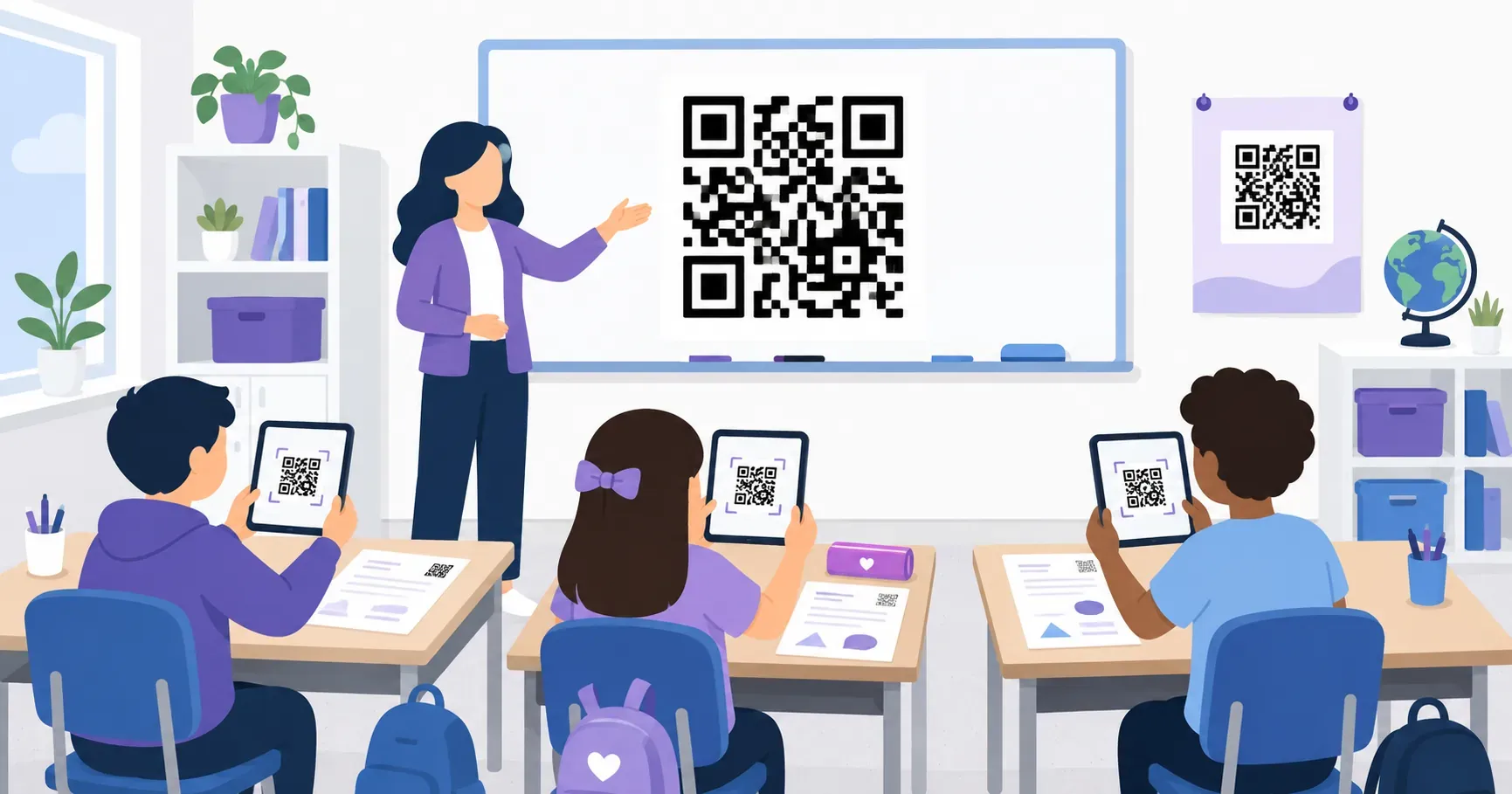
A third-grade teacher in Austin tapes a QR code next to the class pet’s terrarium. Students scan it each morning to log feeding observations in a shared Google Doc. No typing URLs, no spelling errors, no wasted minutes. That single square changed a 5-minute daily routine into a 30-second one. QR codes in education solve a problem every teacher knows too well: getting the right digital resource to every student, fast. Whether you hand out worksheets, run stations, or flip your classroom, these codes turn printed materials into interactive launchpads. In this guide, you’ll find 10 concrete classroom ideas, step-by-step creation instructions using QRocket, and age-specific tips so every learner — from kindergartners to high schoolers — can scan with confidence.
Why Teachers Love QR Codes in Education
A math teacher prints a QR code at the bottom of a problem set. Students who finish early scan it to access a bonus challenge on Khan Academy. Students who need help scan a different code for a 90-second video walkthrough. Same worksheet, two differentiated paths, zero extra prep after the initial setup.
That flexibility is why QR codes in education keep spreading. Here’s what makes them particularly useful in a school setting:
- Zero login friction. Students reach the exact page — not a homepage, not a search results list — in one scan. No “go to this URL and click the third link” instructions.
- Works with any device. Shared classroom tablets, Chromebooks, and student phones all have built-in camera scanning. No app install required on most devices made after 2018.
- Free to create and print. A single QR code costs nothing to generate and a fraction of a cent to print. Entire classroom sets fit on one sheet of paper.
- Reduces transition time. Teachers report saving 3-5 minutes per activity when students scan a code versus typing a URL manually.
QR codes also open a communication channel with parents. Print one on a weekly newsletter linking to a class website, or add one to report card envelopes that opens a parent-teacher conference scheduling form. The same technology that helps a 7-year-old reach a read-aloud video can help their parent book a meeting.
10 Creative Classroom QR Code Ideas
Not sure where to start? These 10 use cases cover subjects, grade levels, and teaching styles — pick one and try it this week.
1. Exit Tickets
Print a QR code on a slip of paper or project it on the board. Students scan to open a 3-question Google Form before leaving. You get instant feedback on what clicked and what didn’t.
2. Homework Links
Paste a QR code on the corner of every assignment sheet. It links directly to the submission page in Google Classroom, Canvas, or your LMS of choice. No more “I couldn’t find where to turn it in.”
3. Audio and Video Supplements
A history worksheet about the Civil Rights Movement includes a QR code linking to Martin Luther King Jr.’s “I Have a Dream” speech on YouTube. Primary sources become one scan away.
4. Book Reviews and Recommendations
Students create QR codes linking to short video or written reviews they’ve recorded. Tape these to the classroom library shelf next to the book. Peer recommendations carry more weight than teacher suggestions for reluctant readers.
5. Virtual Field Trips
A code on a printed world map links to a 360-degree tour of the Colosseum. Another links to the Smithsonian’s virtual exhibits. Budget constraints don’t limit where students can explore.
6. Self-Grading Quizzes
Link a QR code to a Google Form quiz with automatic scoring. Students get results immediately, and you get a spreadsheet of performance data without hand-grading a single paper.
7. Attendance Check-In
Post a QR code at the classroom door each morning that links to a simple form. Students scan on entry. Works especially well for older students in rotating-period schedules.
8. Parent Communication
Add a QR code to your printed newsletter that links to a class blog, photo gallery, or volunteer sign-up sheet. Parents who rarely check email often scan a code on a fridge-worthy flyer.
9. Station Rotation Labels
Print a QR code at each learning station with instructions, a tutorial video, or a practice activity. Students move independently without waiting for verbal directions at every stop.
10. Classroom WiFi Access
Visitors, substitutes, and parent volunteers always ask for the WiFi password. A WiFi QR code printed near the door connects their device automatically — no spelling out a 16-character password.
QR Code Scavenger Hunts
A fourth-grade teacher hides 8 QR codes around the school library. Each code reveals a clue about a historical figure. Students scan, read the clue, answer a question on their worksheet, then race to find the next code. The whole activity takes 25 minutes, and the noise level suggests it doesn’t feel like a history lesson.
Scavenger hunts work because they combine movement, problem-solving, and technology into a single activity. Here’s how to build one:
- Choose 6-10 locations around your classroom, library, or school grounds. Tape codes at student eye-height — about 100-120 cm (40-48 inches) for elementary students.
- Create a unique QR code for each station. Each can link to a different Google Doc, image, audio clip, or short video with a clue or question.
- Number the stations so students follow a specific route, or let them discover codes in any order for a more open-ended challenge.
- Print codes at least 2.5 cm x 2.5 cm (1 inch x 1 inch) so phone cameras can read them reliably from 15-20 cm away. For hallway placement, go bigger — 5 cm x 5 cm works well.
- Pair students so every team has at least one device with a working camera.
Key takeaway: Scavenger hunts aren’t just engagement theater. They build collaboration, reading comprehension, and sequencing skills while getting students physically moving between stations.
Subjects that work especially well: vocabulary review, math fact practice, science lab safety orientation, and “getting to know the library” activities at the start of the school year.
Sharing Learning Resources with QR Codes
Most teachers already curate links for students — bookmarked sites, YouTube playlists, PDF handouts. The bottleneck is distribution. Typing a 47-character URL into a Chromebook with a third-grader’s typing speed takes longer than the activity itself.
QR codes eliminate that bottleneck. Print them directly on worksheets, anchor charts, or station cards. Here are three resource-sharing patterns that work well:
Pattern 1: The Worksheet Companion. Add a QR code in the margin of a printed worksheet that links to a video explanation of the concept. Students who need extra support scan it. Students who don’t, skip it. Differentiation without separate handouts.
Pattern 2: The Digital Bookshelf. Create a bulletin board with QR codes linking to free e-books, audiobooks, or reading comprehension activities on platforms like Epic or ReadWorks. Rotate codes monthly to keep the selection fresh.
Pattern 3: The LMS Shortcut. Google Classroom assignment URLs are notoriously long. Generate a QR code for each assignment and print a weekly sheet with all five codes. Students scan instead of navigating three menus deep in their browser. This integration works identically with Canvas, Schoology, and other LMS platforms.
Educational QR codes work best when they link to a single, specific resource — not a homepage or a search page. The fewer clicks after scanning, the faster students get to learning.
Creating Classroom QR Codes with QRocket
You don’t need a tech background or a budget line item. QRocket is a free tool that generates classroom QR codes in under 60 seconds. Here’s the process:
Open the QR generator and select the URL type — this covers the vast majority of classroom use cases (Google Docs, YouTube videos, LMS assignments, websites). Paste your full link, including https://, into the content field.
If you want to match your school colors, adjust the foreground color. A navy-and-gold school, for example, might use #003366 as the code color. Just keep enough contrast against the background — dark on light scans best.
Download the code as a PNG for digital use or SVG for print materials. PNG works for slides and Google Docs inserts. SVG scales cleanly to any size without blurring, which matters when you’re printing 30 codes on a single worksheet.
For other QR types, you can create a QR code for free using the same tool — text codes for vocabulary words, WiFi codes for guest access, or email codes that pre-fill a message to you.
Printing tips for classrooms:
- Print at minimum 2 cm x 2 cm (about 0.8 x 0.8 inches) for worksheet use
- Use 5 cm x 5 cm (2 x 2 inches) for wall posters and station cards
- Laminate codes you’ll reuse — dry-erase marker smudges and water damage kill scannability
- Test every code with at least 2 different devices before distributing to students
Create free QR codes for your classroom with QRocket — engage students with interactive learning — Create Your Free QR Code
Tips for QR Codes in Education with Young Students
A kindergarten teacher holds up a tablet and models scanning a QR code taped to a picture book. “Point the camera like you’re taking a photo,” she says. “When the blue link pops up, tap it.” Twenty seconds of instruction, and 5-year-olds are independently accessing a read-aloud recording.
Age-appropriate considerations matter more than the technology itself. Here’s what works at different levels:
Pre-K through 2nd Grade (Ages 4-7)
- Always use shared classroom devices — don’t assume students have phones
- Place QR codes at desk height, not on walls above their reach
- Link to visual or audio content rather than text-heavy pages
- Pair students: one holds the device, one taps the link
- Limit to 2-3 codes per activity to avoid overstimulation
3rd through 5th Grade (Ages 8-10)
- Students can scan independently with minimal instruction
- Introduce QR codes as a student creation tool — let them make codes for book reports or project presentations
- Works well for station rotations with 5-6 stops
Middle and High School (Ages 11-18)
- Students can create their own QR codes for projects, portfolios, and presentations
- Use codes for self-paced review before exams
- QR code in school hallways can link to club sign-ups, event info, or counselor resources
Accessibility reminders: Not every student can scan a code. Always provide an alternative — a shortened URL printed below the code, or a verbal instruction for the same resource. Students with visual impairments may need a partner or a text-based alternative. QR codes for teachers are tools that supplement instruction, not replace direct access.
Put QR Codes to Work This Week
Here’s something most guides won’t tell you: the teachers who get the most from QR codes aren’t the ones who overhaul their entire workflow. They’re the ones who pick a single, repeating friction point — like distributing a weekly reading list or collecting exit tickets — and replace it with one code. Start there. Once students learn the scan-and-go habit, expanding to scavenger hunts and station rotations feels effortless. Try building your first classroom code with QRocket’s free generator and test it with tomorrow’s lesson.
Frequently Asked Questions
Are QR codes appropriate for young students?
Children as young as 4 can scan QR codes with brief instruction and adult supervision. The physical act of pointing a camera is intuitive for kids who already take photos. Pair younger students with a buddy and limit codes to 2-3 per activity to keep the focus on learning, not the technology.
Do students need their own phones to use QR codes?
No. Most classrooms use shared tablets, Chromebooks, or a single teacher device projected on screen. For take-home activities, parents can scan worksheet codes with their own phone. Schools with 1:1 device programs find QR codes especially efficient since every student already has a scanner in hand.
Can QR codes link to Google Classroom assignments?
Absolutely. Copy the full assignment URL from Google Classroom and paste it into any QR generator. The resulting code takes students directly to that specific assignment — skipping the homepage, class stream, and menu navigation entirely. The same method works with Canvas, Schoology, and Seesaw.
Do teachers need a paid account to make classroom codes?
No. Static QR codes are free and unlimited to create, with no sign-up required for you or your students. That covers nearly every classroom use — worksheet links, station cards, exit tickets, and WiFi access. A paid plan only matters if you need editable dynamic codes with scan analytics, which most classrooms never do.
What if the classroom has weak WiFi?
Use plain text QR codes for clues, instructions, or vocabulary. Because the words are encoded directly in the pattern, the code displays them the instant it’s scanned — no connection needed. Save URL-based codes for rooms where the WiFi is reliable, and always keep a printed backup of the resource.
Create a free QR code with custom colors, your logo and print-ready downloads — no sign-up.