How to Create a QR Code for a PDF Document
A restaurant owner updates their seasonal menu, but 500 printed table cards still show last month’s dishes. A recruiter at a career fair wants to hand out a company benefits packet without lugging boxes of paper. Both problems have the same fix: a QR code for a PDF that anyone can scan and read instantly on their phone. Instead of reprinting or emailing files, you give people a single scannable square that opens your document in seconds. In this guide, you’ll learn two ways to link a PDF to a QR code, walk through a free step-by-step process with QRocket, and see the best real-world use cases for sharing documents this way.
Why Create a QR Code for a PDF
A 12-page product manual doesn’t fit on a label. A 3-page event schedule can’t squeeze onto a poster. But a QR code — roughly 2 × 2 cm at minimum — can link to any of those documents.
Here’s what makes a PDF QR code practical:
- Instant access. Scanners open the document on their phone browser without downloading an app.
- No printing costs. Update your PDF online, and every existing code points to the new version — zero reprints.
- Smaller footprint. One square replaces pages of printed material on packaging, signage, or flyers.
- Trackable. With a dynamic QR code, you can see how many people scanned and when.
First, Understand: The Code Links to Your PDF, It Doesn’t Store It
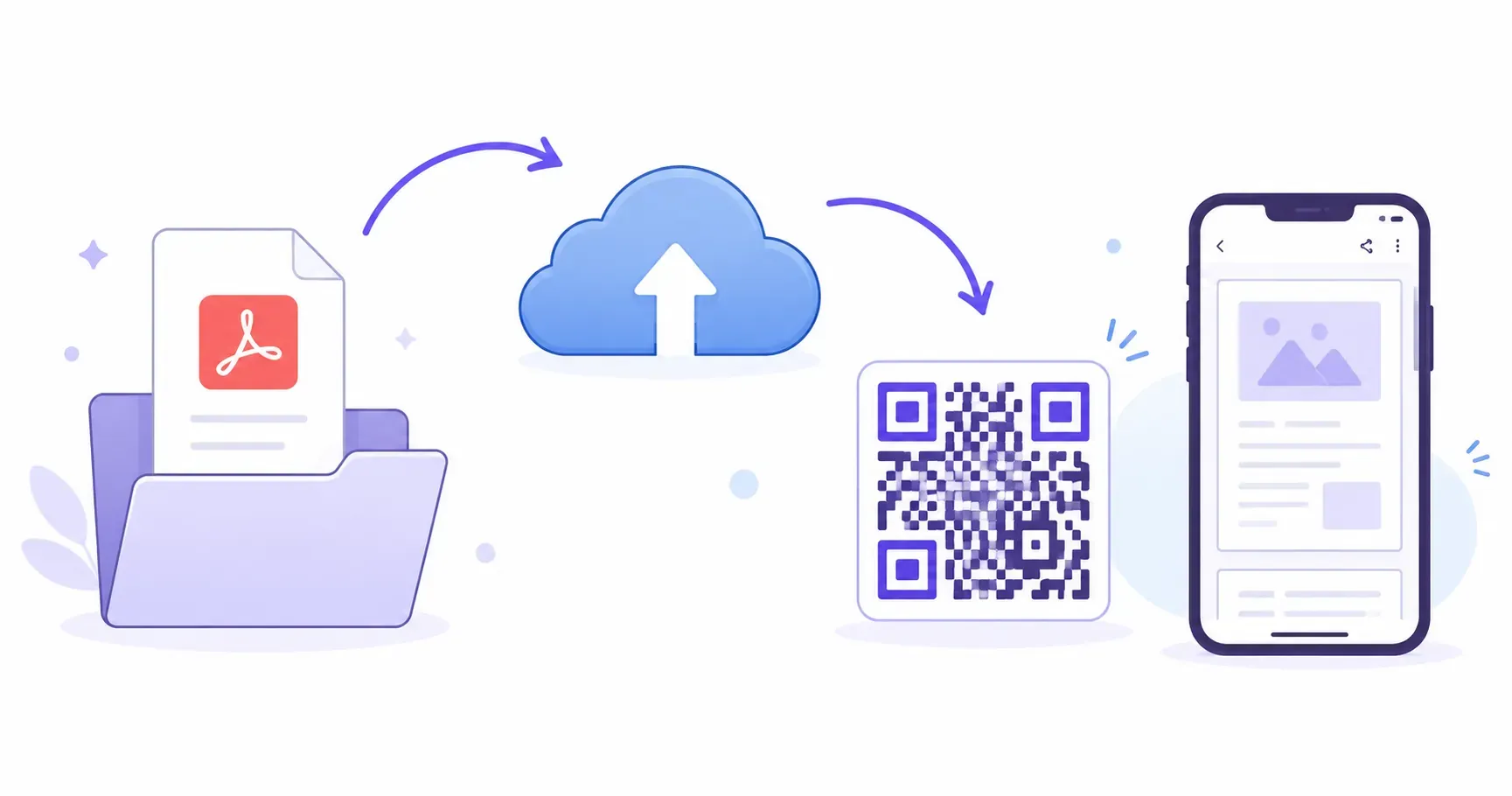
The catch? QR codes store URLs, not files. A standard QR code holds around 3 KB of data — far too small for even a one-page PDF. That means your document must live online first, and the QR code simply points to its web address.
Everything that follows rests on that one fact: you host the file somewhere public, then encode its link. Get the hosting and permissions right and the code just works; get them wrong and it fails silently. Two approaches get you there.
Where to Host the PDF: Drive, Dropbox, or Your Own Site
The most flexible method: upload your PDF to any cloud service, grab the public link, and turn that link into a QR code.
Google Drive — Upload the file, right-click, choose “Share,” set access to “Anyone with the link,” and copy the URL. The resulting link looks like https://drive.google.com/file/d/....
Dropbox — Upload, click “Share,” create a link, and change the dl=0 parameter to dl=1 if you want the PDF to download directly rather than preview.
Your own website — Upload the PDF to your server or CMS media library. The URL is straightforward: https://yoursite.com/files/menu.pdf. This gives you full control over availability and load speed.
| Hosting Option | Max File Size | Direct Link? | Free Tier |
|---|---|---|---|
| Google Drive | 5 TB (per account) | Yes (with share settings) | 15 GB |
| Dropbox | 2 GB (per file, free) | Yes (with parameter tweak) | 2 GB |
| Own Website | Server-dependent | Yes | Varies |
Once you have a public URL, you can create a URL QR code that points directly to it. This approach works with any free QR code generator.
The One-Upload Alternative: PDF QR Code Generators
Some platforms offer a dedicated PDF QR code generator that handles hosting for you. You upload the file, and the tool stores it and creates the QR code in one step.
This is convenient, but comes with trade-offs:
- Storage limits. Free tiers often cap uploads at 5–10 MB per file.
- Platform dependency. If the service shuts down or changes pricing, your hosted PDF disappears — and every printed code breaks.
- Less control. You can’t choose where the file lives or how fast it loads.
For most people, Option 1 (self-hosting + URL QR code) offers more reliability. You control the file, the link, and the uptime. If you already have a Google Drive account, you have everything you need.
Key takeaway: Hosting your own PDF and generating a URL-based QR code gives you the most control and avoids dependency on any single platform.
How to Create a QR Code for a PDF in 5 Steps
Here’s the process from PDF to scannable code, start to finish. Open QRocket’s free generator and follow these steps.
Step 1: Upload Your PDF to a Cloud Service and Copy the Share Link
Go to Google Drive, Dropbox, or your website’s media library. Upload the PDF and set sharing permissions to public or “anyone with the link.” Copy the full URL. Double-check it by opening the link in an incognito browser window — if you can view the PDF without logging in, the link works.
Step 2: Select “URL” as the QR Code Type and Paste Your PDF Link
In the generator, choose the URL option. Paste the full share link — including https:// — into the URL field. Avoid shortened links here; they add an extra redirect that slows load time by 200–500 ms.
Step 3: Customize the Design to Match Your Brand
Pick colors that contrast enough for reliable scanning. A general rule: keep at least a 40% brightness difference between the foreground and background. Add a logo if you want brand recognition, but keep it under 30% of the QR code’s total area so error correction can still do its job.
Step 4: Test the Code on Multiple Devices Before Printing
Scan with at least two different phones (one iPhone, one Android) to confirm the PDF loads correctly. Check that the document is readable on a mobile screen — if it’s a multi-column layout, consider reformatting to single-column for phone viewing. PDFs under 5 MB load noticeably faster on mobile networks.
Step 5: Download in the Right Format for Your Use Case
Choose PNG for digital use (social media, email, websites) at a minimum of 300 × 300 pixels. Choose SVG for print materials — it scales to any size without losing sharpness. For a billboard, SVG is non-negotiable.
Create a QR code for your PDF document — free with QRocket — Create Your Free QR Code
How to Update the PDF Without Reprinting the Code
This is the trick that turns a static code into a living document. Host the PDF at a stable path you control — say yoursite.com/menu.pdf — and generate the QR code from that fixed URL. When the menu changes, upload the new file over the old one at the exact same path. The link never changes, so every printed code keeps working and serves the fresh version.
That’s the advantage of a URL you own over a random cloud link. A Google Drive or Dropbox link is tied to one specific file; replace the file and the link often changes. A path on your own domain stays put no matter how many times you swap the PDF behind it.
For destinations that must change entirely — not just the file but the whole URL — a dynamic code is the honest alternative, at the cost of a subscription. The static vs dynamic QR codes trade-off is worth reviewing before a large print run. For a stable, updatable menu or manual, though, a self-hosted path plus a free static code is hard to beat.
Best Use Cases for PDF QR Codes
A single PDF QR code replaces an entire stack of handouts. Here are four scenarios where this works especially well.
Restaurant Menus
A café prints one QR code on each table tent. The code links to a 2-page seasonal menu PDF that the owner updates monthly. No reprinting, no wasted paper, and guests always see the current prices. During COVID-era dining, many restaurants adopted this exact approach — and most kept it because it cut printing costs significantly. For menu-specific placement and design tips, see our guide to QR codes for restaurants.
Product Manuals and Spec Sheets
An electronics manufacturer places a QR code on the product box. Customers scan it to read the full 20-page user manual on their phone instead of digging through packaging for a folded paper insert. When the company releases a firmware update and revises the manual, the same QR code serves the new version.
Event Programs and Schedules
Conference organizers share a PDF with the full 3-day agenda, speaker bios, and venue maps through a QR code on the attendee badge. If a session time changes the morning of the event, they update the PDF and every badge still works.
Professional Resumes and Portfolios
A job seeker adds a small QR code to their business card or printed resume. Recruiters scan it to open a detailed portfolio PDF with work samples, case studies, and references — far more than a single page of paper can hold. If you’re looking to share contact details alongside your portfolio, you can also create a QR code for free that links to a vCard.
Your PDF Is One Scan Away
The fastest way to share a PDF with a QR code comes down to three things: host the file publicly, generate a URL-based code, and test before you print. What most people overlook is the mobile reading experience — a beautifully designed PDF that’s unreadable on a 6-inch screen defeats the purpose. Optimize your document for single-column mobile viewing, keep file size under 5 MB, and your scan-to-read experience will feel instant. Try it now with QRocket’s free generator and have your PDF QR code ready in under a minute.
Frequently Asked Questions
Can I embed a PDF directly in a QR code?
No. QR codes store URLs, not files — they hold roughly 3 KB of data maximum. Your PDF must be hosted online at a public URL, and the QR code links to that address. Think of the code as a shortcut, not a container.
Where should I host my PDF for a QR code?
Google Drive, Dropbox, or your own website all work well. The key requirement is that the sharing link allows public access without a login. Test the link in an incognito window before generating your code.
What if I need to update the PDF later?
Use a dynamic QR code so you can swap the destination URL without reprinting. If you hosted on Google Drive, you can also replace the file in-place and the same link serves the updated version automatically.
Why does my PDF QR code show an access error?
The share link isn’t public. By default, Google Drive and Dropbox restrict files to your account, so scanners hit a login wall. Set the file’s sharing to “anyone with the link,” then confirm by opening the URL in a private browser window before you generate or reprint the code.
How big should the PDF be?
Aim for under 5 MB so it opens quickly over cellular data. Large, image-heavy PDFs can take many seconds to load on a phone, and slow loads lose scanners. Compress images, flatten unused layers, and split very long documents before hosting the file.
Create a free QR code with custom colors, your logo and print-ready downloads — no sign-up.