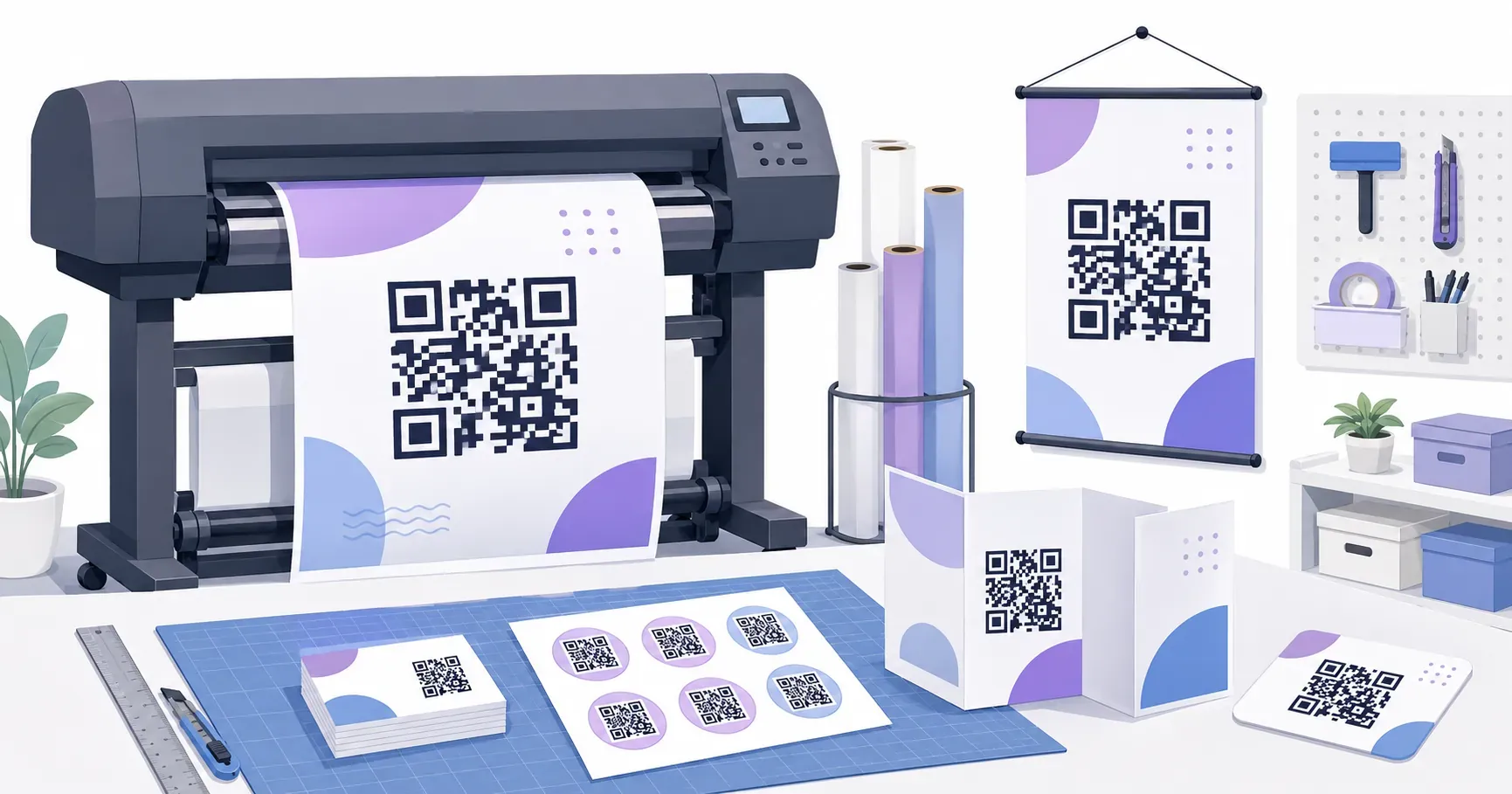
How to Create QR Codes in Bulk from a Spreadsheet or CSV

The request lands on a Tuesday: 300 asset tags for the new office, each with its own QR code pointing to that item’s maintenance record. Making one QR code takes thirty seconds. Making 300 by hand takes a full day — plus one paste error around code 217 that nobody catches until the labels are printed. A bulk QR code generator workflow fixes both problems: you build one clean spreadsheet, validate it, and let a tool turn every row into a finished code.
This guide covers the workflow end to end: structuring the CSV, catching bad data before it becomes a printed mistake, and pilot-testing before the full run. Tools vary; the workflow doesn’t.
When Bulk QR Code Creation Is Useful
The threshold question is simple: do the codes differ from each other? A hundred posters that all point to the same landing page need one code printed a hundred times — no spreadsheet required. Bulk generation earns its setup cost when every code carries a unique payload:
- Asset tags. Each laptop, projector, or machine links to its own service history or checkout page.
- Event badges. Every attendee’s badge encodes a personal check-in URL or profile link.
- Per-store table tents. A restaurant group prints one design for forty locations, but each code opens that store’s own menu or review page.
- Serialized packaging. Each unit or lot links to its own authenticity check or registration form.
- Per-unit URLs. Rental gear, library items, lockers, parking spots — anywhere “scan this exact thing” must resolve to “this exact record.”
Somewhere between ten and twenty unique codes, hand work stops making sense and the spreadsheet approach wins — and it keeps winning every time the project repeats.
How to Structure Your Spreadsheet or CSV
Every bulk method — spreadsheet formula, command-line script, or upload-a-file platform — consumes the same input: a table with one row per code. Get this file right and everything downstream is mechanical.
Three columns are the reliable baseline:
- url (or payload) — the exact content the code will encode, usually a full URL including
https://. - label — a human-readable name so people can tell codes apart: “Store 014 — Austin,” “Badge — J. Rivera.”
- filename — the output file for that row’s code, unique across the sheet.
A minimal sheet looks like this:
| url | label | filename |
|---|---|---|
| https://example.com/menu/austin | Store 014 — Austin | store-014-menu.svg |
| https://example.com/menu/dallas | Store 015 — Dallas | store-015-menu.svg |
| https://example.com/menu/tulsa | Store 016 — Tulsa | store-016-menu.svg |
A few formatting rules prevent the classic failures:
- One row, one code. Never pack two URLs into a cell.
- Full URLs with the protocol. Content without
https://scans inconsistently — some phones open it, some display plain text. Our guide to how URL QR codes work covers why the protocol matters. - No trailing spaces. An invisible space after a URL becomes part of the encoded content and can break the link. Wrap values in
TRIM()once in Sheets or Excel before exporting. - Consistent filename casing. Pick
kebab-case.svgorsnake_case.svgand never mix. Some systems treatStore-14andstore-14as different files; others silently overwrite. - Export as plain CSV in UTF-8. Curly quotes and locale-specific separators are the most common silent breakage.
How to Validate Your Data Before Generating
A printed QR code has no undo. Every minute spent validating the sheet saves an hour of reprinting, so run four checks before generating anything.
- Open the URLs. Click every one on short lists; on long lists, sort the column, scan for anomalies, and click at least every tenth row. Watch for redirects: a URL that bounces through a shortener adds a dependency that can die after your labels are on the wall.
- Hunt duplicates. Duplicate URLs are sometimes intentional; duplicate filenames never are — the second file overwrites the first and one asset ends up wearing another asset’s code. A
COUNTIF()column or conditional formatting flags both in seconds. - Check special characters. Spaces, quotes, ampersands, and non-ASCII characters inside URLs must be percent-encoded (
%20for a space) or they may truncate the payload. The safer fix is upstream: keep the URLs themselves clean. - Watch URL length. Longer payloads produce denser codes: a 40-character URL yields a sparse, forgiving pattern, while a 250-character tracking-parameter monster fails at small print sizes. Density also eats the headroom that error correction provides, so keep payloads under about 80 characters.
Lock in a style you trust before you scale — design and test your master code free, no account. — Create Your Free QR Code
Design One Master Code Before You Mass-Produce
Before any volume run, settle the visual standard on a single code. In the QRocket generator, build one code from a real URL in your sheet: set colors and module shapes, add the logo, pick a frame with a call to action, and watch the scannability meter. Download it as SVG — that file is the reference the whole batch must match, same contrast, same quiet zone, same minimum size.
One honest note on scope: QRocket runs entirely in your browser, free with no account, and is ideal for the master design, one-off codes, and small batches made by hand — but it doesn’t ingest CSVs itself. For the volume step, pick the method that fits your team.
Choosing a Bulk QR Code Generator Method
Four categories cover nearly every real-world batch:
- Spreadsheet image formulas. Google Sheets can render a QR image per row with an
IMAGE()formula pointed at a QR-rendering service. Setup takes minutes, which makes it fine for internal, low-stakes jobs — less fine when you need standalone files or print-grade resolution. - Open-source libraries and CLI tools.
qrencodeon the command line or the Pythonqrcodelibrary will loop through your CSV and write one PNG or SVG per row, named from the filename column, in about ten lines of script. Free, private, endlessly repeatable; it just needs someone comfortable in a terminal. - Mail-merge-style batch tools. When the end product is a printed sheet of labels or badges rather than a folder of images, a document mail merge can place per-row codes directly into the layout. Our guide to QR codes in Word and Google Docs covers that route.
- Paid bulk generators. Upload the CSV, download a zip of finished codes. The fastest path for non-technical teams; before paying, confirm SVG export, check per-code pricing, and verify the codes are static — yours forever — not dynamic redirects tied to a subscription.
Whichever bulk QR code generator you choose, feed it the validated sheet and your master code’s styling decisions. The tool is the least important part of the pipeline; the data is everything.
Test a Pilot Batch Before the Full Run
Never generate all 300 codes on the first pass. Generate five to ten, chosen deliberately: the row with the longest URL, any row with unusual characters, plus the first and last rows.
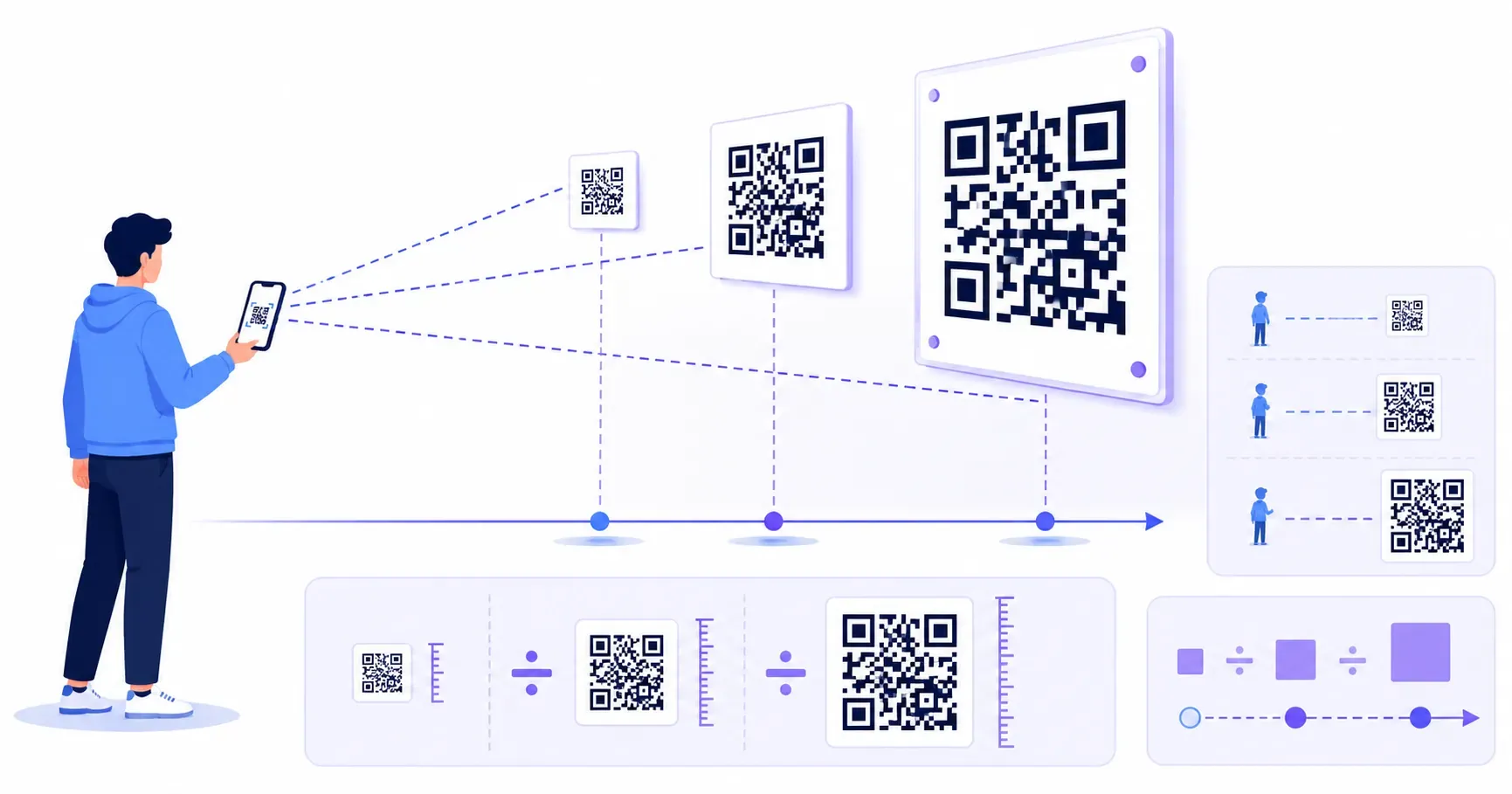
Print the pilot codes at their final physical size — a code that scans from a screen can still fail at 2 cm on a laminated tag, and our QR code size guide has the distance math. Then scan each one with both an iPhone and an Android from a realistic distance.
Two things must be true for every pilot code: it scans quickly, and it opens the destination matching its label. That second check catches the most expensive bulk error there is — an off-by-one row shift that pairs every code with its neighbor’s URL. The full pre-print routine lives in our checklist for testing QR codes before printing; for a batch, apply it to the sample.
When the pilot passes, run the full batch with identical settings — same size, same error correction level, same export format.
Name and Organize the Output Files
With 300 files in a folder, organization is the difference between a system and a pile. A few conventions hold up:
- Name files from the data, not by hand. The filename column in your sheet should fully determine every output name —
asset-0217-qr.svg, notfinal_QR (3).svg. - Zero-pad sequence numbers.
code-007sorts correctly;code-7lands betweencode-69andcode-70. - One folder per batch, dated.
qr-batch-2026-07-asset-tags/tells the next person what it is and when it was made. - Keep the CSV with the output. The sheet is your manifest — the only record of which file encodes which URL. Store it in the batch folder and never edit it after generation.
- Never rename files afterward. A renamed file breaks the link between the manifest and the physical code. If a name is wrong, fix the sheet and regenerate the row.
The Spreadsheet Is the Real Asset
The codes themselves are disposable — any tool can regenerate them in seconds. The durable work product is the validated sheet: clean URLs, unique filenames, honest labels. Guard that file, and reprints, replacements, and next year’s batch become trivial. Lock your design on a single master code, validate the data like the print run depends on it — because it does — and let the pilot batch prove the pipeline before it prints 300 of anything.
Frequently Asked Questions
What is the easiest way to create QR codes in bulk?
Build a spreadsheet with one row per code and columns for the URL, a label, and an output filename, then feed the exported CSV to a bulk tool — a spreadsheet image formula, an open-source script like qrencode or Python’s qrcode library, or a paid bulk generator.
Can Google Sheets or Excel generate QR codes?
Google Sheets can display a QR image per row using an IMAGE() formula pointed at a QR-rendering service, and Excel can do similar with add-ins. It works for quick internal jobs, but the images are low resolution and live inside the sheet, so for printed labels you’ll usually want a method that exports standalone SVG or PNG files.
Should I test every QR code in a large batch?
No — test the input data instead, then verify a representative sample of 5–10 generated codes on both an iPhone and an Android. Include the longest URL, any rows with special characters, and the first and last rows; if the sample scans correctly and matches its labels, the rest of the batch will too.
Do bulk-generated QR codes expire?
Static QR codes never expire — the URL is encoded directly in the pattern, so each code works as long as its destination page stays live. Some paid bulk platforms produce dynamic codes that route through the vendor’s redirect servers; those stop working if the subscription lapses, so check which type you’re getting before a large print run.
What file format should I use for bulk QR codes?
SVG for anything going to print: it scales to any label, badge, or poster size with no loss of sharpness, and the files stay small across hundreds of codes. High-resolution PNG is fine for screens, email, and systems that can’t place vector files.
Create a free QR code with custom colors, your logo and print-ready downloads — no sign-up.