How to Create a QR Code for an SMS Text Message
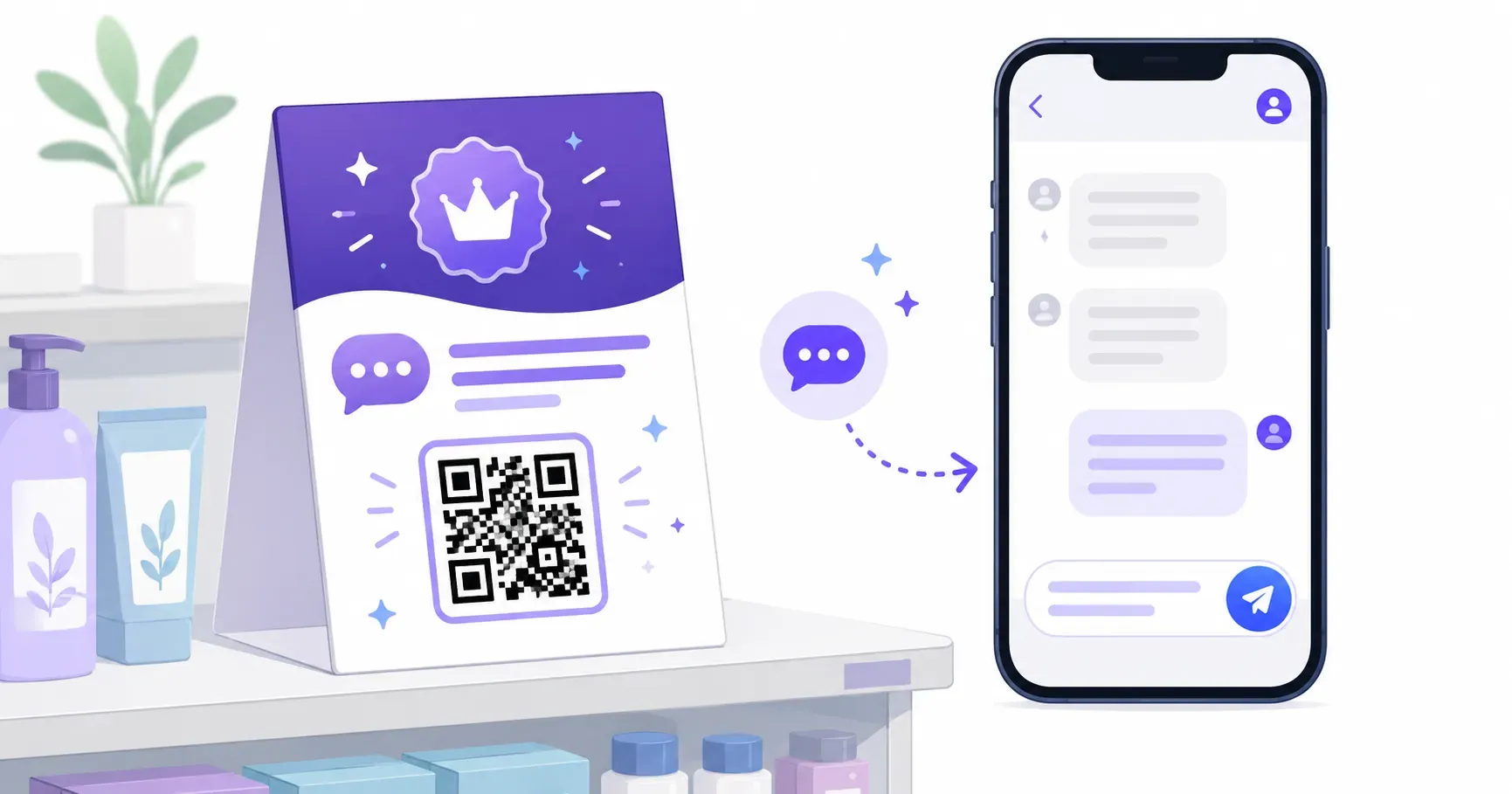
A coffee shop prints a table tent that reads “Text FEEDBACK to 55512.” Customers want to help — but most won’t bother typing the number and message manually. A QR code for SMS removes that friction entirely. One scan opens the messaging app with the number and message already filled in. The customer just taps Send.
Whether you need marketing opt-ins, event RSVPs, or a fast support channel, a QR code that sends text messages turns a multi-step process into a single scan. In this guide, you’ll learn exactly how to build one with QRocket, where to use it, and how it compares to email QR codes. No app downloads required — the code works with any phone’s built-in camera.
What Is a QR Code for SMS?
A QR code for SMS is a scannable code that opens the user’s default messaging app with a pre-filled phone number and message body. Under the hood, it uses the smsto: URI scheme — a standard format that every modern smartphone recognizes.
The encoded data looks like this:
smsto:+15551234567:JOIN our VIP list
That string has two parts separated by a colon: the recipient’s phone number (in international format with country code) and the message text. When someone scans the code, their phone launches the SMS app with both fields populated.
Unlike a URL QR code that opens a browser, a text message QR code keeps the interaction inside the native messaging app. That means it works even without Wi-Fi — all it needs is a cellular signal. There are various QR code types explained in detail, but SMS codes stand out for their simplicity and near-universal compatibility.
How to Create a QR Code for SMS
Any SMS QR code generator can produce these codes, but most charge for the privilege. QRocket lets you create a QR code for free — head to the QR generator and follow these four steps.
Step 1: Select SMS as Your QR Type
Choose SMS from the list of available QR code types. This tells the generator to use the smsto: URI scheme. Picking the wrong type is a common mistake — a plain-text QR code will display the phone number on screen rather than opening the messaging app.
Step 2: Enter the Recipient Phone Number
Type the full phone number including the country code. For a US number, that means starting with +1 (e.g., +15551234567). Skip spaces and dashes — clean formatting ensures compatibility across Android and iOS. Double-check the number; a single wrong digit sends every scan to the wrong recipient.
Step 3: Write Your Pre-Filled Message
Enter the message you want pre-loaded when someone scans. Keep it under 160 characters — the standard SMS limit — so it arrives as a single text. For a marketing opt-in, “JOIN” works well. For feedback, try “Rate my visit on [date].”
Key takeaway: Pre-filled messages should be short and action-oriented. The user can always edit before sending, but a clear default boosts completion rates.
Step 4: Customize Your Design and Download
Adjust colors to match your brand, keeping at least a 4:1 contrast ratio between the dark modules and background so every camera can read it. Download in PNG for digital use or SVG for print materials. Test the code with 2–3 different phones before printing a batch.
Create a free SMS QR code with QRocket — pre-fill the number and message in one scan — Create Your Free QR Code
The Opt-In Recipe: One Scan onto Your SMS List
This is where SMS codes earn their keep. Turning “text JOIN to 555-0123” into a single scan removes the biggest drop-off point in list building — the typing.
Here’s the recipe:
- Set the number to the one your SMS marketing platform assigned you.
- Set the message body to your opt-in keyword —
JOIN,VIP, orSUBSCRIBE. - Print the code on shelf talkers, receipts, posters, and table tents — anywhere a customer already pauses.
Because the scanner still taps Send themselves, their consent stays explicit — which matters for compliance. In the US, SMS marketing falls under the TCPA, so print clear consent language beside the code and check your platform’s guidance. This isn’t legal advice, just the pattern most tools expect.
More Ways to Use SMS QR Codes
Beyond list-building, the same scan-to-text pattern fits any short, time-sensitive message. A restaurant posts a “Text us your order” code on its drive-through menu; a nonprofit prints “Text GIVE to 80888” on donation flyers.
Customer support. Print QR codes on product manuals or warranty cards. Pre-fill the message with a product model number so your support team immediately knows what the customer owns.
Event RSVPs. Wedding invitations, conference flyers, and community event posters benefit from a “scan to RSVP” code. Set the message body to “RSVP [Event Name] — Guests:” and let attendees fill in the number.
Feedback collection. Hand out a card after a service appointment with a QR code pre-loaded with “Rate your experience:” and the location name. Text feedback feels more casual than formal surveys — and gets higher response rates.
SMS QR Code vs Email QR Code
Both codes automate a message, but they reach the recipient through different channels. Choosing the wrong one can mean the difference between instant engagement and a message buried in a spam folder.
| Feature | SMS QR Code | Email QR Code |
|---|---|---|
| Opens | Messaging app | Email client |
| Message length | ~160 characters | Unlimited |
| Response speed | Near-instant reads | Hours to days |
| Rich formatting | Plain text only | HTML, attachments |
| Connectivity | Cellular signal | Internet required |
| Best for | Quick replies, opt-ins | Detailed inquiries, files |
Choose SMS when the interaction is short and time-sensitive: opt-ins, confirmations, quick feedback. Choose an email QR code when the user needs to send detailed information or attach files. Many businesses use both — SMS for instant engagement, email for follow-up.
Best Practices for SMS QR Codes
Use international phone format. Always include the country code (+1, +44, +91). Without it, the code may work locally but fail for phones configured to a different region.
Keep messages under 160 characters. Messages over this limit get split into multiple texts, which can confuse recipients and break keyword-based automation systems. Count characters before generating your code.
Add a clear label near the code. The QR code alone doesn’t explain what it does. Print text like “Scan to text us your order” directly above or below the code. Use at least 14pt font so it’s readable from arm’s length.
Test across devices. Android and iOS handle the smsto: scheme identically in most cases, but older devices may ignore the message body. Test on at least one iPhone and one Android phone before any large print run.
Respect SMS regulations. In the US, marketing opt-ins must comply with TCPA (Telephone Consumer Protection Act). Include opt-out instructions in your first reply. Similar laws apply in the EU (GDPR) and Canada (CASL).
Your First Text Is a First Impression
Here’s a detail most people overlook: the pre-filled message isn’t just convenience — it’s your first impression. A purposeful message like “ORDER Latte-Oat-Large” does more work than a generic “Hello.” Start with your highest-traffic touchpoint, measure QR code SMS responses for two weeks, then expand. You can build your first SMS code free with QRocket in under 60 seconds.
Frequently Asked Questions
What happens when you scan an SMS QR code?
Your phone’s messaging app opens with the recipient number and message body already filled in. You see exactly what will be sent and can edit it before tapping Send. No app installation is needed — it works with the default SMS app on both iPhone and Android.
Can I use SMS QR codes for marketing opt-ins?
Yes — it’s one of the most popular use cases. Set the pre-filled message to a keyword like “JOIN” sent to your SMS marketing number. When customers scan and send, your platform registers their opt-in automatically. Just ensure you comply with local SMS marketing regulations like TCPA or GDPR.
Does the person’s phone need internet to scan it?
No. The number and message are stored in the code itself, so scanning and opening the messaging app work with no data connection. Sending the text then uses the phone’s normal cellular service, exactly like any message they’d type by hand.
Can I change the number or message later?
No. A static SMS code bakes both the number and the message into the pattern, so neither can be edited after you generate it. Double-check both fields before downloading; if either changes, create a new code and replace the printed versions.
Will it work on both iPhone and Android?
Yes. Both platforms recognize the smsto: format and open their native messaging app with the number and message pre-filled. There’s nothing for the scanner to install — the phone’s default camera and SMS app handle everything.
Create a free QR code with custom colors, your logo and print-ready downloads — no sign-up.