How to Create a QR Code for a Google Form

A paper sign-up sheet fills up, gets coffee-stained, and then someone retypes forty names into a spreadsheet. The same sheet as a QR code for a Google Form skips all of that: people scan, answer on their own phones, and every response lands in one spreadsheet automatically — no app, no typing, no data entry afterward.
This tutorial covers the whole process: grabbing the right link from Google Forms, shortening it for a cleaner code, generating and styling the code in QRocket, and putting it where people will actually scan. Budget about five minutes.
Why Use a QR Code for Google Forms
Google Forms already solves the hard half of collecting responses — it’s free, handles unlimited submissions, and pipes everything into Google Sheets. The weak link is delivery: a form URL is sixty-plus random characters nobody at a registration desk will ever type.
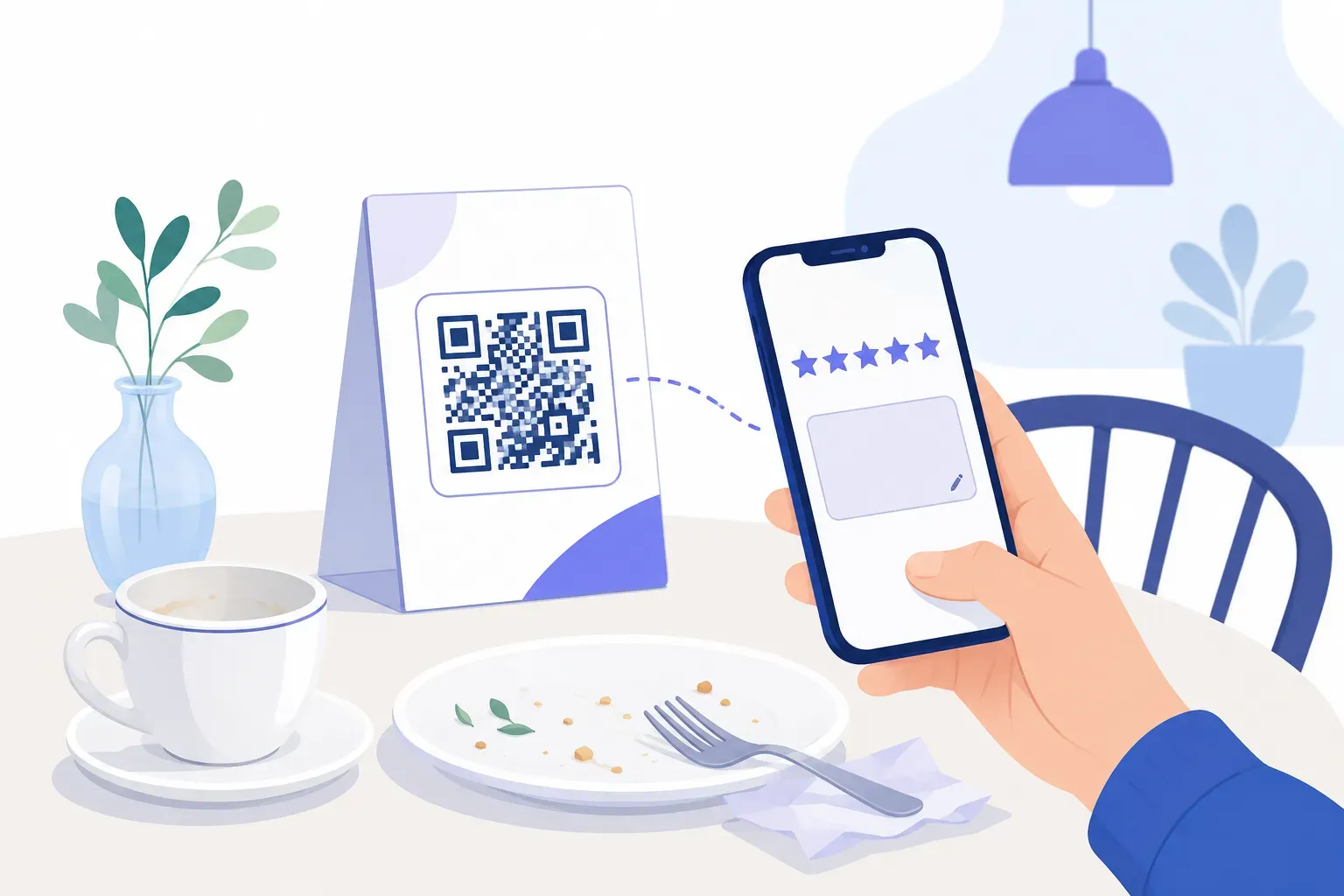
A QR code closes that gap, turning any physical surface — poster, table tent, slide, receipt — into a direct entrance to your form: event registration, a feedback card, a classroom quiz, a volunteer sign-up sheet.
One property makes the pairing unusually durable: the form’s URL never changes when you edit it. Add questions, fix typos, reorder sections — the printed code keeps working, because it points at the same address.
If your goal is collecting customer opinions, our companion guide to QR codes for customer feedback covers the strategy side — placement, timing, and what to ask. This article stays hands-on: link, code, print.
Getting Your Google Form Link
Open your form and click Send in the top-right corner. In the dialog, select the link icon (the chain symbol). Before copying, tick the Shorten URL checkbox — the address collapses from a long docs.google.com/forms/... string into a compact forms.gle link.
That checkbox matters. A long URL needs a denser grid of modules; the short forms.gle version produces a simpler pattern that scans faster, from farther away, and at smaller print sizes. Always use the short link.
Two access checks before you go further:
- Confirm anyone with the link can respond. On a work or school account, open Settings → Responses and switch off “Restrict to users in your organization” — otherwise outside scanners hit a sign-in wall.
- Know which settings force sign-in. “Limit to 1 response” and file-upload questions require a Google login; leave them off unless you truly need them.
Finally, paste the short link into your phone’s browser — ideally logged out, in a private window. If the form opens straight to question one, the link is ready.
Creating the QR Code with QRocket
With the forms.gle link copied, the code itself takes about two minutes in the free generator:
- Select the URL type. A Google Form code is a standard URL QR code under the hood — no special type needed.
- Paste your short link. Use the
forms.gleversion, not the full-length one. - Style the code. Adjust colors and module shapes to match the event or brand, keeping the pattern dark on a light background. The built-in scannability meter warns you if a styling choice risks scans.
- Add a logo if you want one. A school crest or company mark in the center makes the code look official — keep it small and watch the meter.
- Add a frame with a call to action. “Scan to register” or “Scan to give feedback” tells people exactly what they get. A labeled code out-performs a bare square every time.
- Download. SVG for anything headed to a print shop; high-resolution PNG for slides, screens, and office printers.
The result is a static code: it’s free, it never expires, there’s no scan limit, and no account is needed. QRocket runs entirely in your browser, so your form link never touches a server.
Turn your Google Form into a scannable code — free, no sign-up. — Create Your Free QR Code
Before printing anything, scan the finished code with an iPhone and an Android and submit one test response — confirm it lands in the form’s Responses tab, then delete it.
Where to Use Your Google Form QR Code
Match the placement to the moment someone is willing to answer:
- Event registration. A code on the poster or at the check-in desk replaces the clipboard queue — more setups like this in our guide to QR codes for events.
- Feedback cards and receipts. Catch customers in the thirty seconds after the experience, while the opinion is fresh.
- Classroom quizzes and exit tickets. Project the code on the last slide and collect answers before students pack up — one of many patterns in QR codes for education.
- Sign-up sheets. Volunteer rosters, waitlists, and club interest forms work better as a scan on a notice board than a pen on a string.
- Intake and waiver forms. Gyms and workshops can have participants finish paperwork from the queue instead of at the counter.
Tips for Higher Response Rates
A working code is the baseline; these details decide how many people finish the form.
- Keep the form short. Every added question costs completions. Ask what you’ll act on, nothing more.
- Lead with easy questions. A multiple-choice opener pulls people in; a required paragraph field scares them off.
- Label the code with a benefit, not an instruction. “Scan to grab your spot” beats “Scan here.”
- Print at a scannable size. At least 2 × 2 cm for arm’s-length placements, larger for posters read from a distance.
- Test before the print run. Both platforms, real submission, real network — our checklist for testing a QR code before printing covers the routine.
Print Once, Edit Forever
The quiet superpower of a Google Form QR code is the stable URL underneath it: the code printed for this month’s workshop keeps working when you swap in next month’s questions. Shorten the link, confirm it opens without sign-in, build a labeled code in the generator, and test with one real response. From there, the spreadsheet fills itself.
Frequently Asked Questions
How do I make a QR code for a Google Form?
Open your form, click Send, choose the link icon, tick “Shorten URL,” and copy the forms.gle link. Paste that link into a free QR generator’s URL type, style the code, and download it as SVG or PNG. The whole process takes about five minutes.
Will the QR code still work if I edit my Google Form?
Yes. The code encodes the form’s URL, and that URL stays the same no matter how much you edit the questions, title, or settings. Only deleting the form or replacing it with a brand-new one breaks a printed code.
Do people need a Google account to fill out the form?
Not by default. Respondents need to sign in only if you enable “Limit to 1 response,” add a file-upload question, or restrict the form to your organization. For public-facing codes, leave those settings off and test the link in a logged-out browser window.
Does a Google Form QR code expire?
No. A static QR code stores the link permanently, so it works for as long as the form exists and accepts responses. There are no scan limits or renewal fees; if you close the form to responses, scanners simply see Google’s “no longer accepting responses” page.
Can I track how many people scanned the code?
A static code has no scan analytics, but the form itself is a good proxy: every submission is a completed scan. If you use the same form in several locations, add a short “Where did you see this?” multiple-choice question to learn which placement performs best.
Create a free QR code with custom colors, your logo and print-ready downloads — no sign-up.