How to Create a QR Code for Google Reviews
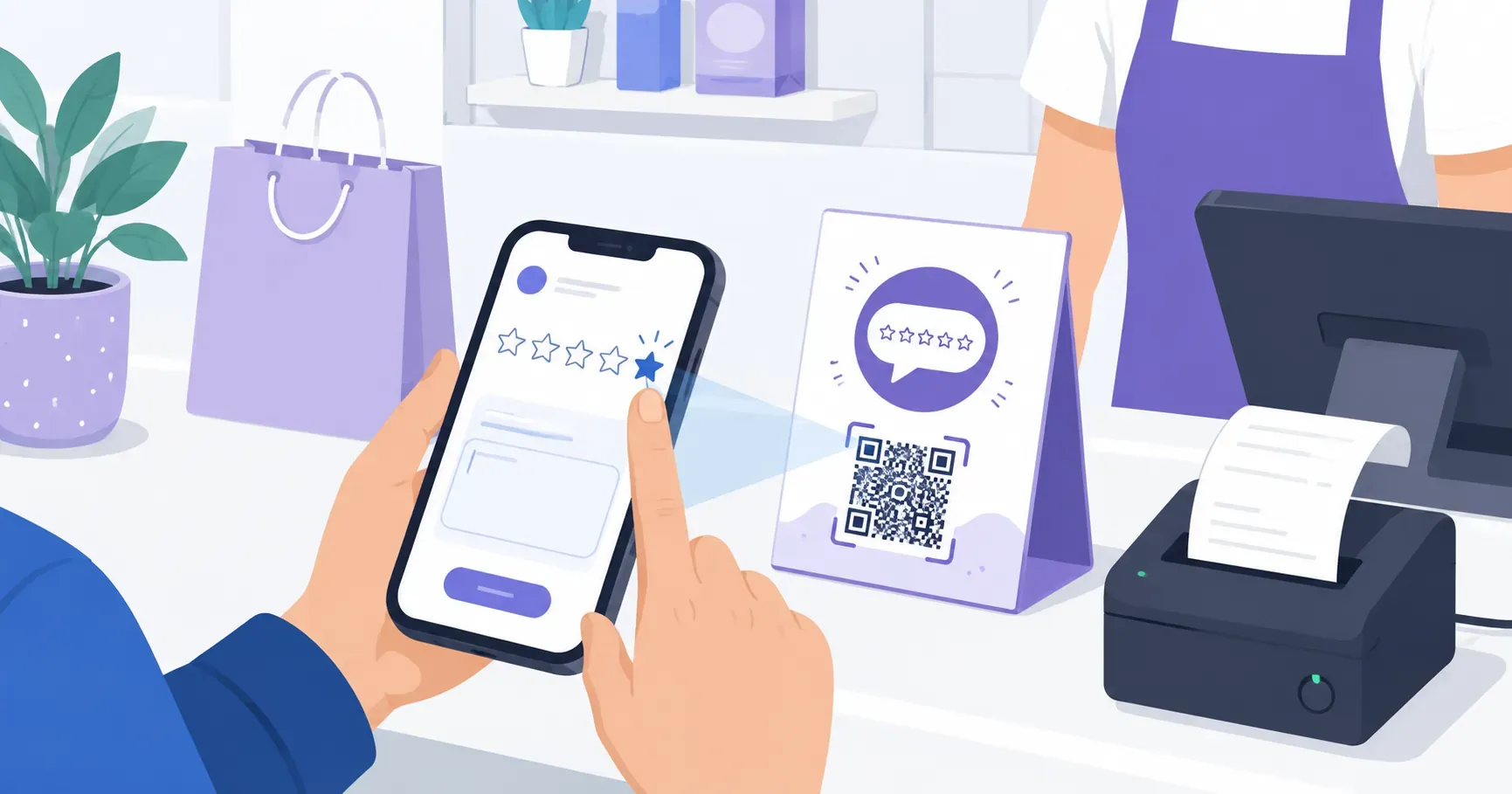
Ask a happy customer to leave a review and watch what happens: they pull out their phone, search your business name, scroll past the photos, hunt for the reviews tab, tap “write a review” — and somewhere in those five steps, a good share of them give up. A QR code for Google reviews collapses that whole journey into a single scan. The customer points their camera, the five-star rating sheet opens instantly, and they’re typing in seconds. This guide walks through all three steps, and the trickiest one isn’t making the code — it’s finding your Google review link, which trips up most business owners. You’ll also get placement ideas, the exact moment to ask, and the review rules that keep your profile out of trouble.
Why a QR Code for Google Reviews Works
Every extra tap between “I loved this” and a posted review costs you reviews. Conversion funnels drop off at each added step, and asking a customer to search, scroll, and navigate is four or five steps too many.
A scannable code removes all of them. One scan opens Google’s review dialog with the star picker already loaded, so the customer starts at the finish line instead of the starting line.
Why chase reviews at all? Because they compound. A steady stream of recent, positive reviews lifts your star rating and feeds Google’s local ranking signals, which decide whether you appear in the map pack when someone nearby searches for what you sell. A strong star rating is also often the deciding factor between two nearby options.
Key takeaway: The QR code isn’t the goal — removing friction at the moment of satisfaction is. The code just happens to be the fastest way to do it.
For the wider view of how local shops turn everyday touchpoints into growth, see our guide on using QR codes for small business.
Step 1 — Find Your Google Review Link
This is the step that stalls people, so it gets the most detail — the code is only as good as the link behind it, and Google buries that link in a couple of non-obvious places. You have two reliable paths.
Through Google Business Profile
Sign in to the Google account that owns your business, then search your exact business name on Google. Your Business Profile panel appears with management buttons only you can see.
Look for the “Ask for reviews” or “Get more reviews” button. Tap it, and Google generates a short review link — it looks like g.page/r/ followed by a string of characters ending in /review. Copy that link. It opens the review dialog directly, with the five stars ready to tap.
Through Google Search or Maps
No button showing? Open Google Maps, search your business, and select your listing. Scroll to the reviews area and choose “Write a review.” The URL that loads is your shareable review link — copy it from the address bar.
Both paths produce the same result: a stable link tied to your Business Profile, not to your address or hours. A static code built from it keeps working even if your business details change later.
Step 2 — Turn the Link into a QR Code for Google Reviews
With your review link copied, the code takes under a minute. Because the link is a standard web URL, this is really just a QR code for a URL — the same process, pointed at Google’s review page.
Open a free QR code generator like QRocket, select the URL type, and paste your g.page review link exactly as you copied it. Don’t shorten it or add anything to it. Customize the color if you want it on-brand, keeping the dark modules well contrasted against a light background so cameras lock on fast. Download the PNG for print or the SVG for a designer’s file.
That’s the whole tool part. For a fuller walkthrough of the basics, our guide on how to create a QR code for free covers every content type. A static QRocket code works perfectly here because your review link never changes — there’s nothing to renew.
Got your review link? Make it scannable free — no sign-up, ready to print. — Create Your Free QR Code
Step 3 — Place the Code Where Happy Customers See It
Placement is where a review QR code earns its keep. The goal is simple: put the code in front of the customer right after a good experience, when goodwill is highest and their phone is already in hand.
- Receipt footer. Print the code at the bottom of every receipt with a one-line prompt. It reaches every paying customer at no extra cost.
- Checkout counter card. A small standing card by the register catches people while they wait for the transaction to finish.
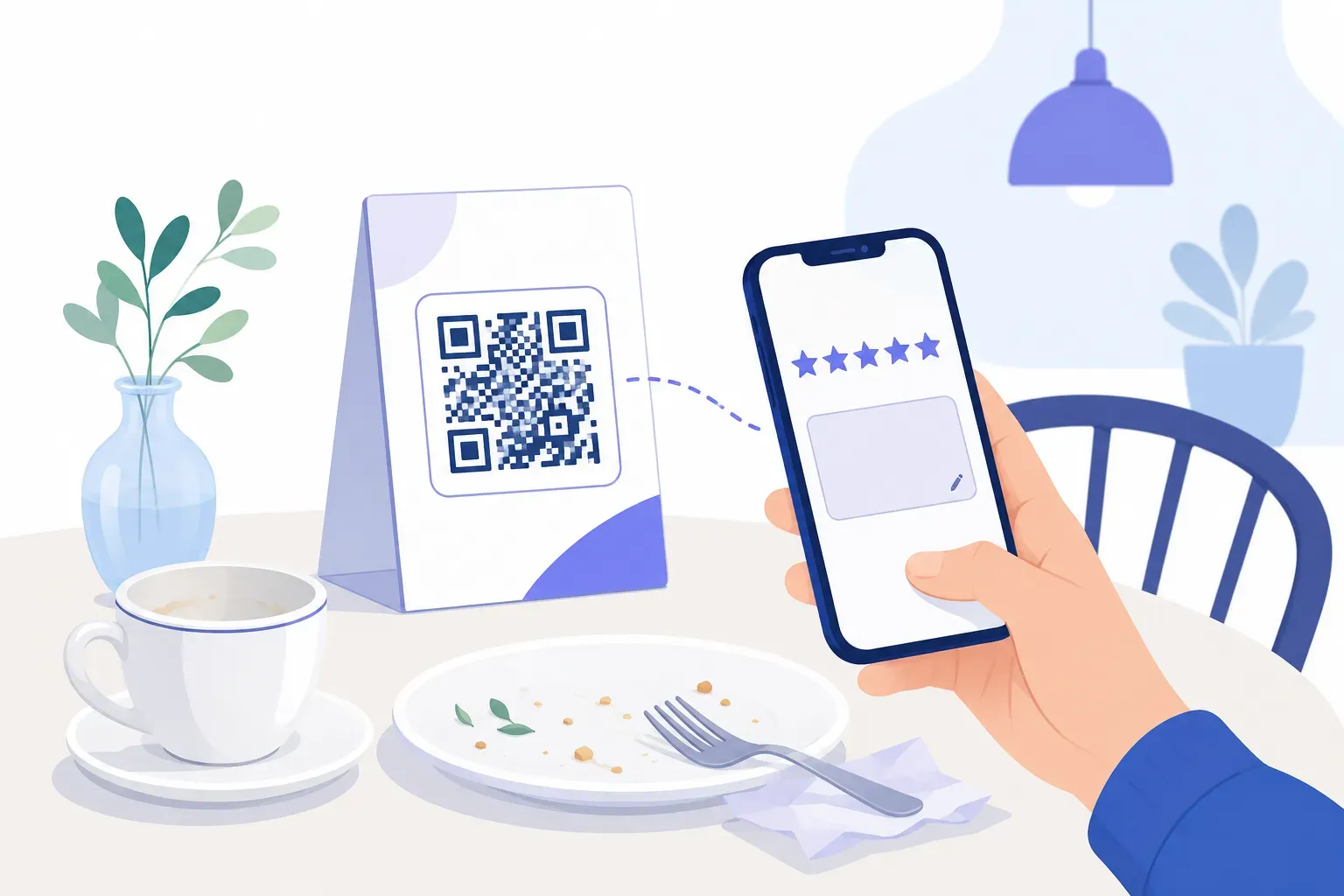
- Table tent with the bill. For cafes and restaurants, tuck the code into the bill presenter. Restaurant-specific placement gets deeper treatment in our guide to QR codes for restaurants.
- Thank-you insert in packages. E-commerce and local delivery orders can include a printed card so the code rides along to the doorstep.
- Follow-up text or email. Send the code (or the link) an hour after service, while the visit is fresh.
Keep the print at least 2 cm (0.8 inches) per side, hold a 4:1 contrast ratio, and test-scan it with two phones before you print a batch. A code nobody can scan collects zero reviews.
Timing and Phrasing: Getting the Scan to Become a Review
Timing beats volume. The best moment to ask is the peak of satisfaction — right after the customer compliments the food, at the pickup counter with the product in hand, or the instant a stylist spins the chair toward the mirror. Ask then, and the scan-to-review rate climbs.
The label next to the code does real work, too. A blank QR square asks nothing; a clear, short prompt asks for exactly one small thing. Try phrasing that names the payoff of ease:
- “Loved it? Tell Google — it takes 30 seconds.”
- “Enjoyed your visit? Scan to leave a quick review.”
- “Your feedback helps us grow. Scan the stars.”
Keep it warm and specific, and have staff reinforce it out loud: “If you have a second, there’s a code on the receipt to leave a review.” A spoken ask paired with a scannable code outperforms either one alone — the practical way most businesses get more Google reviews without buying anything.
What Not to Do: Google’s Review Rules
Two shortcuts can get your reviews deleted or your profile penalized, so avoid them completely.
Don’t offer incentives. Google’s review policies plainly prohibit exchanging anything of value for reviews — no discounts, no free coffee, no entry into a giveaway in return for a star rating. Incentivized reviews can be removed in bulk, and repeat violations put the whole profile at risk.
Don’t gate your reviews. Review gating means screening customers first and steering only the happy ones to Google while diverting unhappy ones to a private form. Google explicitly forbids this. Show the same review QR code to everyone, and let honest feedback land where it lands.
The sustainable approach is simple: make reviewing effortless, ask at the right moment, and welcome every rating. A genuine 4.6-star average built honestly outranks a suspicious wall of flawless fives that Google’s filters may quietly discount.
Turn One Card by the Register Into a Review Engine
Here’s the part most guides skip: a review QR code doesn’t work because it’s clever technology — it works because it respects the customer’s time at the exact second they’re inclined to help. Nail the link, the placement, and the timing, and the code does the asking for you on every visit. Copy your g.page link, run it through QRocket, and set the card by the register — the next happy customer does the rest. Check your Business Profile in a month and watch the count climb.
Frequently Asked Questions
How do I find my Google review link?
Sign in to the account that owns your Google Business Profile, search your business name on Google, and click “Ask for reviews” or “Get more reviews.” Google shows a short g.page link ending in /review — copy it. You can also grab the “Write a review” URL from your Maps listing.
Does the QR code open the review form directly?
Yes. Because the code encodes your direct review link, scanning it opens Google’s review dialog with the star picker already loaded. The customer skips the search-and-navigate steps entirely and can post a rating and comment in seconds, right from their phone’s camera.
Where should I display a Google review QR code?
Put it at the payment moment, when satisfaction peaks: receipt footers, a counter card by the register, table tents tucked into the bill, and thank-you inserts inside shipped packages. A follow-up text an hour after service works well too, while the visit is still fresh.
Can I offer a discount for leaving a review?
No. Google’s review policies prohibit incentivized reviews of any kind, including discounts, freebies, or giveaway entries. Violations can lead to reviews being removed in bulk or the profile being penalized. Ask for honest feedback instead, and make the act of reviewing as easy as possible.
Will the code break if my business details change?
No. The review link is tied to your Business Profile itself, not to your address, phone number, or hours. Update those details and the same code keeps opening the same review dialog. That stability is why a permanent static code is the right choice for this use.
Create a free QR code with custom colors, your logo and print-ready downloads — no sign-up.