How to Create a QR Code for WhatsApp (with a Pre-Filled Message)
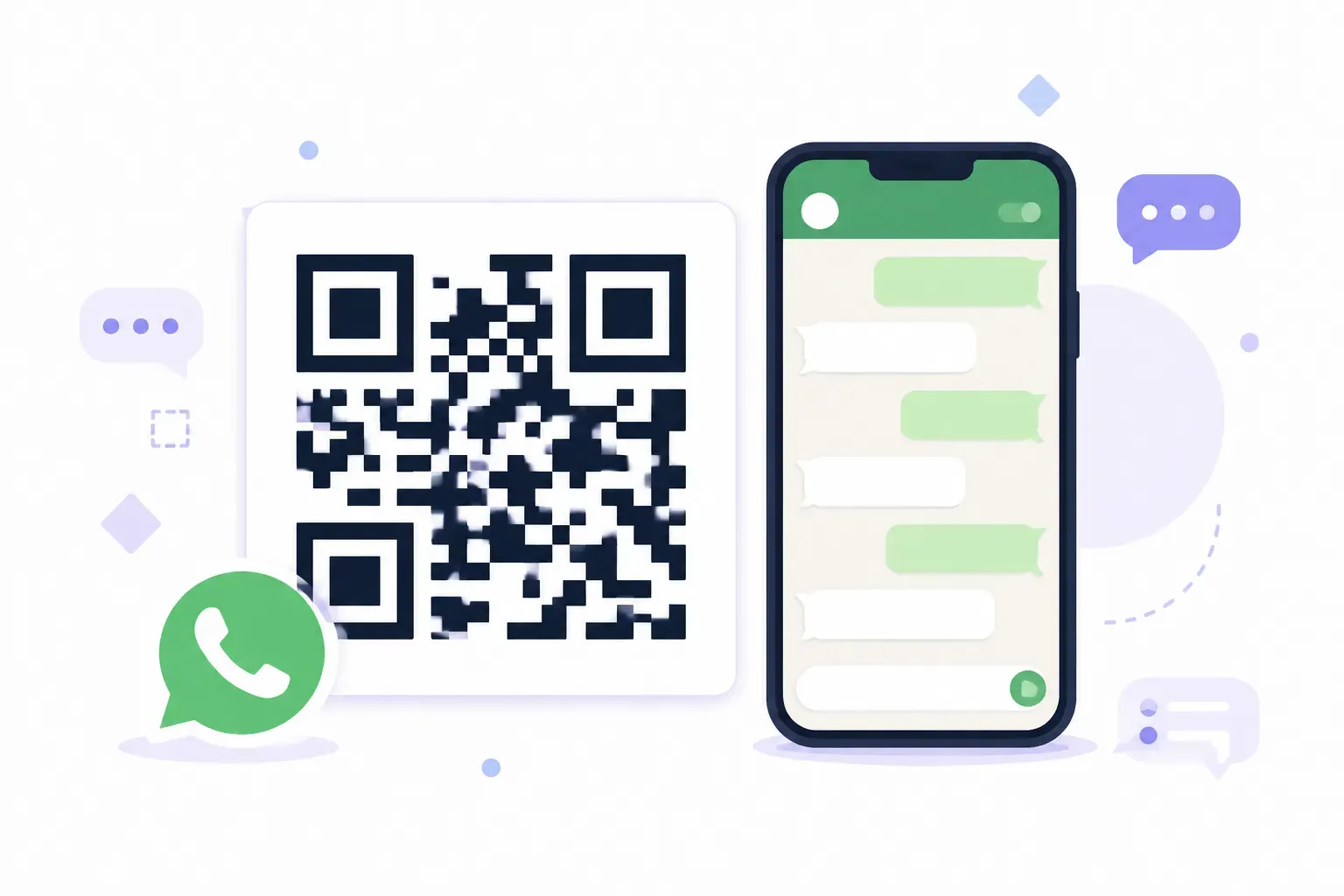
A customer standing in your shop wants to ask about a custom order. Their options: dial and wait on hold, type your email address from memory, or scan a small square by the register that opens a WhatsApp chat with your business — message pre-typed, one tap to send. A QR code for WhatsApp removes every step between “I have a question” and “I sent it,” which is why these codes are now standard on storefronts, packaging, and business cards wherever WhatsApp dominates messaging.
This tutorial covers the whole setup: how the wa.me link format works, how to build yours with the correct country code, how to pre-fill an opening message, and where to place the finished code so people actually scan it. Total working time is about five minutes.
What Is a WhatsApp QR Code?
A WhatsApp QR code is a scannable code that opens a chat with a specific WhatsApp number the moment it’s scanned. Under the hood it’s a URL code — the pattern encodes a special link (WhatsApp’s “click-to-chat” format), and the phone hands that link to the WhatsApp app instead of a browser.
That design has a useful consequence: the person scanning doesn’t need to save your number first. WhatsApp opens directly to a new conversation with your business, name and number already resolved. For the customer it’s one scan and one tap; for you it’s an inbound message with their number attached, ready for a reply.
WhatsApp’s scale makes this worth doing: Meta reports more than 2 billion users, and in many countries — Brazil, India, Indonesia, much of Europe and Latin America — it’s the default way customers expect to reach a business. A chat thread also beats a phone call for busy owners: you answer when you can, the history is saved, and photos flow both ways. Since the code itself is a standard URL type, everything in our guide to URL QR codes applies here too.
How to Find Your WhatsApp Chat Link
WhatsApp’s click-to-chat links all follow one format:
https://wa.me/<number>The number must be in full international format with three strict rules:
- Start with the country code — 1 for the US, 44 for the UK, 55 for Brazil, 972 for Israel, and so on.
- Omit the leading zero you’d normally dial domestically.
- No symbols — no
+, no dashes, no spaces, no parentheses.
A few examples of the transformation:
| Local number | Country | wa.me link |
|---|---|---|
| (415) 555-0134 | US (+1) | https://wa.me/14155550134 |
| 07911 123456 | UK (+44) | https://wa.me/447911123456 |
| 011 98765-4321 | Brazil (+55) | https://wa.me/5511987654321 |
Before going further, paste your finished link into a phone browser. If WhatsApp opens a chat with the right account, the link is correct; an “invalid number” error usually means a wrong country code or a stray zero. Fix it now — once it’s inside a printed code, it’s permanent.
WhatsApp Business users have a shortcut: the app can show your ready-made link under Business tools → Short link, which saves the manual assembly.
Adding a Pre-Filled Message
A blank chat window still asks the customer to compose an opening line, and some will stall there. Pre-filling the first message removes that last bit of friction and — just as valuable — tells you which placement the scan came from.
Append a text parameter to your wa.me link, with spaces encoded as %20 (or +):
https://wa.me/14155550134?text=Hi%2C%20I%27m%20interested%20in%20a%20quoteWhen scanned, WhatsApp opens with “Hi, I’m interested in a quote” already typed. The customer just hits send.
Three tips for pre-filled text:
- Keep it under 10 words. People will happily send a short greeting; they’ll delete a paragraph written in their voice.
- Make it context-specific. A code on packaging might pre-fill “Hi, I have a question about my order,” while the storefront code pre-fills “Hi, I’d like to book an appointment.”
- Use it as a source tag. Different pre-filled messages on the flyer, the window sticker, and the receipt tell you which one drives conversations — a lightweight form of tracking that works even though a static code has no analytics of its own.
Creating a WhatsApp QR Code, Step by Step
QRocket has a dedicated WhatsApp content type, so you don’t have to hand-assemble the link if you’d rather not. In the free generator, the process looks like this:
- Select the WhatsApp type. Choose WhatsApp from the content-type list instead of the generic URL option.
- Enter your number in international format. Country code first, no symbols — the same rules as the wa.me format above.
- Add your pre-filled message. Type it as plain text; the encoding is handled for you.
- Style the code. Adjust colors and module shapes to fit your brand, and add your logo to the center — keep it under about 20% of the code area, as covered in our guide to adding a logo to a QR code. Keep the pattern dark on a light background, and watch the built-in scannability meter as you style.
- Add a frame with a call to action. A frame reading “Chat with us on WhatsApp” tells people exactly what the scan does — codes with a clear label get noticeably more scans than bare squares.
- Download as SVG or PNG. SVG for anything going to print, high-resolution PNG for screens and quick jobs.
The result is a static code: it’s free, it never expires, there’s no scan limit, and no account is needed. The whole code generates in your browser, so your number and message are never stored on a server.
Let customers message you in one scan — free, no sign-up. — Create Your Free QR Code
Before printing, scan the finished code with both an iPhone and an Android and send yourself a test message. Our checklist for testing a QR code before printing covers the full pre-print routine.
Where to Use Your WhatsApp QR Code
Place the code where a question naturally occurs and a phone is already in hand:
- Storefront window or door. Passers-by can ask about hours, stock, or bookings after you’ve closed — the chat waits for your morning reply.
- The register or counter. “Questions later? Chat with us” turns a one-time buyer into a saved conversation.
- Product packaging. Support questions arrive as chats with photos (“here’s the part that broke”) instead of vague voicemails.
- Business cards and flyers. A vCard saves your details; a WhatsApp code starts an actual conversation. Pair them if space allows.
- Vehicle signage. A code on a service van with “Scan for a free quote” works while you’re parked at any job.
- Receipts and invoices. The gentlest support channel: customers with an issue message you before they consider a public review.
Wherever you place it, respect the physics of scanning: at least 2 × 2 cm for arm’s-length placements, roughly one-tenth of the scanning distance for anything farther, and always with a benefit-driven label. Our collection of QR code call-to-action examples has ready-to-use wording. More placement strategy for physical businesses lives in our guide to QR codes for small business.
WhatsApp Business vs Personal: Which Number to Use
The wa.me link format works identically for both account types — the QR code doesn’t care. The difference is what happens after the chat opens.
A WhatsApp Business account (the free Business app) gives you a public profile with hours, address, and website, plus greeting messages that auto-reply to first-time chats, away messages for after hours, quick replies, and labels to organize conversations. Customers also see a “Business account” tag, which reads as more credible on first contact.
A personal account works fine for freelancers and side projects, but customer chats land in the same inbox as family messages, with none of the auto-reply tooling.
The practical rule: if the code is going on anything printed for customers, set up the free Business app first. The greeting message alone — an instant “Thanks for reaching out, we reply within the hour” — makes the scan feel answered even when you’re busy.
One Scan Is a Conversation, Not a Click
Most QR codes hand someone a web page and hope. A WhatsApp code opens a two-way channel with a real person’s number attached — less like a link, more like a handshake. That’s why the small details here carry unusual weight: a wrong country code doesn’t just 404, it messages a stranger, and a well-chosen pre-filled line can be the difference between silence and a sale. Build the link carefully, test it with a real message, and create your first labeled code in the generator today — then watch how differently customers behave when reaching you costs one scan instead of one phone call.
Frequently Asked Questions
How do I create a QR code for my WhatsApp?
Build your click-to-chat link in the format wa.me/yournumber, using the full international number with country code and no symbols, then encode that link as a QR code. Generators with a dedicated WhatsApp type let you skip the manual step: enter your number and optional message, and download the finished code.
Can I pre-fill a message in a WhatsApp QR code?
Yes. Add ?text=Your%20message%20here to the end of your wa.me link, with spaces written as %20. When someone scans the code, WhatsApp opens with that message already typed, so they only tap send. Keep it under about 10 words for the best completion rate.
Does a WhatsApp QR code work if the person doesn’t have my number saved?
Yes — that’s the main advantage. The wa.me link opens a chat directly with your number, no contact-saving required. The person scanning needs WhatsApp installed, but nothing else. If WhatsApp isn’t installed, the link falls back to a web page prompting them to get the app.
Do WhatsApp QR codes expire?
No. A static code encodes the wa.me link permanently, so it works for as long as that WhatsApp number stays active. If you change your business number, though, printed codes still point to the old one — you’d need to generate and reprint a new code.
Should I use my WhatsApp Business or personal account for the QR code?
Use the free WhatsApp Business app if customers will scan the code. The link format is identical, but Business accounts add a company profile, automatic greeting and away messages, and quick replies — and they keep customer chats out of your personal inbox.
Can I put a logo on my WhatsApp QR code?
Yes. A centered logo covering up to about 20% of the pattern scans reliably because error correction rebuilds the hidden modules. Raise the error correction level when adding a logo — good generators do this automatically — and test the finished code on two phones before printing.
Create a free QR code with custom colors, your logo and print-ready downloads — no sign-up.