How to Make a QR Code Menu for Your Restaurant (Free)
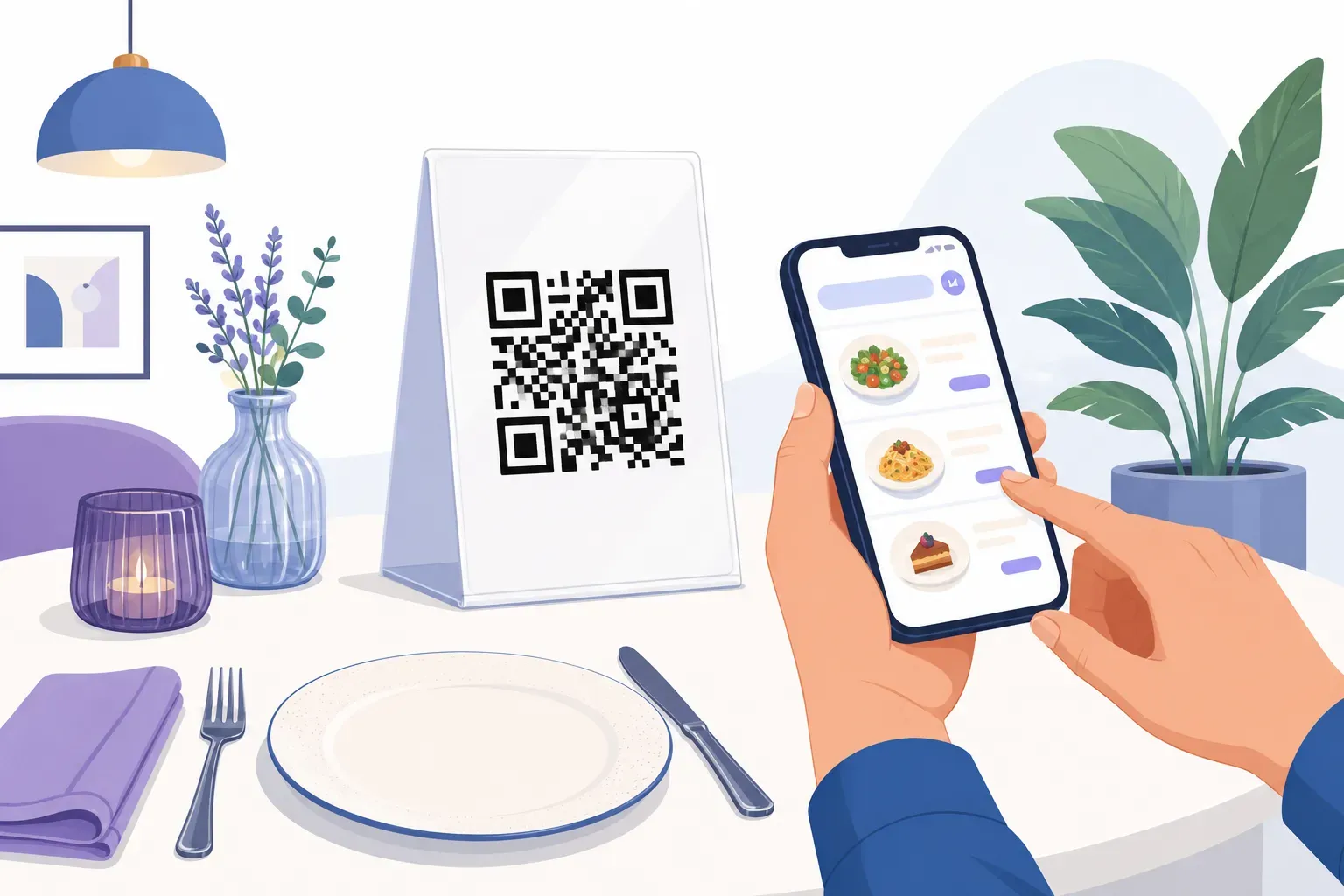
The QR code menu arrived in 2020 as a hygiene workaround and never left. Guests expect the little square on the table, owners can change prices without a print run, and the table tent quietly became permanent restaurant infrastructure. The part nobody tells you: a QR code menu is genuinely free to build — and it can stay updatable for years, if you set it up in the right order.
This guide walks the whole digital menu QR code workflow: get your menu online, point a code at it the smart way, print and place it, and update the menu later without touching a single printed square. For the wider picture — review codes, guest WiFi, loyalty — see our broad guide to QR codes for restaurants. Here, we stay on the menu.
Step 1: Get Your Menu Online First
A restaurant menu QR code doesn’t contain your menu. It contains a link to your menu — the scan just opens a URL. So before you generate anything, the menu needs to live somewhere on the web, and where you host it shapes everything downstream: how it reads on a phone, how easy updates are, and whether the link survives your next edit.
The realistic options, honestly compared:
| Hosting option | Cost | Mobile readability | Updating | The catch |
|---|---|---|---|---|
| Menu page on your website | Free if you have a site | Excellent — real web page | Edit the page live | Needs a website (even one page) |
| PDF uploaded to your website | Free | Poor — pinch-and-zoom | Replace the file at the same path | Careless re-uploads change the URL |
| Google Drive / Docs public link | Free | Mediocre | Edit the doc | Ugly URL, no branding, re-uploads create a new link |
| Free menu builder / Google Business Profile menu | Free | Good | Edit in the platform | Their branding, menu lives off your domain |
| Your ordering platform’s menu page | Platform fee | Good | Edit in the dashboard | Leave the platform and the link dies |
The strongest option is a dedicated menu page on your own site — yourrestaurant.com/menu. It loads fast, reads cleanly at phone width, and every dish name is text Google can index. A scanned PDF, by contrast, makes guests pinch and zoom through a document designed for paper — it works, but it’s the least pleasant thing to hand someone who’s hungry.
That said, a PDF is the fastest launch. If your designed menu already exists as a PDF, upload it to your own site and make a QR code for the PDF tonight; graduate to a proper web page later. Google Drive is tempting because it’s zero-setup, but a Drive link breaks the moment someone “updates” the menu by uploading a new file instead of replacing it — the failure mode that kills more printed codes than anything technical.
Step 2: Point the Code at a URL That Will Never Change
This is the one rule that makes a free QR code menu work long-term, so it gets its own step.
QRocket generates static QR codes: the URL is baked into the pattern permanently. That’s why the codes are free, never expire, and have no scan limits — there’s no redirect server in the middle charging rent. But it also means a printed code can never be re-aimed; if the URL behind it dies, the code dies with it. Our guide on whether you can edit a QR code explains the mechanics.
The solution isn’t a paid product. It’s discipline about which URL you encode:
- Encode a stable address you control:
yourrestaurant.com/menu. Short, memorable, yours. - Never encode a file’s direct URL like
/uploads/menu-june-v3.pdfor a Drive share link. Re-upload the file and the address changes — every printed code goes dark. - Change the menu behind the URL, not the URL. Swap the PDF at the same path, or edit the page. The address stays identical; the code keeps working.
Do this and your static code behaves like an editable one, forever, for free.
The alternative is a dynamic QR code from a subscription service: a redirect you can re-point after printing, plus scan analytics, for a monthly fee — and with one real risk. If the subscription lapses or the provider folds, every printed code stops resolving. QRocket doesn’t offer dynamic codes, and for a menu you rarely need one; a stable URL on your own domain has no expiry date.
Step 3: Create the QR Code Menu in QRocket
With the menu live at its permanent address, QRocket works as your menu QR code generator — about three minutes in the free generator, no account, everything in your browser.
- Select the URL type. A menu code is a standard link code; the basics are in our guide to URL QR codes.
- Paste your stable menu URL.
https://yourrestaurant.com/menu— triple-check the spelling, because it’s about to become permanent ink. - Style it to match the room. Adjust colors and module shapes toward your brand, keeping the pattern dark on light. Watch the built-in scannability meter — it flags combinations that look good but scan badly under warm dinner lighting.
- Add your logo. A centered logo makes the code look intentional. Keep it small; the meter warns you before it threatens the scan.
- Add a frame with a call to action. “Scan for menu” is the entire pitch — a bare square is a mystery, a labeled one is an instruction. More wording ideas live in our QR code call-to-action examples.
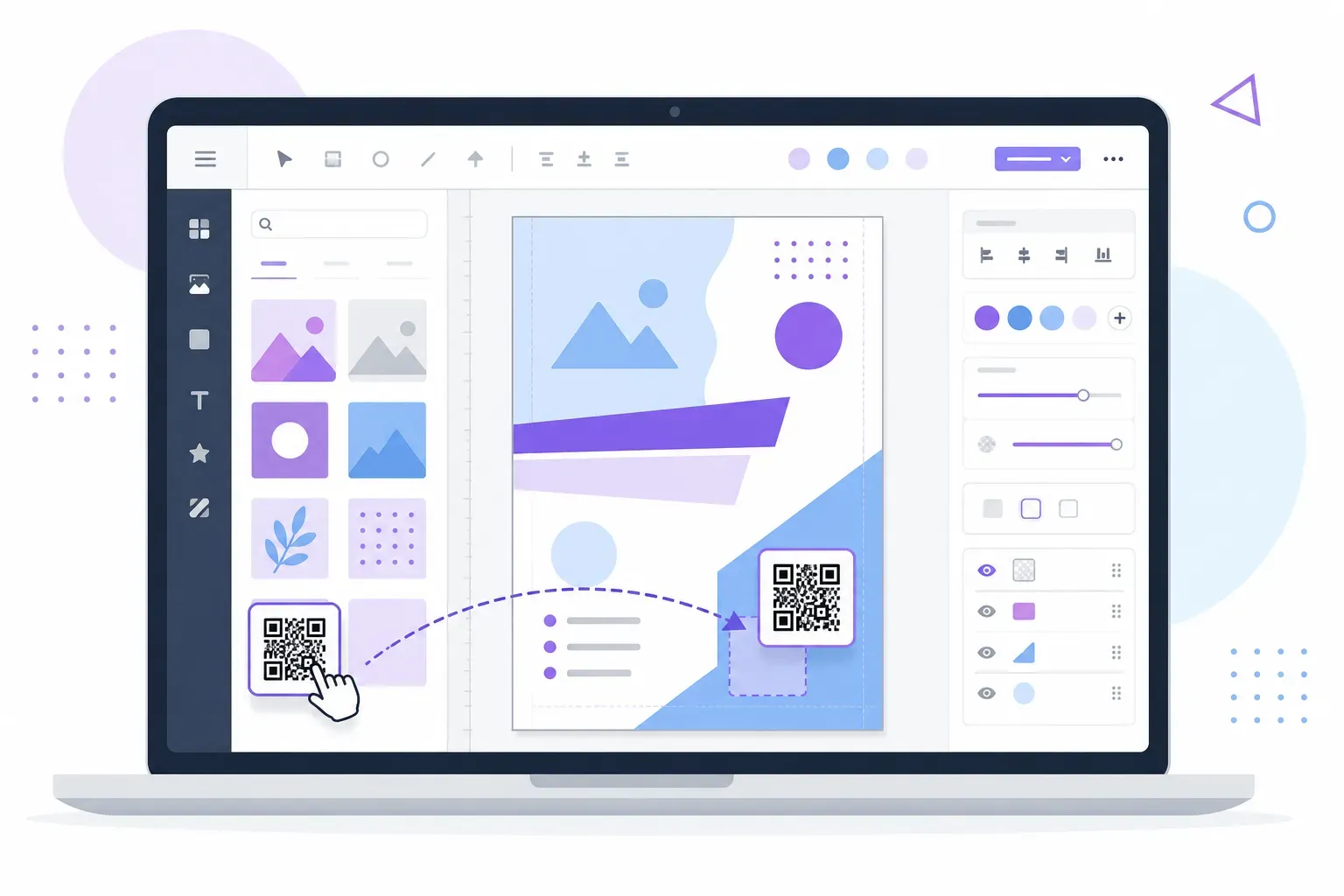
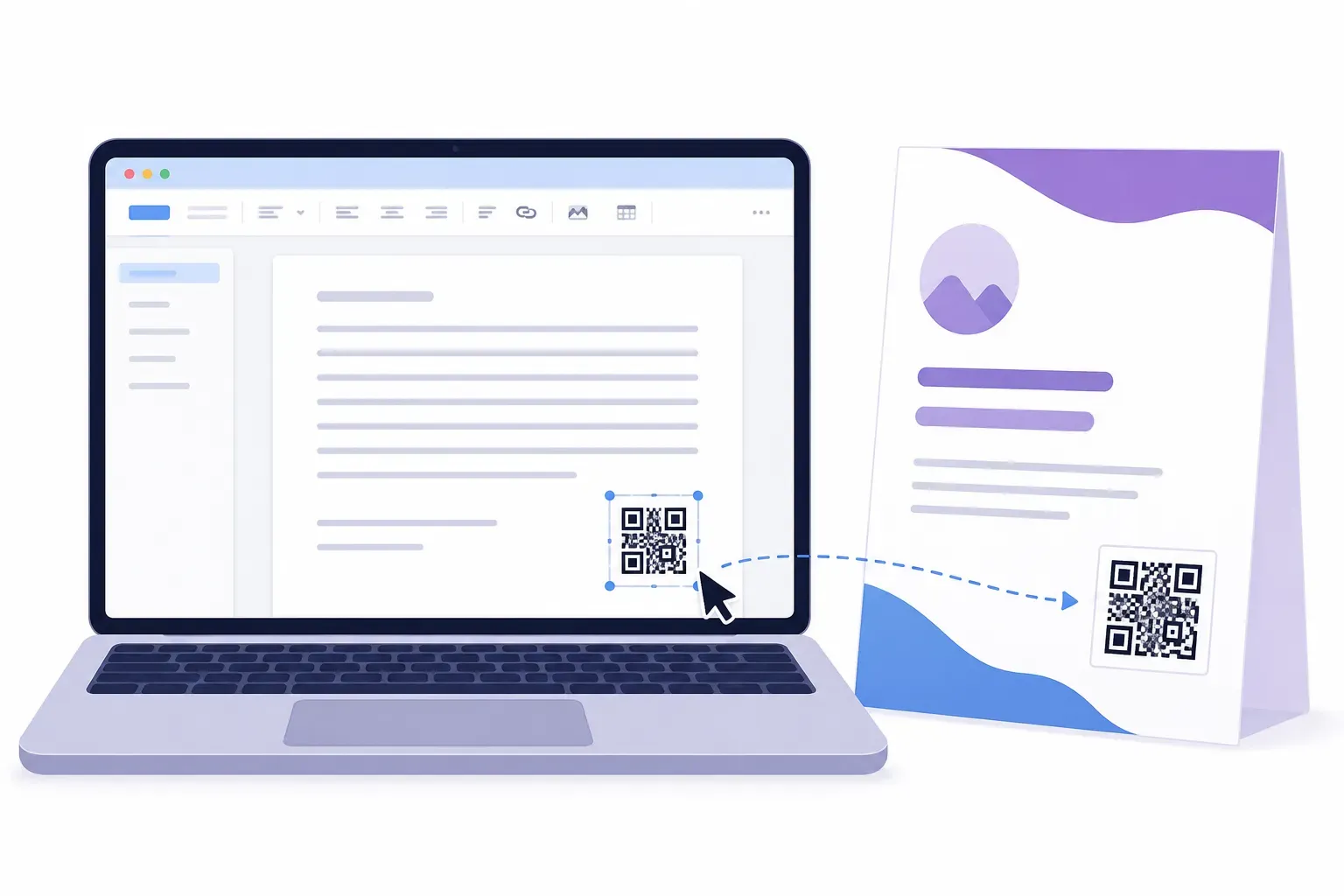
- Download as SVG. SVG stays razor-sharp at any print size, from sticker to window poster. Grab a PNG too for screens.
Put your menu one scan away — free, no account, and the code never expires. — Create Your Free QR Code
Step 4: Print It and Put It Where Hungry People Look
A QR menu earns its keep through placement. The proven spots:
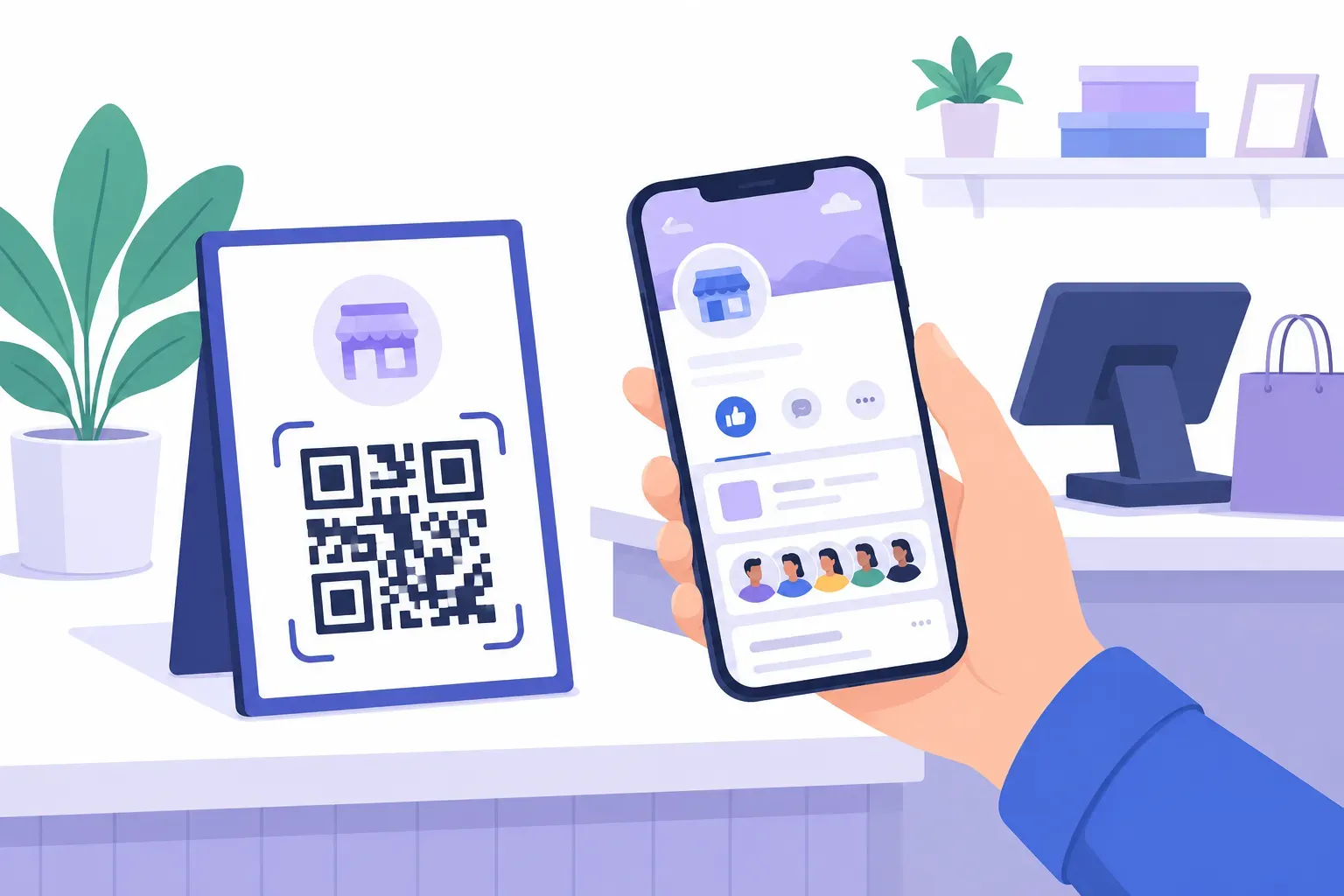
- Table tents. The classic, and still the best — eye level, arm’s length, present the moment a guest sits down.
- Table stickers. Cheaper than tents, but bare stickers get wiped with sanitizer and scratched by plates until they stop scanning. Laminate them or use acrylic stands.
- Window or door. Passers-by check prices before committing, and after close your menu keeps selling tomorrow’s lunch.
- At the register. Catches takeout customers deciding on one more item.
Size matters more than style: at arm’s length, print the code at least 2 × 2 cm — bigger never hurts — with a white margin, dark pattern on light background. Full sizing math and materials are in our guide to printing QR codes.
One low-tech tip: keep a few paper menus behind the counter. Some guests have a dead battery, an older phone, or no patience for a screen. A QR code menu should be the default, not a wall.
Step 5: Test Before You Laminate
Laminating fifty table tents around an untested code is the expensive way to find a typo. Before the print run:
- Scan with both an iPhone and an Android — camera apps parse codes slightly differently.
- Test on cellular data, not just your WiFi — that’s how guests will load it. If the page drags on 4G, shrink the images now.
- Print one copy at final size and scan it seated, under the dining-room lights.
- Read the menu end to end on the phone. The scan is half the test; the page it opens is the other half.
The full pre-print routine is in our checklist for testing a QR code before printing. Ten minutes here protects the whole print budget.
Updating the Menu Later (Without Reprinting Anything)
Here’s the payoff for the stable-URL rule. When winter prices land or the salmon dish retires, you don’t touch the QR code at all:
- Edit the menu page, or replace the PDF at the same file path.
- There is no step two.
Every table tent and window poster keeps working, because the printed pattern still encodes the same unchanged address — only the content behind it moved. That’s the update loop dynamic-QR subscriptions charge monthly for, reproduced with one good hosting decision. The code you print this week can survive years of price changes without a single reprint.
Your Menu, One Scan Away
A QR code menu is a small system with one load-bearing decision: the URL you encode. Host the menu at an address you own, aim a free static code at it, label it, and test before laminating. From then on, updating the menu is just editing a web page — the squares on your tables never change. Put your menu at its permanent address, then build the code in the free generator; a tested table tent can be ready before tomorrow’s lunch service.
Frequently Asked Questions
How do I make a QR code menu for free?
Put your menu online first — a page on your website or a PDF at a stable file path — then generate a free static URL QR code pointing at that address with a tool like QRocket. Style it, add a “Scan for menu” frame, download the SVG, and print. No account or subscription needed, and the code never expires.
Do QR code menus expire?
A static QR code never expires — the link is encoded permanently in the pattern. What can break is the destination: if the menu URL changes or the page is deleted, scans lead nowhere. Point the code at a stable address you control and it works indefinitely.
How do I update my menu without reprinting the QR code?
Encode a stable URL like yourrestaurant.com/menu, then change the menu behind that address — edit the page or replace the PDF at the same file path. The code encodes the address, not the menu content, so every table tent keeps working while prices and dishes change.
Do customers need an app to scan a QR code menu?
No. Every modern iPhone and Android scans QR codes through the built-in camera — point, tap the notification, and the QR menu opens in the browser. Keep a few paper menus on hand for guests with older phones or dead batteries.
Should my QR code menu link to a PDF or a web page?
A web page is better for guests and search: it reflows to phone width, loads faster, and its dish names are indexable text. A PDF is the faster launch if your menu is already designed — host it on your own site at a file path that won’t change on update.
Can a free QR code menu track how many people scan it?
Not by itself — a static code has no analytics layer. But if the code points to a menu page on your website, your normal web analytics count every visit to that page, which is effectively a scan count. Dynamic-QR services sell built-in tracking, but page analytics on a stable URL answers the question for free.
Create a free QR code with custom colors, your logo and print-ready downloads — no sign-up.