QR Code Not Working? 10 Common Causes and How to Fix Each One
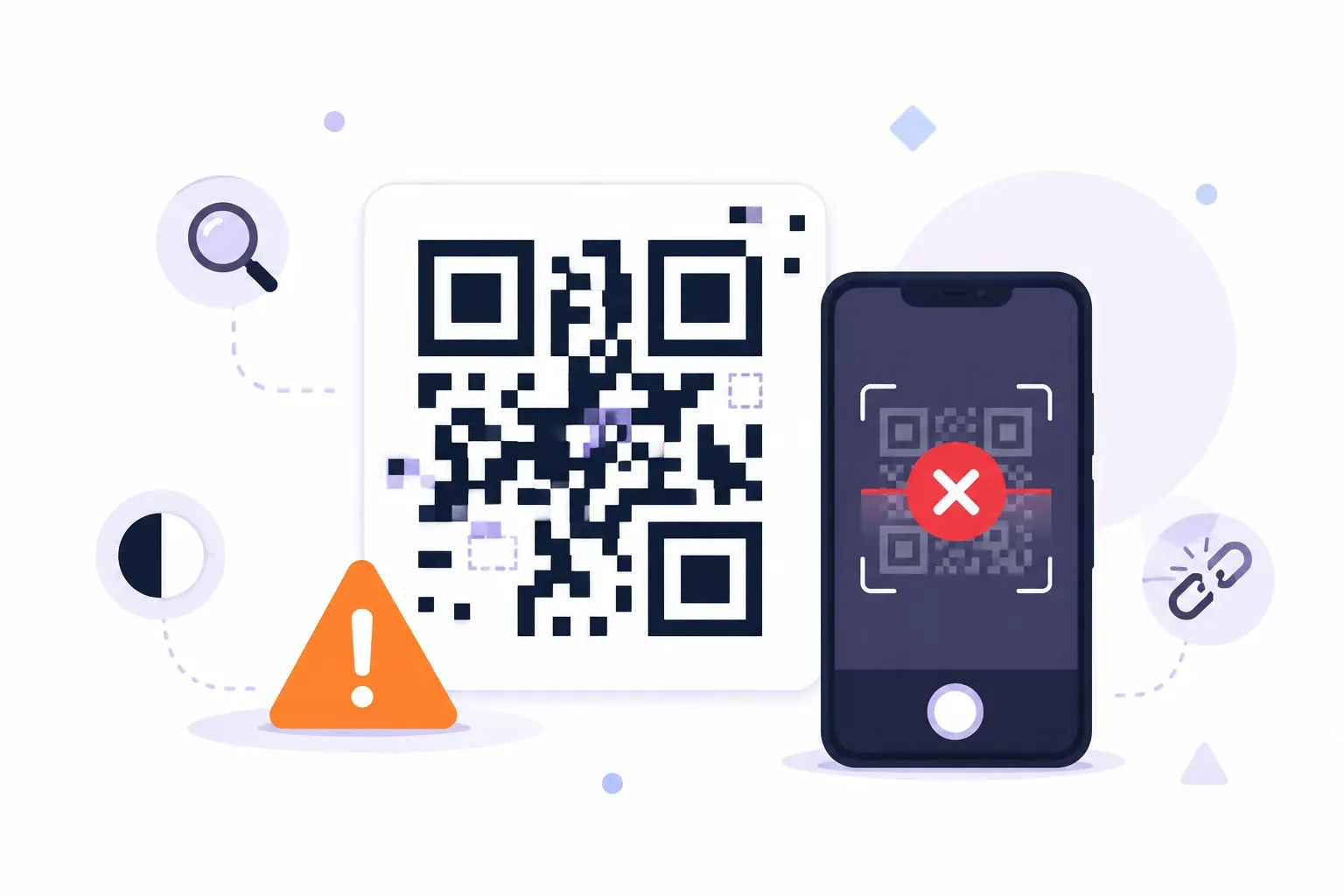
You printed 500 flyers, taped the first one to the shop window, pointed your phone at it — and nothing. No notification, no link, no menu. A QR code not working feels random, but it almost never is. Nearly every failed scan traces back to one of ten specific causes, and each has a fix you can apply in minutes.
This guide works like a troubleshooting flowchart. You’ll diagnose whether the problem is the code’s size, its colors, the content inside it, physical damage, or the phone doing the scanning — in that order of likelihood. By the end you’ll know exactly why your code won’t scan, and how to stop the next one from failing before it reaches a printer.
Why Your QR Code Is Not Working: The 10 Most Common Causes
Start with the full list — in practice, the first four causes account for most failed scans:
- The code is too small for the distance people scan from.
- Low contrast between the foreground and background colors.
- Inverted colors — a light pattern on a dark background confuses many scanners.
- The destination URL is broken, mistyped, or has been taken down.
- The quiet zone is missing — no blank margin around the code.
- Physical damage exceeds the code’s error correction budget.
- A logo or design element covers too much of the pattern.
- Blurry or low-resolution printing turns crisp modules into mush.
- Glare, curvature, or poor lighting at the scan location.
- An outdated phone or camera app that can’t scan natively.
Notice what’s not on the list: the QR format itself. The standard (ISO/IEC 18004) has been stable since 1994 — when a scan fails, the code, the print, or the destination is at fault, and all three are under your control.
Size and Distance Issues
The most common reason a QR code won’t scan is simple geometry: the code is too small for where it’s placed. A camera must resolve every individual module — each tiny square — and a 2 cm code on a poster viewed from 2 meters is physically impossible to read.
The working rule is a 1:10 ratio between code width and scanning distance. A code scanned from 30 cm (someone holding a flyer) needs to be at least 3 cm wide. A code on a poster read from 3 meters needs to be around 30 cm wide. Our QR code size guide breaks down minimum dimensions for business cards, table tents, posters, and billboards.
Density makes this worse: a 200-character URL packs in far more modules than a 30-character one, so each module shrinks at the same print size. If your code looks like fine-grain static, shorten the URL before you enlarge the print.
The fix: measure the real scanning distance, divide by 10, and make that your minimum code width. When in doubt, size up.
Color and Contrast Problems
A scanner doesn’t see “blue” or “orange” — it sees light versus dark. If your brand colors put a medium-tone pattern on a medium-tone background, the decoder can’t separate the modules from the canvas, and the scan silently fails.
Two rules prevent nearly all color failures:
- Keep strong contrast. Dark foreground, light background, with a contrast difference of at least 40% between them. Black on white is the gold standard; dark navy on pale gray works; gold on yellow does not.
- Never invert. A white pattern on a black background looks striking, but a meaningful share of scanner apps and older phones refuse to read inverted codes. If you want a dark design, put a light-background code inside a dark frame instead.
Gradients and busy background images cause the same failure in disguise. Our QR code colors guide covers safe brand-color combinations, and QRocket’s live scannability meter warns you in real time when a color choice drops below reliable contrast.
URL and Content Errors
Here’s the failure that testing the code itself won’t catch: the code scans perfectly, but the destination is broken — a 404, an expired landing page, or a desktop site unusable on mobile. To the person scanning, that’s still “the QR code doesn’t work.”
Check these in order:
- Typos in the URL. A static code encodes exactly what you typed.
httpss://or a missing letter in the domain is baked in permanently — the only fix is generating a new code. - Missing
https://. Some scanners treat a bare string likeexample.com/menuas plain text instead of a link, showing the text rather than opening the browser. - The page was moved or deleted. Static codes never expire, but the pages they point to can. If a campaign page came down, every printed code pointing to it died with it — a distinction our guide on whether QR codes expire explains in detail.
- A dead link-shortener. If you used a URL shortener and the service retired the link, the code fails even though your website is fine.
The fix: open the exact URL on a phone before generating the code, and prefer stable, permanent URLs you control over campaign pages with a shelf life.
Physical Damage, Wear, and the Missing Quiet Zone
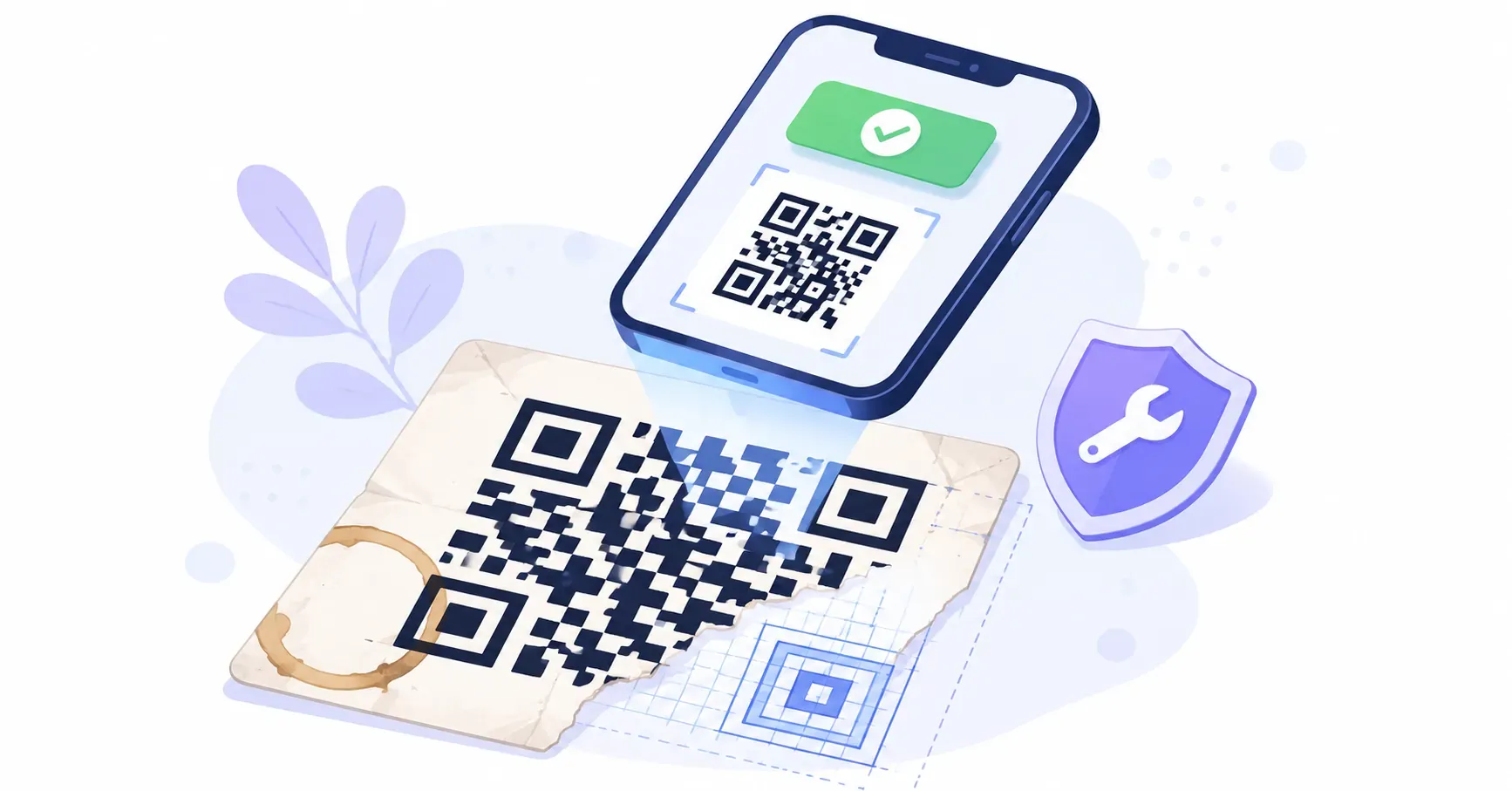
Every QR code carries built-in redundancy that lets it survive damage — up to about 30% of the pattern at the highest setting, thanks to error correction. But that budget is finite, and real life spends it fast: sun-faded ink, scratches, lamination bubbles, fingerprints.
Two kinds of damage kill a code outright, regardless of error correction:
- Damage to the finder patterns — the three large corner squares. These aren’t protected data; they’re how the scanner locates the code. A sticker or tear across one corner square can disable an otherwise pristine code.
- A missing quiet zone. The blank border around the code needs to be at least four modules wide. Crop it away in a layout, or run text and graphics right up to the edge, and scanners struggle to isolate the code from its surroundings.
An oversized logo causes the same failure from the inside: cover more than roughly 20% of the pattern and the damage budget is spent before the code leaves the printer.
The fix: keep logos modest, preserve the white margin in every layout, laminate or use weather-resistant material outdoors, and reprint codes that show visible wear rather than hoping error correction keeps absorbing it.
Phone and Scanner Compatibility
Sometimes the code is fine and the phone is the problem. iPhones gained native scanning in iOS 11 (2017), and most Android phones read codes through the default camera or Google Lens. Older devices, or Android cameras with scanning toggled off in settings, will stare at a perfect code and do nothing.
Lighting and angle matter too: glare off a laminated menu, a curved bottle, or a dim corner can defeat a camera that would read the same code instantly in flat light. The quickest diagnostic is a second phone — if that one succeeds, the code is fine and the first device or environment was the issue. Our guide on how to scan a QR code covers enabling scanning on devices where it’s switched off.
Testing Your QR Code Before You Deploy It
Every failure above is catchable before you print. Run this five-point check before any code ships:
- Scan the on-screen version with one phone to confirm the content is right.
- Print one test copy at final size on the actual material — never judge from the screen.
- Scan the print with at least three devices: an iPhone, an Android, and ideally an older phone.
- Test at the real distance and in the real lighting of the final placement.
- Follow the destination all the way through — page loads, looks right on mobile, no login walls.
Five minutes of testing is cheaper than any reprint. The full pre-launch routine, including lighting and network checks, lives in our checklist for testing a QR code before printing.
Create reliable QR codes that always scan — free, no sign-up. — Create Your Free QR Code
The Real Lesson: Codes Fail Before They’re Printed
Almost every “broken” QR code was broken at creation — too small for its placement, too low-contrast for its scanner, or pointed at a URL nobody verified. The scan failure just revealed it later, in front of a customer. Treat the checklist above as a pre-flight routine rather than a repair manual, and generate codes with a tool that flags problems as you design — QRocket’s scannability meter catches contrast and density issues live. Fix codes before the printer, and “QR code not working” becomes a search you never run again.
Frequently Asked Questions
Why won’t my QR code scan?
The most common causes are a code printed too small for the scanning distance, insufficient contrast between the pattern and background, a broken or mistyped destination URL, or poor conditions like glare and dim lighting. Work through size, colors, content, and damage in that order to isolate the cause.
How do I test if my QR code works?
Scan it with at least three different devices — an iPhone, an Android, and ideally an older phone — in the lighting and at the distance where it will actually be used. Always test a printed copy at final size, and follow the link through to confirm the destination loads correctly on mobile.
Why does my QR code scan but the page doesn’t load?
The code itself is fine; the destination is the problem. The URL may contain a typo, the page may have been moved or deleted, or a link shortener in the chain may have expired. Open the encoded URL directly in a phone browser to confirm, then generate a new code with a corrected, stable URL.
Do QR codes stop working over time?
A static QR code never expires — the data is encoded permanently in the pattern. What fails over time is either the destination (a web page taken down) or the physical print (fading, scratches, weather damage). Point codes at stable URLs and reprint worn codes to keep them working indefinitely.
Can a QR code be too big to scan?
Rarely. Large codes scan fine as long as the camera can fit the whole pattern, including the quiet zone, in its frame. Problems appear only at extreme close range or on curved surfaces where a big code bends out of the focal plane. Too small is the far more common failure.
Does a damaged QR code ever still work?
Yes — error correction lets a code lose up to about 30% of its modules and still scan, depending on the level it was built with. But damage to the three large corner squares, or a missing white margin around the code, can defeat scanning entirely regardless of error correction.
Create a free QR code with custom colors, your logo and print-ready downloads — no sign-up.