How to Create a QR Code for an App Download (iOS and Android)
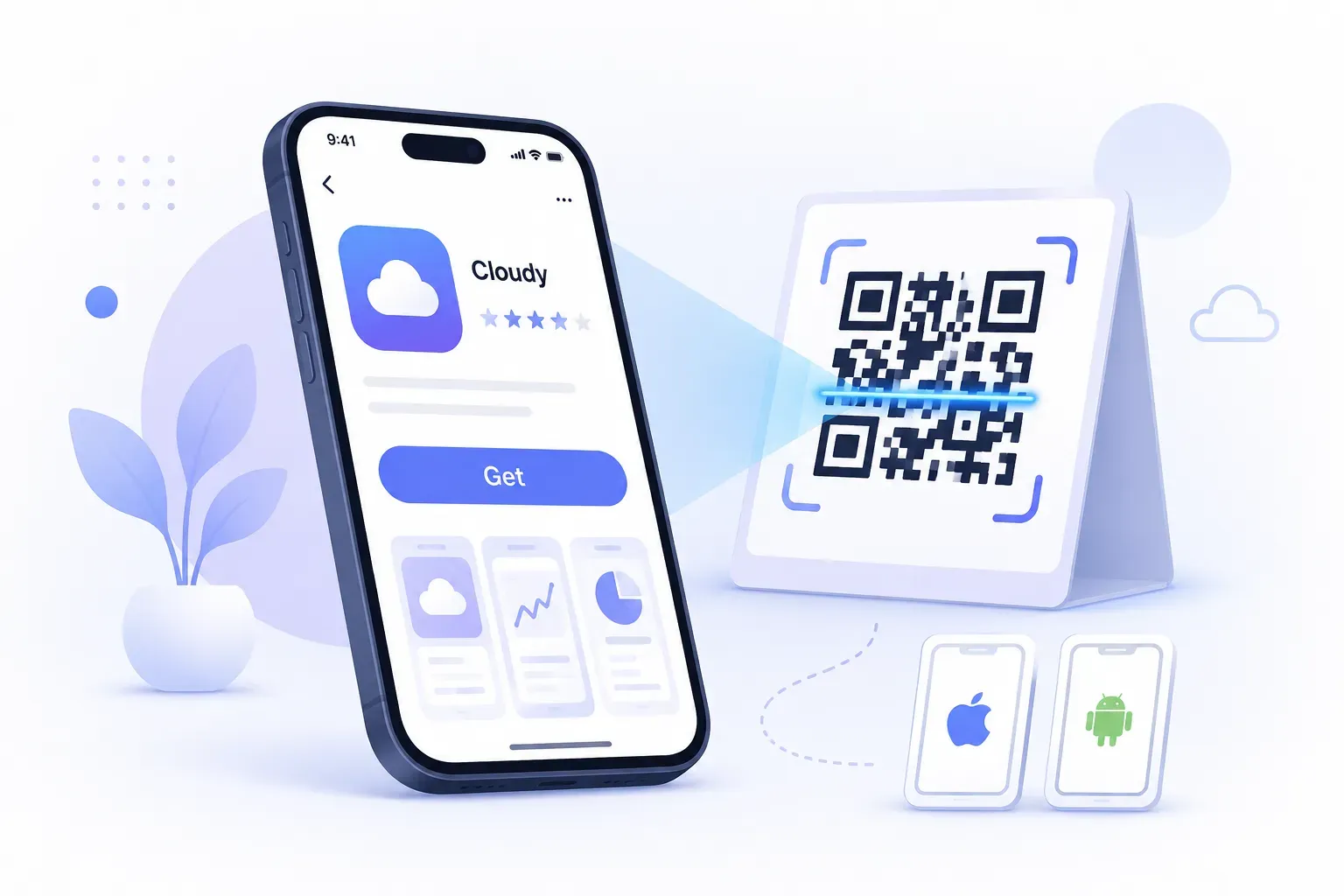
Telling someone to “search for our app in the store” loses most of them on the spot. They have to remember the name, spell it right, and pick your app out of a results page full of lookalikes. A QR code for app download skips all of that: one scan, and the store listing opens with the install button already on screen.
There’s one catch. iPhones download from the App Store and Android phones download from Google Play — two different links, one printed code. This tutorial solves that: you’ll grab both store URLs, set up a smart link that detects the scanner’s device, and generate a free QR code that installs your app from either platform. The whole setup takes about ten minutes.
Why Use a QR Code for App Downloads
Every step between “I want this app” and “it’s installing” costs you users. App installs have one of the leakiest funnels around: see the ad, remember the app name, open the store, search, scroll past competitors, tap the right result, install. Each step loses a slice of people.
A QR code for app download collapses that chain into a single action. Someone sees your poster, scans, and lands directly on your store listing. No typing, no searching, no competitor apps in sight.
The physical world is where this matters most. A conference booth, a product box, a table tent — none can hold a tappable link, but all can hold a printed square. An app install QR code makes paper clickable, and if you route it through a link you control, every scan becomes a data point too.
Getting Your App Store Link
Every iOS app has a public web URL on apps.apple.com. The fastest ways to find yours:
- From the App Store app: open your app’s listing, tap the share button, and choose Copy Link.
- From a browser: search your app name on apps.apple.com and copy the URL from the address bar.
- From App Store Connect: your app’s page shows the listing URL under App Information.
The link follows a standard pattern:
https://apps.apple.com/app/your-app-name/id1234567890The number after id is what actually identifies your app — the name portion is cosmetic. Paste the link into a browser and confirm it opens your listing, not a search page or a regional error.
Getting Your Google Play Link
Android’s store links live on play.google.com and are keyed to your app’s package name rather than a numeric ID:
https://play.google.com/store/apps/details?id=com.yourcompany.yourappTo grab yours:
- From the Play Store app: open your listing, tap the three-dot menu, and choose Share.
- From a browser: find your app on play.google.com and copy the address bar URL.
- From the Play Console: the listing URL appears on your app’s dashboard, built from the package name you chose at upload.
Test this one in a browser too. A typo in the package name doesn’t produce a helpful error — it produces a “not found” page, which is exactly what you don’t want a curious scanner to see.
At this point you have two working links and one problem: a printed QR code can only hold one of them.
Creating a Cross-Platform Smart Link
The fix is a smart link — a single URL that checks which device just opened it and redirects accordingly. iPhone scanners land on the App Store, Android scanners land on Google Play, and a desktop visitor sees a page with both badges. Three ways to build one, from simplest to most powerful:
1. A free smart link service. Tools like onelink.to let you paste both store URLs and get back one short link that handles the device detection for you. Setup takes two minutes. The trade-off: your install traffic now routes through a third party’s domain, and a printed code outlives many free tools.
2. A landing page on your own site. Create a simple page like yoursite.com/get-app with both store badges, plus an optional JavaScript redirect that forwards each visitor automatically. The link lives on a domain you control forever — the safest foundation for print — and you can change where it points without reprinting, the same insurance a dynamic QR code provides.
3. A deep link platform. Attribution tools like Branch route by device and also report which campaign drove each install, even carrying context through the install so a code on a product box can open the app to that exact product. If you’re spending real money on print, install attribution tells you which placements earn their keep — the same logic covered in our guide to tracking QR code scans.
Whichever route you choose, the output is the same: one URL that works for everyone. That URL is what goes into your QR code — which makes this, at heart, a standard URL QR code.
Step-by-Step: Create an App Download QR Code
With your smart link ready, the QR code itself takes about three minutes in QRocket’s free generator. Everything runs in your browser — no account, no expiry, no scan limits.
Step 1: Choose the Link Your Code Will Carry
Use your smart link or landing page URL, not a single store URL — that’s what makes one printed code serve both platforms. Only hardcode a direct store link when the placement is guaranteed single-platform.
Step 2: Select the URL Type and Paste Your Link
Open the QRocket generator, pick the URL content type, and paste the link. Double-check it character for character — the code encodes exactly what you type, and a printed typo is permanent.
Step 3: Add Your App Icon as the Center Logo
This is the highest-value design move for an app install QR code: people recognize the icon before they read a word, and the code instantly looks official. Keep it under about 20% of the code’s area — our guide to adding a logo to a QR code covers the sizing rules.
Step 4: Style the Code to Match Your Brand
Match your app’s palette, but keep the pattern clearly darker than the background — QRocket’s scannability meter warns you if the contrast drops too low. Resist inverting the colors; light-on-dark codes fail on some scanners.
Step 5: Add a Frame With a Call to Action
A bare square gets ignored; a labeled one gets scanned. “Scan to download the app” or “Get the app — scan here” tells people exactly what they’re getting. More wording ideas live in our QR code call-to-action examples.
Step 6: Download, Then Test on Both Platforms
Export SVG for print and PNG for screens. Then run the test that matters most for this code type: scan with an iPhone and an Android and confirm each lands on the correct store listing. A smart link that misroutes one platform silently loses half your scanners.
Create a free app download QR code with QRocket — no sign-up, no expiry. — Create Your Free QR Code →
Where to Place Your App QR Code
Put the code wherever someone decides they want your app while holding a phone:
- Product packaging. If your app pairs with a physical product, the box is prime placement — “Scan to set up your device” converts far better than a printed URL.
- Print marketing. Posters, flyers, magazine ads, and direct mail all become install channels. Size the code for the viewing distance — roughly one-tenth of it, per our QR code size guide.
- Your website. A desktop visitor who scans the code on your site skips the “email myself the link” dance and installs immediately.
- Business cards and email signatures. For founders and sales teams, “here’s the app” becomes a five-second demo in any meeting.
- In-store signage and receipts. Retailers can convert a one-time customer into an app user at the register — the same play detailed in our guide to QR codes for small business.
- Events and booths. Attendees will scan a booth banner; nobody types a URL while holding a coffee.
Give each placement its own tagged smart link if you can. When the trade show code and the packaging code carry different URLs, your analytics show which placement actually drives installs.
One Code, Both Stores, Zero Typing
The whole trick to an app download QR code is doing the routing work before you print: grab both store URLs, wrap them in one smart link, and encode that link with your app icon in the center. Do it once and every poster, box, and business card becomes a working install button. Your links are ready — the code takes three minutes.
Turn your print materials into an install channel. — Create Your Free QR Code →
Frequently Asked Questions
Can one QR code link to both the App Store and Google Play?
Yes — use a smart link service that detects the scanner’s device and redirects iPhones to the App Store and Android phones to Google Play. Alternatively, create a simple landing page on your own site with both store badges. Either way, the QR code encodes one URL that works for everyone.
How do I find my app’s App Store URL?
Open your app’s listing on apps.apple.com in a browser and copy the URL, or tap the share button on the listing in the App Store app and choose Copy Link. For Google Play, copy the URL from your listing on play.google.com/store/apps — it contains your app’s package name after id=.
What happens if someone scans the code on a desktop computer?
A direct store link will still open, but a smart link or landing page handles it more gracefully by showing both store badges so the visitor can choose. Some smart link services can also text the download link to the visitor’s phone.
Do app download QR codes expire?
The code itself never expires — it permanently encodes whatever URL you put in it. What can break is the destination: if your smart link service shuts down or your store listing changes, the printed code points at a dead end. A landing page on your own domain protects against both.
Can I track how many people install my app from the QR code?
Scans, yes; installs, with the right tooling. A tagged link tells you how many people scanned each placement. For true install attribution, use a deep link platform that carries campaign data through the store and into the app’s first launch.
Should I put my app icon inside the QR code?
Yes — it’s the best design choice for this code type. The icon makes the code instantly recognizable and reassures scanners about where the link leads. Keep it under about 20% of the code area, let the generator raise error correction to compensate, and test on both platforms before printing.
Create a free QR code with custom colors, your logo and print-ready downloads — no sign-up.