How to Create a QR Code for Instagram (Grow Your Followers Offline)
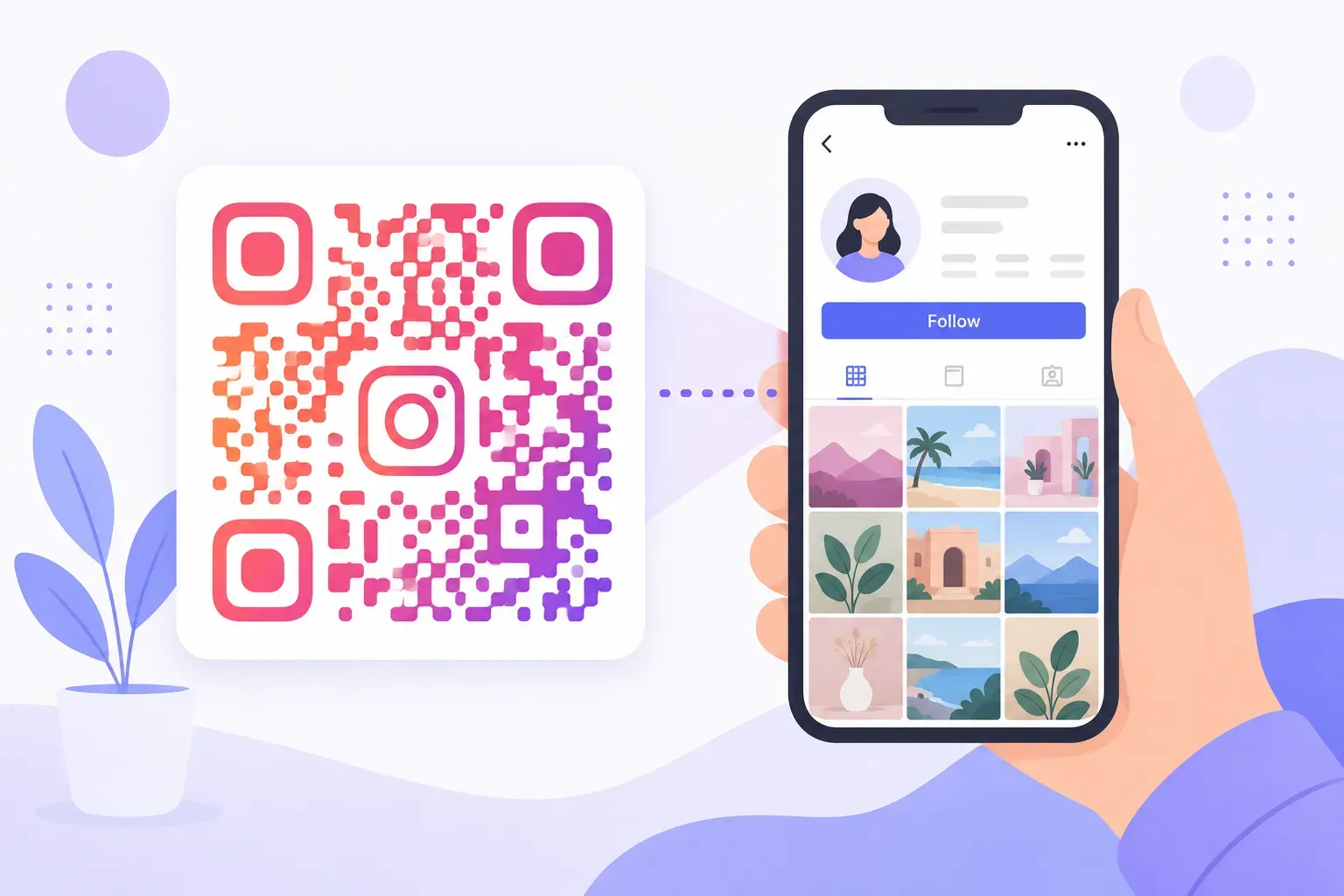
Someone loves your café, your salon, or your handmade candles. They’d follow you on Instagram in a heartbeat — if following didn’t mean opening the app, typing your handle correctly, and picking you out of a search list full of lookalikes. Most people won’t do that. A QR code for Instagram collapses all of it into one scan: phone up, camera on, profile open, follow button one tap away.
This tutorial walks through the whole process: finding your exact profile URL, choosing between Instagram’s built-in QR feature and a custom-branded code, generating yours step by step, and placing it where real followers actually come from. You’ll be done in about five minutes.
Why Use a QR Code for Instagram
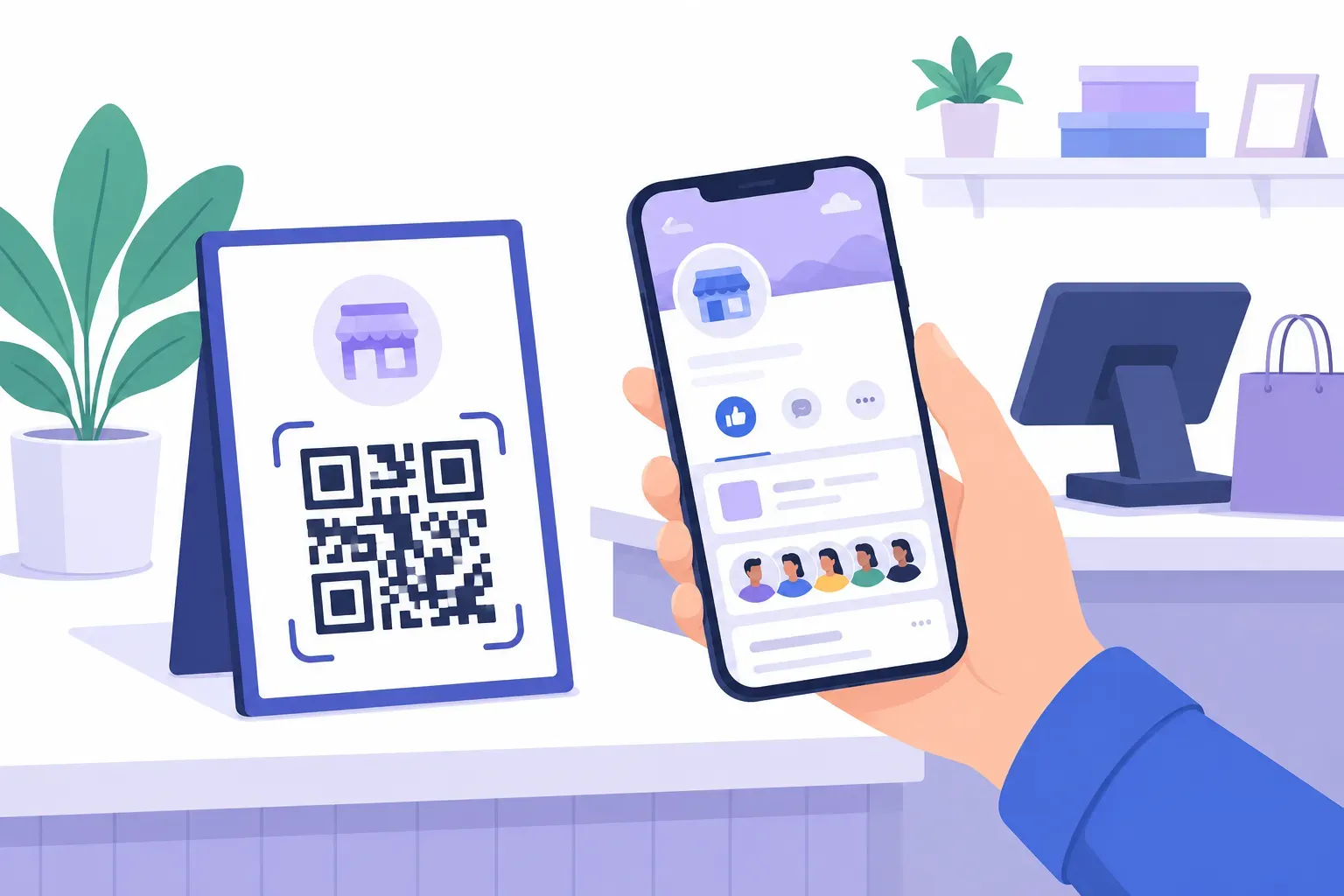
Your best potential followers already meet you offline. They sit at your tables, buy your products, visit your booth at markets, and hold your business card. The gap is the awkward handoff from the physical moment to the app — and typing “@the_daily_grind_coffee_co” from memory is where most of those follows die.
An Instagram QR code closes that gap at the exact moment interest peaks. A customer who just enjoyed their meal scans the table tent and follows before the feeling fades. Nobody has to remember anything later, because later never converts.
There’s a compounding payoff, too. A phone call ends and a flyer gets tossed, but a follow is permanent distribution: every future post, story, and promotion reaches that person for free. For a small business, an Instagram follow QR code on packaging quietly turns one-time buyers into a returning audience — the same logic behind the broader plays in our QR code marketing strategy guide.
How to Get Your Instagram Profile URL
Every Instagram profile lives at one predictable address:
https://www.instagram.com/yourusernameSwap in your exact handle — the one shown at the top of your profile, not your display name. If your handle is @bloomandbranch, your profile URL is https://www.instagram.com/bloomandbranch.
Don’t trust memory here. Open Instagram, go to your profile, tap the share icon (or Share profile in the menu), and choose Copy link. That gives you the exact URL with zero typo risk — a wrong character sends every scanner to a stranger’s profile or a dead page.
One caution before you print anything: the QR code encodes whatever URL you give it, permanently. If you rename your handle later, the old URL breaks and printed codes break with it. Pick a handle you’ll keep, or use a dynamic QR code whose destination you can edit — the trade-offs are covered in our guide to static vs dynamic QR codes.
Instagram’s Built-In QR vs Custom QR Codes
Instagram generates its own profile QR code inside the app — the feature that replaced the old Nametag. Find it under Profile → menu (≡) → QR code. It’s fast and free, so why bother with anything else?
Because the native code is built for one moment: two people standing together, one phone scanning another’s screen. The instant you move to print and marketing, a custom code from an Instagram QR code generator wins on every axis that matters:
| Instagram’s native QR | Custom QR code | |
|---|---|---|
| Branding | Instagram’s fixed styles only | Your colors, shapes, logo, and frame |
| Print reliability | Decorative design, not print-tested | High error correction, tested at any size |
| Call-to-action frame | None | ”Follow us on Instagram” label built in |
| Tracking | None | UTM parameters or dynamic scan counts |
| File formats | Screenshot from the app | Sharp SVG and high-resolution PNG |
The branding point is bigger than it sounds. A code styled in your brand colors — or in Instagram’s recognizable purple-to-pink palette — signals what the scan does before anyone reads a word. Our QR code design guide covers styling boldly while keeping contrast scannable.
The practical rule: use the native code for in-person “scan my screen” moments, and a custom code — the real Instagram Nametag alternative — for everything printed.
Step-by-Step: Create a QR Code for Instagram
Here’s the full process using QRocket’s free generator. No account, no watermark, and the code never expires.
Step 1: Copy your exact profile URL
Open Instagram, go to your profile, and use Share profile → Copy link to grab https://www.instagram.com/yourusername with no typos. Paste it somewhere visible so you can verify the spelling one more time.
Step 2: Paste the URL into QRocket
Open the free QR code generator and choose the URL type. Paste your profile link into the field — the preview updates instantly as you type. Since an Instagram profile QR code is technically a standard link code, everything in our guide to creating a URL QR code applies here too.
Step 3: Style the code to match your brand
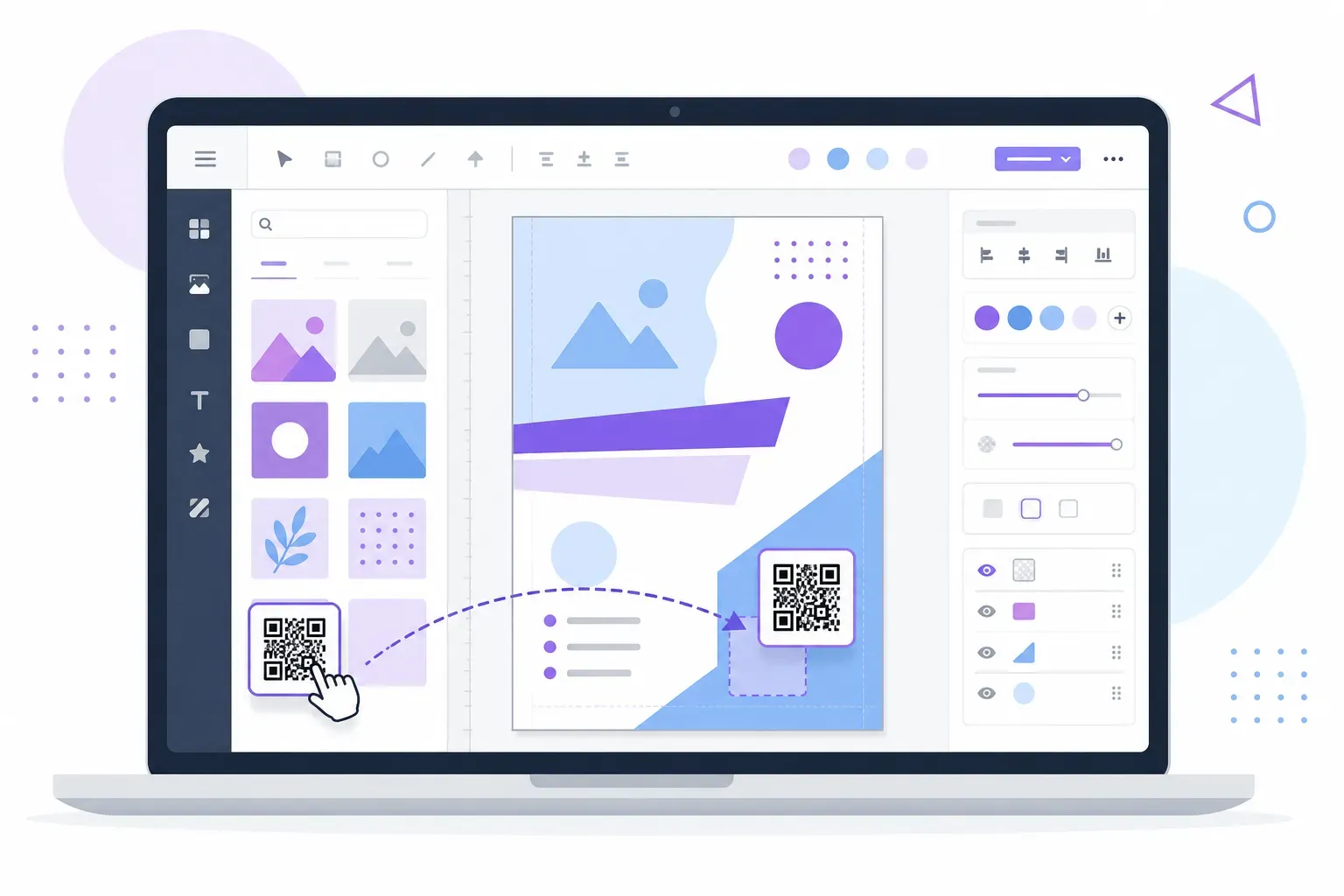
Adjust the colors and module shapes. Instagram-inspired purples and pinks work well, or use your own brand palette — just keep the pattern clearly darker than the background so scanners can read it. You can also drop your logo in the center; keep it modest, as explained in our guide to adding a logo to a QR code.
Step 4: Add a frame with a call to action
A bare square gets ignored. Wrap the code in a frame that says exactly what happens: “Follow us on Instagram” or “Scan for daily specials.” Codes with a clear label consistently out-scan unlabeled ones.
Step 5: Download as SVG or PNG
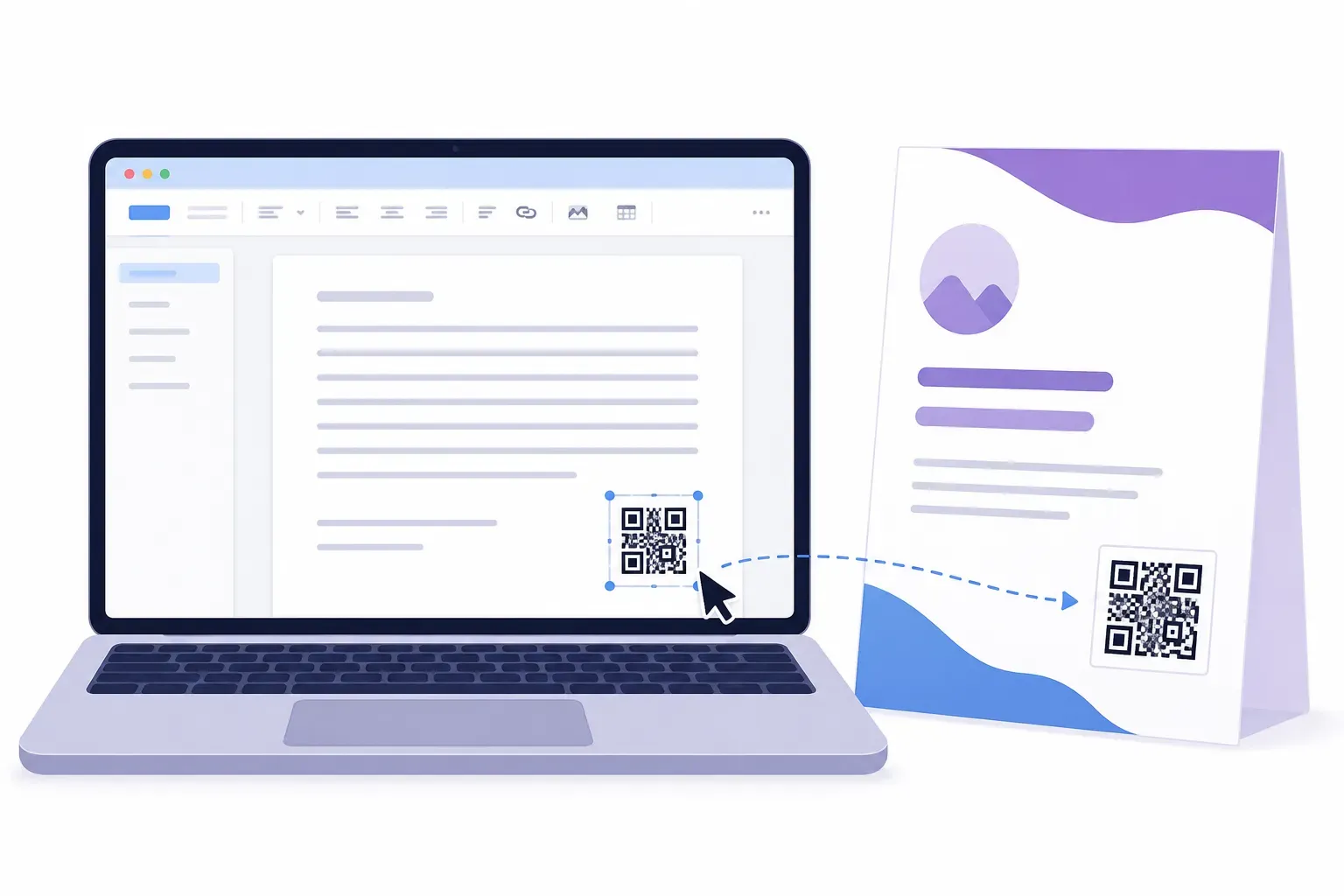
Choose SVG for anything headed to print — it stays razor sharp at every size, from sticker to storefront poster. A high-resolution PNG covers screens, email signatures, and quick jobs.
Step 6: Test on real phones before printing
Scan the finished code with an iPhone and an Android from a realistic distance. Confirm it opens your profile — the right profile — in the Instagram app or browser. Thirty seconds of testing beats reprinting five hundred flyers.
Create a free Instagram QR code with QRocket — grow your followers from anywhere — Create Your Free QR Code →
Optional: add tracking
A static code has no analytics of its own, but you have two good options. Point the code at a link-in-bio page with UTM parameters added to the URL, and your analytics will show exactly how many visits each placement drives. Or use a dynamic QR code with built-in scan counts. Our guide to tracking QR code scans walks through both setups.
Where to Place Your Instagram QR Code
Placement decides whether your code earns followers or gathers dust. Put it where interest is warm and a phone is already in hand:
- Business cards. The handle in tiny print gets forgotten; the code gets scanned during the conversation.
- Product packaging. A “Follow for behind-the-scenes” code on the box converts happy customers at the exact moment they’re happiest.
- Store window or counter. Passers-by and waiting customers scan out of curiosity — especially with a specific hook like “Scan to see this week’s new arrivals.”
- Receipts and invoices. A quiet, zero-cost placement that reaches every single customer.
- Event materials. Booth banners, badges, and handouts turn a two-minute conversation into a lasting connection.
- Menus and table tents. Restaurants pair “Follow us” with an incentive — tag us in a story, get a free topping.
Two physical rules apply everywhere. Print the code at least 2 × 2 cm for arm’s-length scanning, and larger for posters — roughly one-tenth of the expected scanning distance, per our QR code size guide. And always pair the code with a benefit-driven label; our call-to-action examples include ready-to-use wording for social follows.
Frequently Asked Questions
What is the URL format for an Instagram profile?
Every profile follows the format instagram.com/yourusername — for example, https://www.instagram.com/bloomandbranch. Copy it directly from the app with Share profile → Copy link to avoid typos, then paste it into QRocket to create the QR code.
Is a custom QR code better than Instagram’s built-in QR?
Yes, for most real-world uses. Custom QR codes are more brandable, print reliably at any size, support call-to-action frames, and can include tracking. Instagram’s native code is best kept for in-person moments where someone scans your phone screen directly.
Can I track how many people scan my Instagram QR code?
Yes, two ways. Use a dynamic QR code that counts scans, or point a static code at a link-in-bio page with UTM parameters so scans show up in your analytics. Different UTM tags per placement tell you whether the packaging, the window, or the business card drives the most follows.
Will my Instagram QR code stop working if I change my username?
A static code encodes your profile URL permanently, so renaming your handle breaks every printed code — instagram.com/oldname no longer exists. Either commit to your handle before printing or use a dynamic code whose destination you can update after a rename.
Does the QR code open the Instagram app or a browser?
On phones with Instagram installed, the profile URL hands off to the app, landing scanners directly on your profile with the follow button ready. Without the app, it opens the web version of your profile in the browser, which still shows your posts and a follow prompt.
How large should I print an Instagram QR code?
At least 2 × 2 cm (about 0.8 × 0.8 in) for close-range placements like business cards and packaging. For posters and windows, scale up to roughly one-tenth of the distance people will scan from — a code meant to be scanned from two meters should be about 20 cm wide.
From One Scan to a Lasting Audience
An Instagram QR code is the cheapest follower-growth tool you can deploy: one correct URL, one well-labeled code, printed where your happiest customers already are. Copy your profile link straight from the app, style the code so it’s unmistakably yours, test it on two phones, and put it to work on your packaging, counter, and cards.
Create a free Instagram QR code with QRocket — grow your followers from anywhere — Create Your Free QR Code →
Create a free QR code with custom colors, your logo and print-ready downloads — no sign-up.