How to Create a QR Code for a YouTube Video or Channel
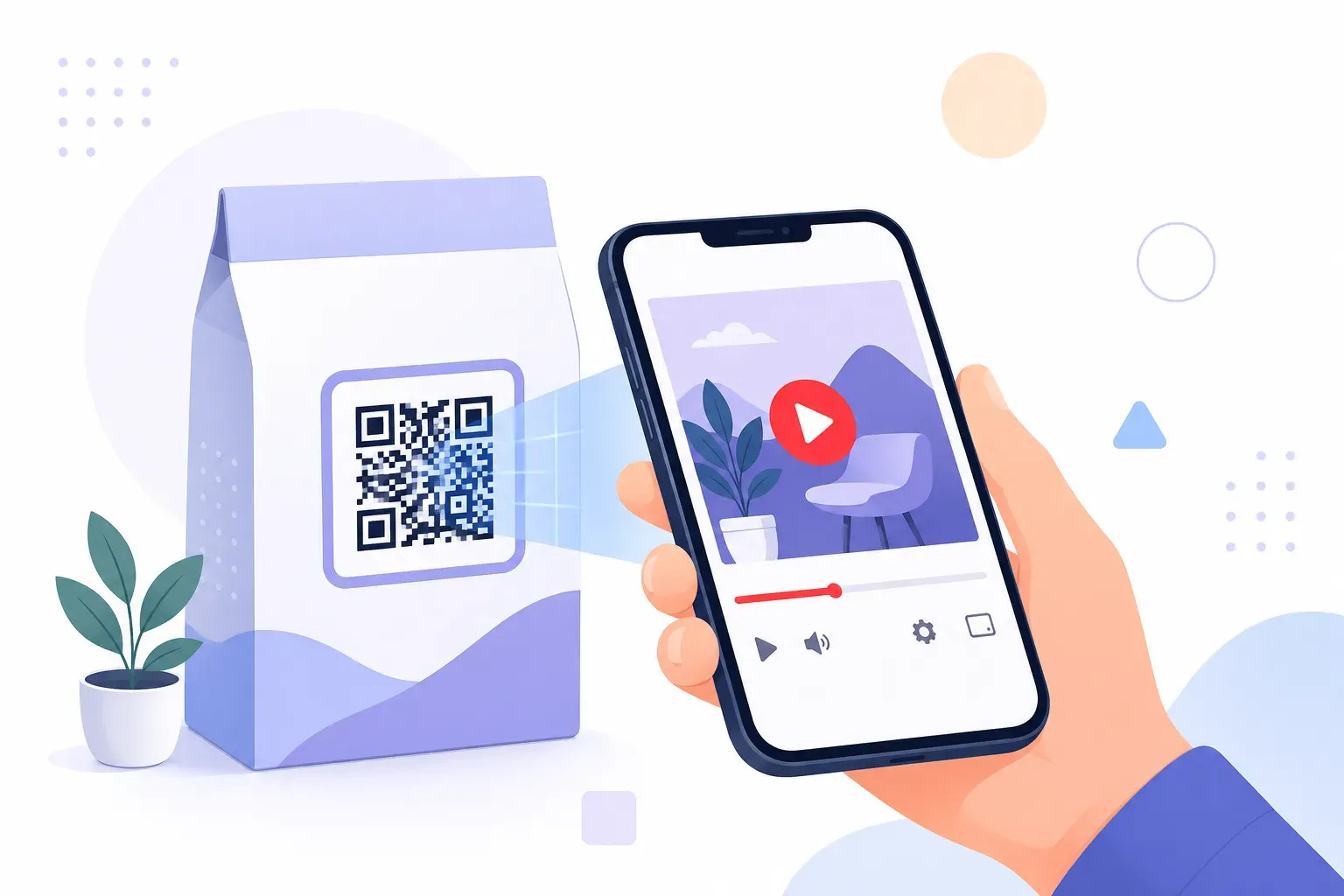
You made a great video — an assembly guide, a virtual tour, a workout demo — and now it sits behind a URL nobody will type. Nobody standing in front of a product box is going to key in youtube.com/watch?v=dQw4w9WgXcQ. A QR code for YouTube closes that gap: one scan on the packaging, poster, or flyer, and the video is playing on the customer’s phone within seconds.
This tutorial walks through the whole process: which YouTube URL to copy (video, channel, or playlist — they behave very differently), how to build the code free with QRocket, where these codes work best in the real world, and how to track the views your printed code actually drives. Total working time is under five minutes.
Why Use a QR Code for YouTube
Video explains things that text can’t. A printed page can describe how to assemble a shelf; a 90-second video shows it. The problem has always been the handoff — getting someone from a physical object to a specific video without asking them to search and hope they pick the right result.
A QR code for YouTube makes that handoff instant. The code encodes your video’s URL, so scanning it opens YouTube (the app if installed, the browser if not) directly on your content. No searching, no typos, no competing results on screen — and if the viewer is signed in to the app, subscribing to your channel is one tap away.
For anyone building an audience, a scannable square on real-world surfaces is one of the few ways to convert offline attention into watch time. And since the code itself is a standard URL code, everything in our guide to URL QR codes applies here too.
Video URL vs Channel URL vs Playlist URL
Before generating anything, decide what the scan should open. YouTube gives you three link types, and picking the wrong one is the most common mistake with these codes.
| Link type | Format | Scan opens |
|---|---|---|
| Video | youtube.com/watch?v=VIDEO_ID | One specific video, ready to play |
| Channel | youtube.com/@yourhandle | Your channel page with all uploads |
| Playlist | youtube.com/playlist?list=PLAYLIST_ID | An ordered series of videos |
The practical rule: match the link to the moment. A code on product packaging should open the how-to video for that product — a video URL. A code on a business card or studio wall that says “Follow our channel” should open the channel — a channel URL like youtube.com/@yourhandle. A multi-part course or episode series belongs behind a playlist URL, so viewers start at part one and autoplay through the rest.
Two details worth knowing. YouTube’s short share links (youtu.be/VIDEO_ID) work fine and produce a slightly simpler pattern. And appending &t=90 to a video URL starts playback at a timestamp — useful when the relevant demo starts two minutes in.
Step-by-Step: Create a YouTube QR Code
QRocket generates YouTube QR codes free, with no account and no scan limits. Here’s the full process.
Step 1: Copy Your YouTube Link
Open the video, channel, or playlist and use the Share button to copy the URL — it gives you a clean link without session junk. For a channel, you can also copy the handle URL (youtube.com/@yourhandle) straight from the channel page.
Step 2: Open the QRocket Generator and Choose the URL Type
Go to the free QR code generator and select the URL content type. YouTube links are ordinary web URLs, so no special type is needed — the phone’s scanner recognizes the youtube.com domain and hands the link to the YouTube app automatically.
Step 3: Paste the Link and Check the Preview
Paste your copied URL into the field. The QR code preview updates live in your browser — nothing is uploaded to a server. Check the URL once more: the video ID after v= is case-sensitive, and a printed code with a typo is a permanent dead end.
Step 4: Style the Code to Match Your Brand
Adjust colors, module shapes, and corner styles — a dark red pattern on white nods at YouTube’s branding while keeping strong contrast, and our QR code colors guide covers what stays scannable. You can also drop a play-button icon or logo in the center, kept under about 20% of the code area as explained in adding a logo to a QR code. Watch QRocket’s scannability meter as you style.
Step 5: Add a Frame with a Call to Action
A bare square gets ignored; a labeled one gets scanned. Add a frame with text like “Watch the 60-second demo” or “Scan for the video tour” so people know the payoff before they commit. More proven wording lives in our QR code call-to-action examples.
Step 6: Download and Test on a Real Phone
Export as SVG for print or high-resolution PNG for screens. Then scan the finished code with an iPhone and an Android and watch the video actually load — our checklist for testing a QR code before printing covers the full routine. Only send it to the printer after both phones pass.
Create a free YouTube QR code with QRocket — link any video in one scan. — Create Your Free QR Code →
One more decision before you print thousands of anything: static or dynamic. A static code encodes the video URL permanently — free, no expiry, but unchangeable. A dynamic code points to a redirect you control, so if your product gets a v2 tutorial next year, you swap the video without reprinting a single box. The trade-offs are covered in static vs dynamic QR codes.
Use Cases for YouTube QR Codes
The best placements put the code exactly where the video answers a question someone is having right now:
- Product packaging → how-to video. An assembly or setup video on the box turns “confusing instructions” into “watched someone do it.” Support tickets drop, reviews improve.
- Real estate flyer → virtual tour. A code on the yard sign plays a walkthrough for buyers who drive by after hours — more ideas in QR codes for real estate.
- Gym poster → workout demo. A code next to each machine links to a 45-second form video, so members train correctly without flagging down staff.
- Restaurant table card → behind-the-scenes. A “meet the kitchen” video while guests wait builds connection that a paper menu never will.
- Business cards and event booths → channel page. Here the channel URL earns its keep: one scan, one new subscriber.
- Course handouts → playlist. Students scan once and get the whole lecture series in order.
Whatever the surface, print the code at least 2 × 2 cm for arm’s-length placements, larger for posters viewed from farther away — our QR code size guide has the distance math.
Tracking Video Views from QR Scans
A printed QR code has no analytics of its own — but the URL inside it can carry tracking. The standard tool is UTM parameters: short tags appended to the URL that identify where a visit came from.
Add them to your YouTube link before generating the code:
https://www.youtube.com/watch?v=VIDEO_ID&utm_source=qr&utm_medium=packaging&utm_campaign=setup-videoThen check YouTube Studio → Analytics → Traffic sources for your video. Scans arrive as external traffic, and a different utm_medium value per placement lets you distinguish the packaging code from the poster code. Within a few weeks you’ll know which surface drives watch time — and which one isn’t worth reprinting.
For bigger campaigns, a dynamic QR code adds scan-level analytics on top: total scans, location, device type, and time of day, independent of what YouTube reports. Our guide to tracking QR code scans covers building a full measurement setup, redirects included.
The honest baseline: even with zero tracking, a YouTube QR code works perfectly. Tracking just tells you where to print the next one.
Press Play from Anywhere
A YouTube video is only as valuable as the number of people who press play, and a QR code puts that play button on any surface you control — a box, a sign, a wall, a card. Pick the right URL type, label the code with a clear payoff, and test on two phones before printing. That’s the entire craft.
Create a free YouTube QR code with QRocket — link any video in one scan. — Create Your Free QR Code →
Frequently Asked Questions
What YouTube URL should I use for a QR code?
Use the full video URL (youtube.com/watch?v=…) when the scan should play one specific video, or the channel URL (youtube.com/@yourhandle) when you want people to land on your whole channel and subscribe. For a series, use the playlist URL so videos play in order. Copy the link from YouTube’s Share button to keep it clean.
Can I change the video my QR code links to later?
Yes — if you use a dynamic QR code. A dynamic code points to a redirect you control, so you can swap the destination video anytime without reprinting the code. A static code encodes the URL permanently; to change the video, you’d need to generate and reprint a new code.
Does a YouTube QR code open the app or the browser?
On phones with the YouTube app installed, scanning opens the video directly in the app, signed in and ready to subscribe. Without the app, the link opens in the mobile browser instead. Either way the video plays — you don’t need separate codes for iPhone and Android.
Is it free to make a QR code for a YouTube video?
Yes. YouTube URLs are standard web links, so any URL QR code works. QRocket generates them free in your browser with no account, no watermark, and no expiry, and you can download the result as PNG or SVG for print.
Can I make the QR code start the video at a specific time?
Yes. Append a timestamp parameter to the video URL — for example &t=90 starts playback 90 seconds in. Generate the QR code from that modified URL and every scan skips straight to the moment you chose. It’s useful when the relevant demo starts partway through a longer video.
How do I know how many people scanned my YouTube QR code?
Add UTM parameters to the URL before generating the code, then check Traffic sources in YouTube Studio analytics to see visits from each placement. For richer data — scan counts, locations, devices — use a dynamic QR code, which records every scan before redirecting to the video.
Create a free QR code with custom colors, your logo and print-ready downloads — no sign-up.