How to Create a QR Code for a Google Maps Location
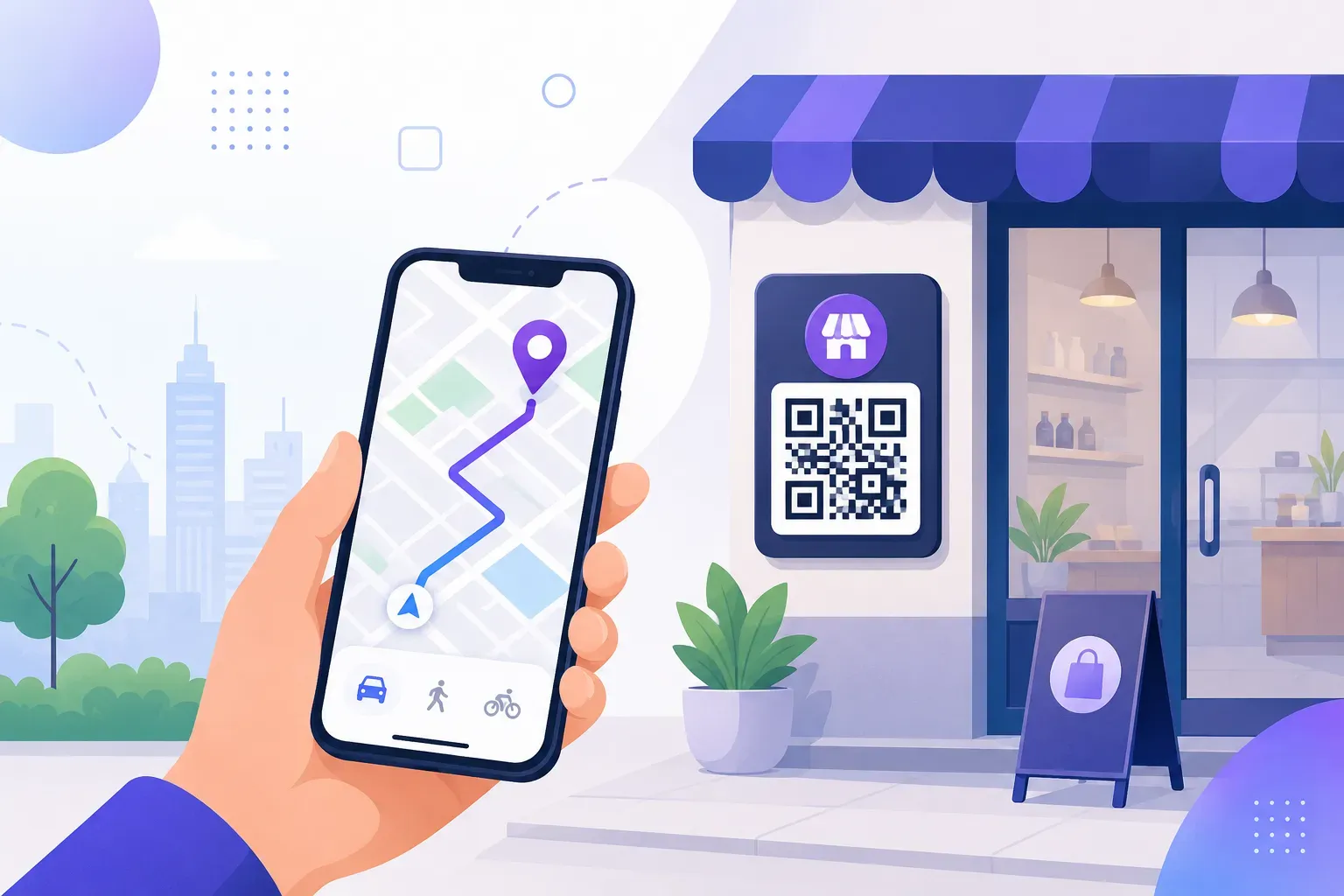
“Where exactly are you?” is the question that costs businesses customers. Someone typing your address into their phone can mistype a digit, land on the wrong branch, or give up at “Maple St vs Maple Ave.” A QR code for Google Maps ends that: one scan opens your exact pin, and the directions button is one tap away.
The setup takes about five minutes and costs nothing. This tutorial shows you how to grab the right Google Maps link (there are three kinds, and only one belongs in a QR code), how to turn it into a scannable code with QRocket, and where a location QR code earns its keep — from storefront signs to real estate riders to event entrances.
What Is a Location QR Code?
A location QR code is a QR code that opens a map pinned to a specific place when scanned. Technically it’s a standard URL code: the pattern encodes a Google Maps link, and the phone opens that link the way it opens any web address. Everything from our guide to URL QR codes applies here — the only difference is where the link points.
That simplicity is the appeal. A Google Maps link opens the Maps app if it’s installed and the maps.google.com website if it isn’t, so there’s no app requirement beyond a browser. The person scanning skips typing your address entirely — no typos, no wrong branch.
For a business, the payoff is measured in arrivals. A geo QR code on a flyer, business card, or window sign turns “look us up” into “tap Start.” And because Google maintains the destination, the code keeps working as long as your listing exists.
How to Get Your Google Maps Link
The QR code is only as good as the link inside it, so this part matters. Google Maps gives you three different URL types, and they are not interchangeable.
The share link — use this one. Search for your business or address in Google Maps, open the location, and click Share, then Copy link. You’ll get a short URL like https://maps.app.goo.gl/abc123. It’s compact — which keeps the QR pattern simple to scan — it opens the Maps app on phones, and it carries your exact pin.
The Place ID — skip it. Google assigns every listing a Place ID (a long string like ChIJN1t_tDeu...) meant for developers using the Maps API. It isn’t a URL, so pasted into a QR generator it won’t open anything.
The embed URL — skip it too. The “Embed a map” option produces an iframe snippet for websites. Inside a QR code it either fails or opens a bare map frame with no app handoff. If your link starts with <iframe, you’ve copied the wrong thing.
Two useful variations of the share link:
- A directions link. The format
https://www.google.com/maps/dir/?api=1&destination=Your+Business+Name+Cityopens Maps with your place pre-filled as the destination — the user just taps Start. Ideal for invitations and delivery instructions. - A full maps.google.com URL. On iPhones without the Google Maps app, a maps.google.com link opens reliably in the browser. If your audience is heavily iPhone, it’s the safest universal choice.
Before moving on, paste your copied link into a phone browser and confirm it lands on the right pin. A wrong pin in a printed code is permanent.
Step-by-Step: Create a Maps QR Code
With the link on your clipboard, the QR code itself takes about two minutes in the free QRocket generator. Here’s the full process.
1. Copy your Google Maps share link
Search for your location in Google Maps, click Share, and choose Copy link. Double-check the pin position first — for businesses in malls or large complexes, drag the pin to your actual entrance before sharing, so people navigate to your door and not the parking lot.
2. Open QRocket and select the URL type
Go to the QR generator and pick the URL content type. A Google Maps link is a normal web address, so the URL type handles it perfectly — no special “maps” mode needed.
3. Paste the link into the URL field
Paste the copied share link exactly as-is. Don’t retype it, don’t trim characters, and don’t add anything after it. The live preview updates instantly with your scannable code.
4. Style the code to match your brand
Adjust the colors and module shapes, and add your logo if you have one — our guide to adding a logo to a QR code covers the safe limits. Keep the pattern dark on a light background and watch QRocket’s scannability meter as you go. A short share link leaves plenty of error-correction headroom for styling.
5. Add a frame with a clear call to action
Wrap the code in a frame that says what scanning does: “Scan for directions” or “Find us on the map.” A labeled code gets far more scans than a bare square, because nobody scans a mystery. More wording ideas live in our QR code call-to-action examples.
6. Test the code on real phones
Scan it with an iPhone and an Android before anything goes to print. Confirm the right pin opens, then tap the directions button to make sure navigation starts cleanly.
7. Download in the right format
Export SVG for anything headed to a printer — it stays sharp at any size — and a high-resolution PNG for screens and documents. The code is static: free, no expiry, no scan limits, no account.
Create a free Google Maps QR code with QRocket — help customers find you in one scan. — Create Your Free QR Code →
Use Cases for Location QR Codes
A map directions QR code works anywhere someone needs to get from “interested” to “at your door”:
- Retail storefronts and flyers. A “Find our store” code on printed ads, receipts, and bags routes people to your exact entrance. Multi-location shops should give each branch its own code.
- Offices and meeting invites. Put the code on visitor emails and letterheads. New clients navigate without a single “where do I park?” call.
- Event venues. Tickets and reminder emails with a “Scan for venue directions” code cut day-of confusion. Pair it with our guide to QR codes for events.
- Food trucks and pop-ups. A share link pinned to today’s spot, posted as a QR code on social media, tells followers exactly where lunch is. Regenerate per stop — or use one dynamic code you re-point, as explained in static vs dynamic QR codes.
- Real estate listings. A directions code on yard sign riders and brochures sends drive-by buyers straight to the open house. More agent tactics are in our guide to QR codes for real estate.
- Restaurants. Delivery flyers, catering quotes, and “visit us” cards all benefit from a one-scan route to your door — one of several placements covered in restaurant QR codes.
One more scenario: wayfinding inside large buildings. Google Maps stops at the front door, but a QR code on lobby signage can open a floor map image or PDF instead — “Scan for a map of this floor.” Same technique, indoor destination.
Design Tips for Location QR Codes
A location code competes for attention on busy surfaces — windows, signs, flyers — so design for instant recognition.
Pair it with a map pin icon. A small pin symbol next to or inside the code signals “this is about directions” before anyone reads a word. In QRocket, a map pin logo in the center of the code does this without hurting scannability.
Make the CTA about the benefit. “Scan for directions” outperforms “Scan me” because it answers the only question that matters: what do I get? Other strong options: “Find us in one tap” and “Navigate to our door.”
Size for the scanning distance. Business cards and flyers need at least 2 × 2 cm; a window sign scanned from the sidewalk needs 4–5 cm or more. The working rule is one-tenth of the expected scanning distance.
Print and re-test. Screens flatter QR codes; paper is honest. Print a proof at final size and scan it under real lighting before the full run — our guide to printing QR codes covers resolution and materials.
From “Where Are You?” to “On My Way”
Every typed address is a chance to lose someone; a scanned pin isn’t. Grab your share link from Google Maps, paste it into the URL type, add a “Scan for directions” frame, and test on two phones — that’s the entire project. The code never expires, costs nothing, and works on every sign, card, and flyer you print from now on.
Create a free Google Maps QR code with QRocket — help customers find you in one scan. — Create Your Free QR Code →
Frequently Asked Questions
How do I get my Google Maps link for a QR code?
Search for your location in Google Maps, click Share, and copy the link. That short URL (usually maps.app.goo.gl/…) is what you paste into the QR code generator. Check that the pin sits on your actual entrance before you copy it.
Will the QR code open Google Maps or Apple Maps?
A Google Maps link opens the Google Maps app on Android and on iPhones that have it installed. On iPhones without the app, a maps.app.goo.gl link opens the map in the browser, while a full maps.google.com URL gives the most universal behavior. Either way, the user reaches your pin.
Can I create a QR code for directions to my business?
Yes. Use the Google Maps directions URL format — https://www.google.com/maps/dir/?api=1&destination=Your+Business+Name — which opens Maps with your place pre-filled as the destination. The person scanning just taps Start to begin navigation.
Should I use a Place ID or embed URL instead of the share link?
No. The Place ID is a developer identifier, not a link, and the embed URL is an iframe snippet for websites — neither works in a QR code. Always use the Share > Copy link URL, which is short, phone-friendly, and opens the Maps app.
Does a Google Maps QR code expire?
No. A static code encodes the link permanently, and Google maintains the destination. The code works as long as your Maps listing exists — but if your business moves, printed codes still point to the old pin, so you’d generate and reprint a new one.
Can one QR code cover multiple business locations?
Not with a single static maps link — each share link points to one pin. Print a separate code per branch, or link to a page listing all locations. A dynamic QR code is another option, since you can re-point it whenever you need.
Create a free QR code with custom colors, your logo and print-ready downloads — no sign-up.